To fix an unable-to-join-server error in The Isle Evrima, first try another server to separate a local problem from a server outage or capacity issue. Then restart Steam, update Evrima, verify its Steam files, and address any anti-cheat or firewall warning. Do not use Legacy server advice for Evrima.
Make sure the problem is not one server
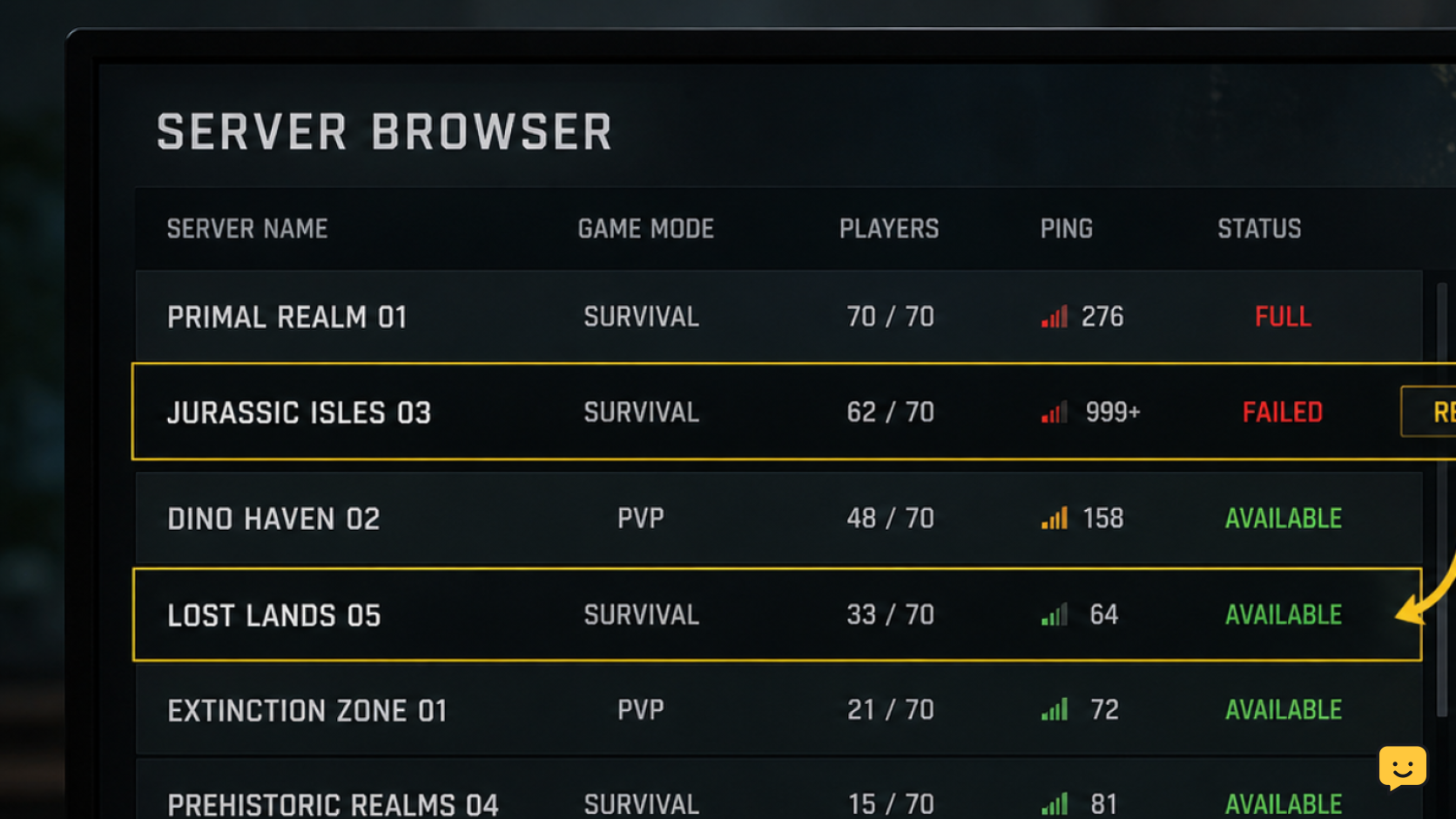
Open the Evrima server browser and try joining two other servers, preferably in the same region. If another server works, your installation and basic connection are working. The original server may be at capacity, in a restart cycle, using access restrictions, or temporarily unavailable.
For the related task, The Isle Evrima Server Browser Not Showing Servers covers the next checks separately.
- Clear server-browser filters that could hide alternatives, including region, ping, and password-related filters.
- Check whether the target server shows a full player count. Wait for a slot, then try again rather than repeatedly reconnecting.
- Try one official or well-known community server and one different region if your usual region has no available servers.
- If friends cannot join the same server either, contact that server’s staff or wait for its restart to finish.
Verification: If you successfully enter any other Evrima server, do not reinstall the game for a single-server failure.
Restart Steam and update the Evrima client
A server can reject a client that is still on an older build after an update. Exit The Isle, fully exit Steam from its system-tray menu, then open Steam again. Let any The Isle update complete before launching.
- In Steam, open Library and select The Isle.
- Check for an Update button or a download in progress.
- Open the game only after Steam shows it is up to date.
- Launch Evrima and retry the same server once.
Important: Evrima and Legacy are different versions of The Isle. A Legacy server cannot accept an Evrima client, and Legacy-specific branch or server-browser fixes may not solve an Evrima connection error.
Verification: If the error started immediately after a game patch and disappears after Steam finishes updating, the version mismatch is resolved.
Verify The Isle files in Steam
Incomplete or damaged local files can prevent a clean game launch or connection. Steam’s file check is the safest repair step because it compares installed files with the version Steam expects.
- Close The Isle.
- In Steam, right-click The Isle in your Library and choose Properties.
- Select Installed Files, then choose Verify integrity of game files.
- Wait for the check and any required download to finish.
- Restart Steam, launch Evrima, and test a server that was previously reachable.
Verification: Steam may report that all files passed, or it may reacquire files. In either case, test the connection before moving to more disruptive steps.
Failure path: If verification repeatedly downloads files or fails, make sure the drive has free space and that Steam’s download is allowed to finish before trying again.
Resolve anti-cheat, firewall, and network blocks
If the message specifically mentions anti-cheat, do not try to bypass it. Restart the PC first, then verify the game files again so Steam can restore game components. If the warning continues, follow the anti-cheat message shown on screen or use the server’s legitimate support channel.
- Restart your PC and launch Steam normally.
- Temporarily close network-monitoring, packet-filtering, or game-overlay utilities that you recently installed, then test again.
- In Windows Security or your third-party firewall, confirm that Steam and The Isle are allowed on private networks. Keep the firewall enabled.
- Restart your router once if no online game or Steam service is connecting normally.
- Avoid changing router ports or disabling security software unless the server operator or your network administrator gives a specific documented reason.
Verification: If changing to a different network, such as a trusted home connection, fixes the issue while the game is current, your usual network or firewall is likely blocking the connection.
Use a local settings reset only as a last resort
Community reports say that removing The Isle’s local folder can clear persistent connection-related oddities, but it can also reset preferences and keybinds. Treat this as a last resort after testing other servers and verifying files.
- Close The Isle and Steam completely.
- Back up your existing The Isle local settings folder before removing anything.
- Remove or rename the original local folder so the game can create fresh settings on its next launch.
- Start Evrima, set up only the required options, and test one server.
- Restore your keybinds manually if the reset solves the issue.
Stop here: If a clean settings reset does not let you join multiple functioning Evrima servers, collect the exact error, your region, the server name, and the time of the attempt for game or server support. Repeating the reset is unlikely to help.
Frequently asked questions
Why can I join some Evrima servers but not my friend’s server?
Usually, the issue is specific to that server. It may be full, restarting, offline, region-restricted, password-protected, or running a different current build state. Confirm that you can join another Evrima server, then ask the server staff whether the target server has an outage or access rule.
Does a full server cause an unable-to-join error in The Isle Evrima?
Yes, a full server can prevent a successful join. Check its displayed player count, wait for space to open, and retry later. If the server has a queue, follow its normal queue behavior rather than repeatedly disconnecting and reconnecting.
Will verifying Steam files delete my Evrima dinosaur?
No, verifying Steam files checks and restores installed game files. It is not intended to delete your server character. A local settings reset is different: it can reset personal preferences and keybinds, so back up settings before using that last-resort step.
Is The Isle Legacy the same as Evrima for server troubleshooting?
No. Legacy and Evrima use different game versions and server ecosystems. Make sure you are launching Evrima and attempting to join an Evrima server. Advice that changes branches or refers to Legacy server behavior should not be assumed to apply to Evrima.
What should I send to server support if Evrima will not connect?
Send the exact error text, the server name, your approximate region, the time and date of the attempt, and whether you can join other Evrima servers. Also state that Steam is updated and that you verified game files. This helps staff distinguish a server outage from a client-side problem.
Planning your next route? Use the The Isle Evrima map to find key locations before you move.