In VALORANT on PC, open Settings, select Crosshair, and edit the visible crosshair controls. To import a code, choose Import Profile Code, paste the full code, confirm the import, then select the new profile and check the reticle in the Practice Range. If the code is rejected or nothing changes, copy it again and use a fresh profile.
Open VALORANT Crosshair settings
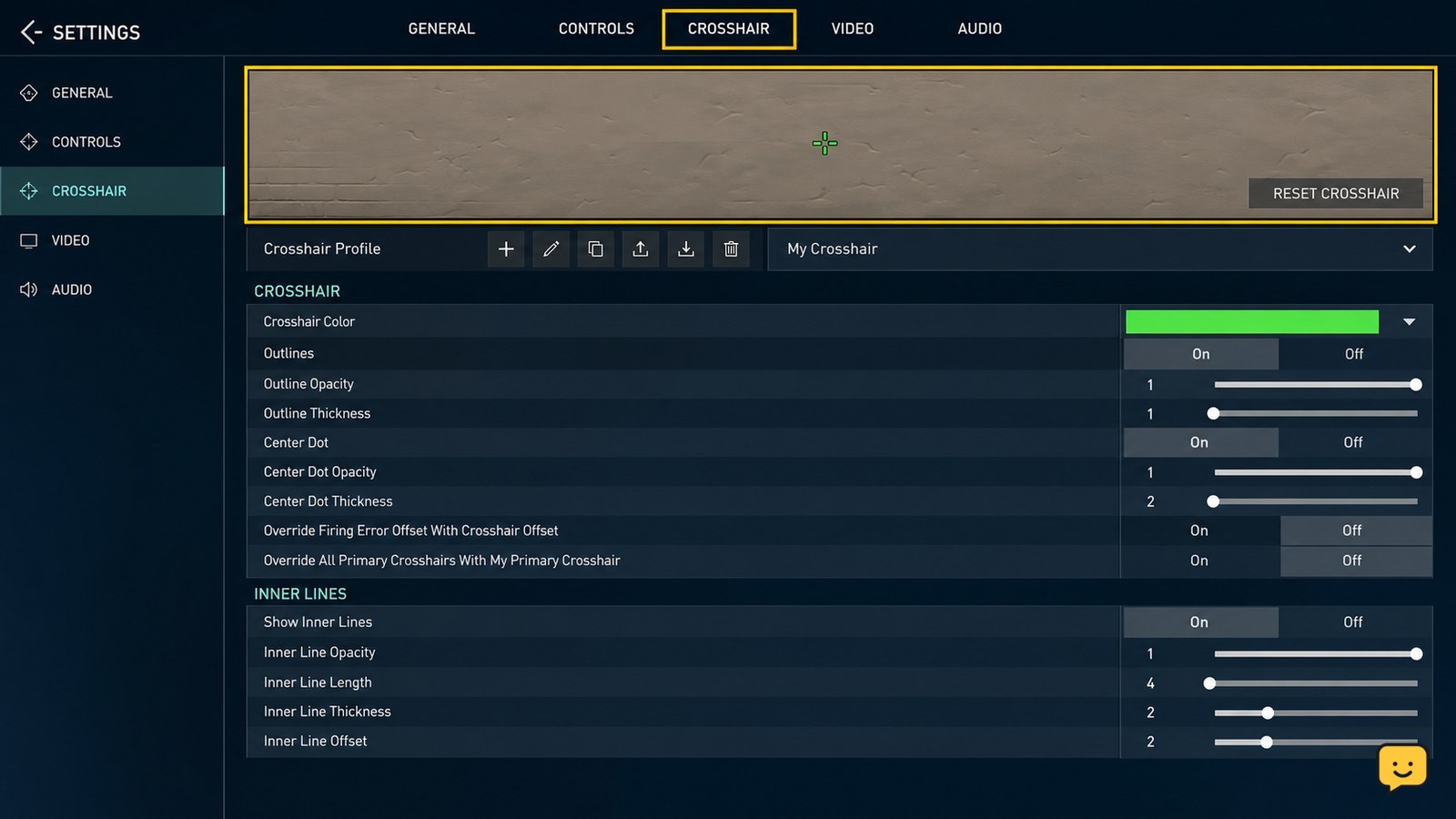
VALORANT crosshair settings are available from the game’s Settings menu on PC. From the main menu, open Settings, then select the Crosshair tab. The Crosshair page contains the controls for editing the reticle and managing profiles, as described by THESPIKE.GG and SteelSeries.
- Launch VALORANT and wait for the main menu.
- Select the gear icon or open Settings.
- Choose Crosshair.
Verify that the Crosshair page is open before changing anything. If you see another settings category, select Crosshair from the tab row rather than changing graphics, controls, or accessibility options.
Change the crosshair controls and keep a profile
VALORANT applies your crosshair changes from the Crosshair tab, where you can adjust the reticle using the controls shown for your installed game version. Make one change at a time, then check the preview or in-game reticle before making another adjustment.
- Select the crosshair profile you want to edit.
- Change the required appearance controls, such as the reticle color, outline, center-dot, or line settings when those options are available in your interface.
- Leave the settings page only after the preview reflects the change.
For a safer setup, preserve a working profile before experimenting. If the edited reticle becomes hard to see, switch back to the previous profile or reset the changed controls. A crosshair that looks clear in the menu can still blend into a map, so verify it in a live practice area.
Import a VALORANT crosshair profile code
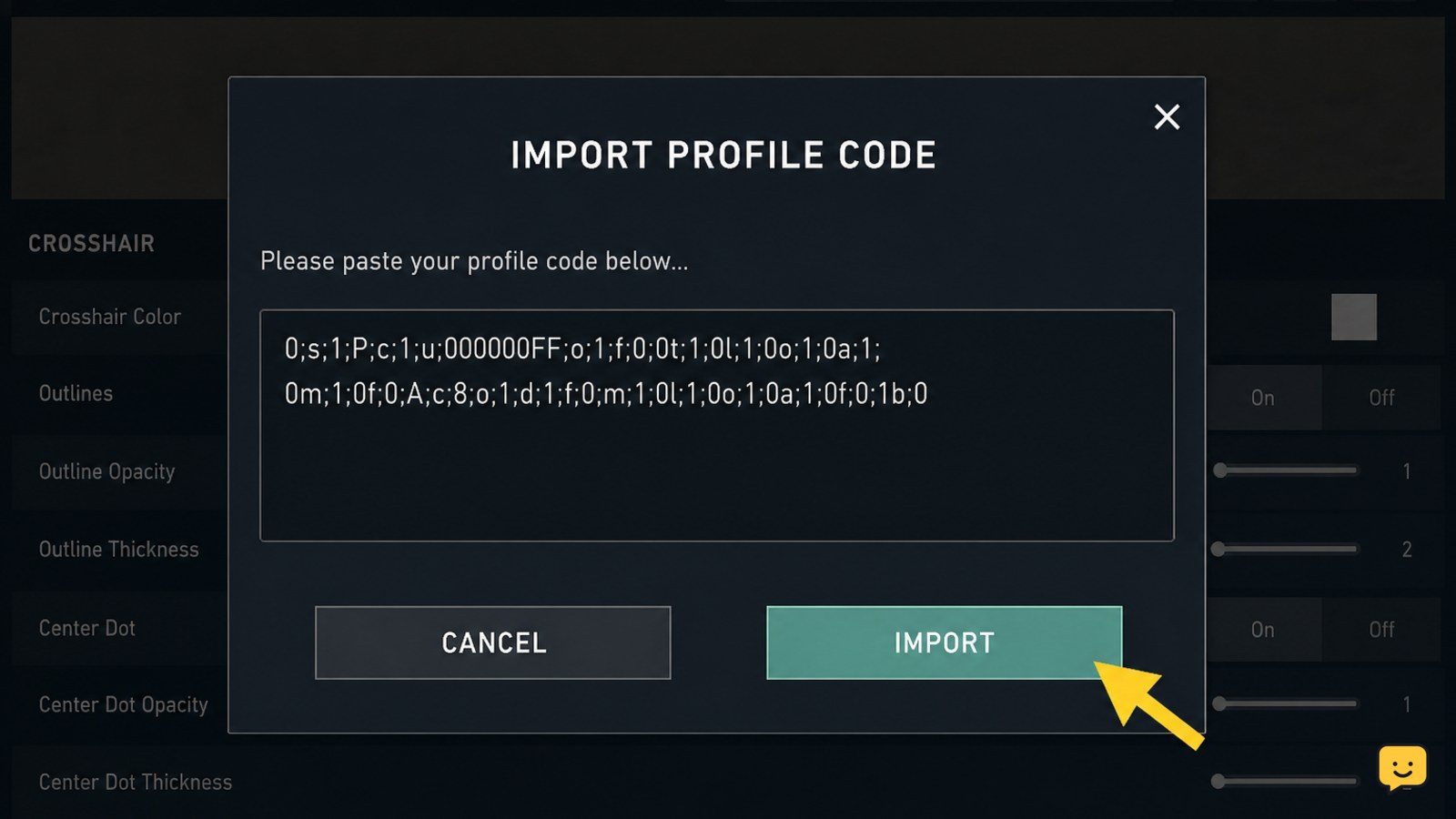
VALORANT imports a crosshair profile through the Import Profile Code button on the Crosshair tab. The documented sequence is Settings, Crosshair, Import Profile Code, paste the code, and confirm the import.
- Open Settings > Crosshair.
- Select Import Profile Code.
- Paste the complete code into the text box.
- Confirm the import using the button shown in the dialog.
- Return to the profile list and select the imported profile if it is not already active.
Do not manually alter the code before importing. Crosshair codes use structured characters and values; deleting a semicolon, adding a space, or copying only part of the string can cause the import to fail or produce an unexpected reticle. The SteelSeries example also shows that a code is a compact text string rather than a file to download.
Verify the imported reticle before a match
The Practice Range is the safest place to verify that the imported VALORANT crosshair is active and visible. Move the mouse, aim at targets and contrasting surfaces, and compare the on-screen reticle with the intended profile.
- Open the Practice Range from the play options.
- Check that the reticle appears at the center of the screen.
- Look at both light and dark surfaces to confirm its contrast.
- Fire a few shots and confirm that firing movement or error behavior matches the profile you intended.
If the reticle is missing or difficult to see, return to Settings > Crosshair and check the active profile, color, outline, and line visibility. ShowU’s VALORANT crosshair visibility fixes cover the next checks when the profile appears selected but the reticle cannot be seen.
Fix a rejected code or unchanged crosshair
A rejected import usually means VALORANT did not receive a complete valid code, while an unchanged reticle usually means the imported profile was not selected or the edit was made on another profile.
- Import button rejects the code: copy the original string again, paste it without extra text, and confirm that the code begins and ends where the source code does.
- Import appears successful but the reticle looks unchanged: return to the profile list and select the newly imported profile.
- Your previous crosshair is gone: check other profiles before editing again. If you overwrote the only copy, rebuild it from its original settings or code if you saved one.
- The reticle is visible in the menu but not during play: test in the Practice Range, then check visibility and contrast settings before joining a match.
Stop troubleshooting when the code remains rejected after a clean recopy and the Crosshair interface does not match these labels. Do not install third-party files or provide account information to obtain a crosshair.
Frequently asked questions
Can I import a VALORANT crosshair code without downloading anything?
Yes. A VALORANT crosshair code is pasted directly into the game from Settings > Crosshair > Import Profile Code. You should not need a file, external sign-in, or account details. If a website asks for any of those items, stop and use the code text only.
Why does my imported VALORANT crosshair not appear?
First check that the import was confirmed and that the imported profile is selected. Then open the Practice Range and inspect the reticle against light and dark surfaces. If it remains invisible, review the active profile’s visibility, color, outline, and line controls.
Will importing a crosshair code delete my current crosshair?
Importing into a separate profile helps preserve your current crosshair. Before confirming an import, check which profile is active and choose an unused profile when possible. If you overwrite an existing profile, you may need its original code or settings to restore it.
Can I change a crosshair manually after importing a code?
Yes. After importing, select the profile and edit the available controls on the Crosshair tab. Make small changes, confirm the preview, and test the result in the Practice Range before using it in a competitive match.
Browse more Valorant guides for help with this topic.