Open the account’s Security or Sign-In & Security settings, select Two-Factor Authentication, 2-Step Verification, or MFA, then follow the setup prompts. Prefer a passkey or authenticator app over SMS when the service offers it. Save the recovery codes offline, add a second recovery method, and test a fresh sign-in before ending the session.
Check the account and recovery options first
Two-factor authentication protects an account by requiring a password plus a separate verification step, but setup can cause a lockout if recovery access is missing. Confirm that your email address, phone number, trusted device, or recovery contact is current before changing sign-in settings.
Use the account provider’s official app or type its known web address yourself. If you reached the settings page from an unfamiliar sign-in alert, secure the account first by checking recent activity and ending unknown sessions.
Open the account’s Security settings
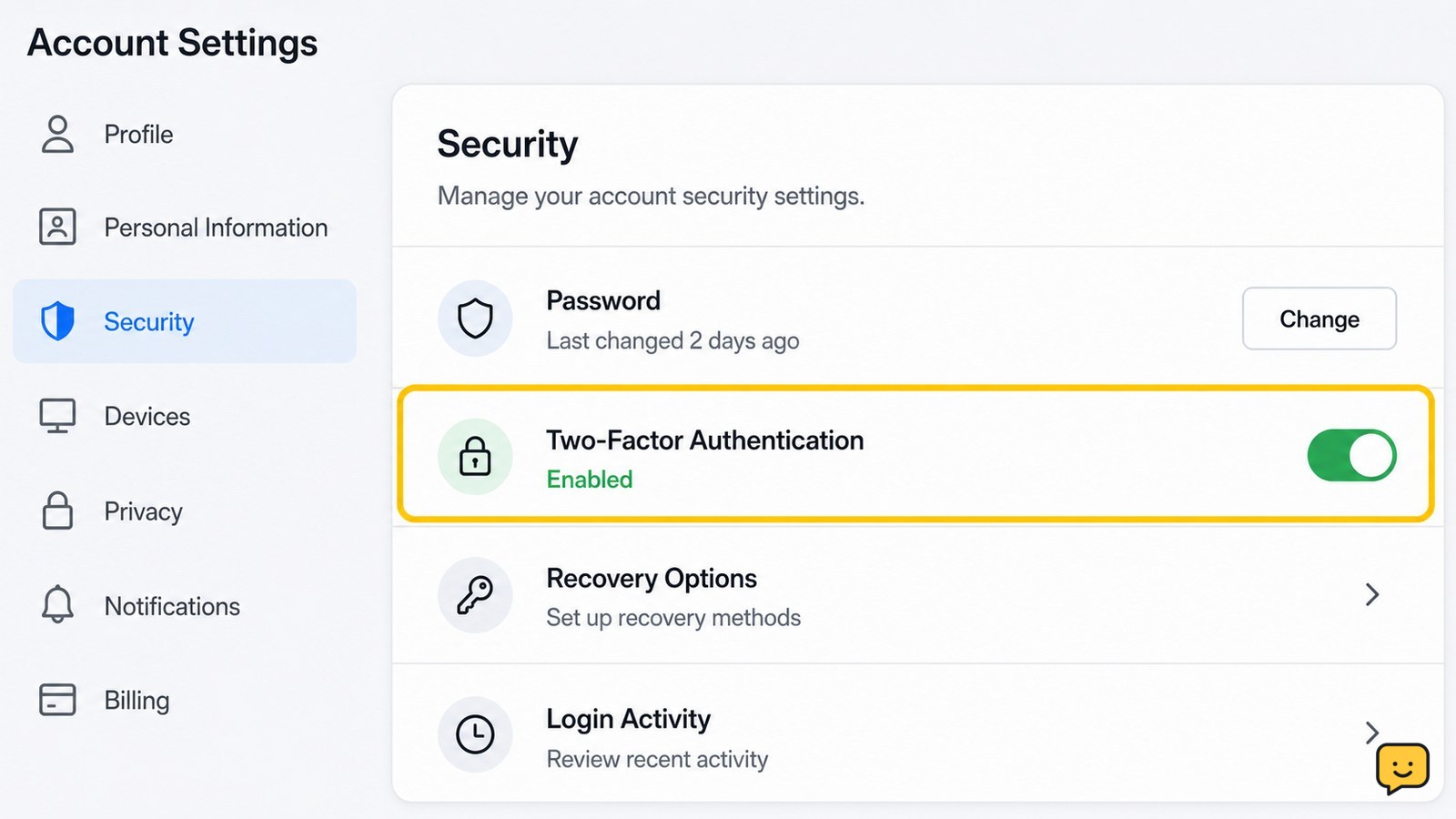
The setting is usually under Security, Sign-In & Security, Login and security, or Privacy and security. Look for Two-Factor Authentication, 2-Step Verification, Multi-Factor Authentication, or a similar label.
- Google: Open your Google Account, choose Security & sign-in, then select Turn on 2-Step Verification under “How you sign in to Google.”
- Apple: On an iPhone or iPad, open Settings and choose your name, then Sign-In & Security. On a Mac, open System Settings and follow the same account path.
- Microsoft: Open your account security settings, find Additional security and Two-step verification, then choose Turn on.
These paths come from the current Google, Apple, and Microsoft support instructions. Other providers may use different menu names, so search the provider’s own help center if the control is absent.
Choose the safest second factor available
Choose a passkey or authenticator app when the account offers one, then keep SMS or voice verification as a backup only when appropriate. A passkey uses a device unlock method, while an authenticator app produces rotating verification codes without relying on text-message delivery.
- Select the preferred method and authenticate with your password or existing security check.
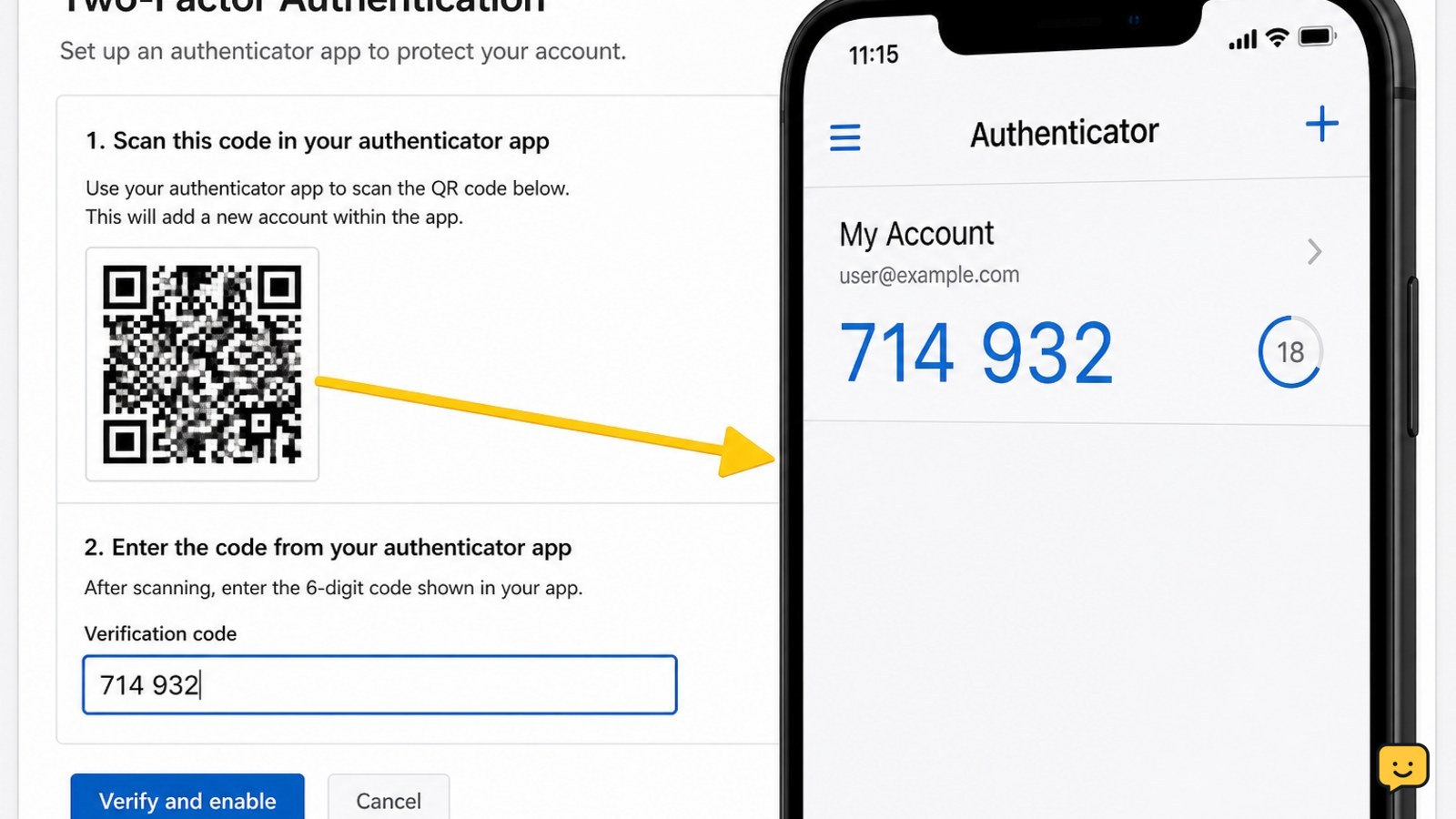
- For an authenticator app, scan the displayed QR code or enter the setup key manually.
- Enter the current code shown by the app, or approve the passkey prompt, to complete enrollment.
- Add a backup method only if you can keep it secure and access it independently.
Never share a verification code with someone who contacts you. A legitimate support representative should not need a code that was sent to you for sign-in.
Save recovery codes before finishing
Recovery codes are one-time alternatives for situations such as a lost phone, unavailable authenticator, or broken passkey device. If the provider displays them, download or print them and store them offline in a secure location such as a locked file or password manager.
Do not save the only copy in the account you are protecting. Do not post the codes in messages, email drafts, screenshots shared with others, or cloud notes without appropriate protection. If the provider lets you create a new set, treat the old set as invalid after replacement.
Verify the new sign-in method without ending access
Successful setup should leave the security page showing two-factor authentication as enabled and should require the new method during a fresh sign-in or security-sensitive action.
- Keep the current trusted session open.
- Open a private browser window or use another trusted device.
- Sign in through the official account page with your password.
- Complete the passkey, authenticator, SMS, or approval prompt.
- Confirm that the account opens and that your recovery method remains listed.
After this check succeeds, review active sessions and remove devices you no longer recognize. Do not sign out of every trusted device until at least one recovery route has been tested.
What to do if setup fails or the code is rejected
A rejected verification code usually means the setup was not completed, the code expired, the wrong account was selected, or the authenticator device clock is out of sync.
- No security option appears: Confirm that you are in the correct account and that the provider has not placed the feature under a separate login or identity section.
- The QR code will not scan: Use the manual setup key if the provider displays one, and do not photograph or share that key.
- The code is rejected: Wait for a new code, enter it before it changes, and enable automatic date and time on the authenticator device.
- You lost the phone or authenticator: Use a saved recovery code, trusted device, backup method, or the provider’s official account-recovery process.
- You are already locked out: Stop trying random codes and use only the provider’s published recovery steps. Do not disable security through an unverified message or caller.
If the account belongs to an employer, school, or other organization, an administrator may control the available methods. Contact that organization through its known support channel when the personal recovery options do not work.
Frequently asked questions
Is two-factor authentication the same as multi-factor authentication?
Usually, yes. Two-factor authentication uses two different types of proof, such as a password plus a code or passkey. Multi-factor authentication is the broader term and can include two or more verification factors.
Can I use text messages for two-factor authentication?
Yes, if the provider supports SMS verification, but use a passkey or authenticator app instead when available. Keep your phone number current and add a separate recovery method so a lost or disconnected phone does not leave you locked out.
What should I do if I lose the phone with my authenticator app?
Use a recovery code, trusted device, backup authenticator, or another method already added to the account. If none is available, use the provider’s official account-recovery process. Do not rely on unsolicited callers or messages offering to restore access.
Why is my authenticator code not working?
Check that the code belongs to the correct account, wait for a new code, and enter it before it expires. Set the device date and time to automatic. If several codes fail, stop and restart setup through the provider’s security page rather than repeatedly guessing.
Should I turn off two-factor authentication after setting it up?
No, not as a routine fix. If a method is unavailable, use a recovery code or add a replacement method while you still have access. Disable the feature only through the official account settings when the provider’s recovery instructions specifically require it.
Browse more Privacy & Online Safety guides for help with this topic.