Start by checking whether other devices are using the connection, then power-cycle your modem and router. Test VALORANT over Ethernet instead of Wi-Fi and try another router port. Verify the result in a low-stakes match. If packet loss continues on multiple devices or networks, stop changing game files and contact your internet provider because the fault may be outside your PC.
Check whether packet loss is local to VALORANT
VALORANT packet loss is more likely a home-network problem when other devices also lose connection, while a VALORANT-only symptom needs a narrower comparison.
- Check whether a phone, streaming device, or another PC is loading large downloads, cloud backups, or high-bandwidth video.
- Ask whether another device loses access at the same time as the match becomes unstable.
- Record the pattern: constant packet loss, short spikes, or a complete disconnect. A pattern that appears only during busy household periods points toward congestion or wireless interference rather than a graphics setting.
Verify: pause nonessential network activity and play a short low-stakes test. If the spikes stop, resume downloads one at a time to identify the competing device.
If it fails: continue with the router and wired-connection checks below. If every device is affected, skip game-specific changes and treat the connection as a wider network fault.
Power-cycle the modem and router safely
Restarting the modem and router can clear a temporary network-state problem before you change VALORANT or Windows settings.
- Exit the match and close VALORANT.
- Turn off or unplug the modem and router.
- Wait briefly, reconnect the modem first, and allow its normal connection lights to return.
- Reconnect the router and wait until your devices can browse normally.
Intel’s packet-loss troubleshooting guidance lists power-cycling the router as a basic corrective step. The exact light pattern varies by provider and hardware, so use normal internet access as the checkpoint rather than assuming a particular light color.
Verify: open a website, then run one low-stakes VALORANT test. If packet loss returns immediately, continue without repeatedly restarting the equipment.
If it fails: test the connection with Ethernet and another router port. Repeated restarts that only provide temporary relief suggest an underlying cable, Wi-Fi, router, or provider problem.
Switch from Wi-Fi to Ethernet
Ethernet is the clearest comparison when Wi-Fi may be introducing packet loss between the gaming PC and router.
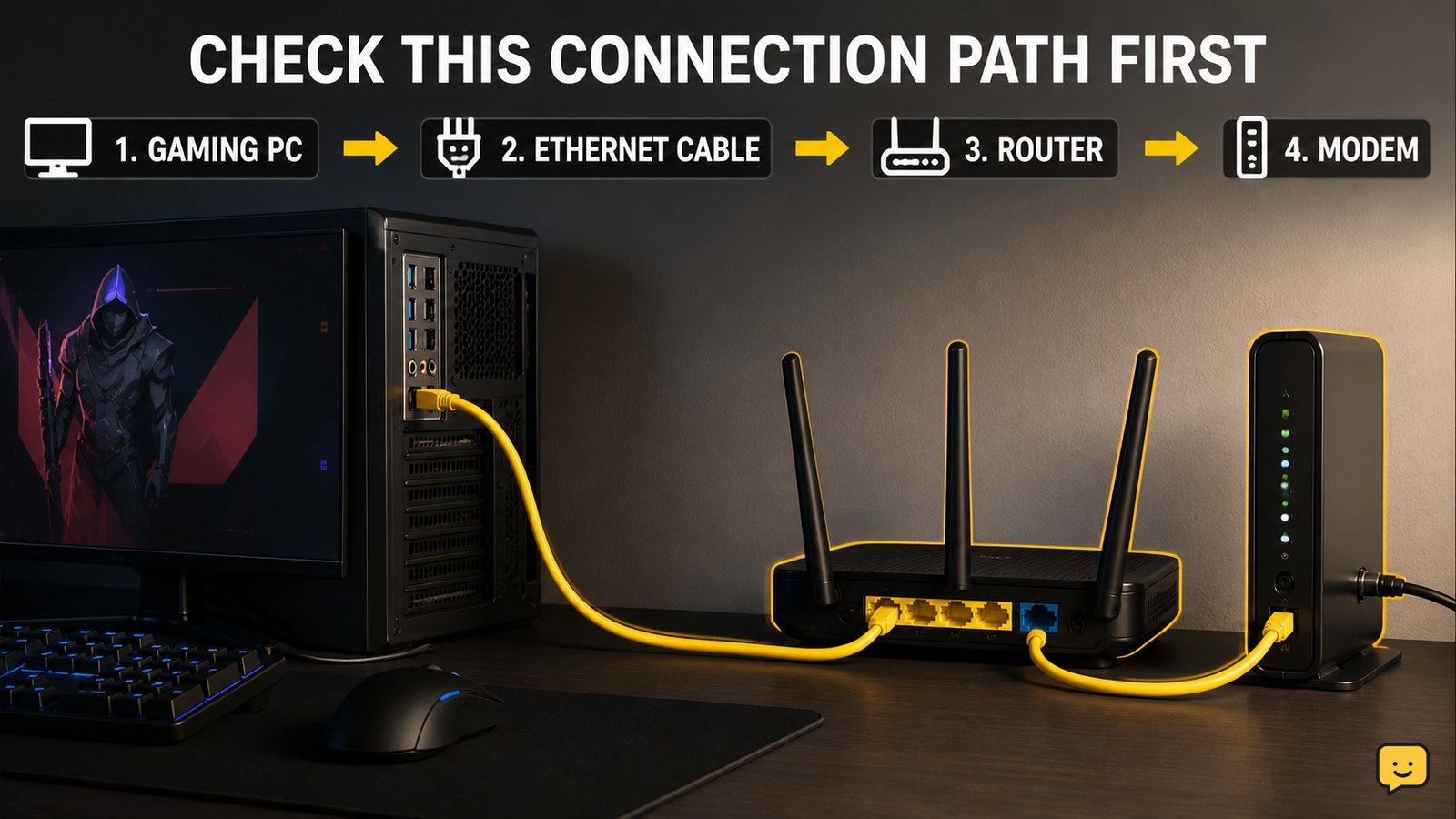
- Connect the PC directly to the router with an Ethernet cable.
- Disable Wi-Fi temporarily or confirm that Windows is using the wired connection.
- Keep other network activity unchanged and repeat the same type of low-stakes test.
Intel recommends switching from Wi-Fi to Ethernet when troubleshooting packet loss because it removes the wireless link from the local connection path.
Verify: packet-loss spikes should reduce or stop if the wireless link was the failing part. A stable wired test does not prove that VALORANT or the ISP is at fault; it identifies Wi-Fi as the next area to improve.
If it fails: replace the Ethernet cable if another one is available, then try a different router port. If both wired and wireless connections behave the same, move to an outside-network comparison instead of changing game files.
Change the Ethernet cable or router port
A different cable or router port can separate a damaged local connection from a broader internet problem.
- Unplug the Ethernet cable from the current router port and connect it to another available port.
- If packet loss remains, test with a known-good cable.
- Repeat the same short VALORANT test after each single change.
Intel’s guidance specifically includes changing Ethernet ports as a basic packet-loss check. Change one component at a time so the result remains useful.
Verify: if only one port or cable causes the problem, leave that component disconnected and replace it. If every port and cable produces the same loss, the fault is less likely to be the physical link between the PC and router.
Stop condition: do not continue swapping hardware after a stable connection has been confirmed. Keep the working cable and port in use and test for a complete low-stakes match before ranked play.
Decide when the problem is outside the PC
Persistent packet loss across wired and wireless tests, or across multiple devices, should be treated as a network-provider or route problem rather than a VALORANT installation problem.
- Test another device on the same home network while the VALORANT connection is unstable.
- If possible, compare with a separate trusted connection, such as another household network. Do not use an unfamiliar network that requires sharing sensitive account information.
- Check whether the issue follows the home network or stays with the gaming PC.
If every device is affected: contact your internet provider and report intermittent packet loss, the times it occurs, and whether Ethernet changed the result.
If only the PC is affected: check the PC’s cable, network adapter, and local background traffic next. Use the adapter manufacturer’s support instructions for driver or adapter diagnostics rather than installing random network utilities.
If only VALORANT is affected: record the match time, region or server information shown by the game, and the exact symptom before contacting Riot support. Do not assume that reinstalling the game will repair packet loss caused by the network path.
Frequently asked questions
Can low ping still cause packet loss in VALORANT?
Yes. Ping measures response time, while packet loss measures data that does not arrive correctly. A connection can show an acceptable ping and still produce brief loss spikes. Compare wired and wireless tests, pause other traffic, and watch whether the symptom affects other devices. If loss continues across both connection types, investigate the router, provider, or route rather than relying on ping alone.
Does changing VALORANT graphics settings fix packet loss?
Usually, no. Graphics settings affect rendering and frame delivery, not the network path between your PC and the match server. Packet loss should be diagnosed through network load, router restarts, Ethernet testing, cable or port changes, and device comparisons. If the symptom is stutter without connection warnings or other network symptoms, investigate frame rate and frame pacing separately.
Should I play ranked while testing packet loss fixes?
No. Use the Practice Range for basic stability checks and a low-stakes match for a real server-path test. Return to ranked only after the connection stays stable through a complete test session. If packet loss returns during ranked play, stop queueing and continue diagnosis rather than risking repeated disconnects or penalties.
What should I tell my internet provider about VALORANT packet loss?
Report intermittent packet loss, the approximate times, whether it affects multiple devices, and whether Ethernet or a different router port changed the result. Mention any complete connection drops and how long they last. These details help the provider distinguish a local Wi-Fi or hardware issue from a wider line or routing problem.
Browse more Valorant guides for help with this topic.