
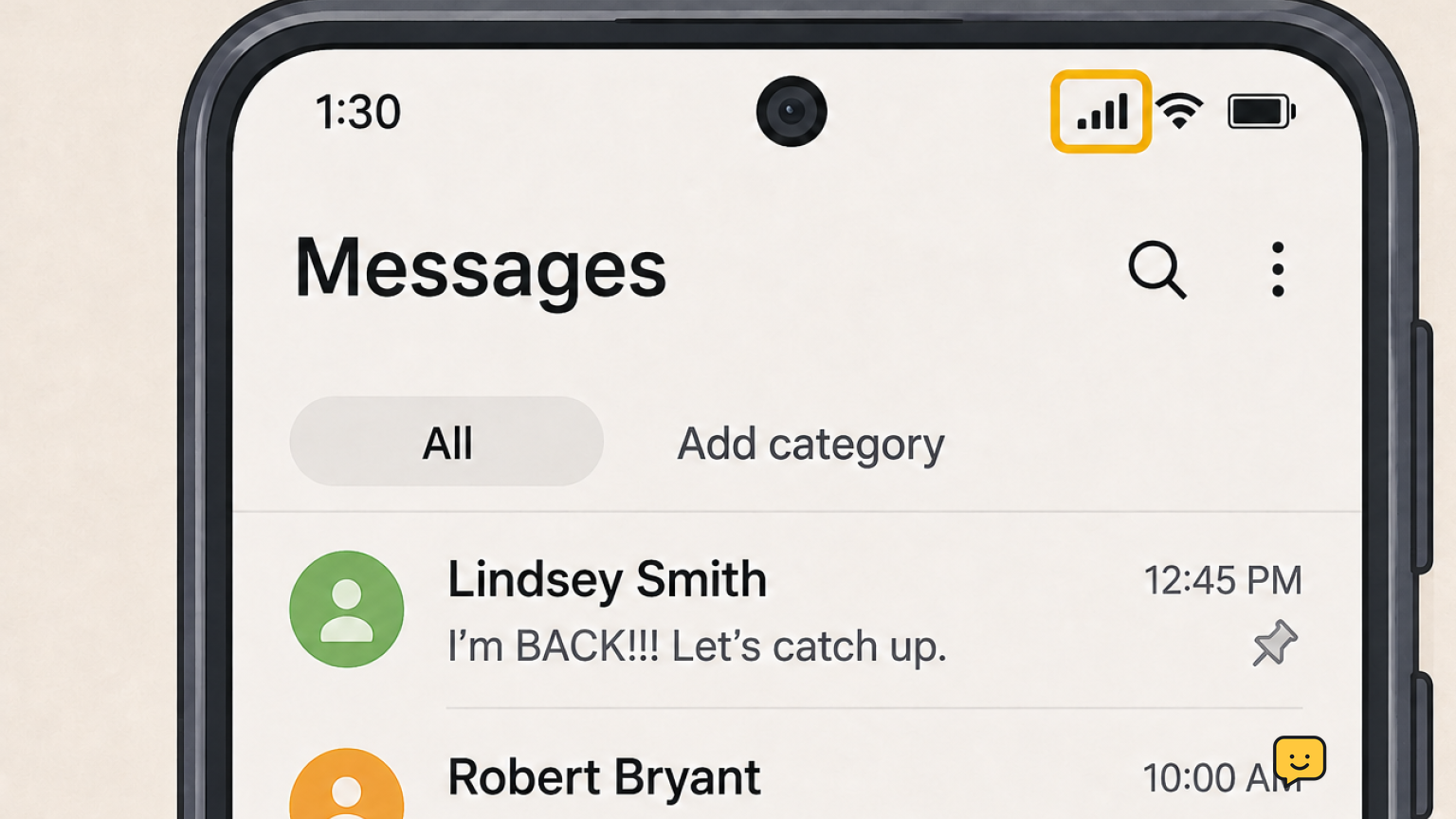
Start by confirming your Galaxy phone has mobile signal and can receive a test SMS from another number. Then restart the phone, check blocked conversations and numbers, confirm the default SMS app, and temporarily turn off RCS chats. If texts still do not arrive, clear the messaging app cache, reset mobile network settings, and ask your carrier to check SMS provisioning.
Check whether the problem is SMS or only one conversation
First, ask someone using a different phone and carrier to send a short, plain text such as “test.” Then ask a second person to do the same. This separates a phone-wide SMS problem from an issue with one sender, a group conversation, or an internet-based chat feature.
If one sender cannot reach you but other texts arrive, have that sender check the number they entered and whether they blocked your number. Also open the affected conversation and look for a blocked or spam status. If no one can reach you, continue with the checks below.
Verify: At least one new plain SMS appears in your messaging app. If it does, the incoming SMS service is working; investigate the specific sender or chat instead.
Check mobile signal and restart your Galaxy phone
Incoming SMS depends on your carrier connection, not on Wi-Fi. Look at the status bar for usable mobile signal. Move to a different location, such as near a window or outdoors, if signal is weak or missing. Confirm Airplane mode is off.
- Swipe down twice from the top of the screen.
- Make sure Airplane mode is off.
- Press and hold the Side button and choose Restart.
- After the phone reconnects to the mobile network, send another plain SMS test to your number.
Verify: The phone shows carrier signal and receives the test after restarting. If it has no service in an area where your carrier normally works, skip to the carrier and SIM checks.
Review blocked numbers and message filtering
A blocked sender can make it seem as though texts are not arriving. The exact labels vary by messaging app and software version.
- Open your current messaging app.
- Open its settings and look for Blocked numbers, Spam and blocked, or a similarly named option.
- Review the list for the sender’s number. Remove the block only if you recognize the number and want to receive its messages.
- Check any spam or blocked-message area for a misplaced conversation.
Do not unblock unfamiliar or suspicious numbers just to test messaging. Use a trusted contact for the test instead.
Verify: Have the unblocked contact send one new plain SMS. Old messages are not necessarily delivered again.
Confirm the default SMS app and check RCS chats
Your Galaxy phone should have one default SMS app. If you recently installed or switched between Samsung Messages and Google Messages, confirm that the app you use is selected as the default.
- Open Settings and go to Apps.
- Choose Choose default apps, then select SMS app. On some versions, this wording may differ slightly.
- Select the messaging app you intend to use, then open it and repeat the SMS test.
If you use Google Messages, open its settings and find RCS chats. Temporarily turn off RCS chats, then test with a plain SMS. Samsung community guidance identifies turning off RCS chats as a useful check when messages fail between messaging apps.
Verify: A new test arrives as a standard text. If only messages from one person fail, ask them to send a plain SMS rather than relying on a chat feature.
Clear the messaging app cache
Samsung recommends clearing the Messages app cache when messages are slow or do not send or receive. Clearing the cache removes temporary app files; it is different from clearing app data.
- Go to Settings > Apps.
- Select your active messaging app, such as Messages.
- Open Storage.
- Tap Clear cache, then reopen the app.
- Send another plain SMS test to your number.
Do not choose Clear data unless you understand the consequences for that app and have confirmed any important messages are safely available elsewhere.
Verify: New incoming messages appear normally after the cache is cleared. If they do not, continue.
Reset mobile network settings and inspect the SIM
If the phone has signal but still cannot receive texts, reset its mobile network settings. Samsung community guidance lists this as a next step. The reset can remove saved Wi-Fi networks and Bluetooth pairings, so make sure you know the necessary passwords before proceeding.
- Open Settings > General management > Reset.
- Choose Reset mobile network settings or the closest network-reset option shown on your phone.
- Confirm the reset, restart the phone if prompted, and wait for carrier signal to return.
- Test incoming SMS again.
If the issue remains, power the phone off and inspect the SIM card only if your model uses a physical SIM and you can safely access its tray. Reinsert it firmly, power the phone back on, and check for service. Stop if the SIM is damaged, the tray will not open normally, or the phone reports a SIM error.
Verify: Carrier signal returns and a new test SMS arrives. If not, the carrier needs to check the line.
Ask your carrier to check SMS service
Contact your mobile carrier when your Galaxy phone has persistent missing SMS messages after these checks, especially if multiple senders cannot reach you. Samsung advises verifying carrier service status and inspecting the SIM card.
Tell the carrier that the phone can or cannot make calls, whether it shows normal signal, when incoming texts last worked, and that you tested with more than one sender. Ask the carrier to check for an outage, a line-level SMS block, and whether your number is correctly provisioned for incoming SMS.
Stop here: If the carrier confirms an account or network issue, follow its repair steps rather than repeatedly resetting the phone. If the carrier confirms SMS is working on the line but the Galaxy still cannot receive it, contact Samsung Support for device-specific service guidance.
Frequently asked questions
Why is my Samsung Galaxy receiving calls but not text messages?
This can happen when the phone is connected to the mobile network but SMS service, messaging-app settings, RCS, or carrier provisioning has a problem. Test with a plain SMS from two people, restart the phone, check blocked numbers and the default SMS app, then ask the carrier to verify incoming SMS service on your line.
Will turning off RCS delete my text messages?
No, turning off RCS chats does not normally delete existing conversations. It makes new compatible messages use standard SMS or MMS when possible. Turn it off temporarily to test whether chat registration or app switching is preventing a message from arriving, then retest with a plain SMS.
Does resetting mobile network settings erase my photos or messages?
No, a mobile network reset does not erase your photos or normal message history. However, it can remove saved Wi-Fi networks, Bluetooth pairings, and certain network preferences. Record Wi-Fi passwords and expect to reconnect accessories before you start the reset.
Where do I find blocked text messages on a Samsung phone?
Open the messaging app you currently use and check its settings for Blocked numbers, Spam and blocked, or a similar menu. The name and location differ between Samsung Messages, Google Messages, and software versions. Review blocked entries carefully and only unblock numbers you recognize.
Should I change the SMS message center number myself?
No, contact your carrier before changing an SMS message-center setting. Carriers control the correct configuration for their network, and an incorrect value can make messaging worse. Carrier support can check SMS provisioning, outages, and any account-level restrictions first.
Browse more Mobile Devices guides for help with this topic.


