Use your email provider’s message-list controls to report suspicious mail as spam or phishing, block the sender, and delete the message without opening it. Unsubscribe only when you recognize the sender and independently confirm the company’s real website. If messages mention password changes, payment problems, or account alerts, stop treating them as ordinary marketing and visit the account directly.
Check the sender from the inbox list
Your email account’s message list can provide enough information to decide whether a message is ordinary marketing or suspicious without opening it.
- Read the sender address, not just the display name. On a phone, press and hold the message or use the account-details preview if your app provides one; do not tap a link in the message.
- Compare the domain after the @ symbol with the company’s official website, which you find through a trusted bookmark or a separate search.
- Look for warning signs such as a mismatched domain, unusual spelling, a random-looking address, or a message that combines advertising with an account threat.
A familiar brand name does not prove that the email is genuine. If you cannot verify the sender independently, treat the message as suspicious and continue without opening it.
Report suspicious mail as spam or phishing
The safest response to an unverified marketing message is to use the provider’s report control from the inbox or selection view.
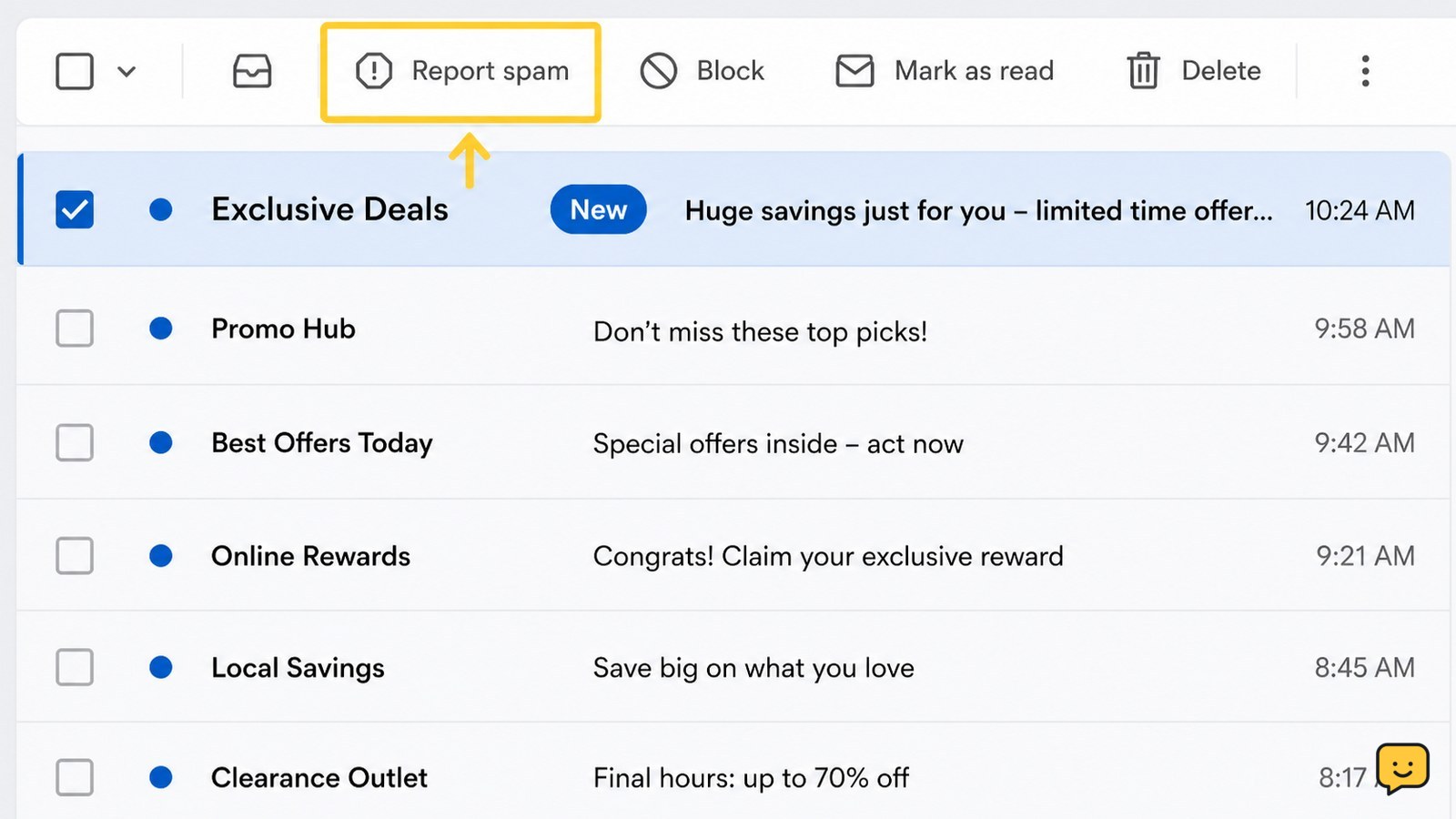
- Select the message without opening it.
- Choose Report spam, Report junk, or Report phishing, depending on what your provider shows.
- Confirm the action, then check that the message leaves the inbox and appears in the provider’s spam or junk folder.
The FTC advises using spam filters and reporting unwanted or deceptive email rather than responding to it. Choose phishing when the message impersonates a company, requests information, or uses a false account problem to prompt action. Choose spam or junk for ordinary unwanted advertising that does not show clear impersonation.
If the report option is missing, move the message to Spam or Junk manually and delete it. Do not open it just to find more controls.
Block the sender when one address keeps returning
Blocking an address tells the email provider to divert future messages from that specific sender, but it may not stop a campaign that changes addresses.
- Select the unwanted message from the list.
- Use the provider’s Block sender or Block address command.
- Confirm that new mail from that address is sent to Spam, Junk, or another filtered location.
Verify the result by checking the blocked-senders list in your account settings. If later messages arrive from different addresses or domains, blocking each one may have limited value. Report the new messages and create a filter for a stable, verified pattern such as a legitimate sender domain or recurring subject phrase. Avoid broad filters based only on words like “sale” or “offer,” because they can hide wanted receipts and service notices.
Unsubscribe only after independent verification
An unsubscribe control is appropriate only for a mailing list you recognize and can verify outside the suspicious message.
- Do not use the unsubscribe link in an unfamiliar email.
- Open the company’s official website from a saved bookmark, a known app, or a fresh search for the company—not from the email.
- Sign in there and change email preferences, or use the company’s published support page to stop promotional mail.
- Return to your inbox and report the original message if it still appears suspicious.
For a familiar retailer, newsletter, or service, your provider may show an Unsubscribe button beside the sender in the message list. Use it only when the sender and subscription are expected. If selecting it opens a strange website, requests a login, or produces a warning, close the page and stop.
Verify that future messages are being filtered
Success means the unwanted messages no longer appear in the inbox, while important mail such as receipts, password notices, and billing messages remains available.
- Send or wait for a legitimate test message from a known mailing list if you need to confirm filtering.
- Check Spam or Junk for false positives before permanently deleting large batches.
- Review blocked senders, filters, and rules if messages continue reaching the inbox.
- Confirm that no unexpected forwarding address or rule is sending mail elsewhere.
Malwarebytes recommends keeping the spam filter active, reporting spam and phishing, and reviewing filtering controls. If the volume rises suddenly or includes repeated account alerts, do not keep refining marketing filters. Visit the affected service directly, change its password if needed, and enable multifactor authentication through its official security settings.
Frequently asked questions
Can I stop spam without opening the email?
Yes. Select the message from the inbox list and use Report spam, Report junk, Report phishing, Block sender, or Delete. The exact controls depend on the provider. If the message is suspicious, do not open it to find an unsubscribe link.
Is it safe to unsubscribe from every marketing email?
No. Unsubscribe only from a mailing list you recognize after independently verifying the sender. An unfamiliar unsubscribe link can lead to a deceptive website or confirm that your address is active. Report unverified messages instead.
Why do blocked marketing emails keep arriving?
Blocking usually applies to one address, while senders can rotate addresses or domains. Report each new message and use a narrow filter only when you can identify a reliable pattern. Do not create a broad rule that could hide receipts or security notices.
What if a marketing email says my account will be closed?
Treat the warning as suspicious until verified. Do not click the message. Open the company’s official app or type its known website address separately, then check account notifications there. Report the email as phishing if the alert is not present in the account.
For more current help, browse all Privacy & Online Safety guides.