
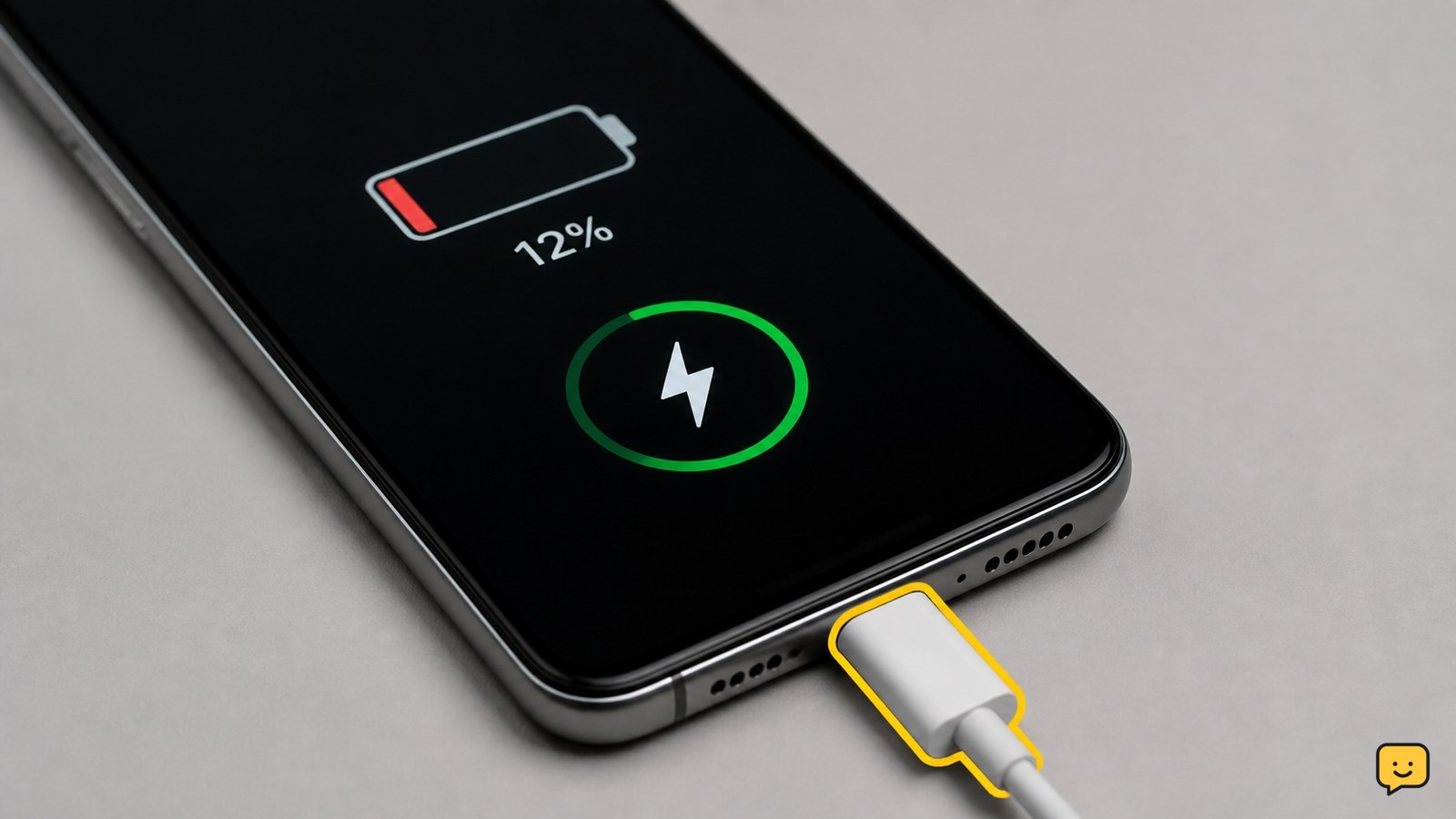
A charging icon only confirms that the phone detects a power connection; it does not prove that the battery is receiving enough power. Try a different wall outlet, compatible cable, and adapter, then inspect and safely clean the port. Remove the case, stop demanding apps, cool the phone, restart it, and verify whether the percentage rises after 30 minutes.
Check whether the charger is delivering usable power
The phone can show a charging icon when it detects a connection even if the charger, cable, outlet, or contact is delivering too little power.
- Unplug the charger from the phone and wall.
- Connect the adapter directly to a different wall outlet.
- Try a known-good cable and a compatible adapter rated for the phone.
- Keep the screen off for 10 minutes, then check the percentage.
If the battery percentage begins rising, replace the failed cable, adapter, outlet, or hub. If the icon appears but the percentage still falls, continue with the port and heat checks.
Inspect and clean the charging port safely
A blocked or contaminated charging port can let the phone sense a plug without maintaining reliable electrical contact.
- Power the phone off if possible and unplug it.
- Shine a light into the port. Look for pocket lint, dust, moisture, bent contacts, or a connector that no longer sits firmly.
- Let visible moisture dry naturally. Do not add liquid or force an object into the port.
- Remove loose, dry debris only with a soft, dry brush and gentle strokes around the opening.
Reconnect the cable without forcing it. A firm connection and a rising percentage verify that the port was the cause. If the plug remains loose or charging cuts in and out when the cable moves, stop using that port and seek repair.
Cleaning the port and testing different charging accessories are also recommended troubleshooting actions in the Veger charging guide, although the exact port design varies by phone.
Reduce heat and battery use while charging
A phone may detect power but gain little or no charge when heat, gaming, video, navigation, or a failing app consumes power as quickly as the charger supplies it.
- Remove the phone from direct sunlight and take off a thick case.
- Close games, video calls, navigation, and other demanding apps.
- Turn the screen off and leave the phone untouched for 20 to 30 minutes.
- Try charging again in a cool, ventilated place.
Success means the percentage rises while the phone is idle. If the phone becomes hot again, the battery drains while idle, or charging repeatedly pauses, disconnect it and continue only after it has cooled. Persistent heat can indicate a battery, charger, or internal power fault.
Restart the phone and check for a software charging error
A restart can clear a temporary charging-status error, but it cannot repair a damaged cable, port, battery, or charging circuit.
- Disconnect the charger and restart the phone normally.
- After it starts, connect the known-good charger again.
- Check the battery percentage after 10 minutes with the screen off.
- Install an available system update if the phone remains stable.
On iPhone, check Settings > General > Software Update. On Android, the wording varies by manufacturer; look under Settings > System or Settings > Software update. The Veger guide also lists updating the operating system as a possible iPhone troubleshooting step, but menu names and availability differ by model.
If the icon appears only after a recent update or disappears after restarting, record the phone model and software version before contacting support. Do not erase the phone as a first charging fix.
Find out whether the battery is draining faster than it charges
The charging icon can be genuine while the battery percentage stays flat because the phone is using more energy than the charger provides.
- Charge with the screen off for 30 minutes.
- Compare the starting and ending percentages.
- Review battery usage for an app with unusually high activity.
- Temporarily stop or uninstall a recently added app only if it is clearly consuming power.
If the battery rises while powered off but not while the phone is in use, power consumption is the likely explanation. If it does not rise even while powered off, suspect the charger, port, battery, or charging circuit instead.
Choose repair when the hardware test fails
Hardware service is the safest next step when a known-good charger, cable, clean port, cool idle test, and restart do not make the percentage increase.
Before service, back up the phone if it stays on long enough. Note whether wireless charging works, whether the connector feels loose, and whether the battery percentage changes only when the cable is held at an angle. These observations help distinguish a port fault from a battery or internal charging fault.
Do not open the phone or replace a built-in battery without the correct parts, tools, and repair procedure. If wireless charging works but wired charging does not, use wireless charging only as a temporary option if the phone remains cool and the manufacturer supports it. If neither method works, stop charging and arrange qualified service.
Frequently asked questions
Why does my phone show charging but the percentage keeps dropping?
The phone may be using more power than the charger supplies. Turn off the screen, stop games and video, remove a heat-trapping case, and charge from a wall adapter for 30 minutes. If the percentage rises while idle or powered off, heavy use or an app is consuming the difference. If it still drops while idle, test another charger and cable, then arrange service if the result does not change.
Can a dirty charging port cause the charging icon to appear?
Yes. Debris or moisture can allow the phone to detect a connector while preventing stable contact. Power off the phone, let moisture dry naturally, and remove loose dry debris with a soft brush. Never use metal tools, liquid, or force. If the connector remains loose or charging changes when the cable moves, the port may be damaged.
How long should I wait before deciding the phone is not charging?
Leave the phone connected to a compatible wall charger with the screen off for about 30 minutes. A very low battery may take several minutes before the percentage changes. If the percentage is unchanged or lower after that test, repeat it once with a known-good cable and adapter. Continuing to swap chargers is not appropriate if the phone is hot, swollen, wet, or damaged.
What should I do if the phone charges wirelessly but not by cable?
Use the wireless result as a clue that the battery can accept power, while the cable, port, or wired charging circuit may be faulty. Inspect and gently clean the port, then test one known-good wired charger. If wired charging still fails, use wireless charging temporarily only if the phone stays cool and supports it, and arrange port or charging-circuit service.
For more current help, browse all Mobile Devices guides.


