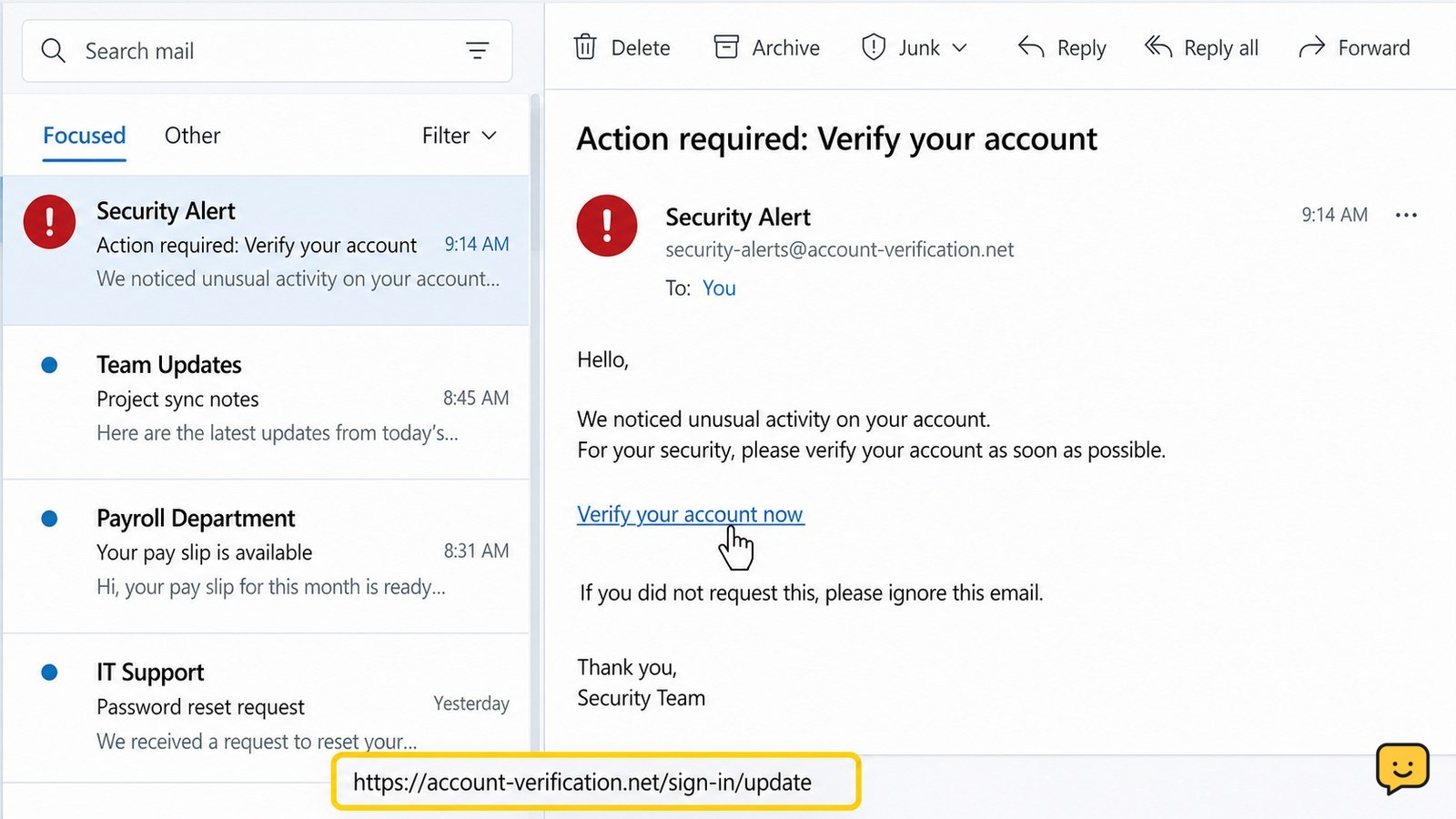
Do not click the link. First, inspect the sender and message context, then hover over the link on a computer or copy its address without opening it. Check the true domain, suspicious redirects, misspellings, and unexpected login requests. If anything does not match, stop and visit the service through its official app or typed website instead.
Keep the message unopened and remove the pressure to act
Start with the message itself, not the link. Read the sender address, subject, greeting, and reason for contact. A message can use a familiar company name while coming from an unrelated address. Treat unexpected delivery notices, account warnings, refund claims, document shares, and password alerts as unverified until you confirm them elsewhere.
Urgency is a useful warning sign, but it is not proof by itself. A legitimate service may send a security notice, yet you should still open the service’s official app or type its known website address manually rather than using the email button.
Verification: You should be able to explain why the sender contacted you and confirm the event from a separate, trusted channel. If you cannot, do not continue.
Reveal the real link without opening it
On a computer, move the pointer over the link without clicking. Most email apps show the destination in a status area or small preview. On a phone or tablet, press and hold the link only if your email app displays a preview or copy option without loading the page. Choose the option that copies or previews the address; do not choose the option that opens it.
Some email apps hide destinations, block previews, or open a link when you touch it. If you cannot reveal the address safely, stop. Use the service’s official app or typed website instead of trying to investigate the message link.
Expected result: You have the full web address as visible text, without visiting the destination.
Check the registered domain, not just the brand name
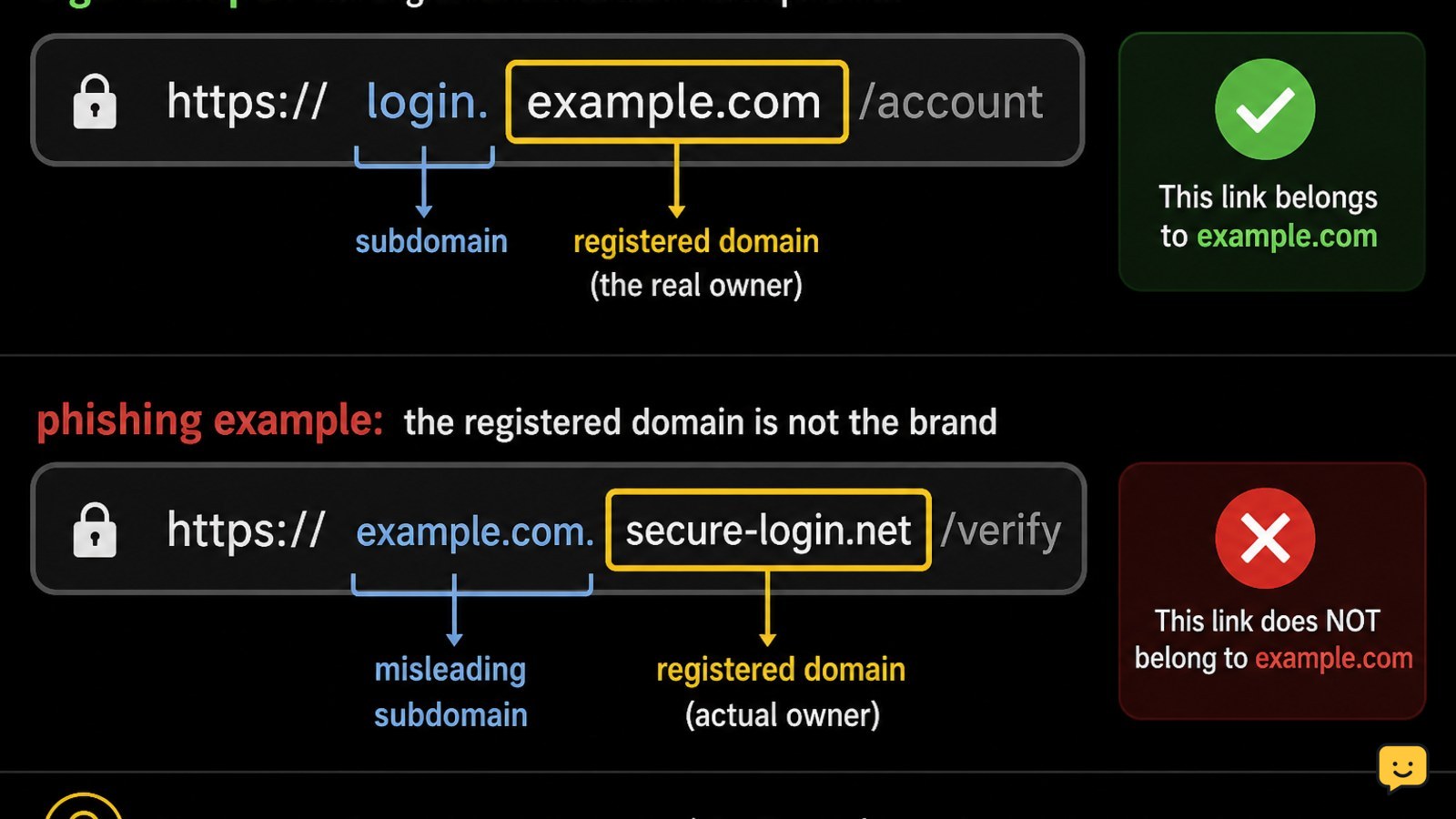
Read the address from right to left. In https://account.example.com/security, the important domain is example.com. Words before that domain can be subdomains and may be controlled by someone else. For example, example.com.attacker.test belongs to attacker.test, not example.com.
Look for misspellings, extra hyphens, substituted letters, unexpected country-code endings, unfamiliar domain names, and domains that only resemble the organization. A padlock or https does not prove that the site is legitimate; it only describes the connection to that domain.
Be cautious with shortened links and tracking links. They can hide the final destination, so do not open them simply to find out where they lead. If the address cannot be tied clearly to the expected organization, treat it as unsafe.
Inspect the address for redirects and suspicious requests
After confirming the main domain, scan the rest of the address for signs that it is trying to hide its purpose. Long strings of random characters, several unrelated domains, repeated redirect terms, and a page that asks you to sign in immediately deserve extra caution. URL parameters may contain tracking information, so do not post a complete private link publicly.
A real destination can still contain long technical addresses, so length alone is not a verdict. The decision should come from the combination of the sender, context, registered domain, and requested action.
Stop condition: If the message asks for a password, one-time code, payment, recovery information, or an unusual download, do not proceed through the email. Visit the account through its official app or a website address you enter yourself.
Use a link scanner only when the address contains no private data
For an address that is still unclear, a reputable URL reputation service can provide another signal. Community discussions commonly identify VirusTotal and URLScan as useful places to check suspicious links, but a clean result is not proof of safety and a recent phishing page may not yet be listed.
Before submitting anything, inspect the address for private tokens, invitation codes, password-reset strings, customer numbers, or other information that could grant access. Do not submit those addresses to a public scanner. Instead, discard the message and reach the organization through its official support channel.
Never download a scanner, browser extension, or “verification tool” offered by the suspicious message. If a scanner flags the address, shows multiple warnings, or returns no useful result, do not open it.
Choose the safe action after the inspection
If the sender, context, domain, and requested action all match, you still do not need to use the email link. Open the organization’s official app or type its known website address into the browser. Find the same alert, order, document, or account setting there. This confirms the request without trusting the message.
If the link looks suspicious, use your email provider’s phishing or spam report control, then delete the message. Do not reply, forward it to friends, or click an unsubscribe link in an unexpected message.
If you clicked the link but entered nothing, close the page and review recent sign-ins and downloads. If you entered a password, change it from the official account site, change any reused password, end unfamiliar sessions, and enable two-factor authentication. If you entered a payment detail or verification code, contact the relevant provider immediately through a trusted channel.
Frequently asked questions
Can I check a phishing link by copying it?
Yes, copying the address is usually safer than opening it, provided your email app offers a copy option without loading the page. Paste it into plain text so you can read the full domain. Remove or avoid submitting private reset tokens, invitation codes, or account identifiers to public scanning services.
Does HTTPS mean an email link is safe?
No. HTTPS encrypts the connection between your browser and the website, but it does not prove who operates the domain. A phishing site can also use HTTPS. Check the registered domain and confirm the request through the organization’s official app or typed website.
What if the email appears to come from someone I know?
Treat it as unverified if the request is unusual, urgent, or asks for money, credentials, codes, or a download. Contact the person using a separate method you already trust. Do not reply to the suspicious message or use its contact details.
What should I do if I opened the link but did not enter information?
Close the page, avoid downloading anything, and check whether a file was saved or an unexpected browser extension was added. Run your device’s normal security checks, then review recent account activity if the page displayed a login form or security warning.
What should I do if I entered my password on the page?
Change the password immediately from the official account website or app, not from the email. Change it anywhere else you reused it, end unfamiliar sessions, review recovery details, and enable two-factor authentication. If you entered a payment detail or code, contact the provider through a trusted channel.
Browse more Privacy & Online Safety guides for help with this topic.