If The Isle Evrima has no sound, first select the correct Windows output device and raise the game in Volume Mixer. Then check Evrima’s Audio settings, disable conflicting spatial or surround processing, restart the game, and verify Steam files. If other apps also have no sound, fix Windows or the audio device before changing game files.
Confirm the problem is Evrima-only
Before changing game files, play audio in another application and check Windows system sounds. If those are also silent, the problem is outside The Isle. Confirm that the headset or speakers are powered, connected, and selected as the active Windows output.
- Press Windows + I, open System, then choose Sound.
- Select the intended headset, speakers, monitor, or HDMI device under output.
- Use Windows’ test control or play a short video.
- Launch The Isle Evrima only after Windows audio works.
Verify: If other applications play normally but Evrima is silent, continue. If everything is silent, fix the Windows audio device first and do not reset Evrima files yet.
Select the right output device and mixer level
Windows can route The Isle to a different device than the one selected as the system default. This is common after connecting a Bluetooth headset, monitor, controller headset, or USB audio interface.
- Start The Isle Evrima and leave it open at the main menu.
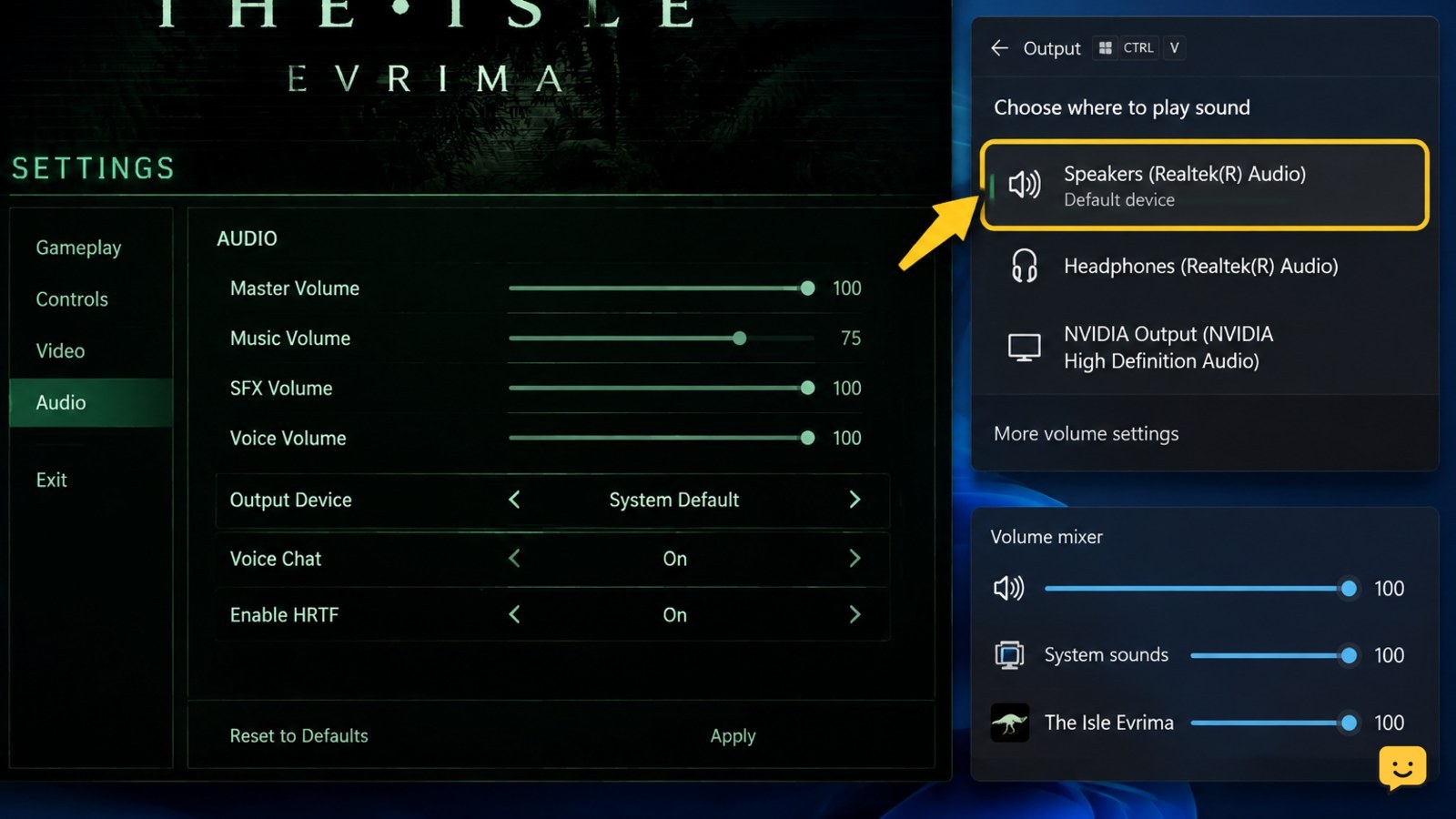
- Open Settings > System > Sound > Volume mixer in Windows.
- Find The Isle in the app list and confirm its output device is Default or the exact headset or speaker you are using.
- Raise the app volume and confirm Windows is not muting it.
- Check the physical headset volume, inline mute switch, monitor volume, and Bluetooth connection.
Verify: Move through the Evrima menu or enter a low-risk area and listen for menu, movement, or environmental audio. If the game is missing from Volume Mixer, close and relaunch it after selecting the correct device.
Check Evrima audio and spatial processing
Evrima’s audio controls are separate from Windows’ master volume. Open the game’s settings and confirm the master and effect sliders are not at zero. Music can be lowered for stealth, but it should not determine whether movement and environment effects are audible.
- Open Evrima’s Settings and locate the Audio page.
- Raise master, effects, and other relevant gameplay channels to a moderate level.
- Apply the changes, return to the menu, and restart the game.
- Temporarily disable Windows Sonic, Dolby Atmos, DTS, headset surround, or other spatial processing if the game is silent, distorted, or missing directional effects.
- Test again with ordinary stereo output.
Spatial processing is an audio-path troubleshooting step, not a required Evrima setting. Once sound works, re-enable one enhancement at a time and stop if the problem returns.
Verify: You should hear consistent audio rather than only music or only voice effects. If Evrima remains silent while other games work, continue to file verification.
Verify Evrima files through Steam
A damaged or incomplete installation can affect game assets, including audio files. Steam’s file-verification tool checks the installed files and replaces items it identifies as missing or corrupted.
- Exit The Isle Evrima completely.
- Open Steam and go to Library.
- Right-click The Isle, choose Properties, and open Installed Files.
- Select Verify integrity of game files and wait for the process to finish.
- Restart Steam, launch the Evrima branch, and test sound before opening other overlays or audio software.
Verification may reacquire files and can take time. It does not change your Steam account or bypass server security. If Steam reports that files were repaired but audio is still missing, continue with drivers and configuration.
Update or reset the audio path
Outdated or conflicting audio drivers can cause silence, crackling, or stuttering in PC games. Community troubleshooting reports for The Isle also commonly recommend restarting the game and PC, checking drivers, and testing another device. Treat those reports as practical checks rather than a guarantee of one universal fix.
- Restart Windows and test Evrima again.
- Install the latest stable audio driver supplied by your motherboard, laptop, sound-card, or headset manufacturer.
- If the issue began immediately after a driver update, use Windows Device Manager to review the device and consider the manufacturer’s previous stable driver.
- Disconnect unused audio devices and test with one known-working headset or speaker.
- Close virtual mixers, capture tools, equalizers, and headset control software temporarily.
If the issue started after a settings change, close the game and back up its configuration folder before renaming the relevant configuration folder or file. On the next launch, Evrima can recreate defaults. The exact path and filenames can change between builds, so do not remove an entire folder unless current official guidance specifically tells you to.
Verify: Test the same output device in the menu and in a server. If sound works in the menu but fails only on one server, compare another server before treating it as a local audio failure.
When the Evrima audio fix does not work
If the checklist fails, isolate the symptom instead of repeating every step.
- Record whether the game has no sound at all, missing effects, distorted audio, intermittent stuttering, or incorrect direction.
- Compare the Evrima branch with Legacy only as a diagnostic test. Do not assume a Legacy result proves Evrima uses the same menu, build, or audio implementation.
- Test another wired or USB output device.
- Disable overlays and audio enhancements, then restart the game.
- Note your Windows version, audio device, driver version, game branch, and whether Steam verification found damaged files.
At this point, use the game’s current official support or bug-report route. Include the test results and avoid repeatedly deleting configuration data, changing drivers, or switching branches without recording what changed.
Frequently asked questions
Does this The Isle audio fix apply to Legacy?
No, it is written for Evrima on Windows PC through Steam. Legacy is a separate branch and can use different menus, files, and audio behavior. You can compare both branches as a diagnostic test, but a fix that works in Legacy does not prove that the same setting or configuration path exists in Evrima.
Why does The Isle Evrima have no sound but other games work?
The most likely causes are a per-app Windows Volume Mixer route, a muted game channel, an incorrect Evrima output selection, spatial-audio conflict, damaged files, or a game configuration problem. Check those in that order so you do not change drivers or delete files unnecessarily.
Can spatial audio make The Isle Evrima silent?
It can be involved in silence, distortion, or missing directional effects on some Windows audio setups, although it is not the only possible cause. Temporarily use ordinary stereo output by disabling Windows or headset spatial processing, restart Evrima, and test again. Re-enable one enhancement only after the game works.
What should I do if Steam verification does not fix the sound?
Test another output device, restart Windows, update or roll back the audio device’s stable manufacturer driver, and close virtual mixers or enhancement software. If the menu and server produce different results, record that distinction and report it through the current official support channel with your branch and device details.