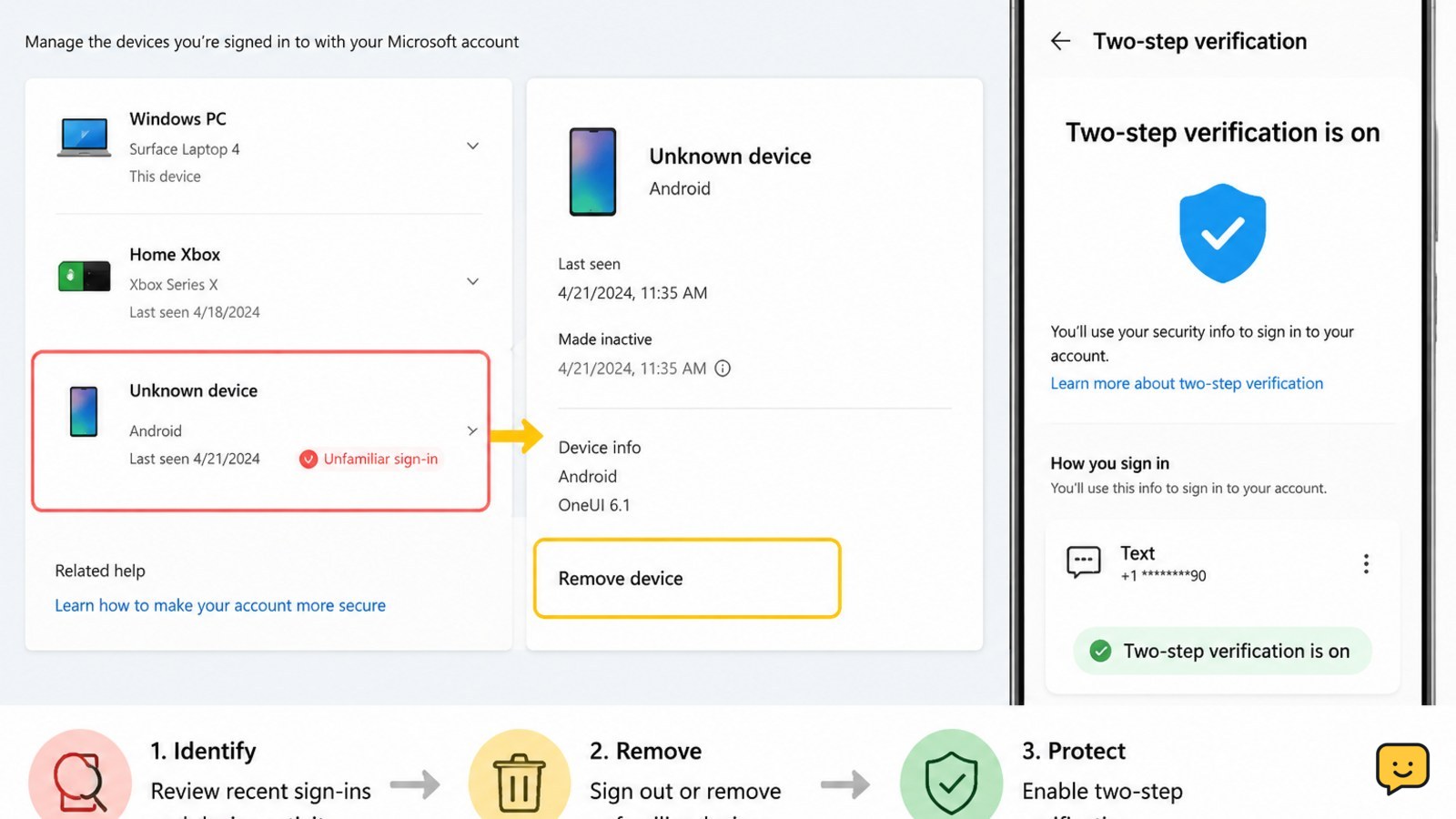
Sign in directly at account.microsoft.com, review Recent activity and Devices, then remove or unlink the unfamiliar device. Change your Microsoft account password, use Sign out everywhere if it is available, and check security methods for unknown passkeys or apps. Enable two-step verification or an authenticator before stopping. If you cannot sign in, stop and use Microsoft’s official account recovery process.
1. Check whether the device is really yours
An unfamiliar entry does not always mean someone is currently signed in. Old Windows installations, a renamed computer, a shared family device, or a device registered by an app can appear with a name you do not recognize.
- Go to account.microsoft.com and sign in.
- Open Devices and compare the unfamiliar entry with the computers, consoles, phones, or tablets you own.
- Record the device name, operating system, model information, and any available registration or last-use details.
- Open Recent activity or Security and look for successful sign-ins, password changes, passkey creation, or recovery-method changes you did not make.
A device listing and an active sign-in are different signals. A listing alone may show that a device was linked; recent successful activity is stronger evidence of account use.
2. Remove or unlink the unknown device
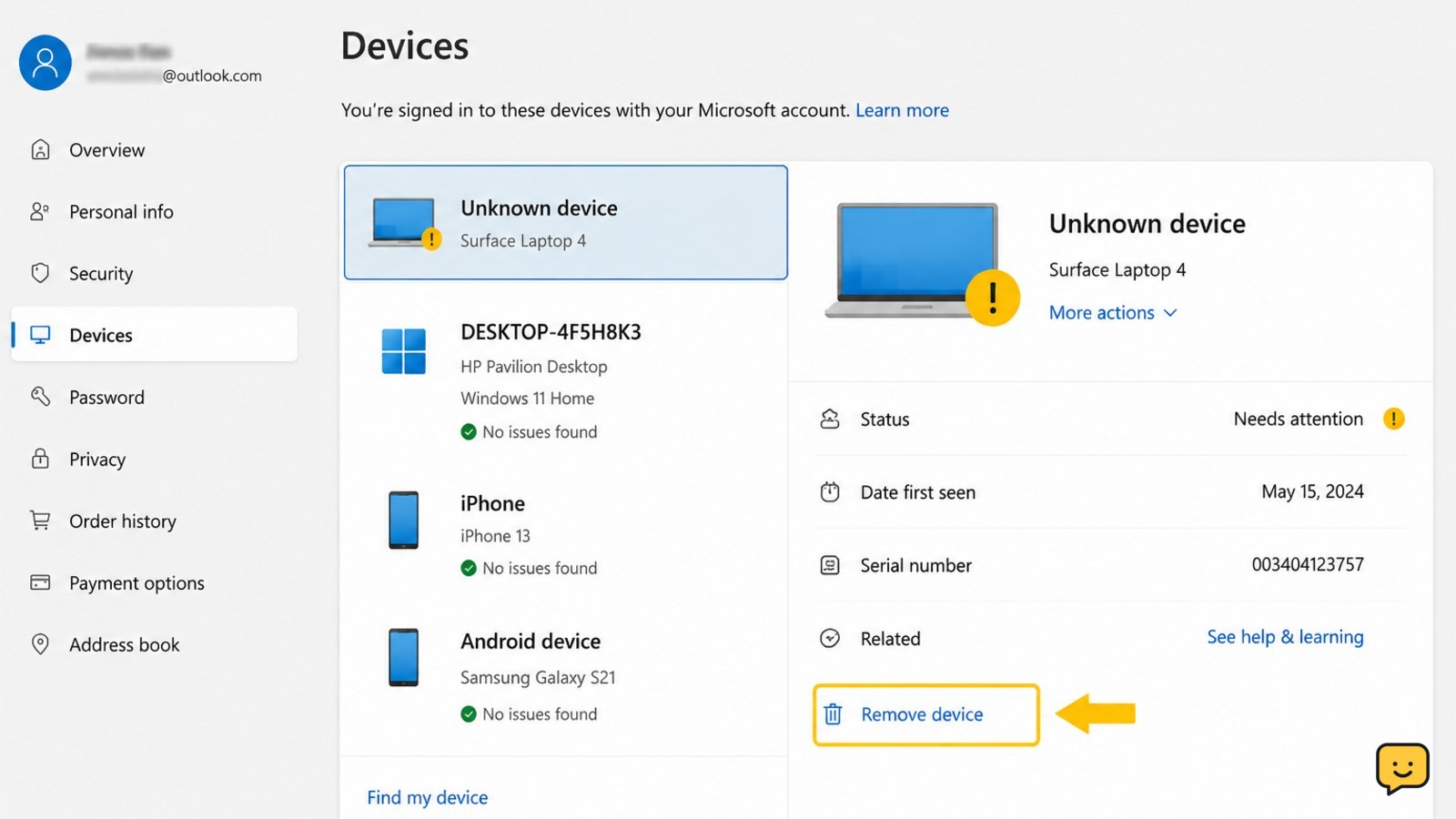
Microsoft’s device-management page provides controls for removing or unlinking devices from a personal Microsoft account. The exact button can vary by device type and account service.
- Open account.microsoft.com/devices.
- Select the device you do not recognize.
- Choose Remove device, Unlink, or the closest available option.
- Confirm the action and return to the device list.
Removing a device does not by itself prove that an active browser session or stolen password has been ended. Continue with the password and session steps below.
Verify: Refresh the device page. The entry should be gone, unlinked, or clearly marked as removed. If it remains, check whether you selected a different device type or whether the page requires a separate confirmation.
3. Change your Microsoft account password
Change the password even if the device disappears. Microsoft Q&A guidance for an unknown device recommends updating the account password before removing the device link.
- Open Security from your Microsoft account dashboard.
- Select Change password and complete the identity check.
- Create a new password that you have not used on another site. Do not reuse an old Microsoft password.
- Save the change, then update the password in your own password manager and trusted apps.
If the account uses an email address that is also protected by the same or a reused password, change that email password separately. A person who controls your email may be able to intercept recovery messages.
Verify: Sign in again from your trusted device with the new password. Then check Recent activity for new successful sign-ins or password-change notices.
4. Revoke active sessions and unknown sign-in methods
Look for a control named Sign out everywhere under Microsoft account security or advanced security options. If Microsoft shows it for your account, use it after changing the password to end active browser and app sessions. Some services may take time to sign out.
- Open Security, then review Advanced security options or the session-management area.
- Select Sign out everywhere if it is available, and confirm.
- Review Ways to prove who you are, Security info, passkeys, authenticator entries, and connected apps.
- Remove any recovery address, phone number, passkey, authenticator, or app permission that you did not add.
Do not delete a security method that is your only working recovery route until another trusted method has been added and tested.
Verify: Your trusted devices may ask you to sign in again. Unknown sign-in methods should no longer appear, and new activity should match your own actions.
5. Turn on two-step verification
Two-step verification adds a second check after the password. Microsoft Q&A guidance also recommends enabling it when an unknown device is registered.
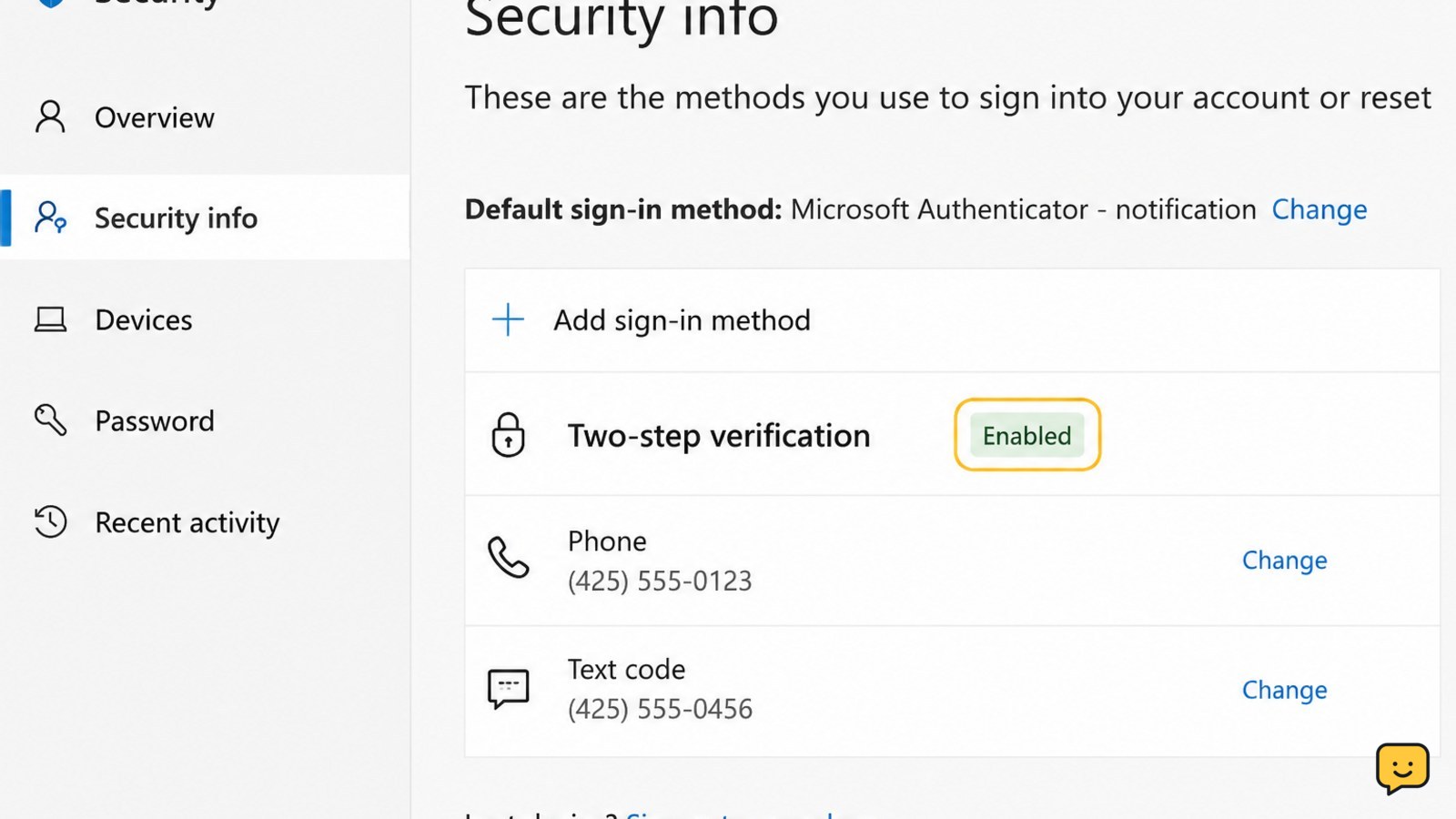
- Open Security and choose Manage how I sign in, Advanced security options, or the matching security-settings link.
- Turn on Two-step verification or add Microsoft Authenticator, a security key, or another supported verification method.
- Follow the setup instructions and save any recovery codes in a secure offline location.
- Test the new method while you still have access to a trusted device and recovery option.
An authenticator or security key is generally preferable to relying only on text messages, but keep a backup method so a lost phone does not lock you out.
Verify: Security settings show two-step verification as enabled, and a test sign-in requests the second factor.
6. If the device or activity returns
Repeated unknown activity after these steps can indicate a stolen session, reused password, malicious browser extension, malware, or an account-recovery method that remains under someone else’s control.
- Change the Microsoft password again from a clean, updated device.
- Change reused passwords on other important accounts, starting with your primary email.
- Update your operating system, browser, and security software, then scan your devices.
- Review connected apps, forwarding rules, mailbox permissions, and recovery information.
- Use Microsoft’s official account-recovery or support pages if you lose access or cannot remove an unauthorized security method.
Do not keep deleting the same device without checking Recent activity and security methods. If unauthorized changes continue, stop normal troubleshooting and use formal recovery support.
Frequently asked questions
Does an unknown device on my Microsoft account mean I have been hacked?
Not necessarily. A device may be old, renamed, shared, or registered by an app. Check Recent activity for successful sign-ins and unfamiliar security changes. If you find activity you did not make, change the password, revoke sessions, remove unknown security methods, and enable two-step verification.
Will removing a device sign it out of my Microsoft account?
Removing or unlinking a device removes its association from the device list, but it may not end every active browser or app session. Change your password and use Sign out everywhere when Microsoft provides that option. Sign in again only on devices you recognize.
What should I do if I cannot remove the unknown device?
First confirm that you selected the correct device and completed the confirmation step. If the entry remains, change your password and review Recent activity and security methods. If you cannot sign in or an unauthorized method controls verification, stop and use Microsoft’s official account-recovery or support process.
Can I remove an unknown Microsoft device from my phone?
Yes. Open a mobile browser, type account.microsoft.com yourself, sign in, and open Devices. Select the unfamiliar entry and choose Remove device or Unlink when available. Complete the security check from a trusted method. Do not use a link from an unexpected message to manage the account.
How do I prevent an unknown device from accessing my Microsoft account again?
Use a unique password, sign out active sessions, remove unknown passkeys and app permissions, and enable two-step verification with a trusted authenticator or security key. Keep recovery information current and review Recent activity periodically. If activity returns, check your devices for malware and begin formal account recovery.
Browse more Access & Recovery guides for help with this topic.


