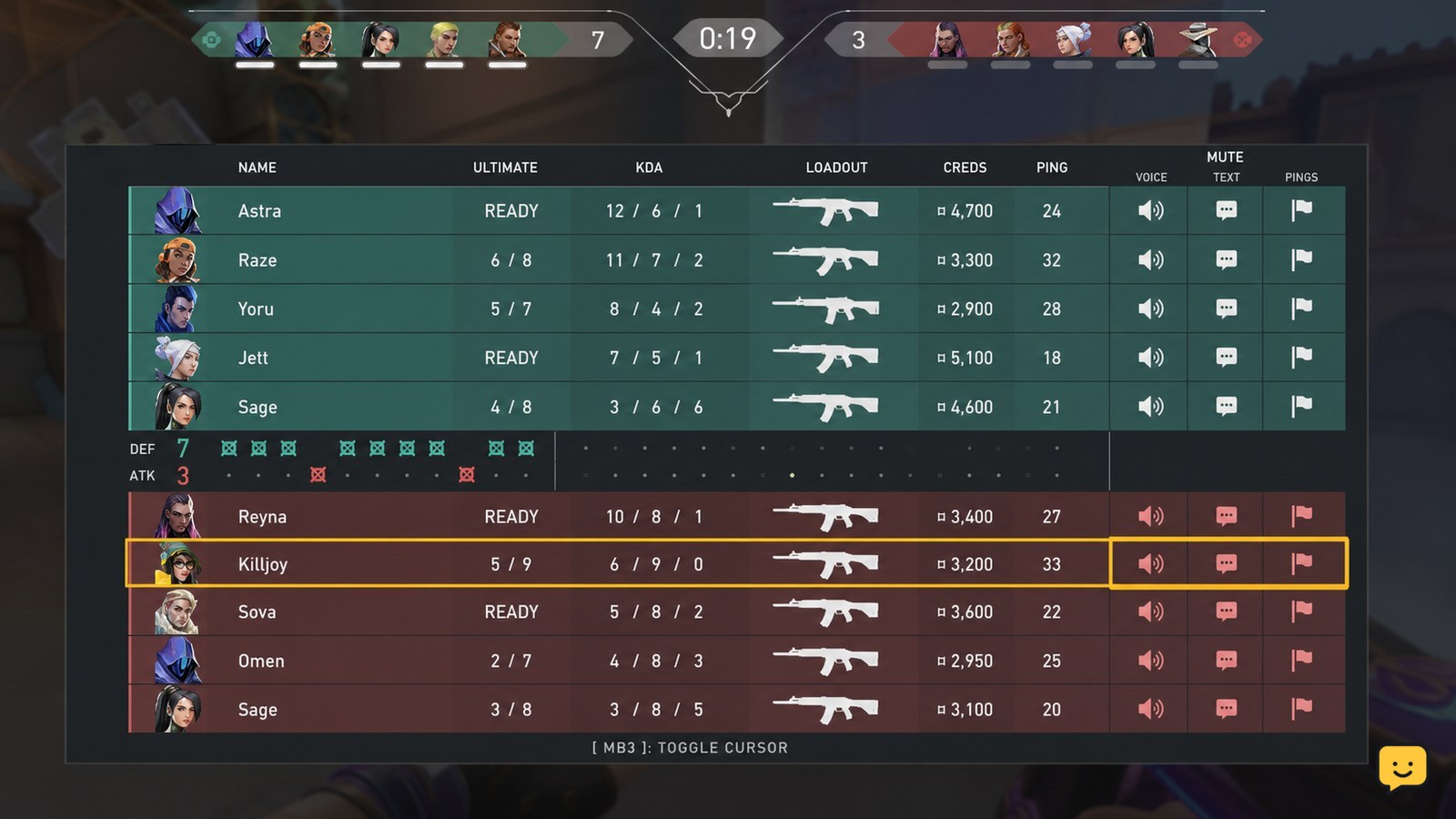
Press Tab during a match to open the scoreboard, find the disruptive player, and select the mute controls shown beside their name. Choose voice, text, or ping muting separately when those controls are available. Confirm the relevant icon changes, then stop interacting with the player. If scoreboard controls are unavailable, use /mute followed by the player name for text chat.
Open the scoreboard and find the player
The VALORANT scoreboard is the quickest place to manage communication from one player during a match. Press Tab to display the scoreboard, then locate the disruptive teammate or opponent by their player name.
- Press Tab while you are alive or viewing the round.
- Find the correct player row.
- Look for the communication icons or controls beside that player.
Do not mute an entire team if only one player is causing the problem. The scoreboard method is intended to target a single player.
Choose voice, text, or ping muting
VALORANT can show separate controls for a player’s voice, text, and ping communication. Select only the channel that is disrupting your play, or select multiple channels when necessary.
- Use the voice control to stop hearing that player’s spoken communication.
- Use the text control to hide that player’s written chat.
- Use the ping control to stop that player’s map or location pings.
These controls are separate decisions. Muting voice does not necessarily mute text or pings, so check each icon rather than treating one changed icon as a complete mute.
Interface labels and icon placement can change between client updates. If a control is not visible beside the player row, use the labels or hover descriptions that your current client provides instead of guessing.
Verify that the selected channel is muted
After selecting a mute control, the scoreboard should show a changed icon, disabled state, or other clear indication for that channel.
- Keep the scoreboard open long enough to confirm the control changed.
- Release Tab and check whether the player’s next voice message, text message, or ping is blocked.
- Reopen the scoreboard if the expected communication still appears, then check the other channel controls.
If voice stops but text remains visible, voice muting worked and text muting still needs to be selected. If pings remain, check the ping control separately.
Use the text-chat fallback when scoreboard controls are missing
The documented text-chat fallback is /mute followed by the player’s name. TurboSmurfs’ VALORANT chat guide lists this command for muting a specific player and /unmute followed by the name for restoring that player’s chat.
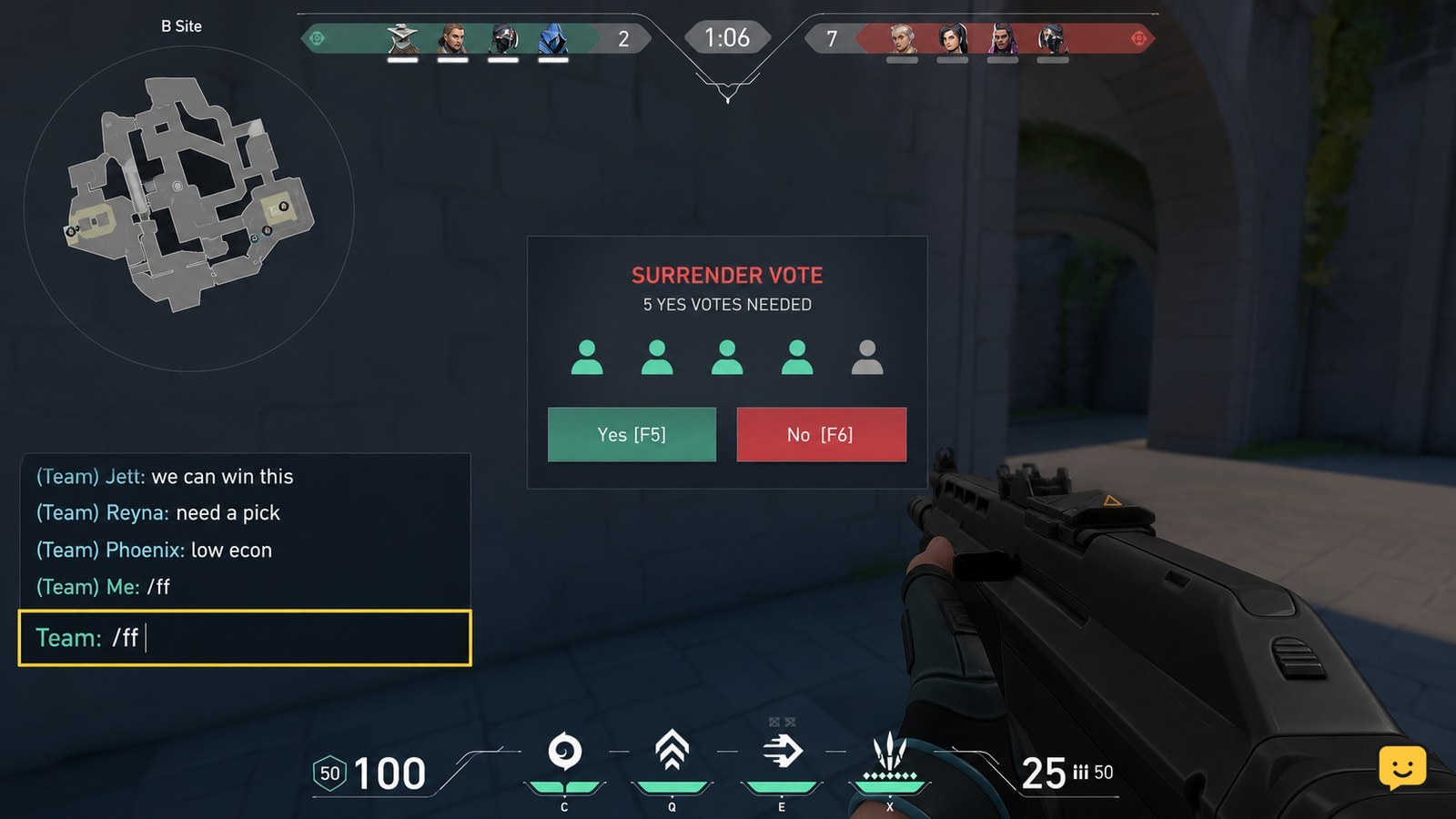
- Open text chat.
- Enter
/mute PlayerName, replacingPlayerNamewith the exact in-game name. - Send the command and check whether that player’s text communication is hidden.
This fallback should not be treated as a replacement for the separate scoreboard controls. Use it when the immediate goal is to stop that player’s text chat, and return to the scoreboard for voice or ping controls when they are available.
If the command does nothing, check the spelling and spacing of the player name. If it still fails, stop using the command and rely on the visible scoreboard controls after the next available match interface refresh.
Unmute only the channel you want restored
To restore communication, reopen the scoreboard and select the changed control for the channel you want to hear or see again.
- Press Tab and locate the same player.
- Toggle the muted voice, text, or ping control.
- Verify that only the selected channel returns.
For text chat muted with the command fallback, TurboSmurfs documents /unmute PlayerName. Use the exact player name and verify the result before relying on restored communication.
Frequently asked questions
Does muting voice also mute a VALORANT player’s text chat?
No. Voice and text are separate communication channels when the scoreboard displays separate controls. If you still see messages after voice audio stops, reopen the scoreboard and mute the player’s text channel as well.
Can I mute only a player’s pings in VALORANT?
Yes, when the ping control is available beside that player on the scoreboard. Select the ping control without changing voice or text if you still want to hear the player or read their messages.
How do I unmute a player in VALORANT?
Open the scoreboard with Tab, find the player, and select the changed mute icon for the channel you want to restore. For text muted with a command, enter /unmute followed by the player’s exact name.
Why can I still see messages after using /mute?
The documented /mute command is a text-chat fallback, and the player name must be entered accurately. Check the name and spacing, then use the scoreboard to confirm the text control changed. Do not assume the command also muted voice or pings.
Browse more Valorant guides for help with this topic.