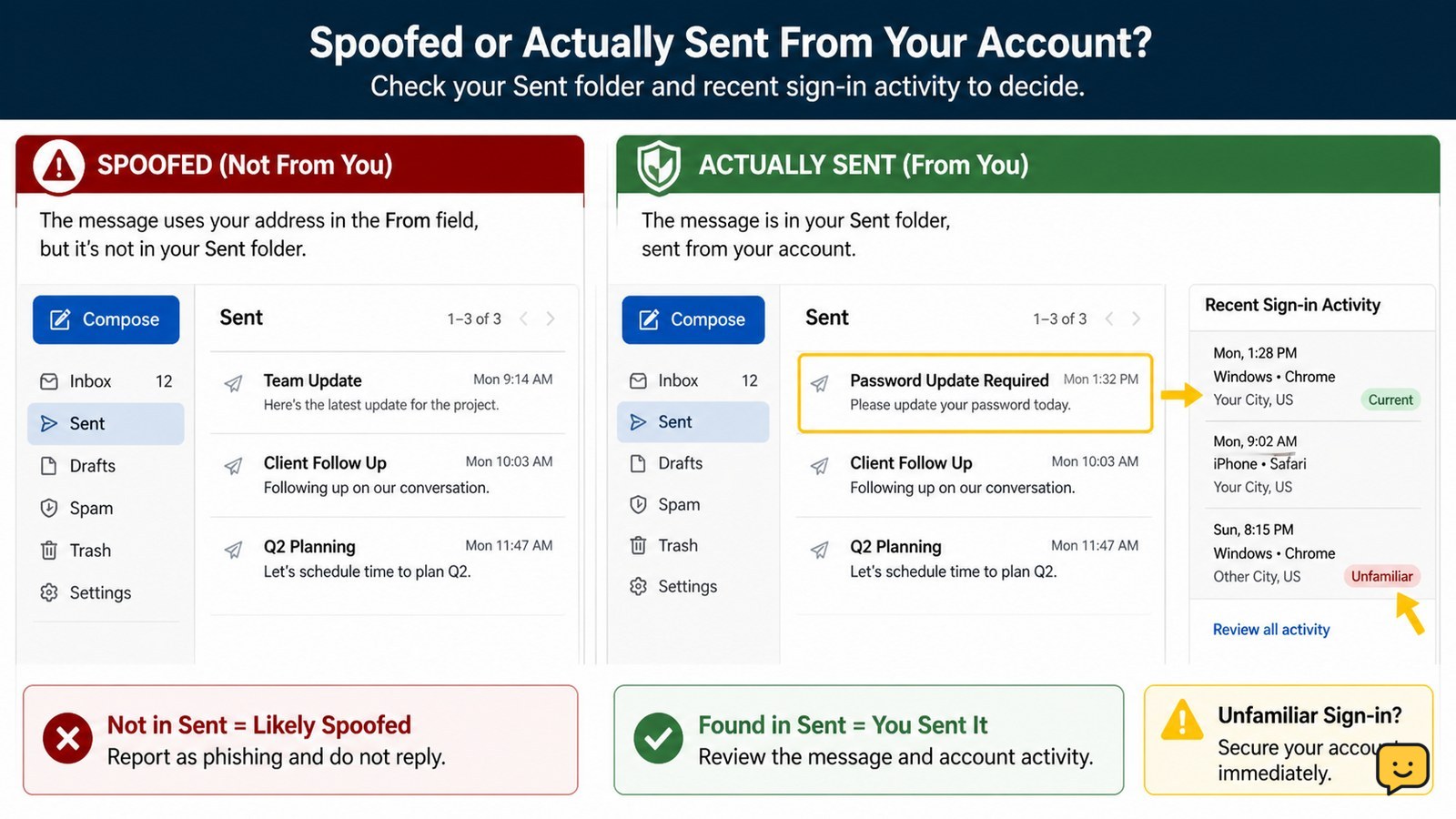
First check whether the spam appears in your Sent folder. If it does, secure the mailbox immediately: use the provider’s official site, change the password, sign out unknown sessions, remove unfamiliar apps, check forwarding and filters, and enable two-factor authentication. If nothing appears in Sent, your address may be spoofed rather than hacked, but still review security activity.
Check whether the spam is spoofed or sent from your mailbox
Your email address can appear in a scam’s From field without anyone signing in to your account. The clearest practical check is your Sent folder: messages you did not write or send indicate possible mailbox access, while recipient complaints with no matching Sent messages are more consistent with spoofing. Microsoft’s support community describes this From-field behavior as spoofing, and Ask Leo notes that spammers can make messages look as if they came from you.
- Open Sent, Drafts, and any provider folder for recently sent mail.
- Look for unfamiliar recipients, timestamps, subjects, or attachments.
- Check your provider’s security or sign-in activity for unfamiliar devices, locations, or sessions.
Expected result: you can classify the incident as likely spoofing or possible account access. Treat it as account access until the security checks are clean if you find unknown Sent mail or a sign-in alert.
Secure the sign-in before investigating further
An email account with unknown sent messages should be secured through the provider’s official account-security page before you investigate individual messages.
- Open the provider directly in a trusted browser or verified app.
- Change the password to a long, unique password that has never been used on another site.
- Sign out unfamiliar sessions and use the provider’s option to sign out other devices if it is available.
- Do not reuse a password that may also protect your recovery email, cloud storage, shopping account, or social accounts.
The FBI recommends using two-factor or multifactor authentication and avoiding unsolicited links or attachments in spoofing and phishing attempts. If the password cannot be changed, do not keep guessing; use the provider’s official recovery flow from its sign-in page.
Verify: sign in again with the new password and confirm that the security page shows no unknown active session. If an unfamiliar session returns, repeat the sign-out step and continue to the access-removal checks below.
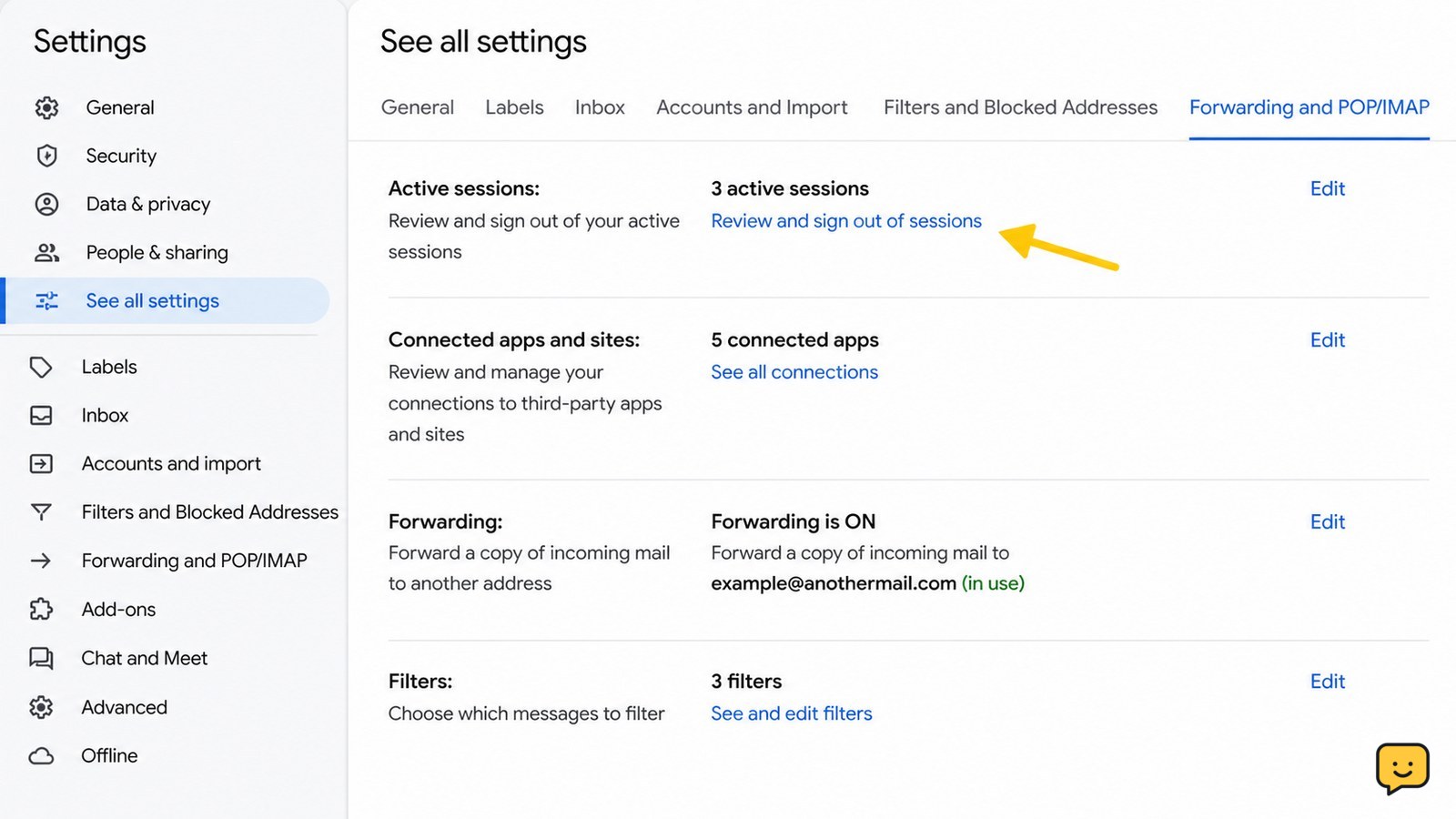
Remove hidden access from sessions, apps, forwarding, and filters
Mailbox access can persist through an active session, a connected app, a forwarding address, or a filter that hides or redirects messages even after the password changes.
- Review active sessions or recent devices and remove every entry you do not recognize.
- Open connected apps, third-party access, or account permissions and revoke unfamiliar services.
- Check forwarding addresses and disable any destination you did not add.
- Review filters, rules, blocked senders, delegates, and automatic replies for changes you did not make.
Forwarding and filter changes deserve special attention because they can copy incoming mail, hide security warnings, or redirect replies. ShowU’s guide on checking unauthorized forwarding covers forwarding addresses, filters, sign-in activity, and security settings.
If you cannot find these controls: search the provider’s official help center for “forwarding,” “filters,” “rules,” “connected apps,” or “recent activity.” Do not install a security utility offered by an unsolicited email.
Protect recovery details and enable two-factor authentication
Recovery email addresses, phone numbers, trusted devices, and two-factor authentication determine whether an attacker can regain access after the password is replaced.
- Review the recovery email and phone number and remove anything unfamiliar.
- Check whether a security key, authenticator, backup code, or trusted device was added without your approval.
- Enable two-factor authentication using an authenticator app, security key, or another method your provider supports.
- Store backup codes offline in a private location; never send them to another person.
Only approve a sign-in prompt you started. A sudden verification request can mean someone knows your password or is trying to make you approve their login. If you lose access to your authenticator, use another trusted device, saved backup codes, or the provider’s official recovery process rather than a third-party service.
Stop and recover officially: if the recovery details were changed, your second factor was replaced, or the provider says the account is locked, use its account-recovery page and avoid repeated failed attempts.
Verify that sending has stopped and warn affected contacts
Verification is complete only when the account shows no unauthorized access and no new messages appear in Sent after the security changes.
If sending continues, use secure an email account after suspicious activity to review sessions, forwarding, and other account changes.
- Check Sent again after securing the account and look for new unknown messages.
- Review recent security activity for new sign-ins, password changes, recovery changes, or app approvals.
- Send a short warning through a separate trusted channel to anyone who may have received the scam.
- Tell recipients not to click links, open attachments, send money, or reply to the suspicious message.
If only spoofed messages continue to reach other people while your Sent folder and security activity remain clean, changing your password will not stop the forged From field. Ask recipients to mark the message as phishing and report it through their provider’s abuse or phishing control.
Failure path: if new messages still appear in Sent after you changed the password, removed sessions and apps, checked rules, and enabled two-factor authentication, contact the email provider’s official security or abuse support. Preserve message headers and timestamps before deleting anything.
Frequently asked questions
How can I tell if someone actually sent email from my account?
Check Sent, Drafts, and recent account activity. Unknown messages in Sent or unfamiliar sign-ins suggest mailbox access. If people report spam from your address but your Sent folder is clean and security activity is normal, spoofing is more likely. Treat unexpected security alerts as genuine account-risk signals and review access through the provider’s official site.
Will changing my email password stop spoofed spam?
No. A password change stops unauthorized sign-ins but cannot prevent someone from placing your address in a forged From field. If your mailbox is clean and no unknown sessions or rules exist, report the messages as phishing and warn recipients. Change the password anyway when you cannot rule out account access.
What should I check after changing my email password?
Check active sessions, recent devices, connected apps, forwarding addresses, filters or rules, delegates, automatic replies, recovery details, and two-factor authentication. Remove anything unfamiliar, then check Sent again for new messages. These checks matter because access or message redirection can persist through settings other than the password.
What if I cannot sign in to the email account?
Use the provider’s official recovery page from its normal sign-in screen. Try a trusted device, a familiar network, saved backup codes, or another approved verification method. Do not pay a person who promises recovery or share a password or verification code. For a work or school mailbox, contact the administrator.
For more current help, browse all Email & Social Accounts guides.