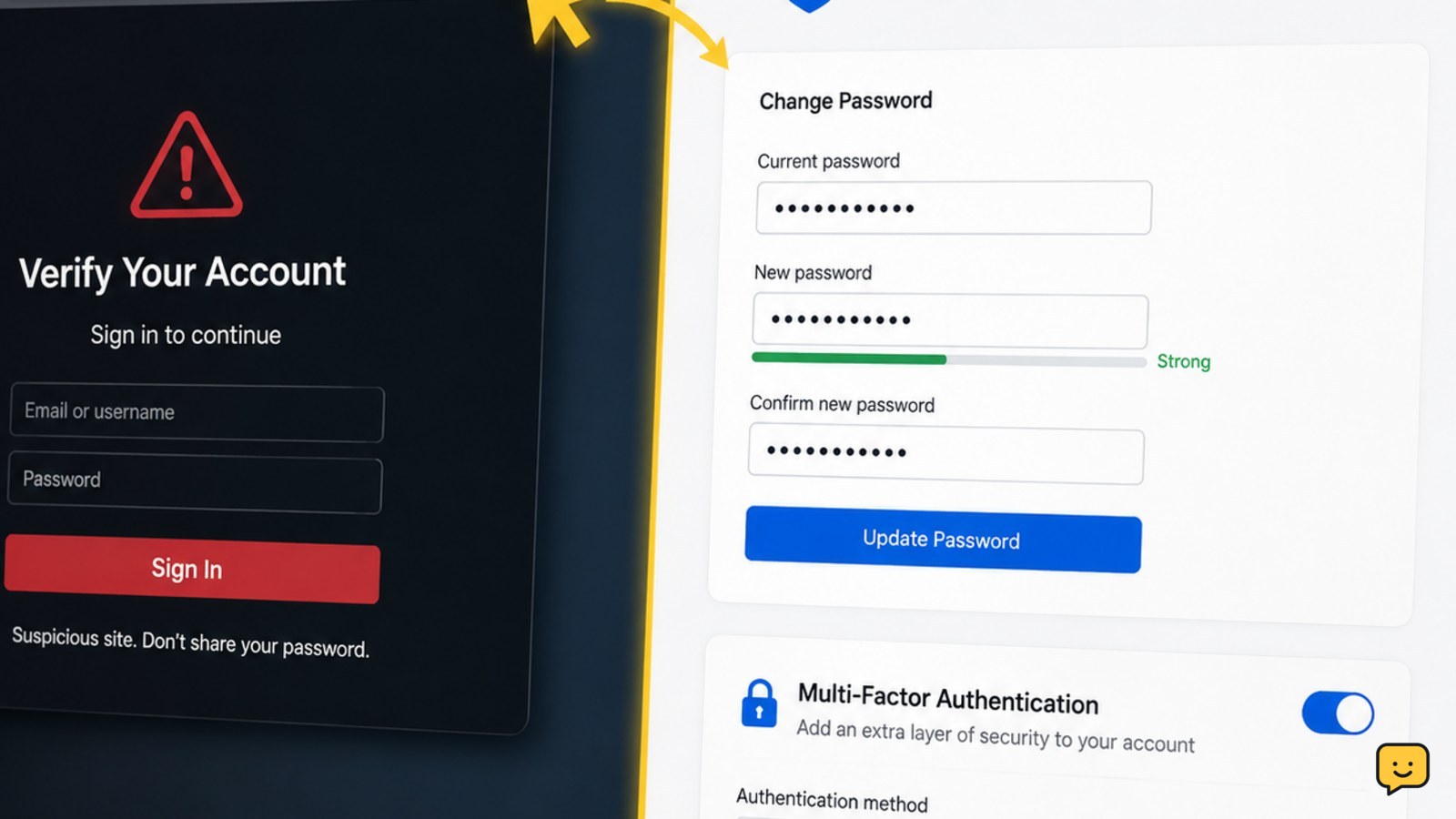
Stop using the suspicious page and open the account provider’s official app or type its address yourself. Change the exposed password immediately, then sign out unfamiliar or all active sessions. Replace that password anywhere it was reused, check recovery details and connected apps, and enable multi-factor authentication. If you cannot sign in or see account changes, use the provider’s official recovery process.
Leave the phishing page and open the real account service
Close the suspicious tab. Do not download files, install browser extensions, reply to the message, or enter more information. Open the provider’s official mobile app or type the service’s known web address into the browser yourself. The FTC advises using multi-factor authentication to add protection beyond a password, but first make sure you are working in the genuine account service.
If you clicked a link but did not submit anything, still review the account for unusual activity. If you entered a password, assume that password is exposed even when the page displayed an error or appeared not to submit successfully.
Change the exposed password from Account or Security settings
Find the provider’s Account, Security, or Password settings and create a new, unique password. Do not modify the password through the phishing message or any link on the suspicious page. A password manager can create and store a different password for this service.
After saving, verify that the account accepts the new password by signing in again through the official app or address. If the provider requires confirmation by email, phone, or an authenticator, complete it only in the official service.
If the old password is rejected before you can change it: use the provider’s official password-reset or account-recovery page. Do not keep guessing, because repeated attempts can trigger a lockout. If the recovery email or phone is no longer yours, treat the account as potentially taken over and continue with the provider’s compromised-account process.
Replace the same password on every reused account
Change the exposed password anywhere you reused it, including email, social networks, shopping services, cloud storage, work accounts, and financial services. Start with your primary email account because it may receive password-reset links for other accounts.
Use a separate password for every service. A small variation of the exposed password is not a safe replacement if someone can predict the pattern. If you cannot identify every reuse, review saved passwords in your password manager or browser after securing the primary email account.
End active sessions and remove unfamiliar devices
Open the account’s security dashboard and look for Where you’re signed in, Devices, Sessions, or Sign-in activity. Sign out unfamiliar sessions. If the service offers Sign out of all devices, use it after changing the password, then sign back in only on devices you recognize.
Check the activity list for unfamiliar locations, browsers, devices, password changes, or security-setting changes. A location may be approximate, so compare the device and time with your own activity rather than relying on location alone.
Verify the result by reopening the session list. The suspicious session should be gone or show a completed sign-out. If it returns, the new password does not work, or unfamiliar activity continues, stop normal sign-in attempts and use official account recovery or provider support.
Restore recovery details and review connected access
Check the recovery email address, phone number, trusted devices, backup codes, passkeys, and authenticator methods. Remove anything you do not recognize. Confirm that your own recovery details are still present and can receive messages.
Review connected apps, third-party access, forwarding rules, filters, and other account permissions where the provider exposes them. Revoke unfamiliar access. For email accounts, look specifically for forwarding or filtering changes that could hide security alerts or password-reset messages.
Do not delete a recovery method you still need until another working method is confirmed. If the service blocks a security change, keep the account signed in on a trusted device if possible and follow its official verification instructions rather than trying repeated workarounds.
Enable MFA and verify the account is stable
Turn on multi-factor authentication in the official security settings. Prefer a passkey or authenticator method when the service supports it; otherwise use the strongest available option and store backup codes in a secure place. Never share a code or approve a prompt you did not initiate.
Verify the account by checking that the new password works, active sessions are recognized, recovery details are correct, unfamiliar apps are removed, and recent security activity has no unexplained changes. Watch for follow-up messages that pressure you to “verify” again. Open the account directly instead of using those links.
If the phishing page requested card details, bank information, government identifiers, or other sensitive data, contact the relevant bank, issuer, or organization through its official number or website. Password protection alone does not address information submitted beyond the login form.
Frequently asked questions
What should I do if I entered my password but did not click Submit?
Treat the password as exposed if it was typed into the page. Close the page, open the real service directly, change the password, and replace it anywhere reused. Then review active sessions, recovery settings, and multi-factor authentication. If the page may have downloaded software or requested browser permissions, stop using that device for account changes until it has been checked.
Should I change my password before signing out other devices?
Yes. Change the exposed password first through the official account service, then sign out other sessions. This reduces the chance that an active session remains useful after the credential change. If you suspect someone already changed the password or recovery information, skip repeated guesses and use the provider’s official recovery process.
How can I tell whether the phishing site accessed my account?
You may not be able to prove that immediately. Check sign-in activity, device and session lists, password-change notices, recovery settings, connected apps, email forwarding, and recent account activity. An unfamiliar event is a warning, but a clean list does not prove the password was not copied. Keep monitoring official security alerts after completing the changes.
What if I used the same password for my email and other accounts?
Secure the primary email account first because it can control password resets. Change its password from the official service, end unfamiliar sessions, verify recovery details, and enable MFA. Then change the reused password on every other account, starting with financial, work, cloud-storage, and social accounts.
Browse more Access & Recovery guides for help with this topic.


