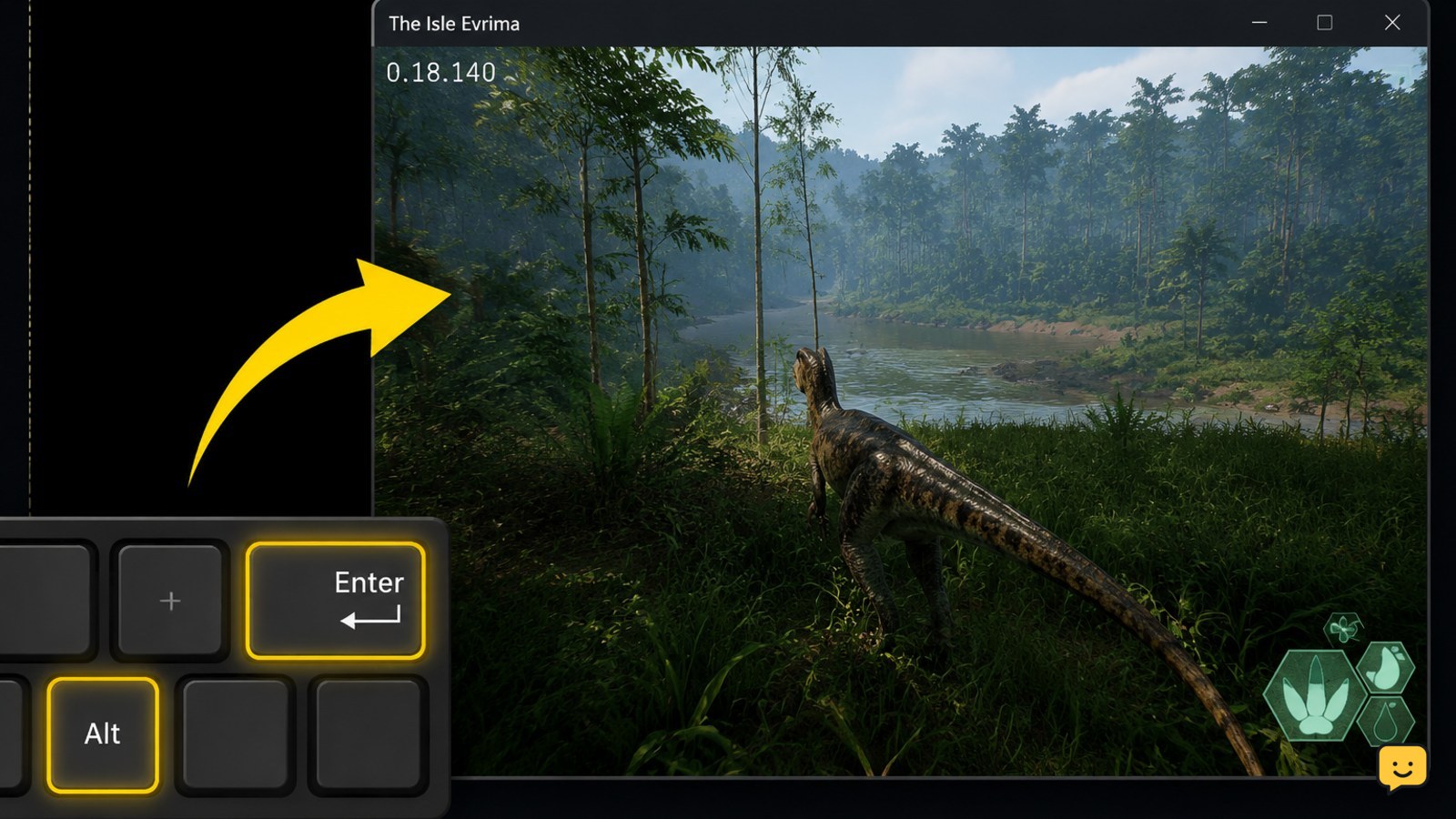
For The Isle Evrima black screen after loading, first press Alt+Enter, then restart the game and test it in windowed mode. If that fails, close overlays, update or clean-install your graphics driver, verify the Evrima files in Steam, and reset the game’s local configuration after backing it up. Do not switch to Legacy as a permanent fix.
Check whether the game is running behind the black screen
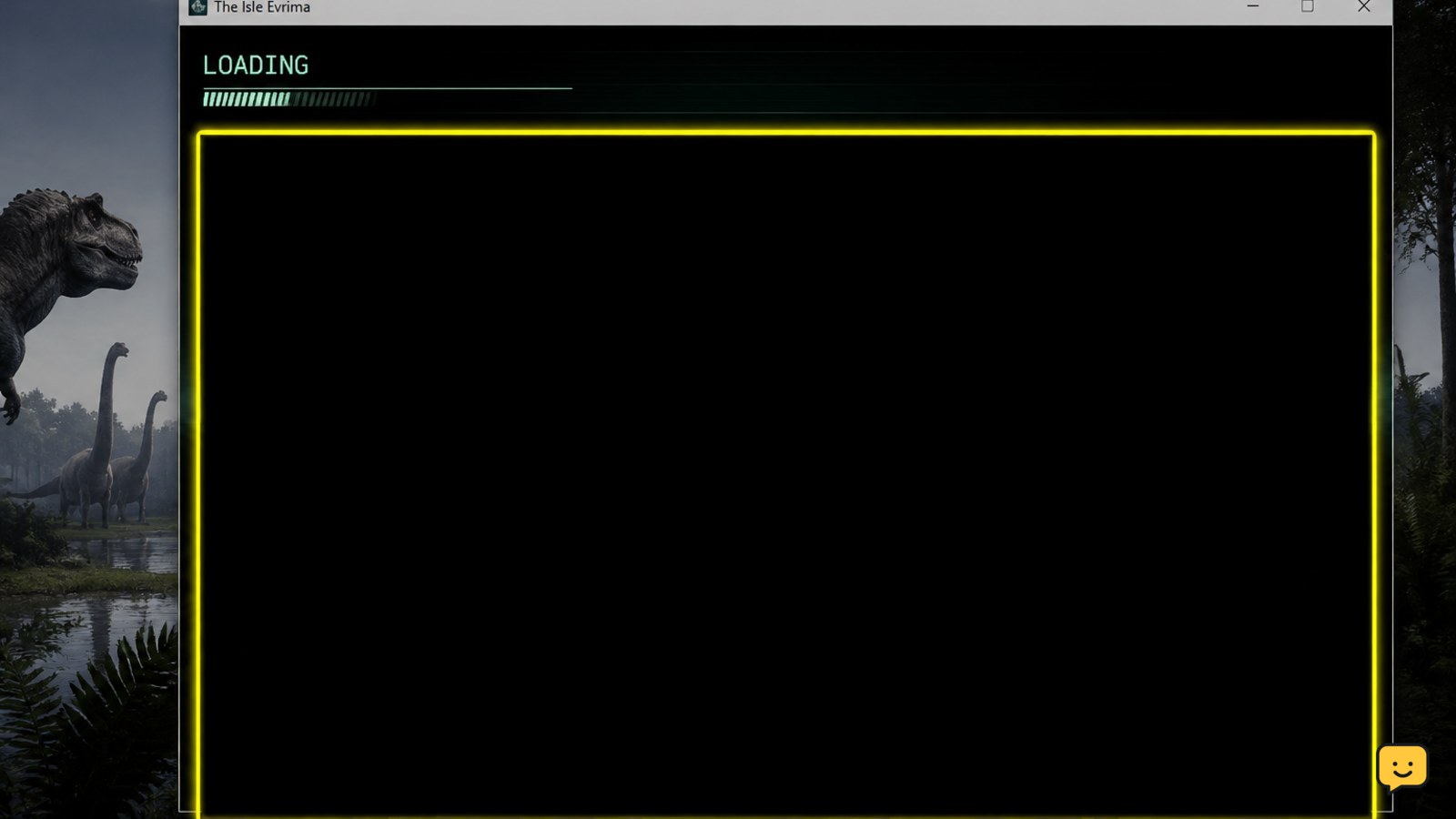
Before changing files, check whether the display mode is the problem. When the audio continues, the mouse cursor moves, or Windows still responds normally, The Isle may be running while its image is being sent to an invalid fullscreen mode.
- Wait about 60 seconds after loading. Do not repeatedly click or launch more copies of the game.
- Press Alt+Tab once, then return to The Isle.
- Press Alt+Enter to switch between fullscreen and windowed mode.
- If the picture returns, open the game’s video settings and select windowed or borderless mode before testing fullscreen again.
Verify: Join a server or reach the menu twice. If both attempts display correctly, the fullscreen state was likely the trigger. If the monitor reports “No signal,” this is a display or driver problem rather than only an in-game black screen.
Launch Evrima with safe display settings
Use the Steam launch options only as a temporary diagnostic. In Steam, open Library, right-click The Isle, choose Properties, and leave the General launch-options field empty unless you are testing a documented option. Remove old commands copied from Legacy guides or outdated forum posts.
- Close the Properties window and start The Isle.
- Use Alt+Enter during the black screen.
- Once visible, lower the resolution temporarily and choose borderless or windowed mode.
- Restart the game normally and test Evrima again.
Important branch check: Legacy and Evrima are separate game branches with different builds and settings. A Legacy-specific launch instruction or old hosting workaround does not prove that it fixes an Evrima loading screen.
Reset cached Evrima configuration safely
A damaged display setting or cached shader/configuration file can keep the game from presenting a frame after loading. The exact folder can vary by build, so use Windows search rather than deleting unrelated files.
- Exit The Isle and Steam completely.
- Press Win+R, enter
%localappdata%, and look for a folder namedTheIsle. - Before changing anything, copy the folder to your desktop as a backup.
- Inside the game’s local data, rename configuration or cache folders to names such as
Config_backuporCache_backup. Renaming is safer than permanent deletion. - Start Evrima and allow it to rebuild its settings.
If no The Isle folder is present, do not create a replacement path at random. Continue with driver and Steam checks. Verify: the game should launch with default display settings. Reapply one graphics setting at a time so you can identify a setting that recreates the problem.
Update or reinstall the graphics driver
Outdated, corrupted, or recently changed graphics drivers can cause a black frame during Unreal Engine loading. Download the current driver for your NVIDIA, AMD, or Intel GPU from the manufacturer’s official support page.
- Identify the GPU in Task Manager > Performance > GPU or Device Manager > Display adapters.
- Install the current stable driver for that exact model and Windows version.
- Choose the installer’s clean-install or factory-reset option only if the normal update does not help.
- Restart Windows before launching The Isle.
If the black screen began immediately after a driver update, use Windows or the GPU installer’s supported rollback option instead of installing random older packages. Verify: test The Isle and one other 3D game. A problem affecting multiple games points to the driver or hardware, not Evrima alone.
Verify the Evrima installation in Steam
Steam can replace missing or damaged game files, including files involved in loading a map or rendering the first scene. This process does not normally remove your Steam ownership or account data.
- Open Steam Library and right-click The Isle.
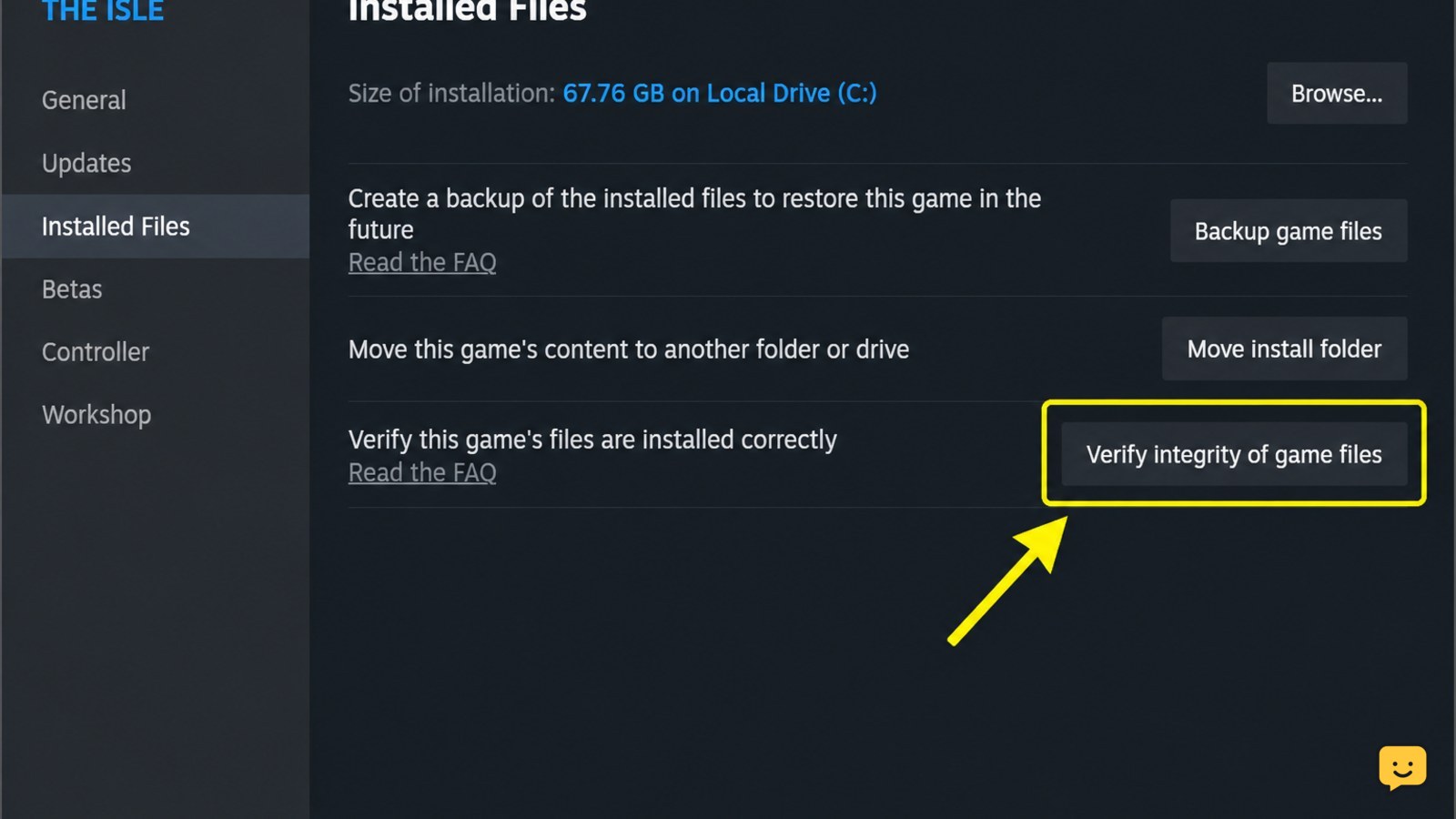
- Select Properties > Installed Files.
- Choose Verify integrity of game files.
- Wait for Steam to finish, then restart Steam and launch Evrima.
Make sure Steam finishes any pending update before testing. If verification reports files that must be reacquired, let Steam complete the download. Verify: load a server that previously produced the black screen. If only one server fails while others work, the issue may be server-side or version-specific rather than a broken installation.
Disable overlays and conflicting display hooks
Overlays can interfere with fullscreen presentation, capture, or the first rendered frame. Temporarily disable Steam Overlay, Discord Overlay, NVIDIA or AMD overlay features, Xbox Game Bar, and recording or monitoring overlays. Also close performance-tuning utilities for the test.
- Disable one overlay group at a time instead of changing every Windows setting.
- Restart The Isle after each change.
- Test windowed or borderless mode first, then test fullscreen.
- Restore overlays only after Evrima works through several loads.
Verify: if the black screen disappears with one overlay disabled, keep that overlay off for The Isle or update it before re-enabling it. Do not install unofficial DLL files or replace game executables to work around an overlay conflict.
When the black screen is probably not a local fix
If Evrima still shows a black screen after the display reset, configuration backup, driver check, file verification, and overlay test, compare the failure across servers and branches without treating Legacy as a solution.
- Test the main menu, then try two different Evrima servers.
- Check whether Steam is still downloading an update.
- Check current The Isle announcements and Steam discussions for a matching version-specific issue.
- Record your GPU model, driver version, Evrima branch, whether audio plays, and whether Alt+Enter changes the display.
Community reports document black-screen cases and branch-specific workarounds, but older reports may describe Legacy or obsolete builds. If the issue affects only the latest Evrima build and multiple players report the same behavior, wait for a developer update or submit a reproducible report rather than repeatedly deleting files.
Frequently asked questions
Does Alt+Enter fix The Isle Evrima black screen after loading?
Often, it can restore the picture when Evrima starts in an incompatible fullscreen mode. Press Alt+Enter once during the black screen, wait a few seconds, and test windowed or borderless mode. If the monitor loses signal or the shortcut does nothing, continue with the driver and Steam verification steps.
Should I switch from Evrima to Legacy to fix the black screen?
No. Legacy and Evrima are separate branches, and a Legacy launch or hosting workaround does not establish a fix for Evrima. Use the branch check only to confirm that the intended build is installed, then troubleshoot Evrima with its own current files and settings.
Will verifying The Isle files delete my dinosaur?
Steam file verification checks the installed game files; it is not a character reset procedure. However, server characters and progress are controlled by the game’s online systems, so avoid deleting local folders unless you have backed them up and the folder is clearly configuration or cache data.
What if The Isle has sound but no picture?
Sound with a black picture usually means the game is still running while the display mode, driver, or overlay is failing. Try Alt+Enter, disable overlays, and test a current graphics driver. If other 3D games also show black screens, investigate the GPU, monitor connection, and Windows display behavior.