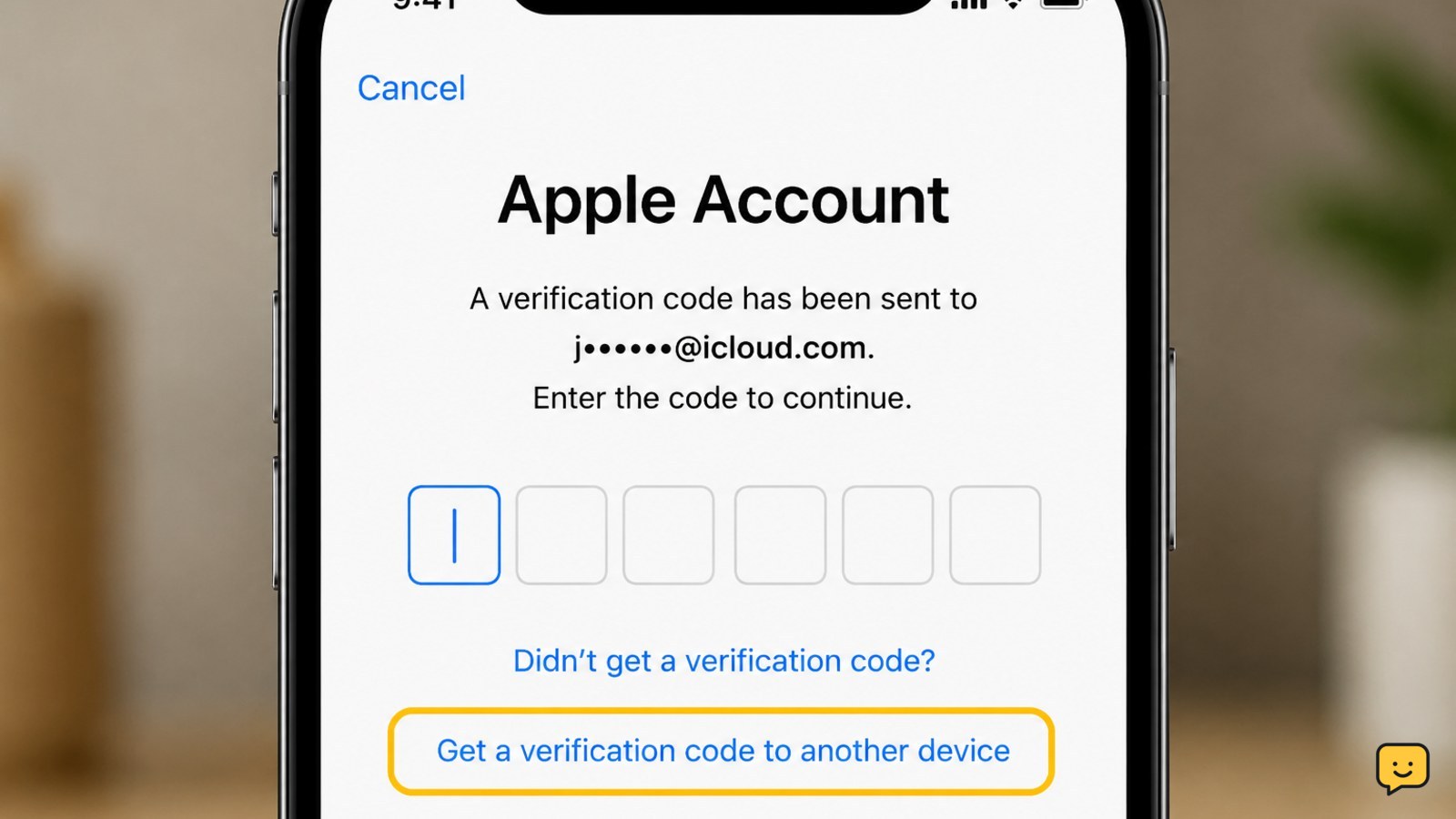
If your Apple Account verification code is not being received, check a trusted iPhone, iPad, or Mac for the sign-in notification and choose to display the code. On the code screen, select “Didn’t Get a Code?” to try a text message or phone call. If you cannot access any trusted method, start Apple’s official account-recovery process.
What this fix applies to
These steps apply when Apple asks for a verification code during sign-in to an Apple Account on a new device, browser, or service. They cover codes displayed on trusted Apple devices, codes sent by SMS or phone call, and the separate email-verification problem that can occur when Apple asks you to verify an email address.
A verification code is different from your Apple Account password. Apple’s two-factor sign-in screen normally lets you choose another delivery method when the first one does not arrive.
1. Check every trusted Apple device
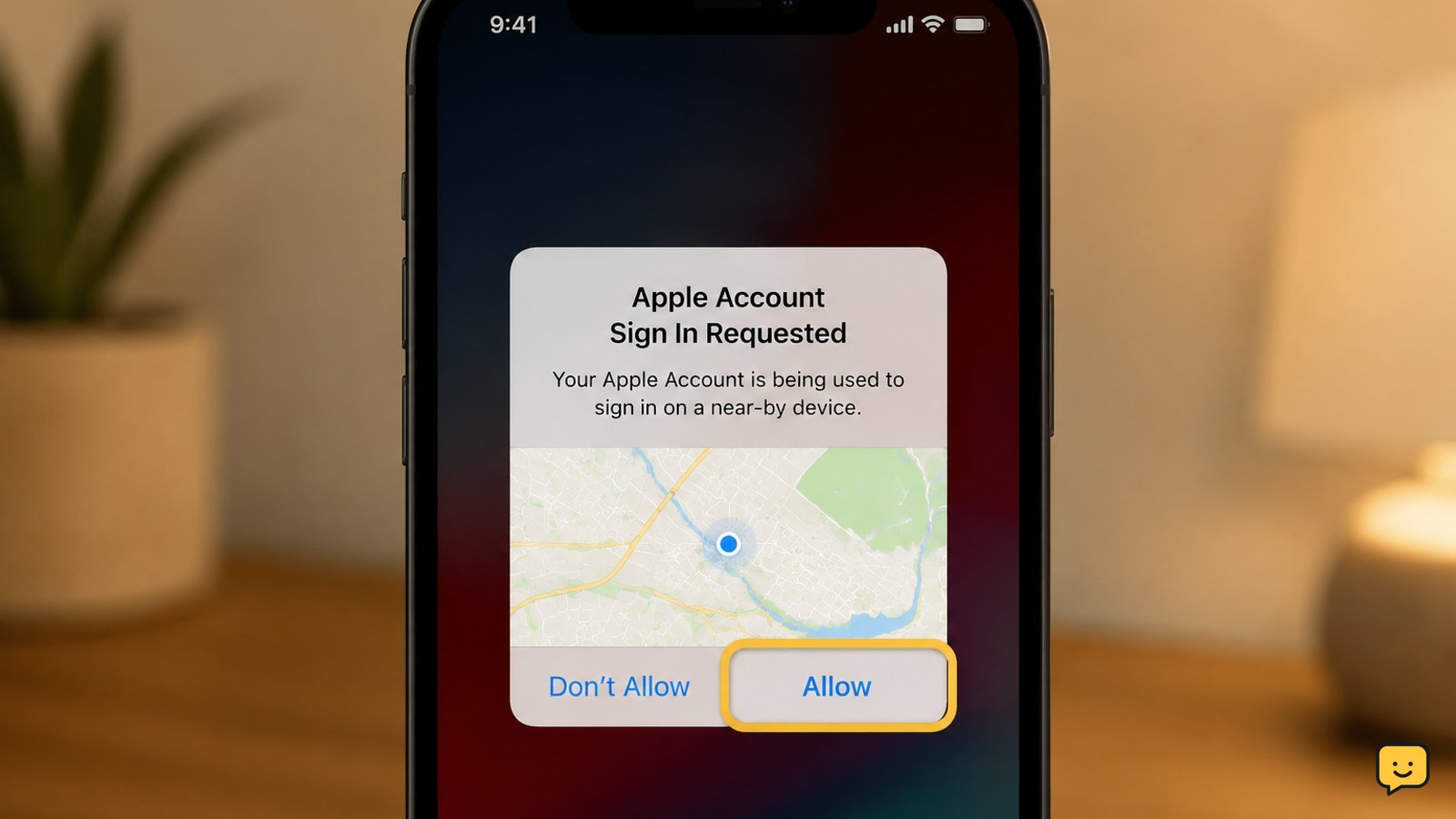
A trusted device already signed in to your Apple Account may show an “Apple Account Sign-In Requested” notification instead of sending a text message.
- Look at each trusted iPhone, iPad, or Mac signed in to the account.
- Unlock the device and check for the sign-in approval notification.
- Tap or click Allow if you started the sign-in.
- Use the six-digit verification code displayed on the trusted device.
If no notification appears, open the Apple Account settings on a trusted device and check that it is online. On iPhone or iPad, open Settings, tap your name, and review the account area. On a Mac, open System Settings and select your name. The exact labels can vary by software version.
Verify: The new device or browser should advance past the verification screen after you enter the current code.
2. Choose another delivery method
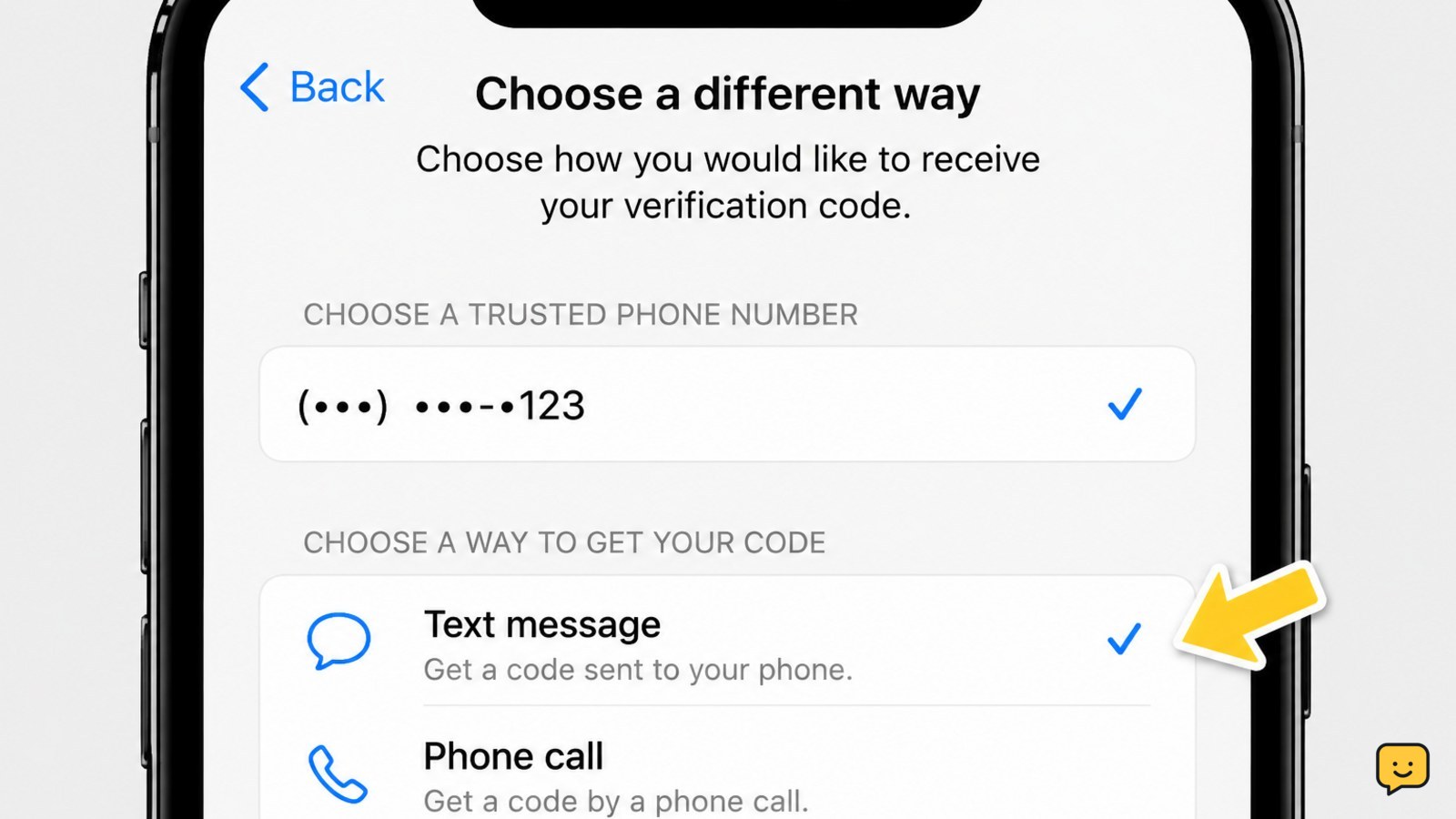
On the verification-code screen, select Didn’t Get a Code? or Can’t get to your devices? Apple may offer a text message or an automated phone call to a trusted phone number.
- Choose the trusted number you recognize.
- Select text message or phone call, if both are offered.
- Wait briefly for one delivery attempt before requesting another.
- Enter the newest code only. Do not combine digits from different messages.
Check that the number shown by Apple is yours. If the masked number is unfamiliar, do not continue trying delivery methods; secure the account through Apple’s official support and recovery route.
Verify: Confirm that the code’s final digits match the delivery you selected and that the sign-in request is one you initiated.
3. Check SMS, phone, and device settings
If a trusted phone number is correct but the message does not arrive, the problem may be with cellular delivery rather than the Apple Account.
- Confirm the phone has cellular service and can receive ordinary texts or calls.
- Turn off Airplane Mode, then briefly restart the phone’s cellular connection.
- Check blocked contacts, unknown-sender filtering, spam folders, and carrier message controls.
- If you use dual SIMs, confirm that the trusted number’s line is active.
- Try the phone-call option if text delivery remains unavailable.
If the phone is roaming, recently moved to a new carrier, or has had its SIM or eSIM replaced, contact the carrier using its official number and ask whether short-code or automated verification messages are being filtered.
Also check the device clock. Enable automatic date and time in the device’s date-and-time settings if the clock is visibly wrong, then retry once. This is a device-consistency check, not a replacement for an accessible trusted method.
Verify: Test ordinary SMS and calls, then request one fresh Apple code. If ordinary messages also fail, resolve the carrier issue first.
4. Check email only for an email-verification message
If Apple is asking you to verify an email address rather than complete two-factor sign-in, search the correct mailbox for Apple’s verification email.
- Check the inbox for the Apple Account email address shown on the sign-in page.
- Search junk, spam, archive, trash, promotions, and filtered folders for Apple or verification.
- Confirm that you are checking the correct email account and that the mailbox can receive new messages.
- Use Apple’s Resend option once, then open the newest message.
Do not use links in unexpected emails. Instead, open Apple’s website or device settings yourself and confirm the request there. If you are completing two-factor authentication, email may not be offered as a substitute for a trusted device or trusted phone number.
Verify: The email-verification page should confirm the address after you use the latest valid message.
5. Start account recovery when trusted access is unavailable
If you cannot use any trusted Apple device and no longer control the trusted phone number, select the recovery option on Apple’s verification screen. Apple may direct you to its account-recovery process after you choose that you cannot access your devices.
- Begin from the sign-in screen or Apple’s official account-recovery page.
- Enter the Apple Account details requested by Apple.
- Provide a phone number or other information that Apple requests for contact and verification.
- Follow the status instructions and wait for Apple’s stated recovery period, if one is shown.
Do not create repeated recovery requests unless Apple tells you to. Changing account details or restarting the process can affect recovery progress. Apple Support can explain the available process, but it cannot safely provide a shortcut around identity verification.
Stop here: If Apple gives you a recovery status or waiting period, follow that status rather than repeatedly requesting codes. Keep control of your email and phone accounts while recovery is pending.
6. Confirm the sign-in and secure the account
After you sign in, confirm that the account and trusted methods still belong to you.
- Review the devices signed in to your Apple Account.
- Check the trusted phone numbers and remove only numbers you no longer control.
- Review recent sign-in or security notifications for activity you did not start.
- Update your password from Apple’s official account settings if you suspect someone else knows it.
If you see an unfamiliar device, changed recovery detail, or sign-in request you did not initiate, deny the request and secure the account before continuing. Never approve a sign-in just to make a notification disappear.
Success check: Sign in again from the intended device, receive or display one current code, and confirm that the account settings show your correct trusted methods.
Frequently asked questions
Why is my Apple Account verification code not arriving by text?
The trusted number may have weak cellular service, message filtering, a blocked sender, an inactive SIM or eSIM, or carrier restrictions on automated messages. Test ordinary texts and calls, check filtering and blocked-message settings, then choose the phone-call option from “Didn’t Get a Code?” if Apple offers it.
Where can I find my Apple Account verification code?
Look first on a trusted iPhone, iPad, or Mac already signed in to the account. Apple may show a sign-in notification there; choose “Allow” only if you started the request, then use the displayed six-digit code. If no trusted device is available, use the delivery choices shown on Apple’s verification screen.
Can Apple send the verification code to email?
Usually, two-factor sign-in codes are delivered through a trusted Apple device, trusted phone number, text message, or phone call when offered. Email is relevant when Apple is asking you to verify an email address, which is a separate process. Check the correct mailbox and its spam or filtered folders for that message.
What should I do if I lost my trusted phone number?
Use a trusted Apple device if one remains signed in. Otherwise, choose “Can’t get to your devices?” or the equivalent recovery option on Apple’s verification screen and follow Apple’s official account-recovery process. Do not use services claiming to bypass verification or ask for your password or code.
Should I keep requesting new Apple verification codes?
No. Request one fresh code, wait for the selected delivery method, and use only the newest code. Repeated requests can leave you with several expired or mismatched messages. If delivery still fails or you cannot access a trusted method, stop requesting codes and use Apple’s account-recovery route.
Browse more Access & Recovery guides for help with this topic.


