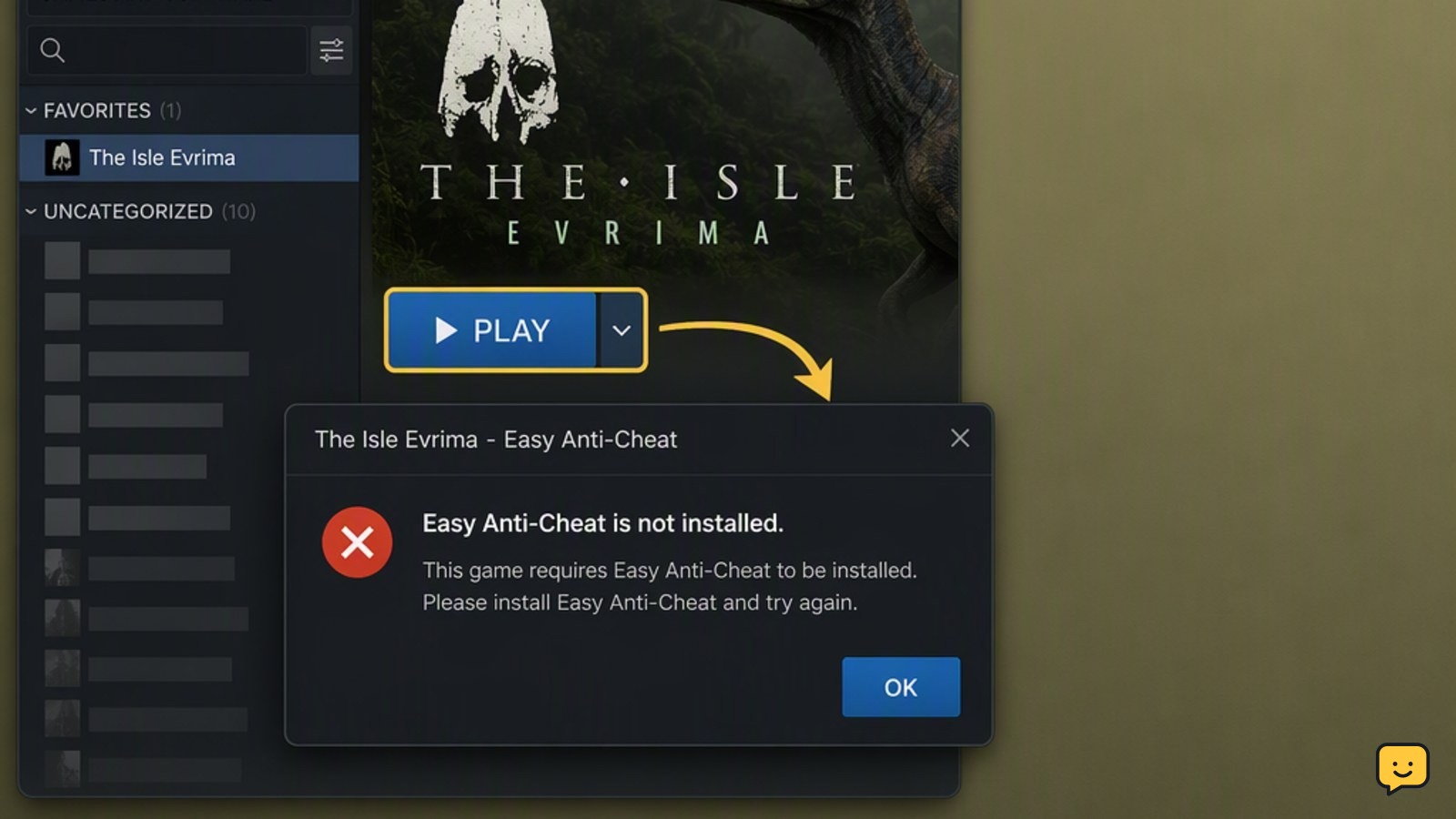
To fix The Isle Evrima’s “Easy Anti-Cheat is not installed” error, close the game and Steam, open The Isle’s Steam installation folder, run the Easy Anti-Cheat setup repair if available, then verify the game files in Steam. If the error remains, check administrator permissions and antivirus quarantine. These steps apply to Evrima on Steam, not a separate Legacy installation.
Confirm this is an Evrima installation
This fix targets The Isle Evrima on Steam for Windows. Evrima and Legacy are separate game branches, so a repair made in the wrong folder may not affect the version you launch.
- Open Steam and go to Library.
- Open The Isle’s properties and check the Betas tab.
- Confirm that the selected branch matches the version you intend to play. Evrima normally uses the Evrima branch or the current default branch, depending on Steam’s current configuration.
- Launch the game from Steam after selecting the correct branch.
If the message specifically says Easy Anti-Cheat is not installed, continue with the repair steps below. If the game crashes without that message, use a startup-crash troubleshooting path instead.
Repair Easy Anti-Cheat from The Isle’s folder
The most direct repair is to run the Easy Anti-Cheat setup program stored with the game. Its filename or location can vary with the installed service, so use the setup file that is actually present rather than downloading one.
- In Steam, right-click The Isle, choose Manage, and select Browse local files.
- Look for an EasyAntiCheat folder or an Easy Anti-Cheat setup application in the game directory.
- Right-click the setup application and choose Run as administrator.
- In the setup window, select The Isle if a game list appears, then choose Install or Repair.
- Wait for the operation to finish, close the setup window, and restart Windows.
Try Evrima once after restarting. If no setup application is present, or the repair fails, use Steam’s file verification step next.
Verify The Isle’s Steam files
Steam file verification can restore a missing Easy Anti-Cheat folder or replace damaged files. It does not normally remove your Steam account or installed game saves.
- Open Steam and right-click The Isle in your Library.
- Select Properties, then open Installed Files.
- Choose Verify integrity of game files.
- Wait until Steam completes the scan and downloads any replacement files.
- Restart Steam and launch the Evrima branch again.
If verification reports files that cannot be replaced, close Steam completely and restart Windows before running the check a second time.
Rebuild the Easy Anti-Cheat files if repair is missing
If the Easy Anti-Cheat setup is missing or the installation remains broken after verification, rebuild only the related game files through Steam. This is safer than using a third-party installer.
- Exit The Isle and Steam completely.
- Return to The Isle’s local installation folder through Steam’s Browse local files option.
- If an EasyAntiCheat folder is present and the setup repair cannot use it, rename it to EasyAntiCheat.old rather than permanently deleting it.
- Open Steam again and run Verify integrity of game files.
- After Steam restores the folder, run the Easy Anti-Cheat setup repair as administrator if the setup file is available.
- Restart Windows and test Evrima.
Do not continue deleting folders if Steam does not restore them. The installation may be in a different library or blocked by security software.
Check permissions and antivirus interference
Easy Anti-Cheat must be able to install or start its service. Windows permissions, controlled-folder protection, or antivirus quarantine can prevent that operation.
- Run Steam once with Run as administrator, then repeat the Easy Anti-Cheat repair.
- Check your antivirus quarantine and protection history for Easy Anti-Cheat files. Restore a file only if you are certain it belongs to the official Steam installation.
- If your security software supports exclusions, add the official The Isle installation folder temporarily and test the game.
- Remove the temporary exclusion after testing if it does not solve the problem.
- Check Windows Security’s ransomware or controlled-folder settings if the setup cannot write to the game folder.
Do not disable antivirus protection permanently. If the security software continues blocking the service, use its official exception procedure or contact its support team.
Verify the repair
The repair is successful when Evrima reaches the main menu without the Easy Anti-Cheat installation message and can begin the normal server connection process.
- Launch The Isle from Steam, not from an old desktop shortcut.
- Confirm that the game opens on the Evrima branch you selected.
- Join a server or open the server browser to confirm that Easy Anti-Cheat starts during the launch process.
- If the same message returns immediately, note whether Steam downloaded files, the setup repair displayed an error, or antivirus software blocked a file.
If the game launches but you cannot join a server, that is a separate connection problem. Check server availability, Steam updates, firewall access, and anti-cheat status rather than repeating file deletion.
When none of the fixes work
A persistent installation error can indicate a service-registration problem, a damaged Windows installation, a security-software block, or an issue with the current Evrima build. Gather the exact message, the result of Steam verification, the Easy Anti-Cheat setup result, and any quarantine notice.
Use the official Easy Anti-Cheat support pages for service-specific troubleshooting. For The Isle issues that remain limited to Evrima, report the details through the game’s official support or bug-report channels. Mention whether Legacy launches successfully; that comparison helps separate an Evrima branch problem from a system-wide anti-cheat problem.
Frequently asked questions
Why does The Isle Evrima say Easy Anti-Cheat is not installed?
The message usually means that the anti-cheat files or service are missing, damaged, blocked, or not registered correctly. Steam branch changes, incomplete updates, antivirus quarantine, and permission problems can all contribute. Repair the service from The Isle’s own installation folder, verify the Steam files, and then restart Windows before testing Evrima again.
Can I download Easy Anti-Cheat separately to fix The Isle?
No. Use the Easy Anti-Cheat setup file included with The Isle or restored by Steam file verification. Downloading replacement installers or DLL files from unofficial sites can introduce security risks and may not match the game’s required service. If the official setup is missing after verification, contact support rather than using a third-party download.
Does this fix work for The Isle Legacy?
The procedure is written for The Isle Evrima, and you must run it in the installation and branch you actually launch. Legacy can use different files or launch arrangements, so a successful Evrima repair does not prove that Legacy is repaired. Check the Steam branch and test each version separately.
What should I do if Steam verification does not fix the error?
Run the Easy Anti-Cheat setup repair as administrator, restart Windows, and check antivirus quarantine or controlled-folder protection. If the setup is missing, rename the existing EasyAntiCheat folder instead of permanently deleting unrelated files, then verify again. If the message remains, send the exact error and repair results to official support.
Planning your next route? Use the The Isle Evrima map to find key locations before you move.