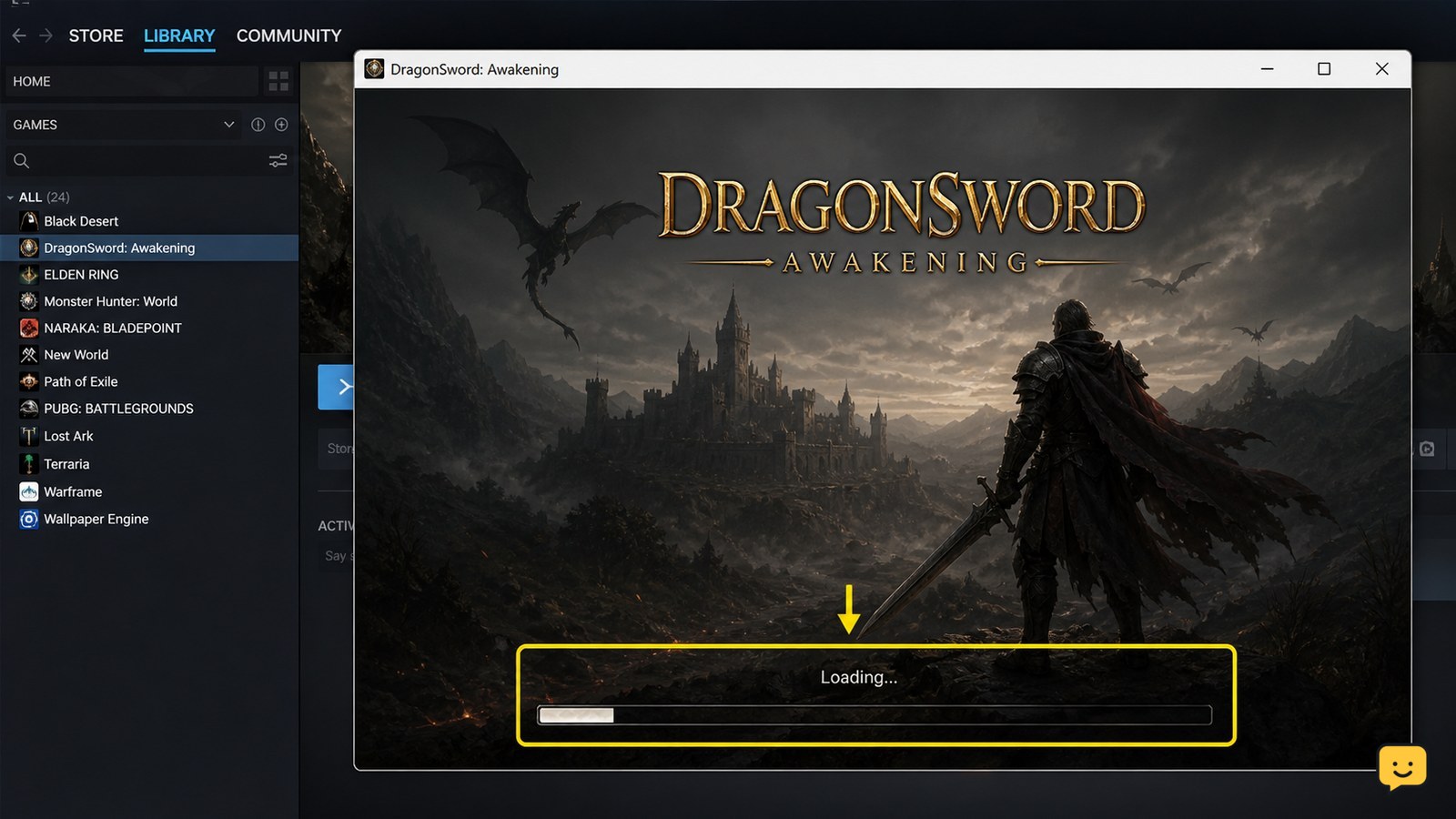
Dragon Sword: Awakening may fail to load because Steam files are incomplete, the sign-in session is stale, the connection is failing, or the PC is running into storage or graphics problems. Restart Steam and the PC first, then verify the game files, check Steam status and sign-in, and test again before changing saves or reinstalling.
For more help with this topic, use the DragonSword: Awakening guides.
Confirm the loading symptom and game version
DragonSword: Awakening on PC through Steam needs a different diagnosis from a game that never opens, a black screen, or a failed server connection. Note where the process stops: before the window appears, at a black screen, at a loading screen, or after account sign-in.
Evrima and Legacy are branches of The Isle, not versions of DragonSword: Awakening. Guides using those labels do not describe this game’s loading mechanics, so do not apply their settings or file advice here.
- Open Steam and check whether DragonSword: Awakening shows an update, download, or error.
- Launch it once and record the exact visible state and any error text.
- If the Steam window itself is offline or cannot load the Library, troubleshoot Steam or the network before changing game files.
Success means the game reaches its title screen or account-selection screen. If it stops before a window appears, continue with the Steam checks below.
Restart Steam and refresh the account session
DragonSword: Awakening can remain stuck when Steam or the game is using an expired sign-in session; this is a troubleshooting possibility, not a confirmed game-specific cause.
- Exit DragonSword: Awakening.
- Exit Steam from the Steam menu, then confirm Steam is no longer running in Windows Task Manager.
- Restart the PC, open Steam again, and sign in through the normal Steam login screen.
- Start DragonSword: Awakening from the Steam Library rather than an old desktop shortcut.
If Steam requests a password or verification code, use only the official Steam sign-in flow. Never give those details to a guide, third-party service, or another player. If the game opens but progress or account access is wrong, use the Dragon Sword Awakening account recovery guide before changing local files.
If Steam signs in normally but the game still stops at the same point, move to file verification. If Steam cannot sign in at all, stop game troubleshooting and resolve the Steam session first.
If loading succeeds but your character or progress is missing, use the Dragon Sword Awakening account recovery guide before editing local files.
Verify DragonSword: Awakening files in Steam
Steam file verification checks the installed game data and replaces files that are missing or damaged. Specialist troubleshooting coverage for DragonSword: Awakening lists corrupted or incomplete installation data among possible startup problems, but the supplied evidence does not establish one universal cause.
- Open Steam Library.
- Right-click DragonSword: Awakening and choose Properties.
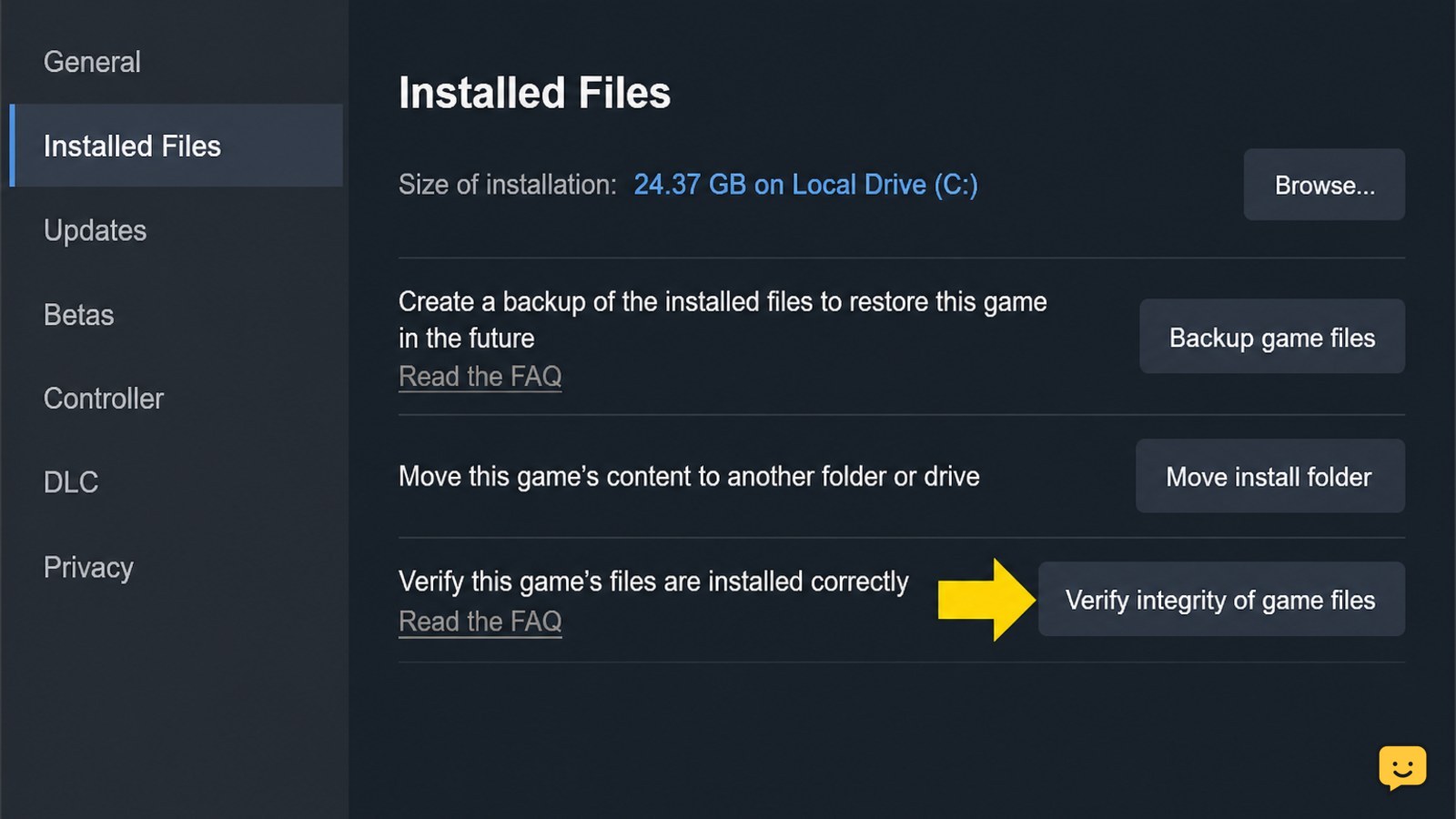
- Open Installed Files.
- Select Verify integrity of game files and wait for Steam to finish.
- Restart Steam after the check, then launch the game once.
Do not interrupt the verification or start the game while Steam is repairing files. A successful check is shown by Steam completing the process; it does not guarantee that a server outage or graphics conflict is fixed.
If Steam reports repaired files and the game now reaches the title screen, stop here. If verification completes without changing the symptom, continue with connection and PC checks rather than repeatedly verifying the same files.
Check connection, server access, and browser sign-in
DragonSword: Awakening may load its executable but fail later when the account or online service cannot be reached. This is most likely when the game reaches a login, server, or multiplayer screen before stopping.
- Open a normal browser window and confirm other websites load.
- Check Steam’s Friends and Library services for obvious outage symptoms.
- Restart the router only if other devices also have connection problems.
- Temporarily avoid VPNs, proxy connections, and restrictive network filters, then test the game on the normal connection.
- If the game has a server-selection screen, choose a currently available server rather than repeatedly retrying a full or unavailable one.
Do not enter your Steam password into a third-party “server fix” page. A browser test can confirm that the connection works; it cannot prove that DragonSword: Awakening’s own service is available.
If the game loads on another network, the original network or its filtering is the likely cause. If it fails identically everywhere, return to the installation, graphics, and account-session checks.
Once the game reaches the lobby, use this guide to join a Dragon Sword Awakening party if multiplayer access is the remaining problem.
Reduce PC startup conflicts without touching saves
DragonSword: Awakening can fail before gameplay if the PC runs out of storage, the graphics driver or overlay conflicts with startup, or the installation is on a slow or unhealthy drive. A specialist PC troubleshooting guide specifically recommends checking storage location and notes SSD installation as a possible improvement, but this is not an official requirement confirmed by the supplied evidence.
- Confirm the drive containing the game has enough free space for updates and temporary files.
- Close recording tools, hardware-monitoring utilities, overlays, and unnecessary launchers.
- Update the graphics driver through the graphics-card manufacturer’s normal software, then restart Windows.
- Run Steam and the game normally; do not use unofficial launch options or modified files while diagnosing the problem.
- If the game is installed on an HDD and loading repeatedly stalls, consider moving it to a healthy SSD using Steam’s storage-management option, provided there is enough space.
If the title screen appears after closing an overlay, re-enable programs one at a time to identify the conflict. If the game still shows a black screen, note whether audio or a moving cursor is present; that distinction helps support separate rendering failure from a complete launch failure.
Reinstall only after protecting account and progress
Reinstalling DragonSword: Awakening is a last resort because it replaces installed files but may not repair a server outage, an account problem, or damaged local data.
- Confirm that Steam sign-in works and that the problem affects only DragonSword: Awakening.
- Record the exact error and take a screenshot of the loading state.
- Check whether the Steam installation offers cloud-save synchronization, and do not choose an option that overwrites newer data without checking the timestamps.
- Uninstall and reinstall only through Steam, then launch the clean installation before adding optional files or settings.
If the fresh installation fails at the same point, stop reinstalling. Send support the operating system, graphics hardware, exact stopping point, error text, Steam verification result, and whether another network changed the result. Never send a password, recovery code, or full payment information.
Frequently asked questions
Why does Dragon Sword Awakening stay on a black screen?
A black screen can indicate a rendering or overlay conflict, damaged installation data, or a connection step that never completes. First restart Steam, verify the files, close overlays, and update the graphics driver. If audio continues while the screen stays black, report that detail to support because it separates a display problem from a complete launch failure.
Will verifying Steam files delete my Dragon Sword Awakening progress?
Steam file verification is intended to repair installed game files, not erase progress. However, do not manually delete save folders during troubleshooting. If progress is already missing or Steam presents a cloud-save conflict, stop and compare the available timestamps before selecting a synchronization option.
What should I do if Dragon Sword Awakening loads on one network but not another?
Treat the original network as the likely source of the failure. Test without a VPN or proxy, check whether other devices have the same connection problem, and review restrictive firewall or filtering settings. Do not use unofficial services that request your Steam credentials.
Should I install Dragon Sword Awakening on an SSD?
Moving the game to a healthy SSD may reduce long asset-loading delays, and a specialist troubleshooting source recommends checking SSD installation. It is not confirmed by the supplied evidence as a universal requirement. Move the game only after file verification and only when the drive has sufficient free space.