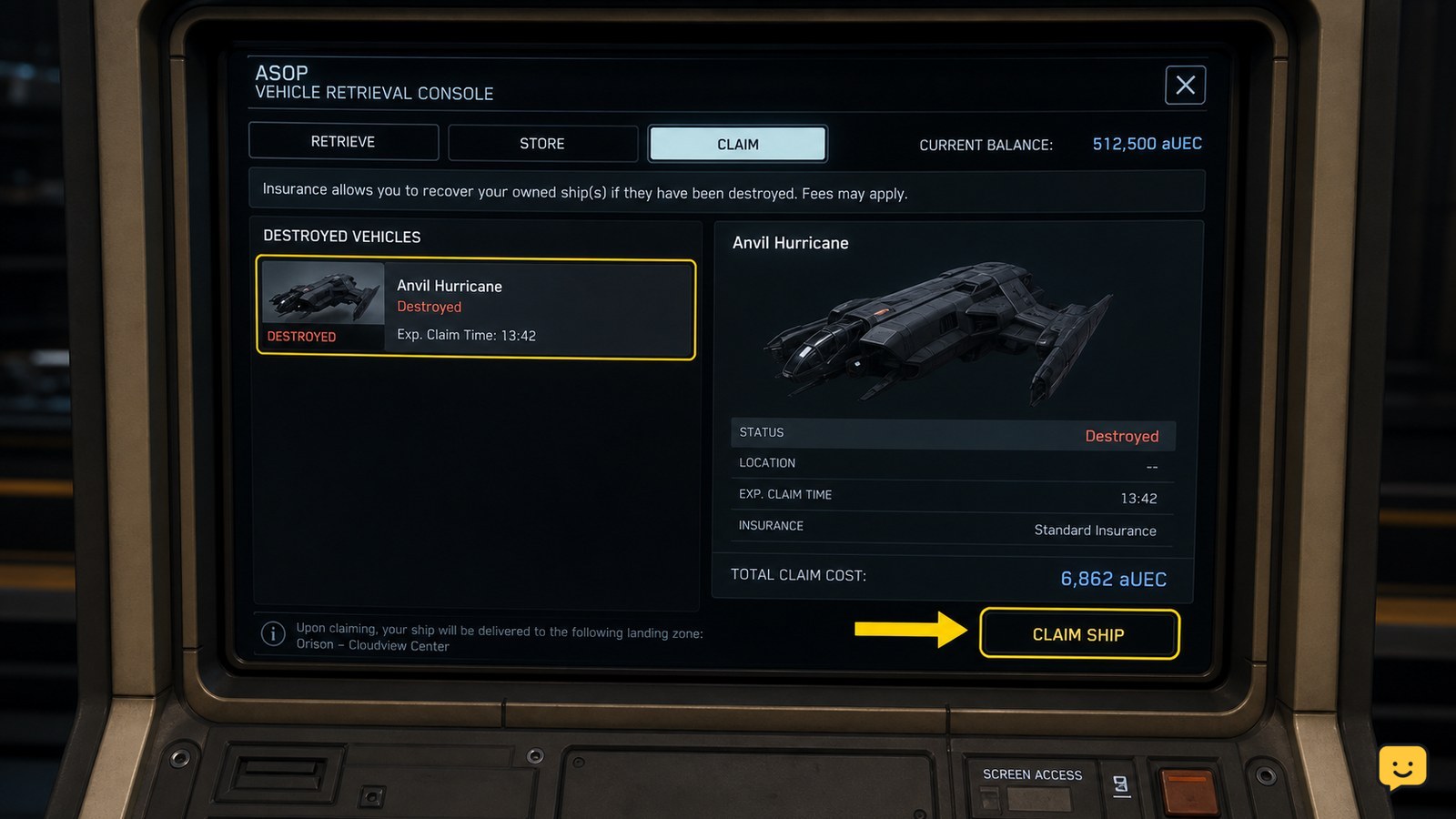
To claim a destroyed ship in Star Citizen, go to an ASOP vehicle retrieval terminal, select the destroyed ship, and choose Claim. Wait until the claim is ready, then retrieve the replacement from the same terminal. The claim gives you a replacement hull; it does not restore the destroyed ship, its cargo, or its physical location.
For more help with this topic, use the Star Citizen guides.
Check whether the ship needs a claim
A destroyed Star Citizen ship needs a claim, while a ship that is only damaged may be recoverable through repair services. Open the ASOP terminal and inspect the ship’s status before choosing an action.
If the ship appears as stored or available for retrieval, do not submit a claim. Retrieve it normally instead. If it is marked destroyed, lost, or unavailable and the terminal offers Claim, continue with the recovery process.
The supplied Star Citizen 4.1 and 4.3 gameplay guides demonstrate the claim workflow through the ship terminal. Exact labels, timers, and available actions can change between live builds.
Submit the destroyed-ship claim at an ASOP terminal
The ASOP vehicle retrieval terminal is where Star Citizen lets you submit a claim for an owned ship that can no longer be retrieved normally.
- Travel to an ASOP terminal at a usable station, city, or landing facility.
- Open your ship list and select the destroyed vessel.
- Choose Claim, then review any displayed timer or expedited-claim cost.
- Confirm the claim and wait for the terminal to show that the replacement is ready.
A successful submission changes the ship from its destroyed state to a claim-in-progress state. If no Claim option appears, do not repeatedly submit the same request; check the failure paths below first.
Understand what the replacement ship changes
A Star Citizen insurance claim produces a replacement instance of the owned ship rather than repairing and returning the destroyed physical hull.
Expect the replacement to be available through ASOP after the claim completes. Cargo, loose items, and the original ship’s location are not carried over as part of the replacement process. Treat the destroyed ship as unavailable until the claim finishes.
Claimed ships may also return with their standard or claim-eligible configuration rather than every temporary item that was installed or carried previously. Check the vehicle loadout and interior before starting a mission.
Retrieve and verify the replacement ship
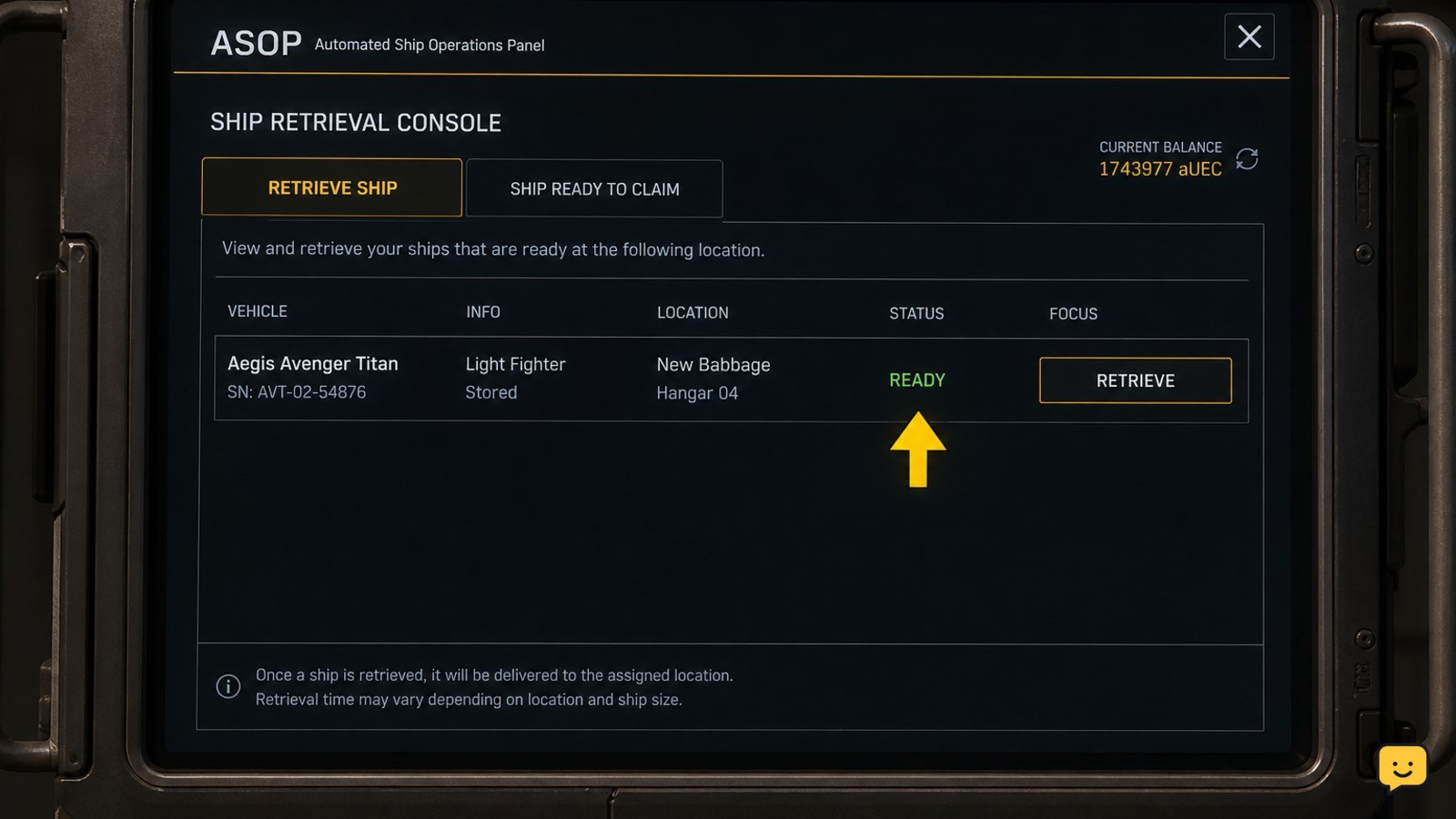
After the claim becomes ready, select the ship again at the ASOP terminal and choose Retrieve to send the replacement to an assigned hangar or pad.
- Confirm that the ship status says it is ready or available.
- Submit the retrieval request and note the assigned hangar or pad.
- Travel to that location and confirm that the correct hull has spawned.
- Enter the ship, check the cockpit power state, and inspect essential components before departure.
If the terminal reports retrieval success but the ship is not visible, use the assigned location rather than searching every hangar. The related guide on finding a missing retrieved ship covers that failure state.
Once the claim is ready, follow this guide to retrieve a ship from ASOP and confirm the assigned hangar or pad.
Fix a missing claim or stuck replacement
A missing Claim button usually means the ship is not currently in a claimable state, the terminal has not refreshed, or the server has not synchronized the ship record.
First, close and reopen the ASOP interface, then check the ship list again. If the ship is listed as damaged, use repair services rather than claiming it; the Star Citizen repair guide explains when repair is the appropriate path.
If the claim is active but the timer or status does not change, move to another functioning ASOP terminal and check again. If the ship remains absent after relogging or the status conflicts across terminals, stop submitting new requests and record the ship name, displayed state, and any error message for official support.
Do not assume that abandoning a claim will restore the destroyed hull. Stop once the terminal shows an active claim or a clear error, because further requests may not improve a server-side synchronization problem.
When the ship is damaged instead of destroyed, learn how to repair a damaged ship before opening a claim.
Frequently asked questions
Where do I claim a destroyed ship in Star Citizen?
Use an ASOP vehicle retrieval terminal at a station, city, or other valid landing facility. Select the destroyed ship from your list and choose Claim. If the ship is only damaged, the terminal may show repair or retrieval options instead.
Does claiming a ship repair the original ship?
No. A claim provides a replacement instance of the owned ship. It does not return the destroyed hull to its previous location or preserve cargo and temporary items that were left aboard.
Can I retrieve the replacement immediately?
Only after the claim becomes ready. The terminal displays the relevant claim status or timer. When the replacement is available, select the ship again and choose Retrieve.
Why is there no Claim button for my ship?
The ship may be damaged rather than destroyed, already stored, involved in an active claim, or affected by a terminal or server synchronization problem. Refresh the terminal, check another ASOP location, and stop if the displayed status remains inconsistent.