To change tools in Fields of Mistria, select another item from your hotbar. On PC, click the toolbar slot or use the keyboard control assigned to hotbar selection. With a controller, use the control assigned to move between toolbar items. Check that the new tool is highlighted before pressing the action button.
Browse more Fields of Mistria guides
Find the currently selected tool on the hotbar
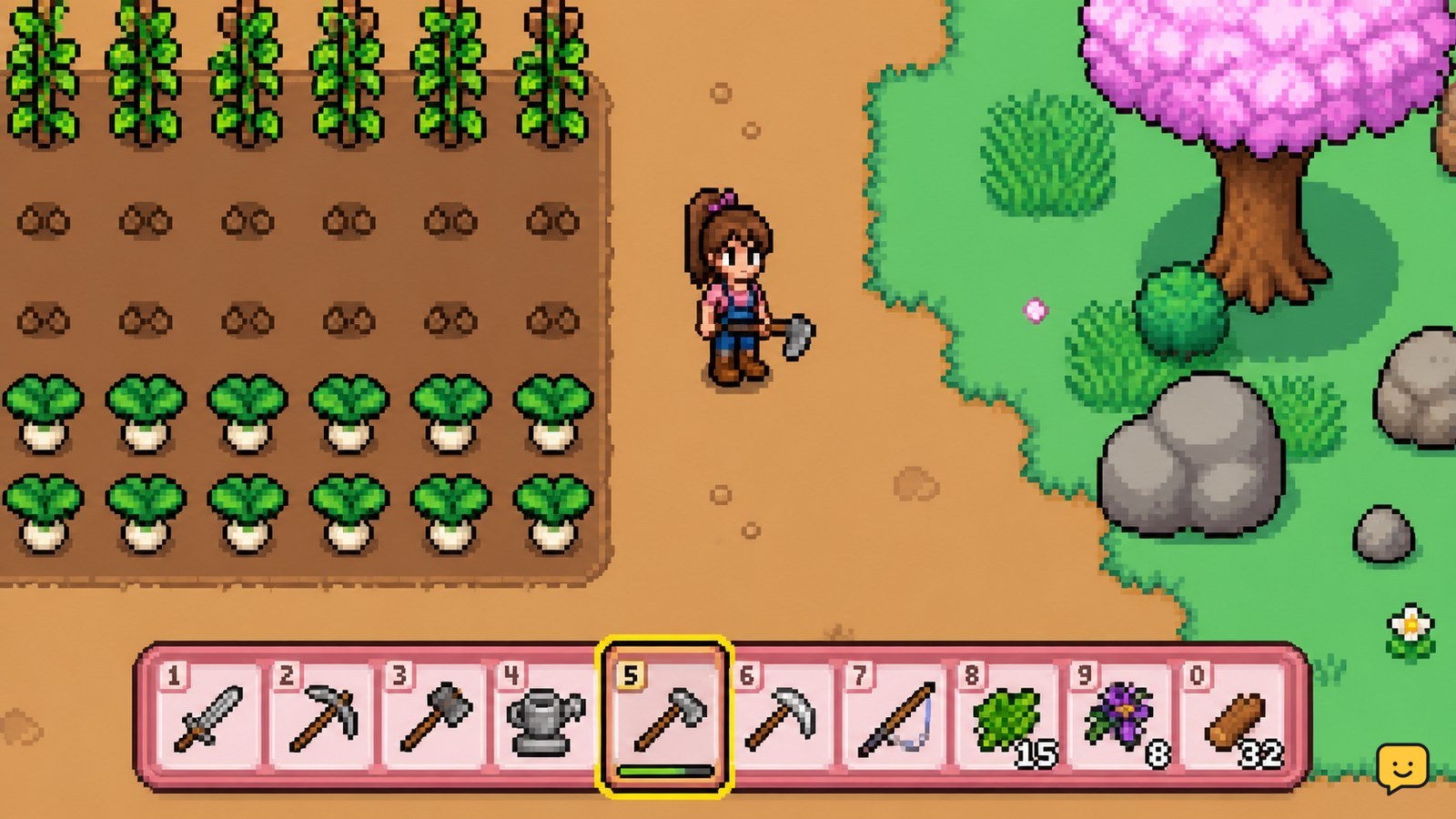
Fields of Mistria shows the active tool or item through the highlighted slot on the hotbar. Before acting, look for the brighter outline, cursor, or other selection marker around a toolbar slot and confirm that its icon matches the job you want to do.
The selected slot is the item your character will attempt to use when you press the action button. If the watering can is highlighted, for example, pressing the action button near a crop uses that tool rather than the axe or pickaxe.
Change tools by selecting another hotbar slot
You can change tools in Fields of Mistria by choosing a different slot on the hotbar. On a platform with pointer input, select the slot that contains the required tool. The highlight should move immediately to the new slot.
- Pause next to the crop, soil tile, tree, rock, grass, or other target.
- Select the hotbar slot containing the tool you need.
- Wait for the selection marker to move to that slot.
- Press the action button once and check the result.
Use the toolbar icon as the final check. Tool position can change as you rearrange items, so selecting a slot by memory is less reliable than checking the highlighted icon.
Use the keyboard or controller tool-selection controls
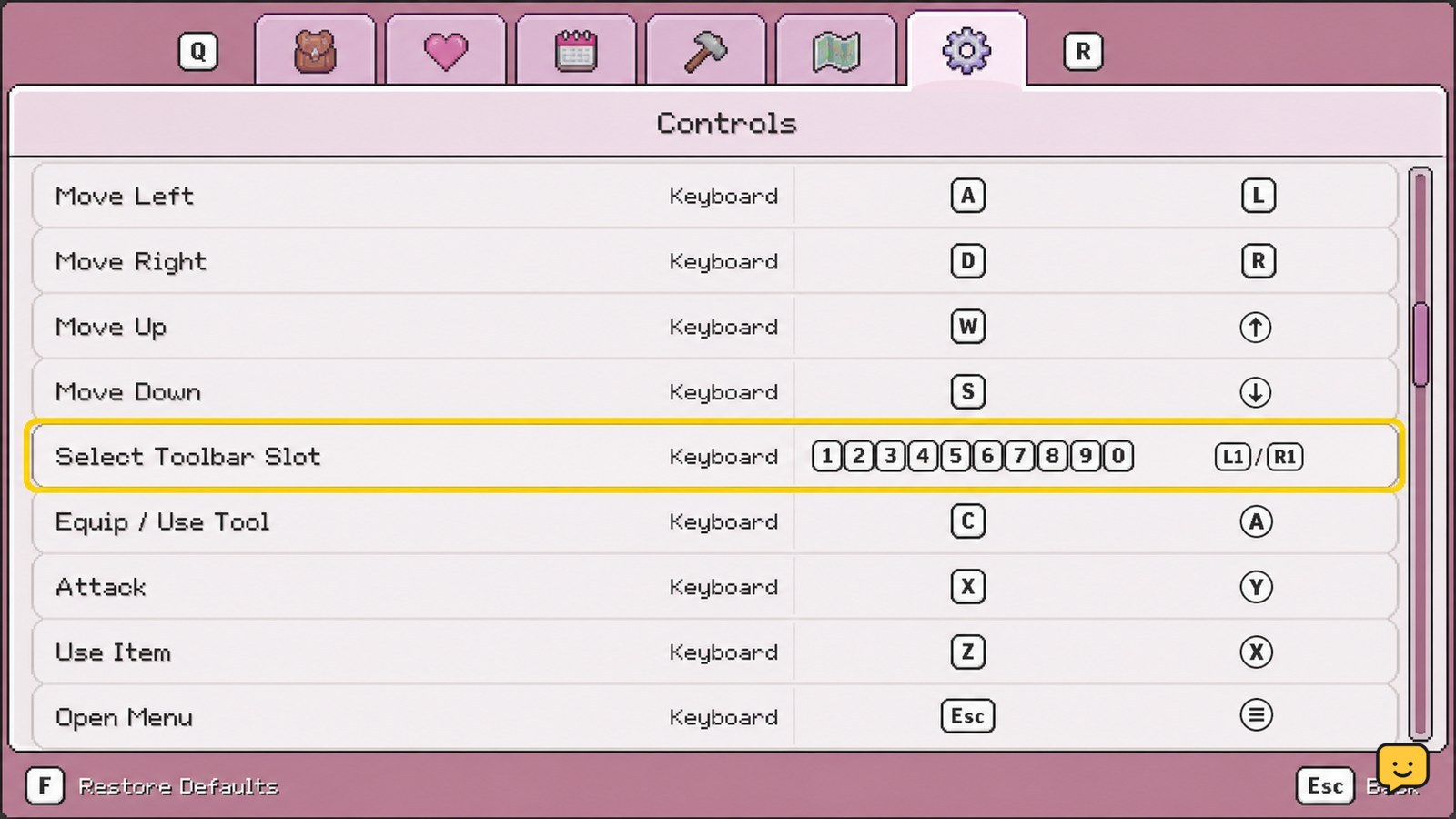
On keyboard and controller, use the inputs assigned to move between or select toolbar items in your current control scheme. The Fields of Mistria Controls documentation states that hotkeys can be reassigned and that an action can have two inputs, so the exact button or key may differ from the default layout or your personal settings.
Open the game’s Settings menu, choose Controls, and find the actions for moving through or selecting hotbar items. Note the displayed inputs, return to gameplay, and use them until the correct slot is highlighted. If your gamepad has shoulder buttons assigned to cycle toolbar items, press the appropriate direction once and confirm the new icon before acting; do not assume the first press selected the intended tool.
Match each tool to the resource before acting
Fields of Mistria requires the selected tool to match the target, so verify the tool icon before interacting with a resource. Use the hoe for workable soil, the watering can for crops that need water, the axe for trees or wood-related targets, the pickaxe for rocks and ore, and the scythe for grass or similar vegetation.
If the target does not respond, first check the selected slot rather than repeatedly pressing the action button. A nearby object may also have a different interaction prompt, so reposition the character and face the target directly after selecting the tool.
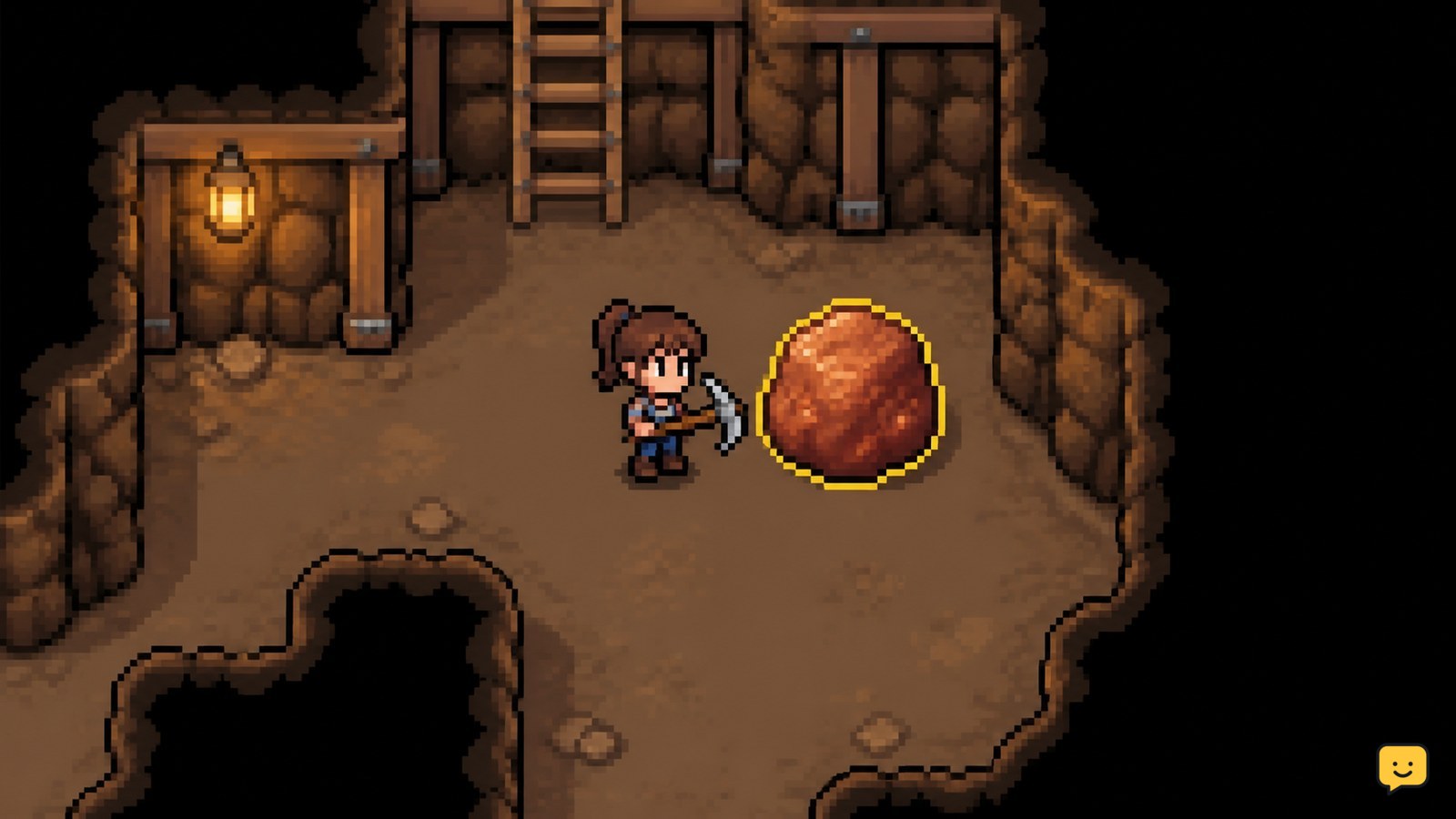
For mining trips, keep the pickaxe selected only while breaking rocks, then switch back to another item before clearing plants or returning to the farm. This reduces accidental actions when several resources are close together.
Verify the new tool worked before continuing
A successful tool change in Fields of Mistria is visible before the action begins: the hotbar highlight moves to the chosen slot and the character uses the matching tool. Make one controlled action, then inspect the target for the expected change, such as tilled soil, watered ground, a damaged rock, or removed vegetation.
If the expected result does not appear, stop using the tool and repeat the selection check. Confirm that the toolbar highlight is on the intended item, that the target is within range, and that you are using the correct action button for your device.
Fix a tool that will not switch
If Fields of Mistria does not change the selected tool, check the control assignment and whether the game is accepting input. Use this order so you do not spend resources or stamina while testing.
- Release the action button and move away from the target.
- Select the desired hotbar slot directly if pointer input is available.
- If direct selection is unavailable, open Settings and review the Controls assignments for toolbar movement or selection.
- Try the newly displayed key or button once, then watch for the highlight to move.
- Return to the resource only after the correct tool icon is selected.
If the control works in the settings screen but not during gameplay, close any open menu, confirm that the character is not in another interaction, and try again. If no toolbar input responds after checking the assignments, save your progress and restart the game before continuing. Do not treat an unchanged highlight as a successful switch.
Frequently asked questions
Can I change tools without opening my inventory in Fields of Mistria?
Yes. Tools and usable items placed on the hotbar can be selected directly during gameplay. Choose another toolbar slot or use the assigned toolbar-selection input; opening the full inventory is not required for a normal switch.
Why is Fields of Mistria using the wrong tool?
The wrong tool is usually still selected on the hotbar. Check which slot has the selection highlight, choose the slot with the correct icon, and only then press the action button. Also check the Controls menu if your keyboard or controller input is cycling in an unexpected direction.
How do I change Fields of Mistria tool controls?
Open Settings and select Controls. Find the toolbar or hotbar movement and selection actions, then assign a preferred key or controller input if the game allows it. Test the assignment in gameplay by confirming that the hotbar highlight moves.
What should I do if a tool does not work on a resource?
Stop pressing the action button, check the selected tool, and make sure it matches the target. If the icon is correct, move closer, face the resource directly, and try once. A missing response can also mean the target requires a different interaction or is out of range.