Your Star Citizen ship may not be missing: it can be assigned to a hangar while sitting beyond the access point you entered. Check the ship’s ASOP retrieval result, confirm the assigned hangar or pad, and search the correct access point for its size. If ASOP does not list the ship, stop treating this as a visibility problem.
Browse more Star Citizen guides
Check the ship’s ASOP result and assigned location
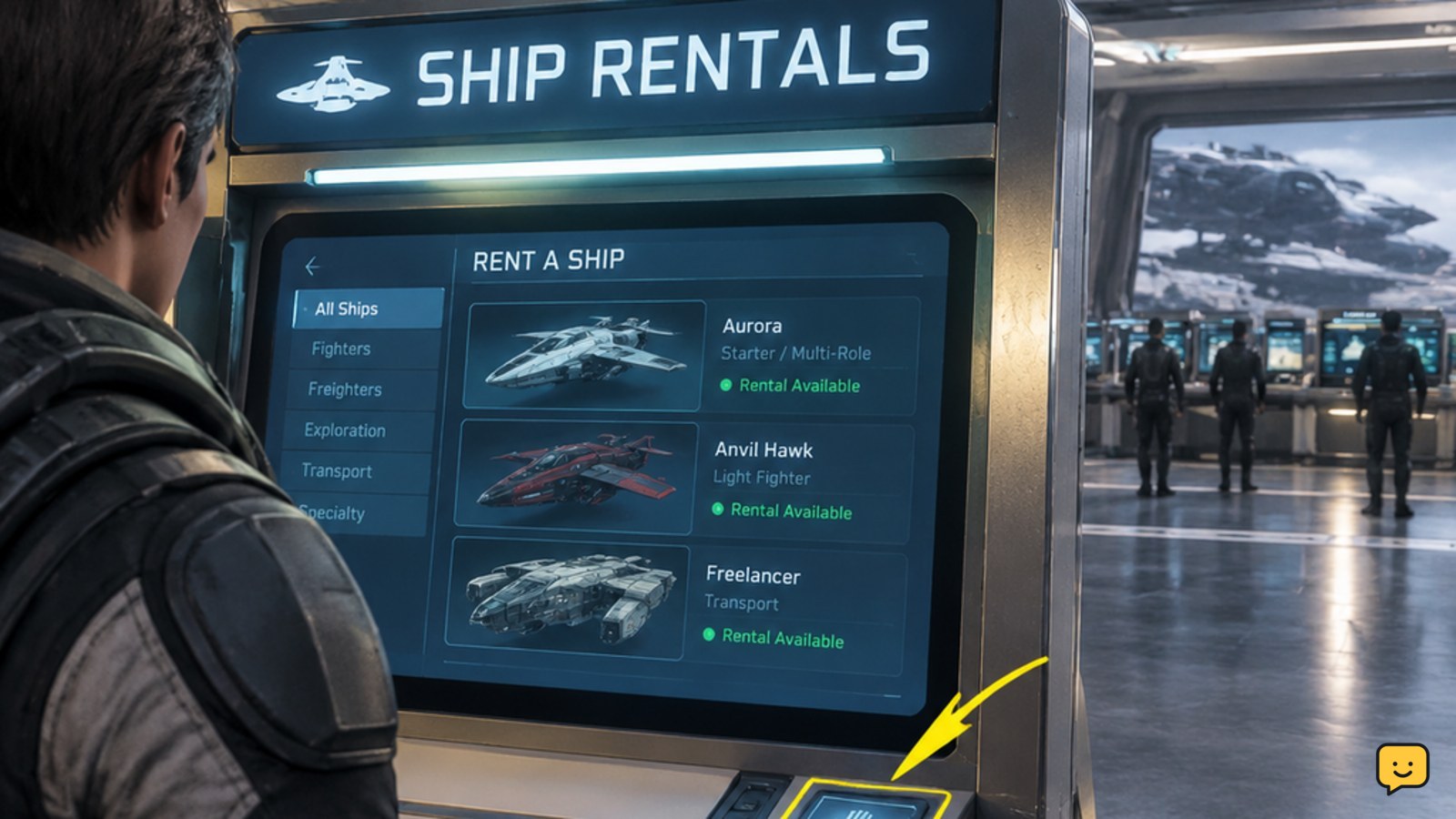
In Star Citizen, the first check is the ship’s ASOP retrieval result: confirm that the correct ship is selected and that the terminal assigns a hangar or pad.
- Return to an ASOP terminal at your current station or landing zone.
- Find the exact ship by name or model.
- Submit the retrieval request once.
- Read the resulting hangar or pad assignment before leaving the terminal.
If the request completes and a location appears, the ship may already be present even though it is not visible from the entrance. If the ship remains listed without a completed assignment, wait for the terminal state to update and check once more. Do not submit repeated requests while the first result is unresolved.
Search the correct hangar access point for the ship’s size
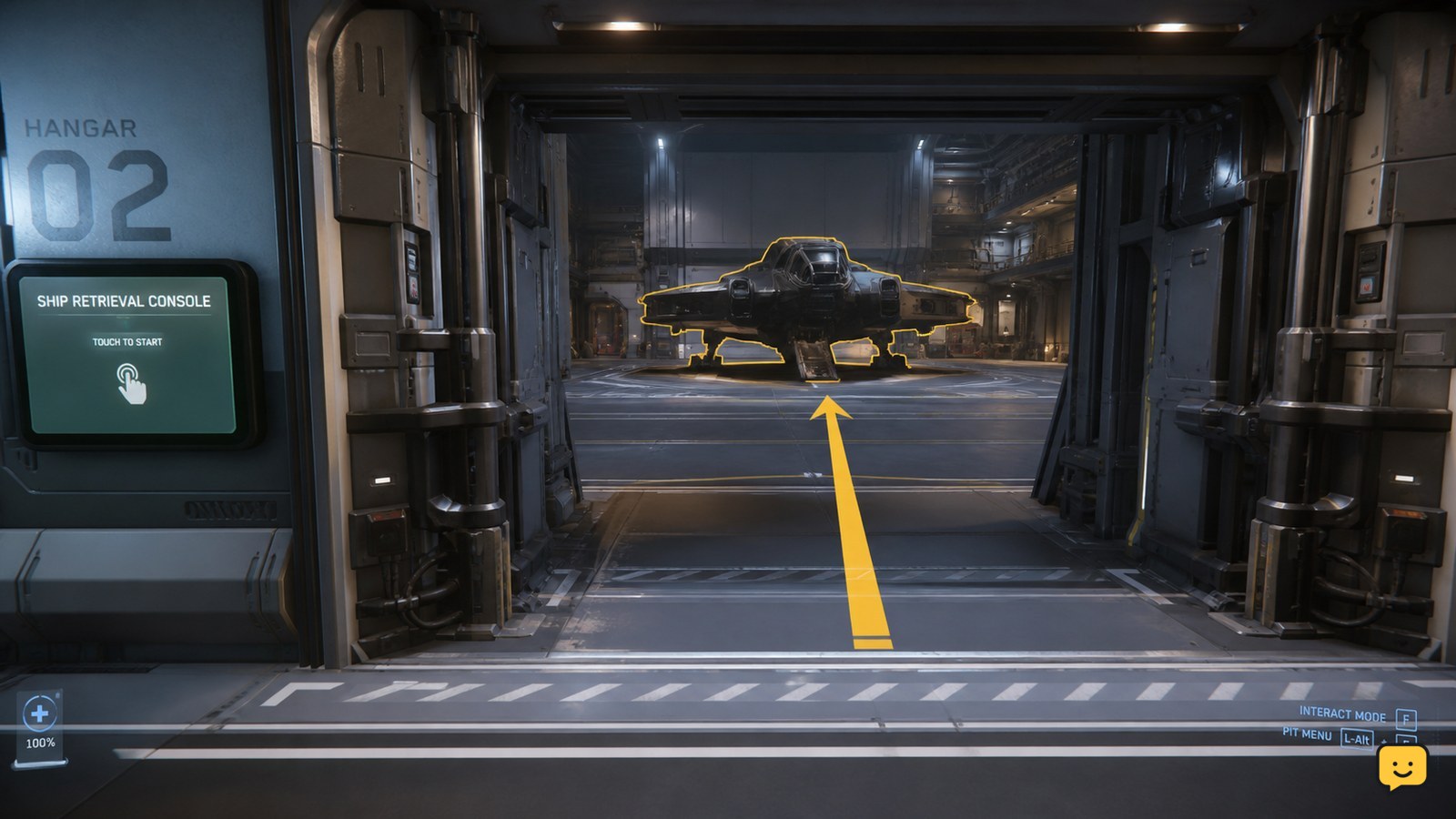
A Star Citizen ship can be assigned to a hangar but remain out of sight because different ship sizes use different access points.
The Star Citizen Wiki’s troubleshooting guide notes that larger ships are most likely to use access points near the center of the hangar. From the assigned hangar entrance, look for the main central access route rather than assuming the ship is beside the first door or elevator.
- Enter the hangar shown by ASOP.
- Check the central access area first if the ship is large.
- Look for the ship’s silhouette, landing gear, lights, or interaction prompts.
- Compare the visible space with the ship’s physical size before deciding it failed to spawn.
Success means you can see the hull or reach the ship’s interaction point. If the assigned hangar is too small for the listed ship, return to ASOP and verify that you selected the intended vessel rather than a similarly named ship.
Separate a visibility issue from an ASOP retrieval issue
Star Citizen’s ASOP terminal separates the two useful diagnoses: a completed assignment points toward a hangar-location problem, while a missing ship entry points away from the hangar itself.
| What you see | Likely diagnosis | Safest next action |
|---|---|---|
| ASOP shows a completed retrieval and a hangar | The ship may be inside the assigned space or beyond the correct access point | Check the assigned hangar and central access route |
| ASOP lists the ship but gives no usable location | The retrieval state may not have completed | Leave the terminal, wait briefly, then check the same ship once |
| ASOP does not list the ship | This is not confirmed as a hangar-visibility problem | Stop and use the game’s official support channels if ownership or account state is in question |
| The terminal displays an error | The terminal or service state may be failing | Try one different ASOP terminal at the same location; stop if the error remains |
Verify the result before trying recovery steps
A Star Citizen hangar problem is resolved only when the retrieved ship is visible in the assigned location or its interaction point is available.
- Check that the ship name or model matches the ASOP selection.
- Confirm that the hangar or pad number matches the terminal result.
- Search the appropriate access point for the ship’s size.
- Look for the hull or a usable ship interaction prompt.
If all four checks pass, the ship is showing correctly even if it was not visible from the first position you reached. If the terminal assigns a location but the entire space is empty, make one fresh retrieval check from ASOP. If the same completed assignment produces an empty hangar again, stop repeating retrieval requests and report the issue through official support with the location, ship name, and displayed assignment.
Frequently asked questions
Can a Star Citizen ship be in the hangar but out of sight?
Yes. A ship can be assigned to the correct hangar while being beyond the first access point you enter. This is more likely with larger ships because their access points and usable space may be positioned toward the center of the hangar. Confirm the ASOP assignment, then search the central route before requesting the ship again.
What does it mean if ASOP lists my ship but shows no hangar?
It means the retrieval result has not produced a usable location yet. Leave the terminal, wait briefly, and check the same ship once more. If no assignment appears after that check, treat it as an ASOP retrieval problem rather than a ship-hidden-in-the-hangar problem.
What should I do if my ship is missing from ASOP entirely?
Stop searching the hangar. If ASOP does not list the ship, this guide cannot confirm that the vessel was retrieved or assigned to that location. Check that you are at the intended location and that you selected the correct account-bound ship, then contact official support if the entry remains absent.
Should I keep submitting retrieval requests when the hangar is empty?
No. Repeated requests can make the ship’s state harder to identify. First confirm the ship name, assigned hangar or pad, and correct access point. Make one fresh ASOP check only after the first result has clearly finished. Stop if the terminal continues assigning an empty hangar or shows an error.