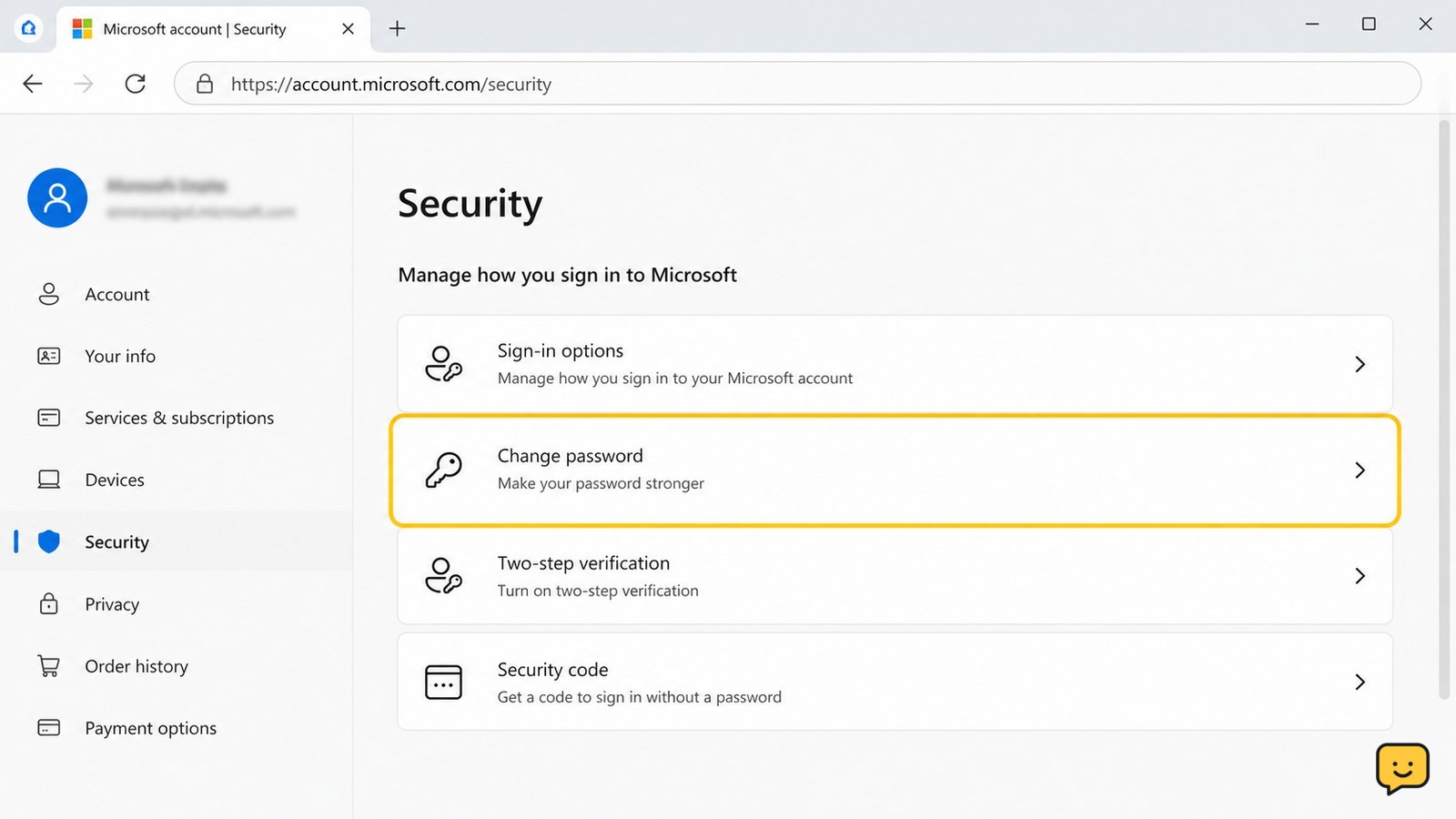
Sign in through the account provider’s official website or app, open Account or Security settings, find Recovery email or account-recovery options, replace the old address, and complete the confirmation sent to the new inbox. Then verify that the new address is listed, review other recovery methods, and stop if the account shows an unfamiliar sign-in or unauthorized change.
Check whether you can safely change the recovery email
An account recovery email can be changed only after the provider accepts your current sign-in or identity verification. Before editing it, check that you recognize the account’s security page, the current recovery details, and the device or session you are using.
Google states that recovery options are not available in the same way for every region, account, or device, and that work, school, or group-managed accounts may require an administrator. If the recovery control is missing, do not try to work around it; use the provider’s official account-recovery or administrator process.
Open the account’s Security settings
The recovery email control is normally located in Account, Security, Sign-in, or Password and recovery settings. Sign in through the provider’s official app or by typing its known web address yourself.
- Open the account menu and choose Settings, Account, or Manage your account.
- Open Security, Sign-in, or a similarly named section.
- Look for Recovery email, Account recovery, Ways to verify it’s you, or Contact information.
For a personal Google Account, Google’s documented path is Google Account > Security & sign-in > Recovery email. Other providers may use different labels, so do not treat an absent label as proof that recovery email is unsupported.
Replace the old recovery email and confirm the new address
Enter the new recovery address only after confirming that you control its inbox. The provider may ask for your account password, a sign-in challenge, or a code sent to an existing recovery method.
- Select the edit, change, or remove control beside the current recovery email.
- Enter the new address carefully, then save or continue.
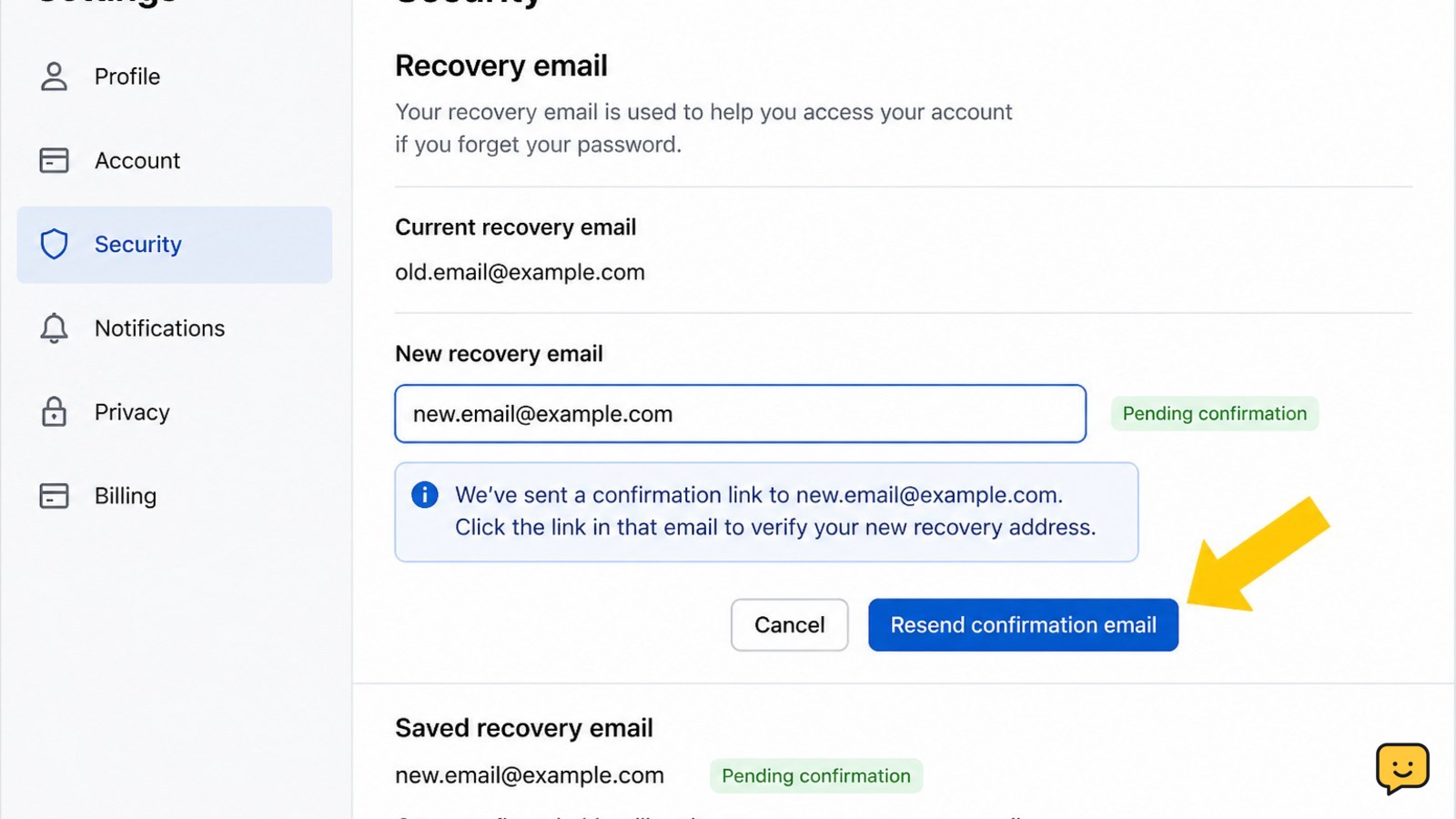
- Open the confirmation message in the new inbox and use the provider’s confirmation control.
- Return to the account’s Security settings and check that the new address appears as the recovery email.
Do not assume the change is complete just because the address was typed into a form. The observable success state is a saved security setting showing the new address, usually after inbox confirmation.
Verify every recovery method after the change
After the new email is listed, review the rest of the recovery and sign-in controls. Check the recovery phone number, backup codes, passkeys, authenticator app, trusted devices, and active sessions where the provider exposes them.
Remove only methods and devices you recognize as obsolete. Keep at least one dependable sign-in verification method available before deleting another. If two-factor authentication is off, enable it from Security settings and save the recovery codes; ShowU’s two-factor authentication guide covers that separate setup.
What to do if the address will not change
If the recovery email does not update, first check the new inbox for a pending confirmation and confirm that the address was entered without a spelling error.
- No confirmation message: check spam and filtered folders, then request a new message from the official Security page. Stop if the message asks you to disclose a verification code to another person.
- The old address is still shown: refresh the Security page, sign out and back in, and look for a separate pending-change notice. Do not remove the remaining recovery method until the new one is confirmed.
- You cannot pass verification: use the provider’s official account-recovery flow. Repeated failed attempts can trigger additional checks or a temporary restriction.
- An unfamiliar address or session appears: treat the account as potentially compromised. Do not approve the change; secure the account from a trusted device, change the password, end unknown sessions, and follow the provider’s compromise-recovery process. ShowU documents additional steps after an unfamiliar sign-in alert.
Stop and contact the provider or organization administrator when the account is managed, the recovery details were changed without your approval, or the official recovery process cannot verify ownership.
Frequently asked questions
Can I change a recovery email without access to the old email?
Sometimes. Many providers can verify you through a current password, recovery phone, authenticator, passkey, or another trusted method. If no alternate method is accepted, use the provider’s official account-recovery process. Do not remove the old address until the new inbox is confirmed.
Why has the new recovery email not appeared yet?
The change may be waiting for inbox confirmation or an additional security review. Check the new inbox’s spam and filtered folders, then revisit the official Security settings. If the old address remains and there is no pending notice, repeat the change from that page. Stop if an unfamiliar address or session is shown.
Should I use the same email for sign-in and recovery?
You can, but a separate secure inbox may provide better redundancy if the primary account becomes inaccessible. Whichever address you choose, protect it with a unique password and its own sign-in verification. Never use an inbox that another person can access.
What should I do if someone changed my recovery email?
Treat the account as potentially compromised. Use the provider’s official recovery page from a trusted device, change the password if you still control the account, end unfamiliar sessions, and inspect all recovery methods. Do not approve unexpected prompts or share verification codes.
Browse more Access & Recovery guides for help with this topic.