Do not use links or phone numbers in the alert. Open the account provider’s official app or type its address yourself, then check recent sign-in activity. If the event is not yours, change the password, sign out unknown devices, review recovery details, enable two-factor authentication, and use the provider’s recovery process if you cannot sign in.
Check the alert without using its link
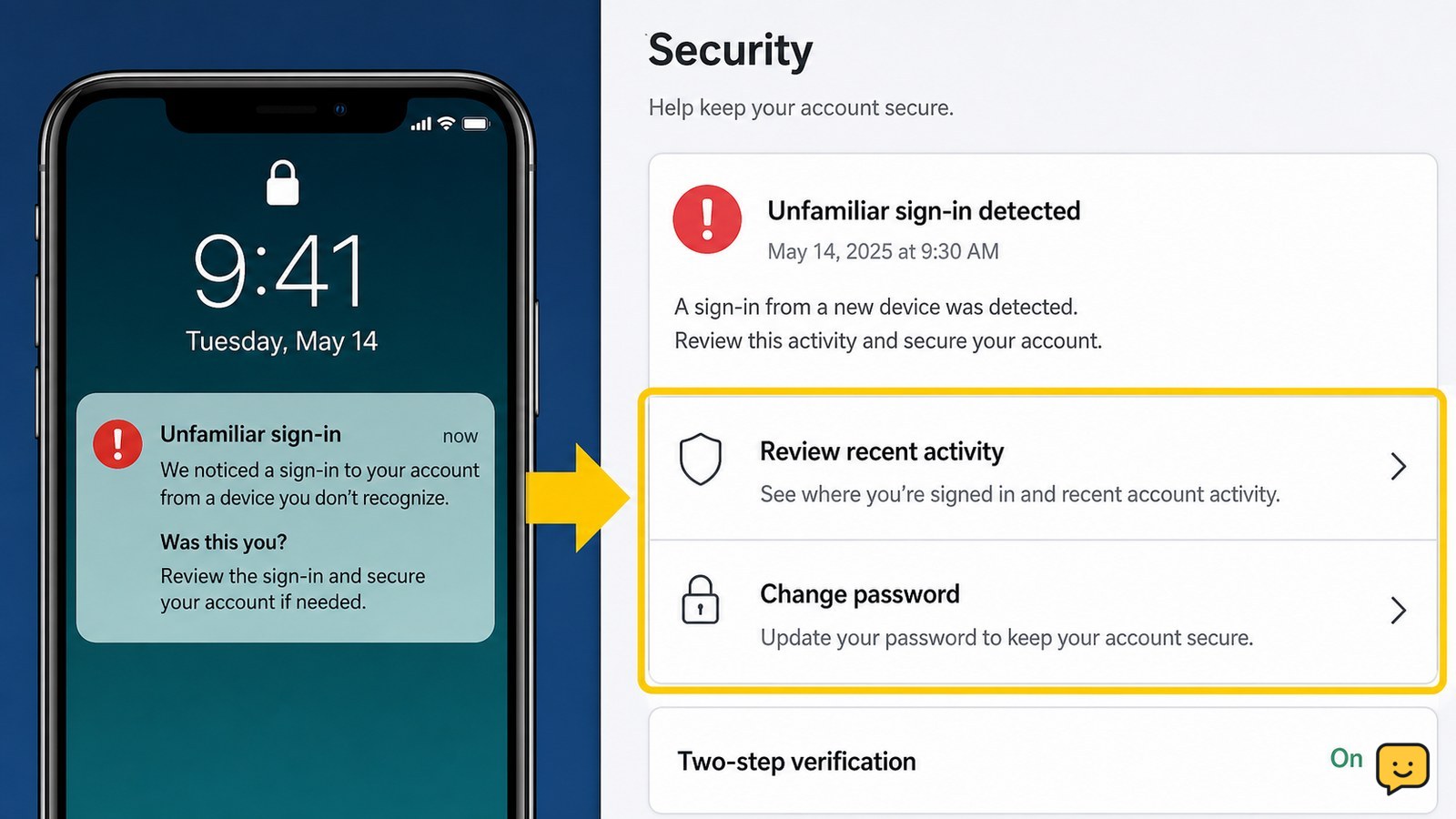
An unfamiliar sign-in alert should be verified from the account provider’s official app or website, not from the notification itself. Alerts can describe an unusual attempt rather than a completed sign-in, so treat the message as a warning until account activity confirms what happened.
- Open the provider’s app from your device, or type the provider’s known web address yourself.
- Go to the account’s Security, Sign-in activity, Recent activity, or Devices area. The exact name varies by provider.
- Compare the alert’s time, device, browser or app, location, and sign-in result with what you recognize.
Google’s account guidance directs users to review unfamiliar activity and change the password from the account’s security settings. Microsoft likewise describes unusual sign-in notices as alerts about sign-in attempts and may send them to alternate contact methods.
Expected result: You can identify whether the event matches a device or session you control. If the provider shows no matching event, continue securing the account but do not assume the alert itself is authentic.
Decide whether the sign-in was yours
The account activity record, not the message wording alone, determines the safest next action. Mark the event as unfamiliar when you do not recognize the device, time, app, location, or result and did not authorize someone else to use the account.
- Recognized activity: Check whether the provider lets you confirm it was you, then review the remaining security settings.
- Unknown attempt: Continue with a password change and session review even if the attempt was blocked.
- Unknown successful sign-in: Treat the account as potentially compromised and complete every security step below.
Do not contact an address or number supplied by the alert. A genuine notification can still be imitated by a phishing message, and a familiar-looking sender name does not prove the message is safe.
Change the password from official account settings
Change the account password directly from its Security or Password settings when the sign-in is unfamiliar. Google specifically provides a Change password action from an unfamiliar-activity notification or from the Google Account security area.
- Open the provider’s official account settings.
- Select Password or Change password.
- Create a new, unique password that you have not used on another account.
- Save it, then update the password in your trusted password manager if you use one.
If the new password is rejected, the page repeatedly fails, or you are unexpectedly signed out, do not keep retrying through the alert. Use the provider’s official recovery process instead.
Expected result: The provider confirms the password change and allows you to continue managing security settings. A password change alone does not prove that every existing session has ended, so continue to the next step.
End unknown sessions and review recovery details
Sign out devices and sessions you do not recognize, then check the recovery information that could be used to regain access. Look for Devices, Where you’re signed in, Sessions, Recent activity, Recovery email, Recovery phone, and connected apps.
- Remove or sign out every unknown device and browser session.
- Confirm that the recovery email address and phone number belong to you.
- Delete unfamiliar authenticator devices, passkeys, app passwords, or connected applications.
- Review recent account changes, sent messages, file activity, purchases, or forwarding rules when the account offers those records.
If a recovery address, phone number, or sign-in method was changed without your approval, treat that as evidence of account takeover. Do not delete records you may need for the provider’s investigation; save the time, device information, and screenshots privately.
Expected result: Only your known devices, recovery methods, and approved applications remain. If an unknown session returns after removal, change the password again from the official site and contact the provider through its official support channel.
Turn on two-factor authentication or a passkey
Enable two-factor authentication after the password is secure so a password alone is not the only sign-in barrier. Choose an authenticator app, security key, passkey, or another method the provider supports and that you can reliably access.
- Open Security settings and select Two-step verification, Two-factor authentication, Passkeys, or the equivalent control.
- Add the new method while signed in through the official account page.
- Save recovery codes in a private, offline location and confirm that a backup method works.
- Remove old or unfamiliar verification methods.
Do not share a verification code with anyone who contacts you. A support representative should not need the one-time code from your authenticator or text message.
If a passkey does not work, use a verified backup sign-in method rather than repeatedly approving unexpected prompts. For Google-specific passkey problems, use the provider’s current passkey troubleshooting guidance and check that the device and screen lock meet its requirements.
Recover the account if you can no longer sign in
Use the provider’s official account-recovery page when the password fails, recovery details changed, or an attacker signed you out. Begin from the provider’s main website or app rather than a link in the alert.
- Choose the account-recovery or account-help option.
- Provide the requested identity and ownership information accurately.
- Use a previously trusted device or recovery method when the provider offers that choice.
- After access returns, repeat the password, session, recovery-detail, and two-factor checks.
Do not pay a person who promises to bypass recovery, and do not give anyone your password or verification codes. If recovery fails, follow the provider’s official escalation options. For Apple Accounts, Apple’s recovery process may use a trusted device, recovery contact, or account-recovery waiting period depending on what remains available.
Stop condition: Stop normal troubleshooting if the provider cannot verify ownership or if you see ongoing unauthorized changes. Preserve the alert and activity details, secure related accounts, and use official support only.
Frequently asked questions
Does an unfamiliar sign-in alert always mean someone accessed my account?
No. An alert may describe an attempted sign-in that was blocked rather than a completed login. Check the provider’s official recent-activity or security page for the result, device, time, and location. If you cannot verify the event, change the password and review sessions anyway.
Should I click the button in a sign-in alert?
No. Open the provider’s official app or type its website address yourself. This avoids relying on links, phone numbers, QR codes, or attachments that may lead to a fake sign-in page or fraudulent support contact.
What if I recognize the device but not the location?
Check the activity time, device, browser or app, and sign-in result together. Location information may not precisely identify where a device was used, so the device and timing are useful comparison points. If anything remains unexplained, secure the account as an unfamiliar event.
What should I do if the alert keeps returning after I change my password?
Review and remove unknown sessions, connected apps, app passwords, passkeys, and verification methods. Confirm that recovery details are yours and check for unauthorized account changes. If alerts continue, use the provider’s official support or recovery channel; do not respond to the alert itself.
Can I ignore an alert if the sign-in attempt was blocked?
No. A blocked attempt means the provider stopped that event, but the password or another sign-in detail may still be targeted. Keep the new unique password, review account activity, remove unknown sessions, and enable two-factor authentication.
Browse more Email & Social Accounts guides for help with this topic.