Start with any device where the account is still signed in, then use backup codes or another enrolled verification method. If the authenticator app supports cloud restoration, restore it only through its official process. Otherwise, use the account provider’s recovery page or contact a work-account administrator. After access returns, remove the lost phone and enroll a new authenticator.
1. Check for a device or session that is already signed in
An account that is still open on a trusted device may let you replace the lost authenticator without entering a new code.
- Open the account’s security or sign-in settings on the trusted device.
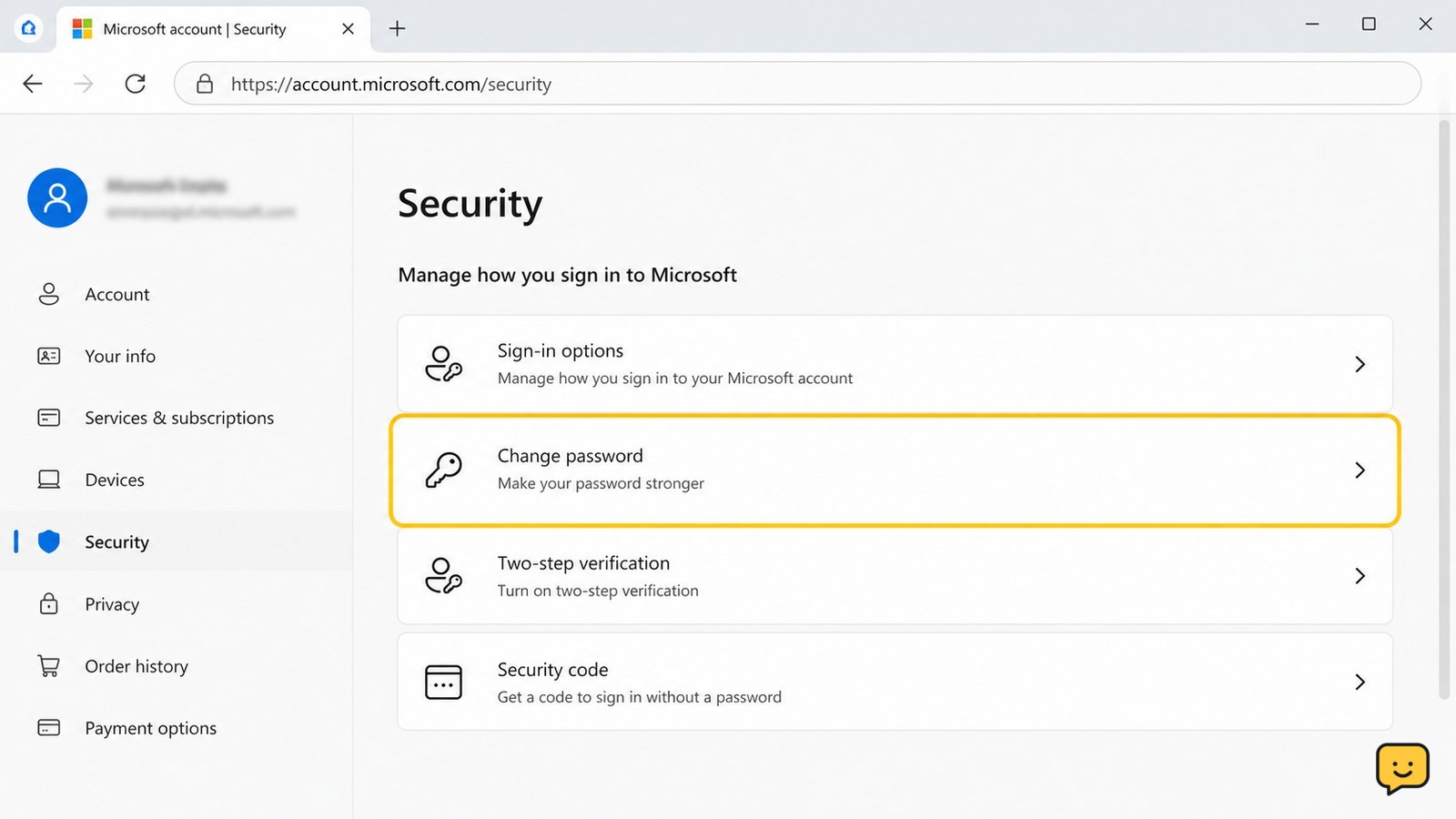
- Look for controls named Two-step verification, Multi-factor authentication, Authenticator, Security info, or Devices.
- Add a new authenticator, passkey, security key, recovery number, or recovery email before removing the old phone.
- Save newly issued backup codes in a password manager or another private offline location.
Verify the change by opening a private browser window and signing in with the new method. If the account immediately demands the lost phone and offers no settings access, return to the sign-in page and choose another verification option rather than repeatedly guessing codes.
2. Use backup codes or another enrolled verification method
Backup codes, passkeys, security keys, recovery email, and recovery phone numbers can replace an authenticator code when the provider still lists them as available.
- Enter the account name and password on the official sign-in page.
- Select Try another way, Use a backup code, I can’t use my authenticator, or the closest available option.
- Enter one unused backup code exactly as saved. Backup codes are normally single-use, so mark the used code as unavailable.
- After signing in, review security settings and generate a fresh set if the remaining codes may have been exposed.
If no alternate method appears, the account provider may be enforcing a policy that requires its recovery process or an administrator. Do not use a code from another account or ask someone to forward a code.
3. Restore the authenticator only when an official backup exists
Authenticator restoration depends on the specific app and whether its backup feature was enabled before the phone was lost.
Microsoft’s Q&A guidance says Microsoft Authenticator data may be restored from a backup after signing in with the recovery account, but the result depends on the account and backup configuration. Google’s account community identifies an exported QR code or the original site-specific QR code as possible ways to restore authenticator entries. These references do not mean every authenticator app or every account can be restored from a phone backup.
- Install the same authenticator app from the official app store on the replacement phone.
- Use its built-in restore or backup-import option, if shown.
- Sign in with the recovery account required by the app, or scan an authenticator export QR code that you created previously.
- Test one restored entry by generating a current code and using it on the account’s official sign-in page.
If the app opens but contains no accounts, the backup was unavailable, or the restored code is rejected, stop trying to repair that entry. Use the account provider’s recovery process and enroll the replacement phone afterward. Never scan a QR code sent by an unknown person.
4. Start the provider’s official account recovery process
Official recovery is the correct path when the lost authenticator is the only available factor and no trusted session or backup method works.
- Open the provider’s account-recovery page from its official help center or sign-in screen.
- Enter the account identifier and choose the option indicating that you cannot use the authenticator or phone.
- Provide requested information consistently, using a familiar device, browser, and network when possible.
- Check the recovery email or phone for a response, and follow only links that lead back to the provider’s genuine domain.
Recovery checks may fail when the submitted details do not match the provider’s records. If the provider offers a retry, correct only information you can verify; do not invent answers. Microsoft’s Q&A discussion also shows that repeated support contacts do not replace the provider’s required verification process. For a work, school, or managed subscription account, an administrator may need to reset the authentication requirement.
Success looks like: the provider accepts a replacement verification method, sends a recovery approval, or presents account settings without requesting the lost phone. If recovery is denied and no alternate route is offered, there is no safe bypass; use the provider’s documented appeal or administrator process.
5. Remove the lost phone and enroll a replacement
After access returns, secure the account by replacing the lost authenticator and ending sessions that the missing phone could still use.
- Change the account password if the lost phone was unlocked, stolen, or may have displayed account information.
- Remove the lost phone or old authenticator entry from the account’s security settings.
- Enroll the replacement authenticator, then test it in a separate browser or signed-out session.
- Review recent sign-ins, active sessions, recovery addresses, phone numbers, passkeys, security keys, and connected apps.
- Sign out unfamiliar sessions and revoke unknown app access.
For a Google Account, ShowU’s device-session guidance places remote sign-out under Security and Your devices. Menu names vary by provider, so use the account’s current security page rather than an old tutorial. Keep at least two independent recovery methods and store backup codes away from the phone.
Frequently asked questions
Can I recover authenticator codes from a phone backup?
Sometimes, but a full phone backup does not guarantee that authenticator secrets are restorable. The app must support backup or export, and the backup must have been enabled before the phone was lost. Use only the app’s official restore or import feature. If accounts do not reappear or codes fail, use each account provider’s recovery process instead.
What if the lost phone is still signed in to my accounts?
Secure the accounts from another trusted session as soon as possible. Change passwords where appropriate, remove the lost phone from security settings, review recent sign-ins, and end unfamiliar sessions. If the phone was stolen or unlocked, also contact the mobile carrier and use the device maker’s official lost-device controls.
How do I recover a work or school account without the authenticator?
Contact the organization’s administrator or help desk when self-service recovery does not offer another verification method. Managed accounts can require an administrator to reset multi-factor authentication or issue a temporary registration process. Do not try to bypass the organization’s policy or create a second account to avoid the sign-in requirement.
What should I do if someone offers to recover the account for me?
Do not share credentials or verification codes. Unofficial recovery offers are a common phishing route, especially after a lost phone. Use the provider’s address typed manually, its official app, or your organization’s known help-desk contact. Stop immediately if anyone requests payment, remote access, a backup code, or a QR code scan.
For more current help, browse all Access & Recovery guides.