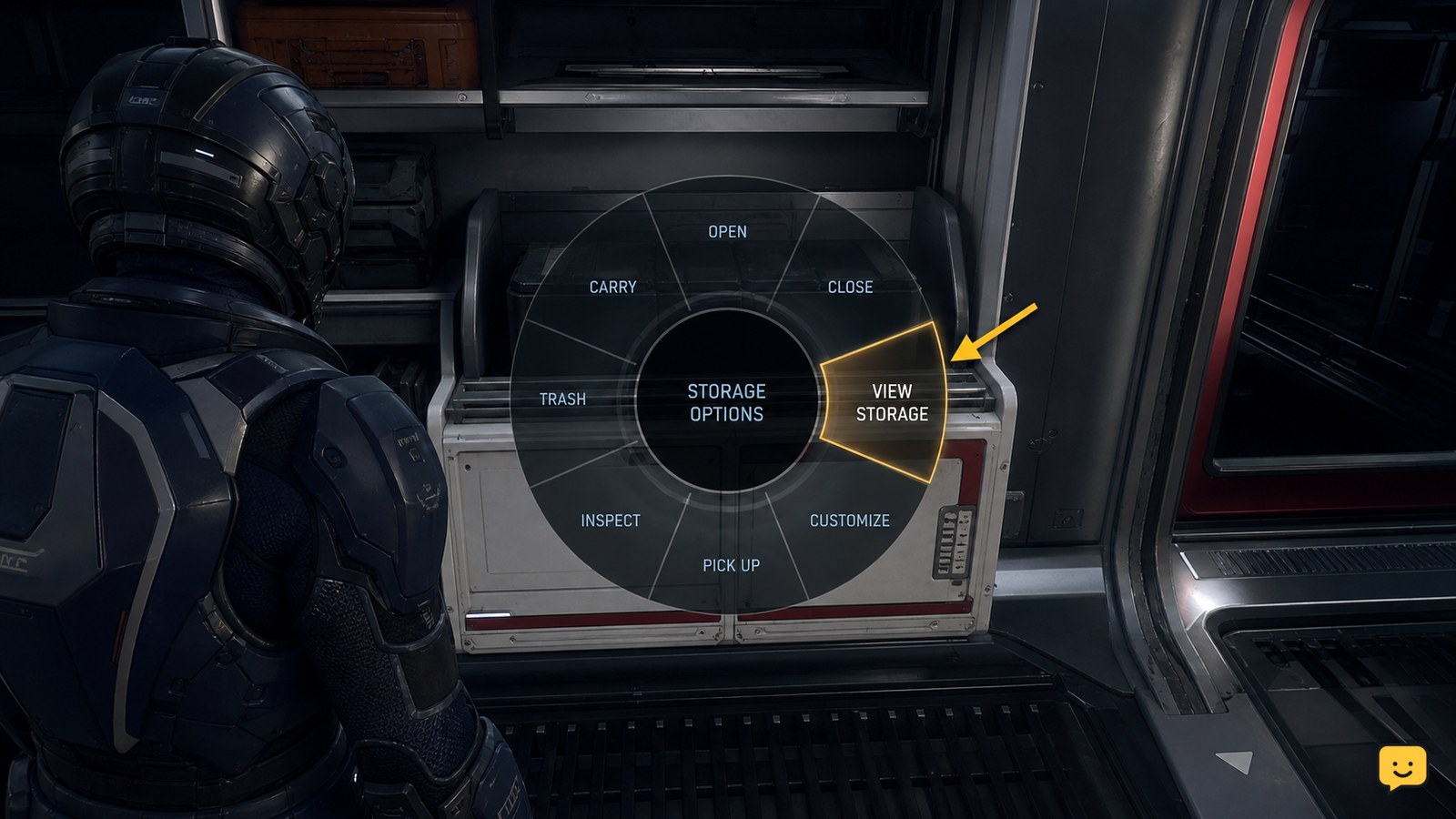
To access ship inventory in Star Citizen, stand inside your spawned ship, hold the interaction key, and open the radial interaction menu. Choose the storage entry shown for that ship, which community reports identify as Loot, External Storage, or similar. Confirm the inventory panel identifies the ship before moving items. Labels and availability can vary by ship and current LIVE behavior.
Browse more Star Citizen guides
Open the ship storage entry from inside your vessel
Star Citizen exposes ship storage through an interaction menu when you are inside a retrieved vessel. Stand in the ship interior, look toward a usable area, and hold your interaction key to open the radial menu. Select the entry that refers to storage, such as Loot, External Storage, or a similar label. Community reports describe these labels rather than one fixed name, so use the option currently displayed in your LIVE session.
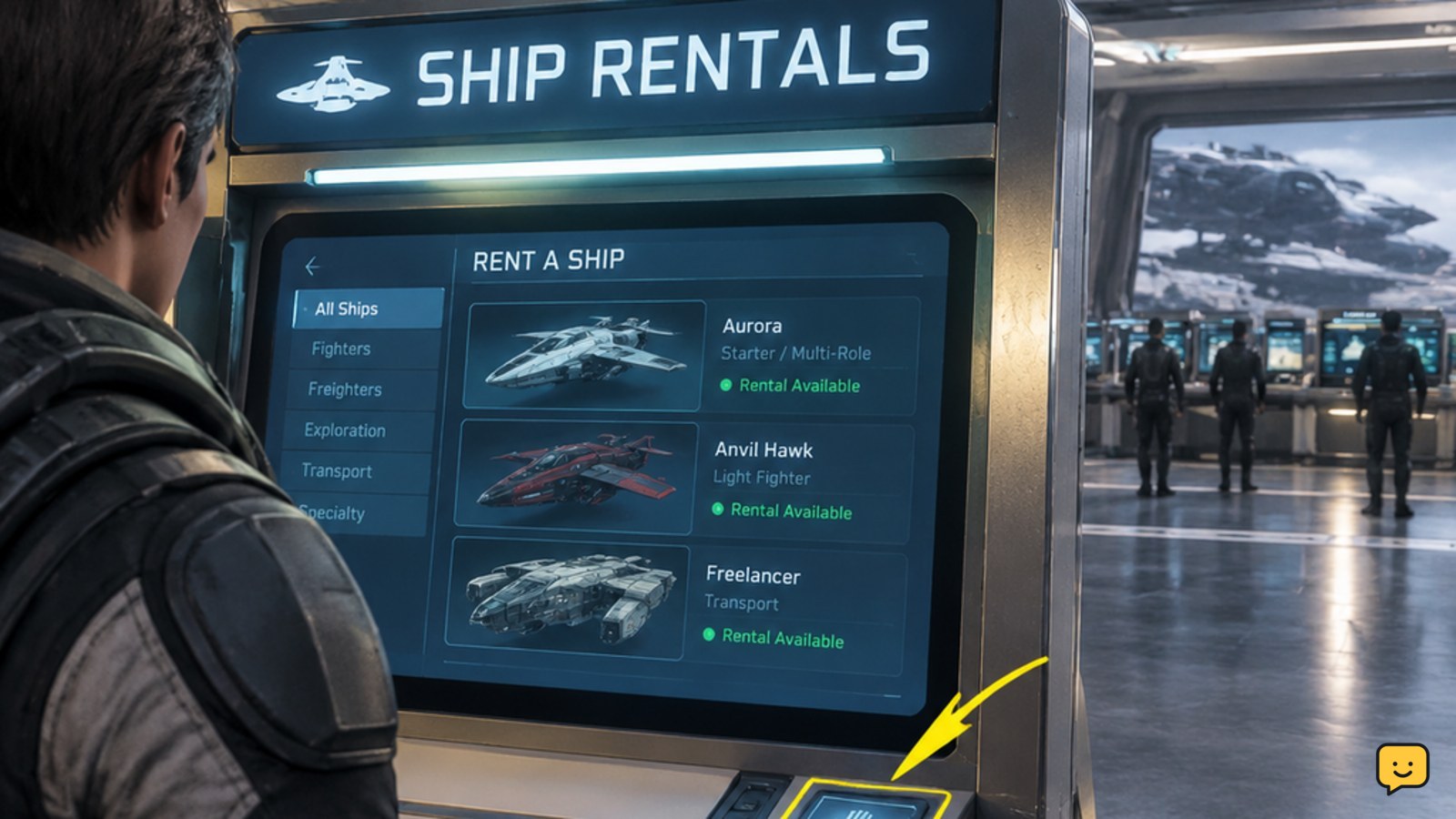
- Retrieve the ship from the spaceport terminal.
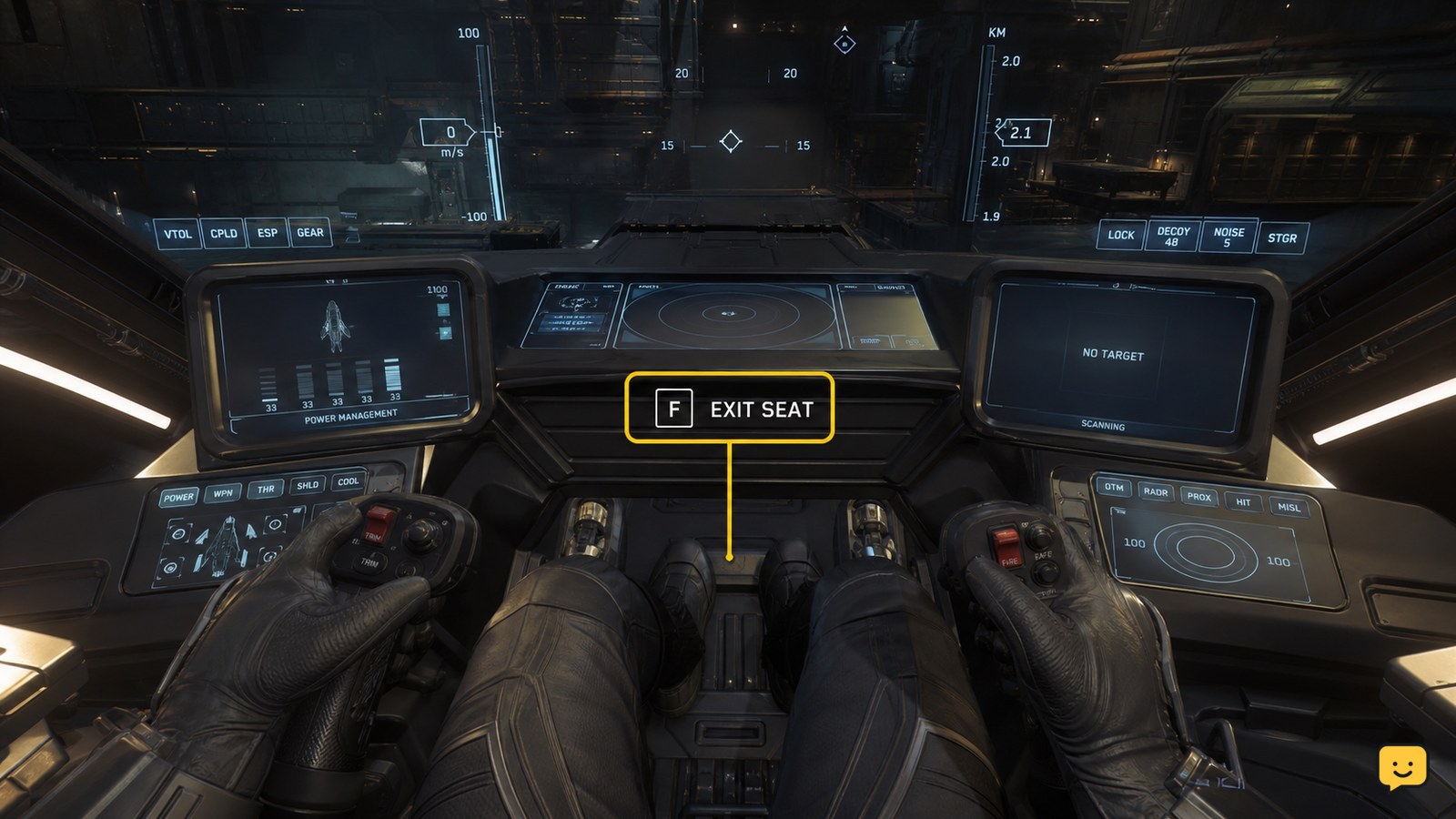
- Enter the ship and move away from the exterior access point.
- Hold the interaction key and inspect the radial choices.
- Choose the storage-related option instead of a seat, door, or component interaction.
The expected result is an inventory panel opening without leaving the ship. If no storage option appears, move to another interior interaction point and try once more before treating it as a failure.
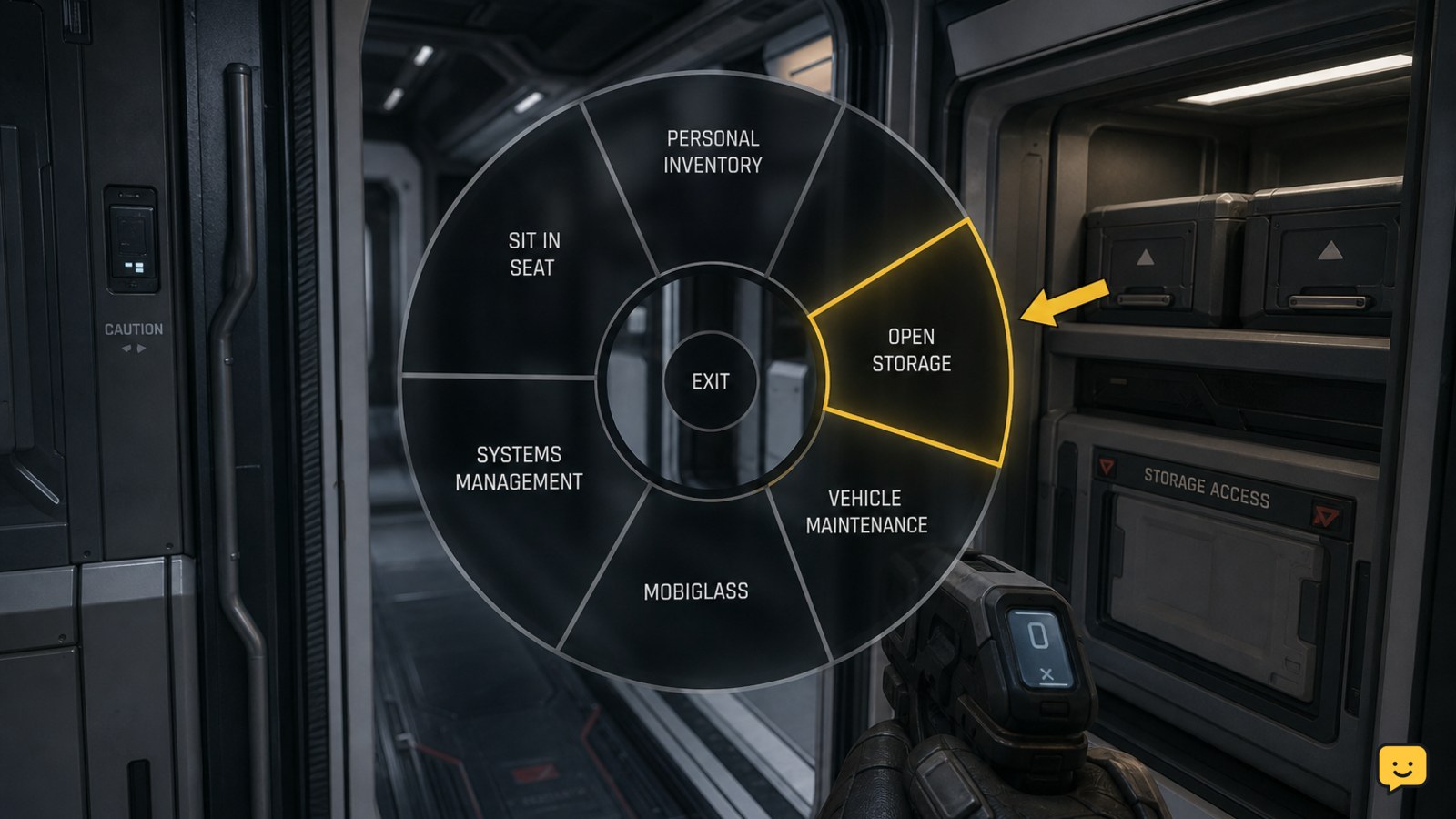
Verify that the panel is showing ship inventory
Ship inventory is confirmed only when the opened panel identifies storage belonging to the current vessel rather than your local location or personal inventory. Check the panel title, container name, or location indicator before transferring equipment.
Use a low-value test item if you need to confirm the destination. Move it only after the panel shows the ship or onboard container, then close and reopen the storage view. Success means the item remains listed in that same ship storage location during the current session.
This access method is separate from physically loading boxes onto a cargo grid. It also does not automatically move equipment from local storage into the ship; that is a different inventory-transfer task.
Fix a missing Loot or External Storage option
A missing storage entry usually means the interaction target, ship state, or session state is not currently exposing onboard inventory. Apply these checks in order so you do not mistake a display problem for lost items.
- Change position: move farther into the interior and look at another usable surface or storage area.
- Check the ship state: confirm the vessel is retrieved, powered, and not in a transition such as despawning, storing, or claiming.
- Reopen the menu: release the interaction key, look away from the target, then hold it again.
- Refresh the session: store and retrieve the ship again if the storage entry remains absent.
- Relog only after checking the panel: if the menu still fails, leave the session and reconnect before moving valuable items.
Community troubleshooting reports also describe broader inventory and ship-retrieval failures occurring together. If mobiGlas, personal inventory, and ship retrieval are all failing, treat the problem as a session or service issue rather than an isolated ship-inventory control.
Know when ship inventory access does not apply
The onboard interaction menu is not the correct route for every type of ship storage. Use it for a ship-associated inventory container that the current vessel exposes from its interior.
Use a freight elevator or another supported transfer point when moving items from local station storage into ship inventory. Use the physical cargo grid and appropriate handling equipment when loading boxed freight. These systems can show different items and follow different persistence rules.
If the storage panel opens but is empty, first verify that the item was transferred to the ship rather than left in local storage. If the item is valuable and the location indicator is unclear, stop and refresh the ship or session before making another transfer.
Frequently asked questions
Can I access ship inventory while standing outside the ship?
Usually, this guide applies to the onboard interaction available from inside a retrieved vessel. If you are outside, the interaction menu may show access, door, or vehicle options instead of ship storage. Enter the ship, move into the interior, and reopen the interaction menu. If no storage entry appears inside, refresh the ship state before moving items.
Is ship inventory the same as the cargo hold?
No. Ship inventory and physical cargo are separate storage systems. Ship inventory is accessed through the vessel’s supported storage interaction, while cargo hold items generally need to be placed on a physical cargo grid or handled through the relevant loading system. Confirm the storage type before transferring equipment or freight.
Why is my ship inventory empty after I open it?
An empty panel can mean the item remains in local storage, the wrong ship is active, or the current session has not refreshed the container. Confirm the ship name or location indicator, store and retrieve the vessel, then reopen the panel. Stop before deleting duplicates or abandoning valuable equipment if the storage state remains unclear.