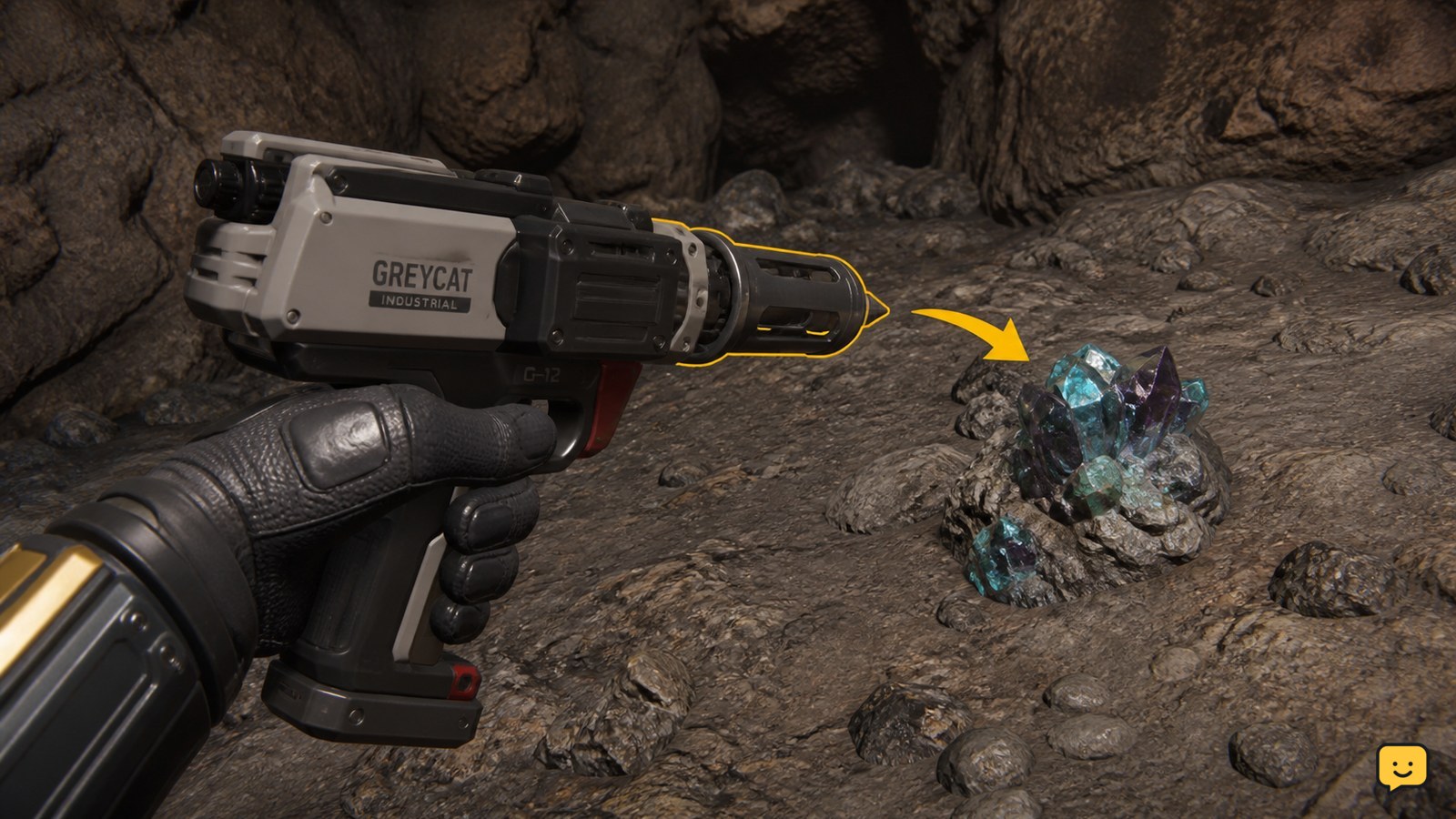
To hand mine in Star Citizen, equip a Greycat Multi-Tool, attach the OreBit mining attachment, aim at a mineable gemstone deposit, and use the mining beam to fracture it. Collect the released gems only after the deposit breaks. Item availability and controls can vary, so verify the attachment appears on the tool before leaving for a mining site.
Browse more Star Citizen guides
Check the Multi-Tool and OreBit setup
Star Citizen hand mining requires a Greycat Multi-Tool fitted with the OreBit mining attachment, not a weapon or a ship-mounted mining laser. RSI’s Community Hub describes this combination as the entry-level setup for mining gemstones, while the maintained Star Citizen Wiki identifies the Multi-Tool as part of the mining workflow.
- Equip the Greycat Multi-Tool.
- Fit the OreBit mining attachment.
- Keep the tool equipped and confirm that the attachment is visible or selectable before leaving storage.
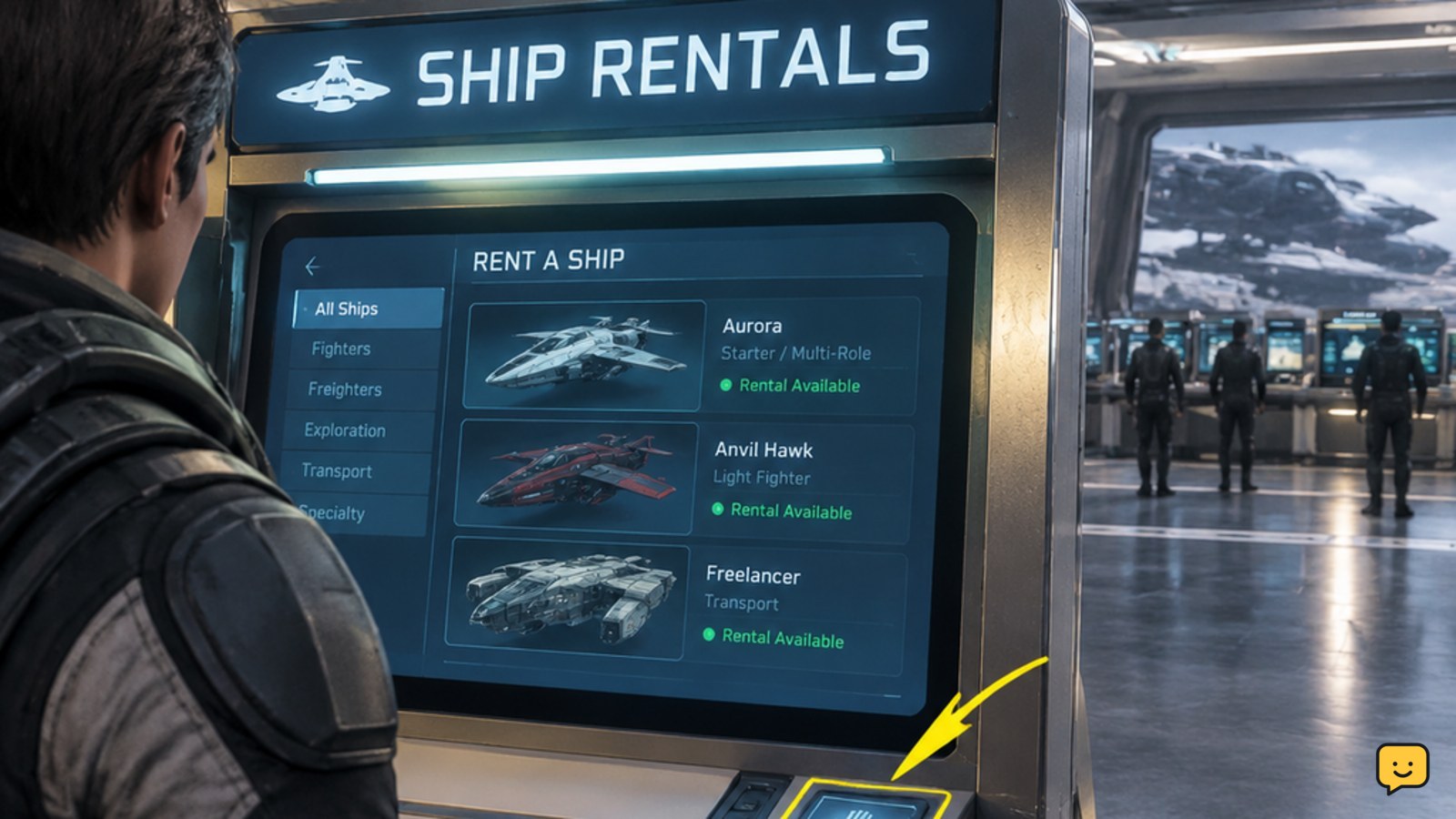
The supplied current evidence does not establish one permanent shop location for every LIVE location or economy state. If you cannot find the item, search the local shop or inventory interface by its exact name. Do not substitute an attachment whose function is not shown as mining.
Find a deposit that responds to the mining tool
A usable hand-mining deposit is confirmed by the tool’s mining response when you aim at it and activate the fitted OreBit attachment. Look for small gemstone-bearing rocks or deposits in locations where on-foot mining is possible, then approach closely enough for the tool to target the object.
A visual resemblance alone is not enough. Aim at the deposit and check for a mining reticle, target response, or other on-screen indication that the OreBit can interact with it. If nothing changes, move around the rock to check for an obstructed aim point. If the deposit still produces no mining response, leave it and test another object.
Aim and fracture the gemstone deposit
To extract a hand-mineable resource, aim the fitted Multi-Tool at the deposit and activate its mining function while watching the tool feedback. The Star Citizen Wiki lists the right mouse button for aiming down sights and R for holstering in its mining guide; your current control settings may differ.
- Raise the Multi-Tool and aim at the deposit.
- Start the mining beam using the control shown in your current bindings.
- Keep the beam on the deposit and adjust your aim if the feedback changes.
- Release the mining function when the deposit fractures or breaks.
Do not keep applying the beam after the rock has broken. The expected result is a fractured deposit followed by loose gemstone items that can be collected. If the tool activates but the rock does not react, stop and reassess the attachment, target, and control binding rather than continuing indefinitely.
Collect and verify the released gems
After the deposit breaks, collect the loose gemstones and verify that they entered your personal inventory before moving on. The visible pickup result or an inventory change is the confirmation that extraction succeeded.
- Look for the released gem items near the broken deposit.
- Pick them up using the interaction prompt.
- Open the relevant personal inventory view and confirm the items are listed.
If a gem remains on the ground, reposition your character and try the interaction again. If the pickup prompt never appears, check whether the item is obstructed, whether your inventory is full, or whether the rock produced a usable item at all. Stop before travelling away if the inventory entry cannot be confirmed.
Fix a Multi-Tool mining attempt that fails
When hand mining does not work, identify whether the failure comes from the tool, the target, the control, or the pickup stage.
| Symptom | Likely cause | Safest next action |
|---|---|---|
| The attachment cannot be fitted | Wrong tool, incompatible attachment, or changed LIVE item rules | Recheck the item names and compatibility; stop if the game does not confirm the pairing. |
| The beam activates but the rock does not respond | Non-mineable object, poor aim point, or incorrect tool mode | Test another deposit and confirm the OreBit function is selected. |
| The rock breaks but no gem is visible | Item hidden by terrain, failed spawn, or an unconfirmed target | Search the immediate area, then verify inventory before leaving. |
| The gem is visible but cannot be collected | Obstruction, interaction range, or full inventory | Move closer, change position, and check available storage space. |
These failure branches are troubleshooting inferences from the extraction sequence, not guarantees about every LIVE session. If the same failure persists with multiple deposits, leave the area and recheck the tool and attachment in a safe location.
Frequently asked questions
Can you hand mine in Star Citizen without an OreBit attachment?
No confirmed current workflow in the supplied evidence replaces the OreBit mining attachment for this setup. Use a Greycat Multi-Tool with OreBit fitted, and stop if the game does not show the attachment as compatible or selectable.
What can you collect with a Multi-Tool while hand mining?
The supported references describe the Multi-Tool and OreBit combination for gemstone mining. Collect the loose gems released after a deposit breaks, then verify the items in personal inventory before leaving.
Why does the mining beam do nothing?
The object may not be mineable, your aim point may be obstructed, or the OreBit function may not be active. Test another deposit, confirm the attachment, and use the control shown in your current bindings.
Do the hand-mining controls always use the same keys?
No. The Star Citizen Wiki lists right mouse button for aiming and R for holstering in its mining guide, but personal bindings and LIVE control layouts can differ. Check the in-game keybind screen when the listed input has no effect.