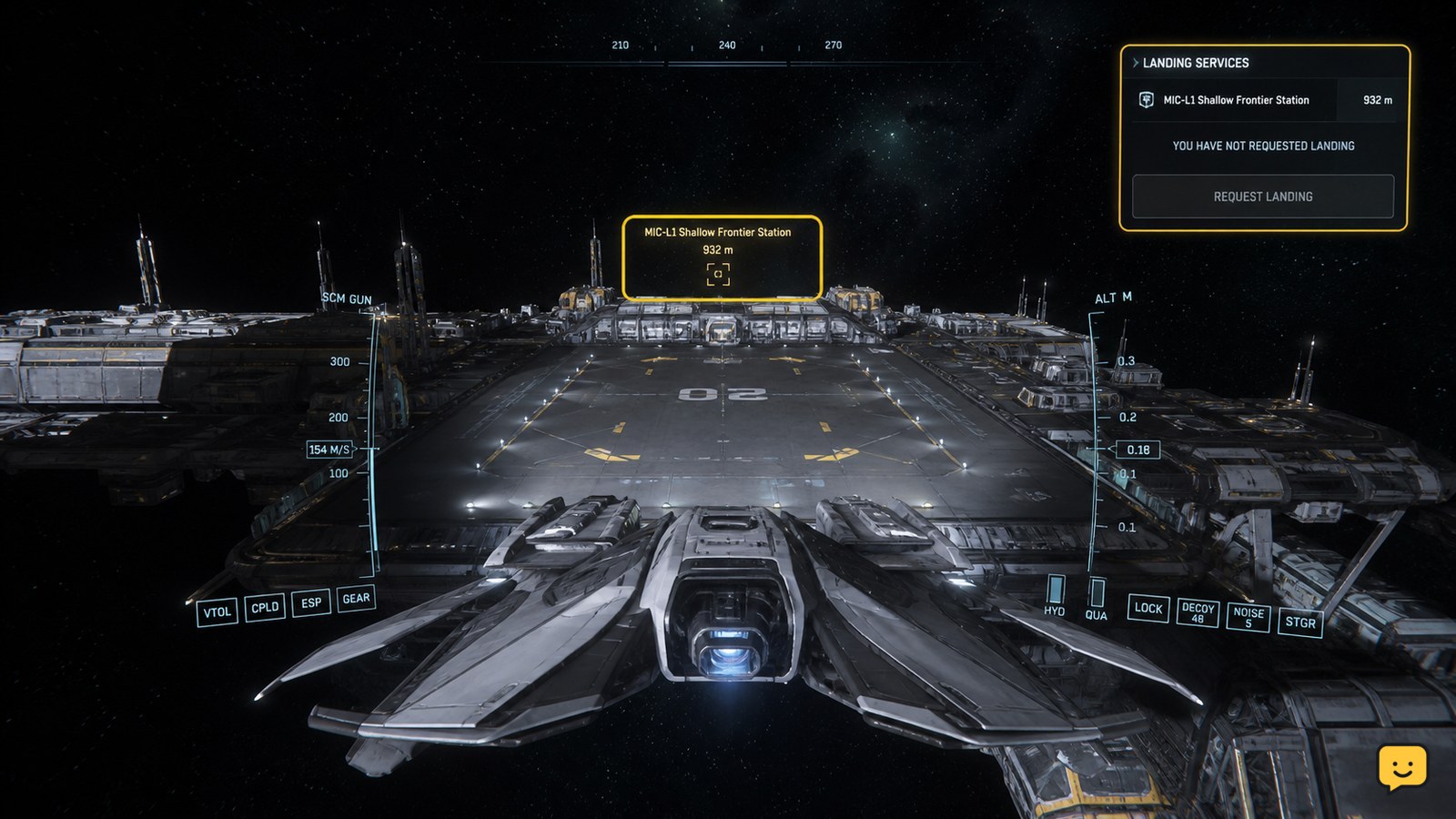
In Star Citizen, move close to the station, city, or outpost where you want to land, open Commlink with F11, and select the location’s Landing Services or traffic-control contact. Send the landing request, wait for the clearance response, then follow the assigned pad or hangar marker. If no contact appears, move closer and check that the location supports landing services.
Browse more Star Citizen guides
Find the destination in Commlink
Star Citizen shows landing-service contacts through Commlink when your ship is close enough to a supported landing location. The official Roberts Space Industries landing guide identifies F11 as the shortcut that opens the Commlink page in mobiGlas.
- Fly toward the station, city, or outpost where you want to land.
- Reduce speed as you enter the area and keep the destination selected or in view.
- Press F11 to open Commlink. If that key is not working, check your current keybind for the Commlink action rather than assuming the default is unchanged.
- Look for the destination’s traffic-control or Landing Services contact.
If the contact is missing, do not continue a blind descent. First move closer at a controlled speed, because the official guide notes that landing services become available when you are close enough.
Send the landing request
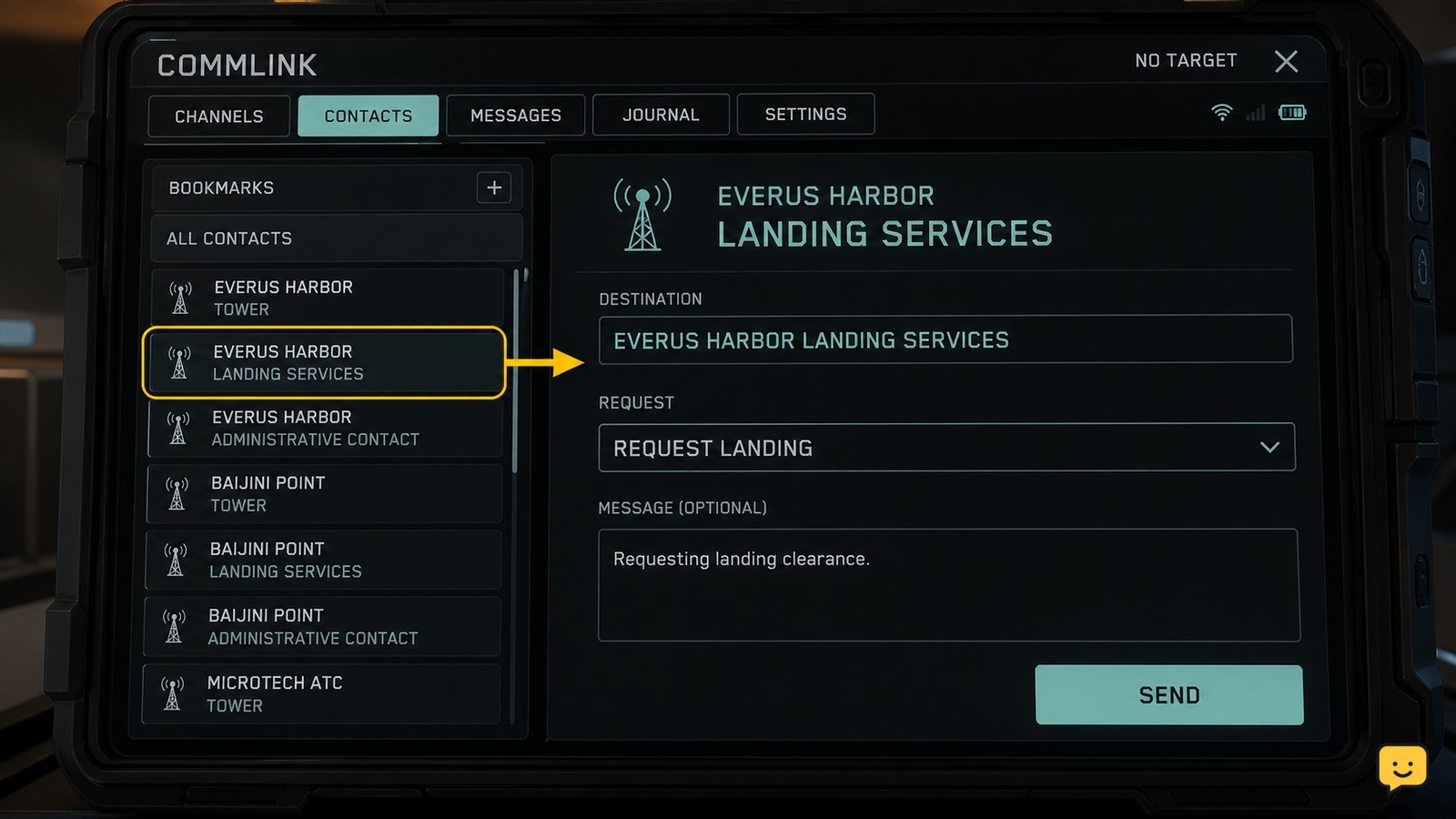
Star Citizen accepts the landing request from the destination’s traffic-control or Landing Services contact in Commlink. The community procedure documented by the Star Citizen subreddit describes opening Commlink, choosing the Friends tab, and selecting the location traffic-control contact.
- Open the destination contact.
- Select Request Landing or the equivalent landing-service action shown by the current interface.
- Wait for the response before closing the panel and continuing your approach.
Some players also bind a direct Request Landing control in the flight-movement keybinds. Use that shortcut only if it is present and assigned in your settings; Commlink remains the safer fallback when you are unsure which control is active.
Verify clearance before descending
Successful landing-service requests in Star Citizen produce an observable clearance response and normally identify where to land. After sending the request, check for the assigned pad, hangar, or landing marker before descending.
- Confirm that the request was accepted rather than ignored or rejected.
- Identify the assigned landing location using the marker, visual guidance, or destination response.
- Approach slowly and line up with the assigned pad or hangar.
- Continue only after the landing area is clearly identified.
A request is not verified merely because the Commlink panel closed. If there is no response, no assignment, or no usable marker, treat the request as unsuccessful and use the recovery steps below.
Fix a missing or failed landing request
When Star Citizen does not show Landing Services, the most likely immediate causes are range, destination support, an unavailable contact, or an unresponsive interface; the evidence does not establish one universal cause for every location.
- Move closer: hold position outside the destination, reduce speed, and try Commlink again once you are nearer.
- Check the contact path: reopen F11 and inspect the destination-related contact, including the Friends tab if the current Commlink layout uses it.
- Check the keybind: open the controls menu and confirm that Commlink or Request Landing has a current binding.
- Try again once: send one new request after the contact reappears. Avoid repeated requests while moving toward the pad.
- Change destination: if no landing contact appears at all, stop the approach and assume that the location may not offer the service or that the service is temporarily unavailable.
Do not use an old hotkey guide as proof that a particular shortcut is active in your installation. The Star Citizen Wiki records a bindable Request Landing action, but its page is older than the current LIVE build, so verify the control in your own settings.
Frequently asked questions
What key opens Commlink in Star Citizen?
The official Roberts Space Industries landing guide lists F11 as the keyboard shortcut for opening Commlink in mobiGlas. If F11 does not work, check your current keybinds because controls can be changed or may differ by device.
Why can’t I see Landing Services in Star Citizen?
Move closer to the station, city, or outpost and reopen Commlink. Landing Services may not appear until you are within communication range, or the destination may not support the service. Stop your descent if no contact or clearance marker appears.
Can I bind a Request Landing shortcut?
Yes, the Star Citizen Wiki documents Request Landing as a bindable control under flight movement. Because that reference is older than the current LIVE build, confirm the action and its assigned key in your own controls menu before relying on it.
How do I know my landing request worked?
A successful request gives a clearance response and identifies a landing location, such as a pad or hangar. Continue only when you can see or otherwise confirm that assignment. A closed Commlink panel alone does not verify clearance.