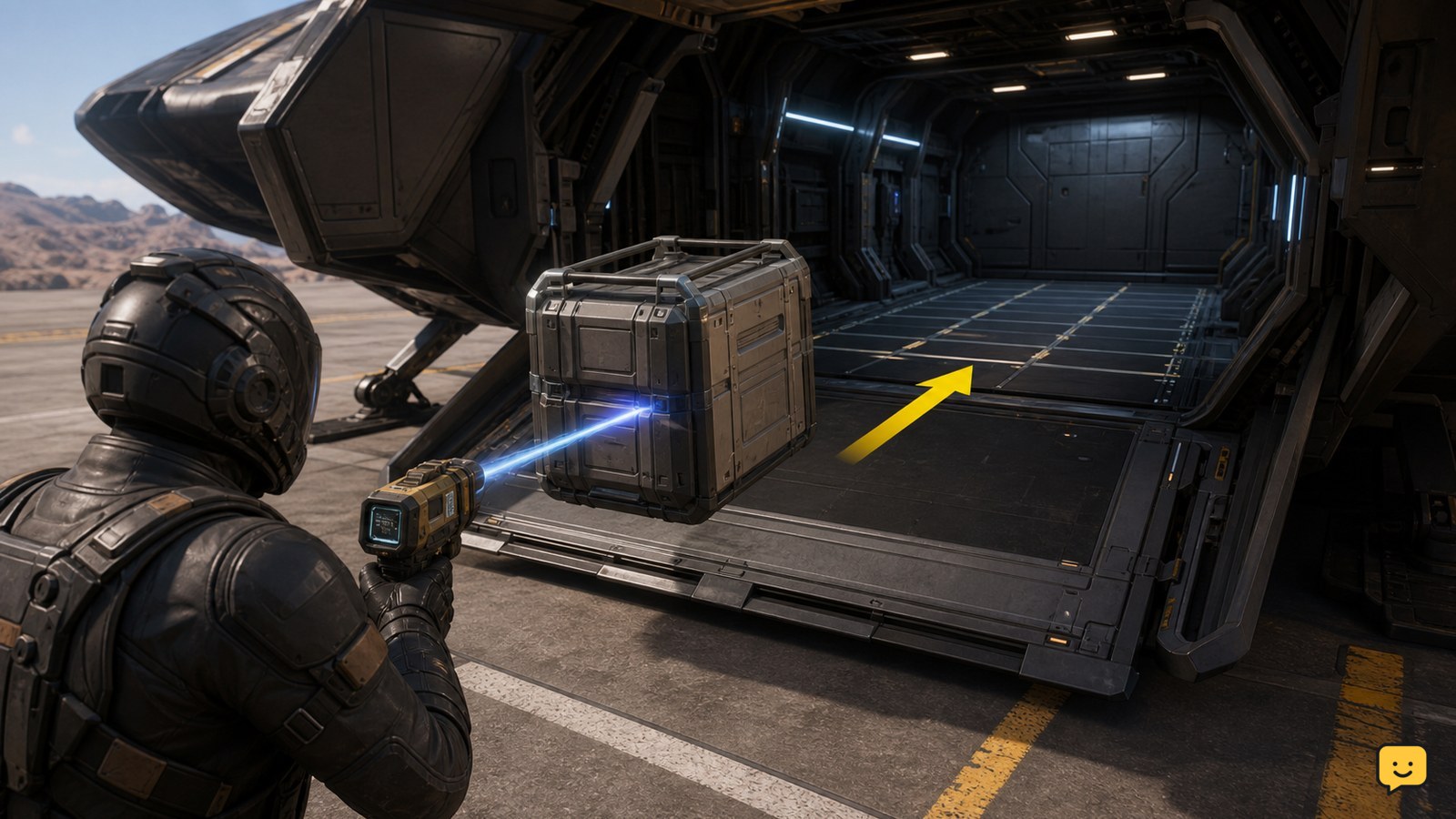
Equip a tractor beam, target a physical cargo container, then use the beam’s on-screen prompts to lift and guide it into your ship’s open cargo bay. Set the container down on a compatible cargo grid and wait for it to settle or snap into place. If it will not attach, reposition it on a clear section of grid or use a ship with a usable cargo hold.
Browse more Star Citizen guides
Check that your tractor beam and cargo hold can handle the job
A Star Citizen tractor beam can move physical cargo containers, but it cannot make an incompatible cargo hold accept them. Equip a Pyro RYT Multi-Tool with a TruHold Tractor Beam Attachment for handheld work, or use a ship-mounted beam only from its supported remote or turret position. The Star Citizen Wiki identifies the TruHold attachment as a Multi-Tool attachment designed for moving objects.
Before lifting anything, stand where you can see the whole route from crate to cargo bay. Open the ramp or lift, remove loose objects from the entrance, and check that the ship has visible cargo-grid space. A container can be carried into an empty interior, yet still remain unsecured if there is no compatible grid beneath it.
Success check: You have an equipped beam, an unobstructed route, and a cargo bay large enough for the container. If any of these is missing, stop before moving mission freight.
Pick up and guide a cargo container with a handheld beam
A handheld tractor beam moves cargo most reliably when you make small, deliberate adjustments instead of dragging a crate at full speed.
- Equip the Multi-Tool and confirm that the tractor beam attachment is fitted. If the tool shows its normal function instead of tractor controls, open your inventory and check the installed attachment.
- Aim at the cargo container until the tractor beam can acquire it. Use the interaction prompts shown by your current LIVE HUD to grab the container.
- Lift the container clear of the ground, then keep it close enough to control without scraping it across nearby surfaces.
- Walk it slowly through the open cargo entrance. Keep the crate centered in the opening and raise it only as much as needed to clear the ramp or threshold.
- Move the container above an open area of cargo grid. Lower it gently and release the beam.
Success check: The crate remains inside the hold after you release it and sits flat rather than tipping, sliding, or hovering against a wall. The supplied gameplay references describe the Multi-Tool and TruHold attachment as the handheld route for moving boxes and loot; exact controls can vary with your binding setup, so use the displayed prompts rather than relying on an old keybind list.
Place cargo on the grid and verify it is secured
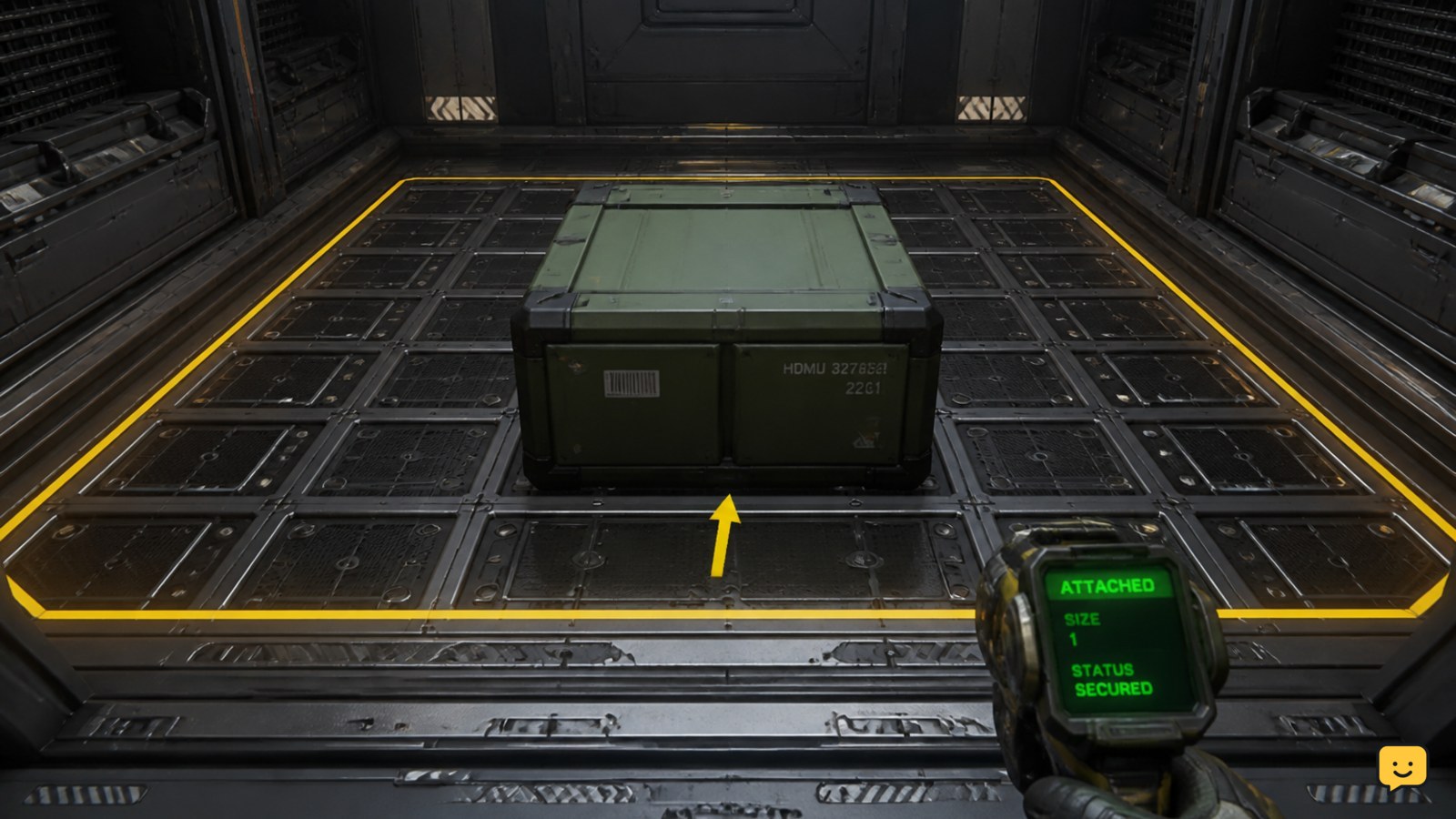
A Star Citizen cargo grid is the checkpoint that matters for transporting physical freight: place the container fully within clear grid space before you depart.
Position the crate so its base is level and no edge is caught on the ramp, door frame, another crate, or cargo-hold geometry. Release it, step back, and watch for a stable resting position or visible grid alignment. If the crate shifts after release, lift it again and place it farther from the edge or rotate it to match the available space.
For multiple containers, fill the deepest accessible grid area first. Leave a clear path to the ramp until loading is complete. This reduces the chance of pushing a loose crate into a door when unloading later.
Verification before takeoff: Close and reopen the cargo bay only if the crates are not in the door’s path. If a container moves when the ship changes orientation or when the ramp operates, treat it as unsecured and reload it before leaving.
Use a ship-mounted tractor beam when your ship supports one
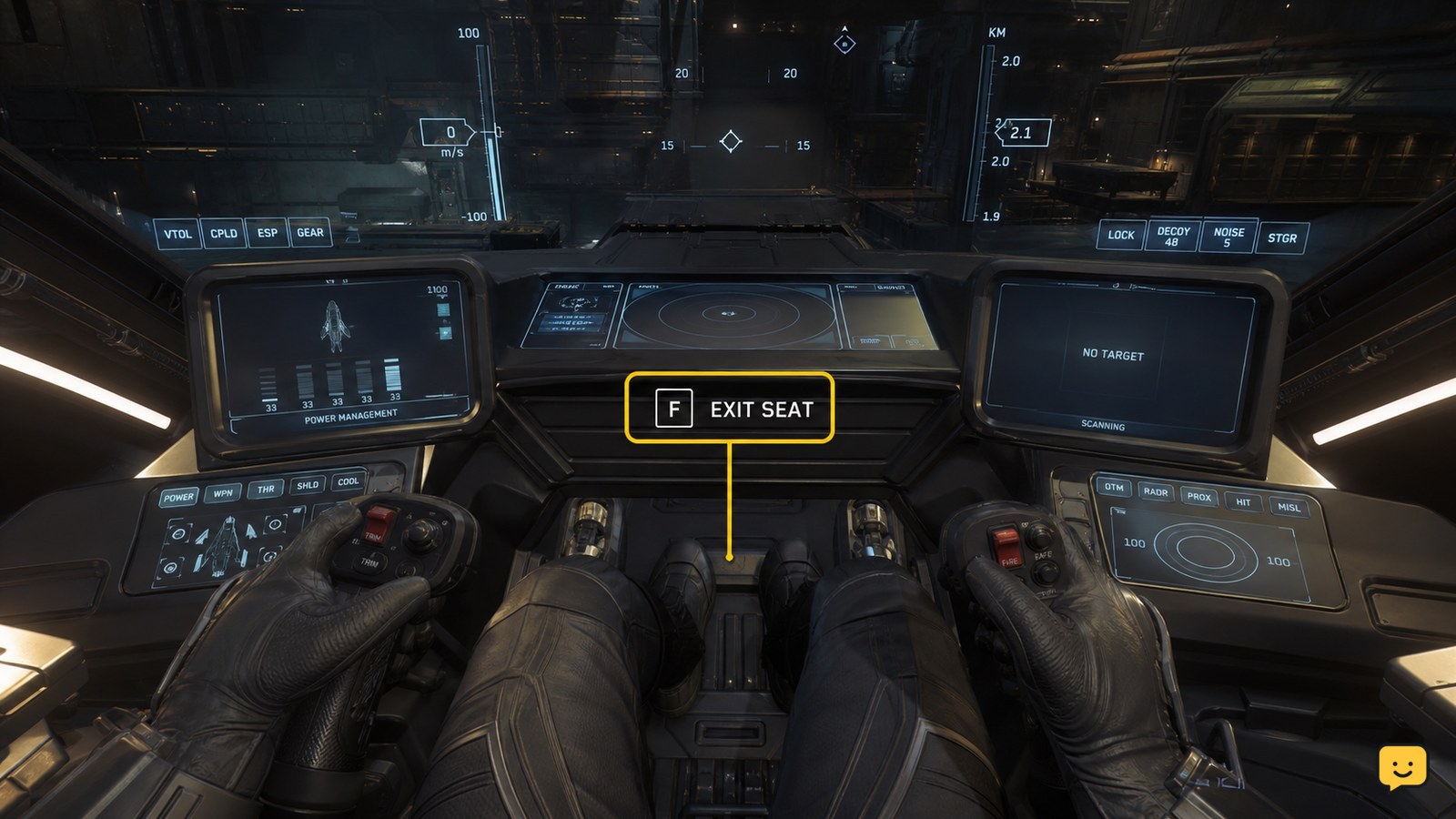
A ship-mounted tractor beam is operated from its assigned station, not by equipping a handheld tool. Enter the appropriate pilot, co-pilot, remote-turret, or tractor station offered by your ship, then select the tractor-beam mode shown in that station’s interface.
The available station differs by ship. Community reports about ship-mounted beams describe accessing a remote tractor station from a co-pilot seat on compatible ships, but seat names and interaction flow are ship-specific. Check the ship’s interaction prompts and vehicle controls instead of assuming every remote turret is a cargo beam.
- Park with a direct line between the beam and the cargo.
- Open the cargo bay before acquiring the container.
- Acquire one crate, move it slowly to the bay opening, and keep it away from hull edges.
- Release it only after it is resting on clear cargo-grid space.
Stop condition: If the station has no tractor-beam controls or cannot acquire cargo, leave the station and use a handheld beam or a different compatible ship. Do not repeatedly activate weapons or turret controls around cargo while trying to locate the function.
Fix cargo that will not grab, fit, or stay in place
Most cargo-loading failures come from the tool, the route, or the cargo grid rather than from the container itself.
| What you see | Likely cause | Safe next action |
|---|---|---|
| The beam will not acquire the crate. | The wrong tool function is active, the attachment is missing, or the target is obstructed. | Recheck the equipped Multi-Tool attachment, move to a clear line of sight, and use the current HUD prompt on the container. |
| The crate hits the ramp or door frame. | The approach angle is too low, too high, or off-center. | Release the crate, back away, then bring it through the widest part of the opening with smaller movements. |
| The crate enters the hold but slides or falls later. | It was released outside the usable cargo grid or against another object. | Lift it again, clear the intended grid square, and set it down flat and fully inside the grid area. |
| The crate will not fit into the bay. | The hold opening or interior space is too small for that container. | Stop loading attempts and use a ship with a larger accessible hold. |
If a container behaves erratically after a collision, do not keep applying force with the beam. Set it down in an open, stable area, allow it to settle, and restart the lift from a clean angle. Repeated impacts can turn a simple loading problem into lost or inaccessible cargo.
Protect mission cargo while loading and unloading
Mission cargo should be treated as delivery-critical from the moment it becomes physical: keep it visible, keep the route clear, and confirm its final location before leaving.
Load one container at a time when space is tight. Avoid placing crates on ramps, elevators, seats, or door thresholds while you rearrange the hold. At the destination, request access and open the delivery route before removing the first crate, then place cargo in the required drop-off area and wait for the contract objective to update.
If a hauling contract requires physical delivery but the crate is missing, clipped into geometry, or cannot be secured, pause the run rather than travelling farther with unsecured freight. Recover the crate only if it can be moved without collisions; otherwise, use the contract’s available recovery or abandonment path instead of risking the remaining cargo.
Frequently asked questions
Do I need a tractor beam attachment for the Pyro RYT Multi-Tool?
Yes. A standard Pyro RYT Multi-Tool needs a compatible tractor beam attachment, such as the TruHold Tractor Beam Attachment, for handheld cargo movement. Check the tool in inventory before leaving the station or landing zone. If tractor controls do not appear after equipping it, remove and refit the attachment, then check your current keybind prompts.
Can I move cargo with a ship-mounted tractor beam?
Yes, if your ship has a functional mounted tractor beam and an accessible control station for it. Use the ship’s supported tractor, remote, or turret station, then follow its displayed controls. A regular turret seat does not necessarily provide cargo-beam functionality, so stop and use a handheld tool if the interface does not show tractor-beam options.
Why does my cargo crate move after I release the tractor beam?
The crate is usually not resting cleanly on a compatible cargo grid, or it is touching a ramp, wall, door, or another container. Pick it up again, clear the destination area, and lower it flat onto open grid space. Check that it stays still before operating the ramp or taking off.
Can I carry a cargo crate in a ship without a cargo grid?
You may be able to physically place a crate inside some interiors, but it is not a dependable way to transport freight. Cargo can shift, collide, or become inaccessible during travel. Use a ship with enough accessible cargo-grid space when the container must remain secured, especially for hauling missions.