VALORANT can stutter even when the FPS counter is high because average FPS does not show frame-time spikes. First confirm the hitch with frame-time or FPS graphs, then cap FPS below the rate your PC can sustain, test fullscreen behavior, close background software, update GPU and chipset drivers, and check whether XMP or DOCP is stable. Stop changing settings once one controlled change fixes the hitch.
Check whether the hitch is frame pacing or network lag
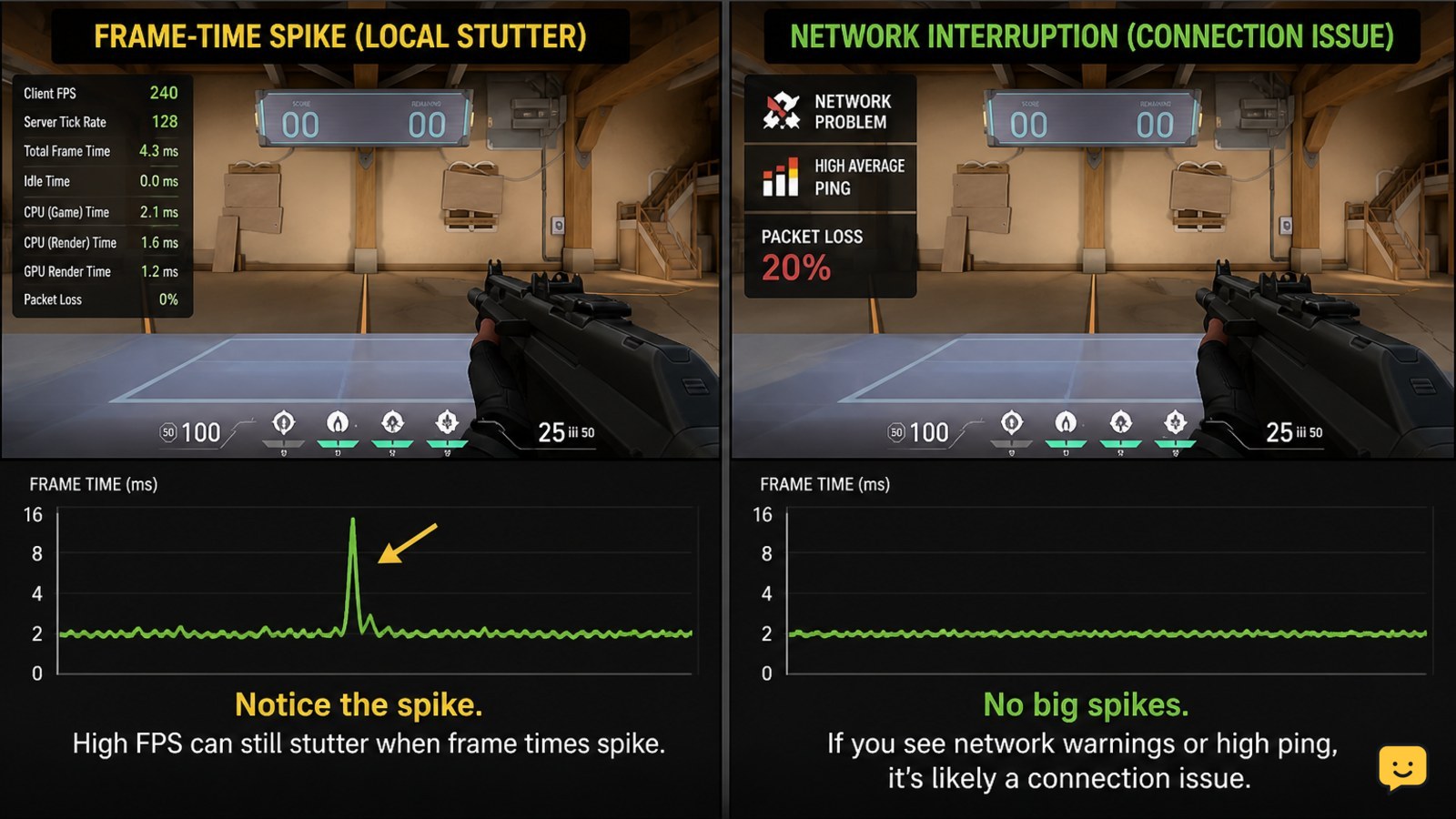
VALORANT stuttering with high FPS is usually a frame-time problem when the image freezes briefly while your input and camera movement also hitch. A high average FPS can hide occasional long frames.
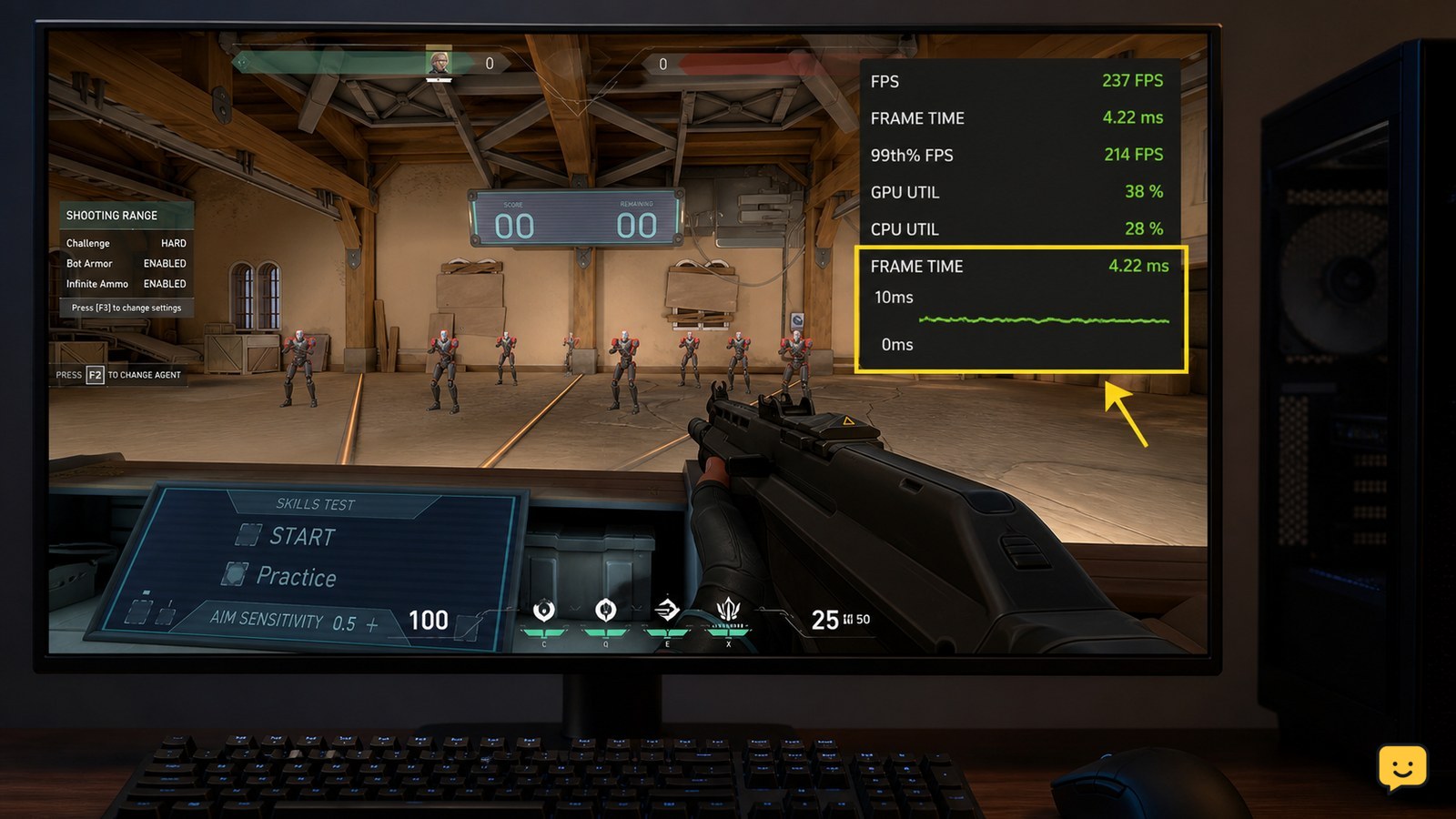
- Open VALORANT’s performance statistics or graph options and display FPS and frame-time information if available in your current build.
- Enter the practice range and make the same movement that normally causes the hitch: strafe, turn quickly, or fire repeatedly.
- Watch for a sharp FPS drop, a frame-time spike, or a brief freeze. If the image remains smooth but players teleport or actions arrive late, investigate network performance instead of graphics settings.
Verify: Reproduce the same movement at least three times. If the hitch cannot be repeated outside a match, note whether it appears only during combat, when effects load, or after switching applications. That distinction determines the next test.
Set a stable FPS limit below your sustained result
A stable FPS limit can reduce VALORANT stutter when the system repeatedly swings between a high render rate and sudden frame-time spikes.
- Open VALORANT’s video settings and find its frame-rate limits.
- Choose a cap your PC can hold during the busiest situations, not the highest number shown while standing still. If your FPS varies widely, begin with a conservative limit and raise it only after the game remains smooth.
- Keep VSync disabled while testing unless you specifically need it for visible tearing. Change one setting at a time.
Verify: Return to the practice range, then play one complete match without changing other settings. The FPS graph should stay closer to the selected limit, and camera motion should feel consistent. If the cap causes obvious input delay or does not change the hitch, restore the previous value and continue.
This is a troubleshooting control, not a universal ideal setting. The best cap depends on the PC’s sustained performance, display refresh rate, and whether the problem occurs only during heavy scenes.
Test fullscreen behavior and Windows graphics settings
Fullscreen handling can contribute to inconsistent frame pacing on some Windows configurations, so test the display mode and executable compatibility settings separately.
- In VALORANT, switch between the available fullscreen and windowed options one at a time.
- Restart the game after changing the mode. Compare the same practice-range movement at the same FPS cap.
- If the hitch changes specifically in fullscreen, right-click the VALORANT executable, open Properties, select Compatibility, and test the Disable fullscreen optimizations option. Record the original state so you can reverse the change.
Verify: Keep the mode that produces steadier frame-time behavior across a restart. If neither mode changes the symptom, return the compatibility option to its previous state; this path does not apply when the stutter is identical in every mode.
Remove background spikes and update the graphics stack
Background applications, startup services, GPU drivers, and chipset drivers can interrupt frame delivery even when the graphics card has enough average rendering capacity.
- Close browsers, recording tools, hardware monitors, RGB utilities, launchers, and other overlays before testing. Disable only software you recognize.
- Restart Windows, launch VALORANT first, and repeat the same practice-range test.
- Install the current graphics driver from your GPU manufacturer’s official support page. Also check your PC or motherboard manufacturer’s support page for a current chipset driver.
- Use Windows Task Manager while the hitch occurs. Look for a sudden CPU, disk, memory, or GPU spike that matches the freeze.
Microsoft Q&A troubleshooting guidance for VALORANT stutter also recommends updating chipset and GPU drivers, using a suitable power mode, and reducing unnecessary startup activity. These are broad Windows checks, so they are most useful when other games or applications show similar interruptions.
Verify: Test after the restart, not immediately after installing a driver. If the problem returns only when one overlay or utility is open, leave that program disabled during VALORANT sessions or check its own update and capture settings.
Check power mode and laptop GPU selection
On laptops, power limits or an incorrect graphics processor can cause inconsistent frame delivery despite a high peak FPS reading.
- Connect the laptop to its AC adapter.
- Open Windows power settings and select a performance-oriented power mode while testing.
- In Windows graphics settings or your GPU control panel, confirm that VALORANT is assigned to the dedicated GPU when the system has both integrated and discrete graphics.
- Repeat the same test on battery only if battery play matters to you; do not assume the plugged-in result applies on battery.
Verify: The game should use the expected GPU, and the hitch should become less frequent under the same FPS cap. If temperatures, fan speed, or power limits rise sharply and the stutter appears after several minutes, stop increasing performance settings and check cooling, vents, and manufacturer thermal controls.
Test XMP or DOCP only when the problem began after a hardware change
Unstable memory settings can cause game stutter, crashes, or wider system errors, but BIOS changes should be a later diagnostic step rather than a default fix.
- Consider this test only if the stutter began after enabling XMP or DOCP, changing RAM, updating BIOS settings, or building the PC.
- Enter UEFI according to your motherboard or laptop manufacturer’s instructions and temporarily return the memory profile to its previous setting.
- Boot Windows, launch VALORANT, and repeat the same controlled test.
Community troubleshooting reports for high-FPS VALORANT stutter mention testing XMP or DOCP, but those reports are not proof that memory settings are the cause on every PC.
Verify: If the stutter disappears only after reverting the memory profile, leave the stable setting in place and consult the motherboard or memory manufacturer’s compatibility guidance. If the PC becomes unstable or fails to boot, use the manufacturer’s documented safe BIOS recovery procedure. Do not continue experimenting with voltage or timings.
What to do if VALORANT still stutters after every test
If VALORANT still hitches after a stable FPS cap, display-mode test, clean restart, driver update, and power check, isolate the scope before making more changes.
- Test another game or a simple 3D workload. If only VALORANT stutters, collect the exact trigger, display mode, FPS behavior, and recent driver or game changes for Riot Support.
- If several games stutter, check Windows Event Viewer for application or hardware errors, then inspect temperatures, storage health, and memory stability.
- If the problem started immediately after a driver or Windows update, use the manufacturer’s supported rollback or repair option rather than downloading unofficial driver packages.
- Reset only the setting group you changed, one group at a time, if the result is unclear.
Stop here: Do not stack multiple registry edits, random launch options, BIOS tweaks, or third-party “latency” utilities. Without a matching observable change, those steps make the cause harder to identify.
Frequently asked questions
Why does VALORANT stutter when the FPS counter stays high?
The FPS counter usually shows an average or recent rate, while stutter is caused by inconsistent frame delivery. A single long frame can feel like a freeze even when the displayed FPS remains high. Use a frame-time or performance graph, then test a stable FPS cap and background-process changes.
Should I cap VALORANT FPS to stop stuttering?
Usually, a stable cap is worth testing when FPS fluctuates sharply. Set it below the rate your PC can sustain during busy scenes, then compare the same movement in the practice range and a full match. If the cap adds unwanted input delay or does not change frame-time spikes, restore the prior value.
Can XMP or DOCP cause VALORANT stutter?
It can be a factor when the problem began after enabling a memory profile or changing RAM, but it is not a universal VALORANT fix. Temporarily return the profile to its previous setting only as a controlled test. If stability improves, keep the known-stable profile and follow your motherboard or memory manufacturer’s guidance.
How can I tell stutter from VALORANT network lag?
Frame stutter affects camera motion, animations, and local input, often alongside a frame-time spike. Network lag usually appears as delayed actions, teleporting players, or connection warnings while local camera movement remains smooth. Test in the practice range first; if the issue cannot occur there, inspect network indicators and connection conditions.
Browse more Valorant guides for help with this topic.