Start by testing the mouse at a stable polling rate, then check that VALORANT is using your monitor’s intended refresh rate. Turn off conflicting overlays and unnecessary background utilities, keep frame delivery consistent, and verify the game’s input settings. If delay also appears outside VALORANT, stop changing game settings and troubleshoot the mouse, USB connection, or Windows driver instead.
Check whether the delay is caused by frames or the mouse
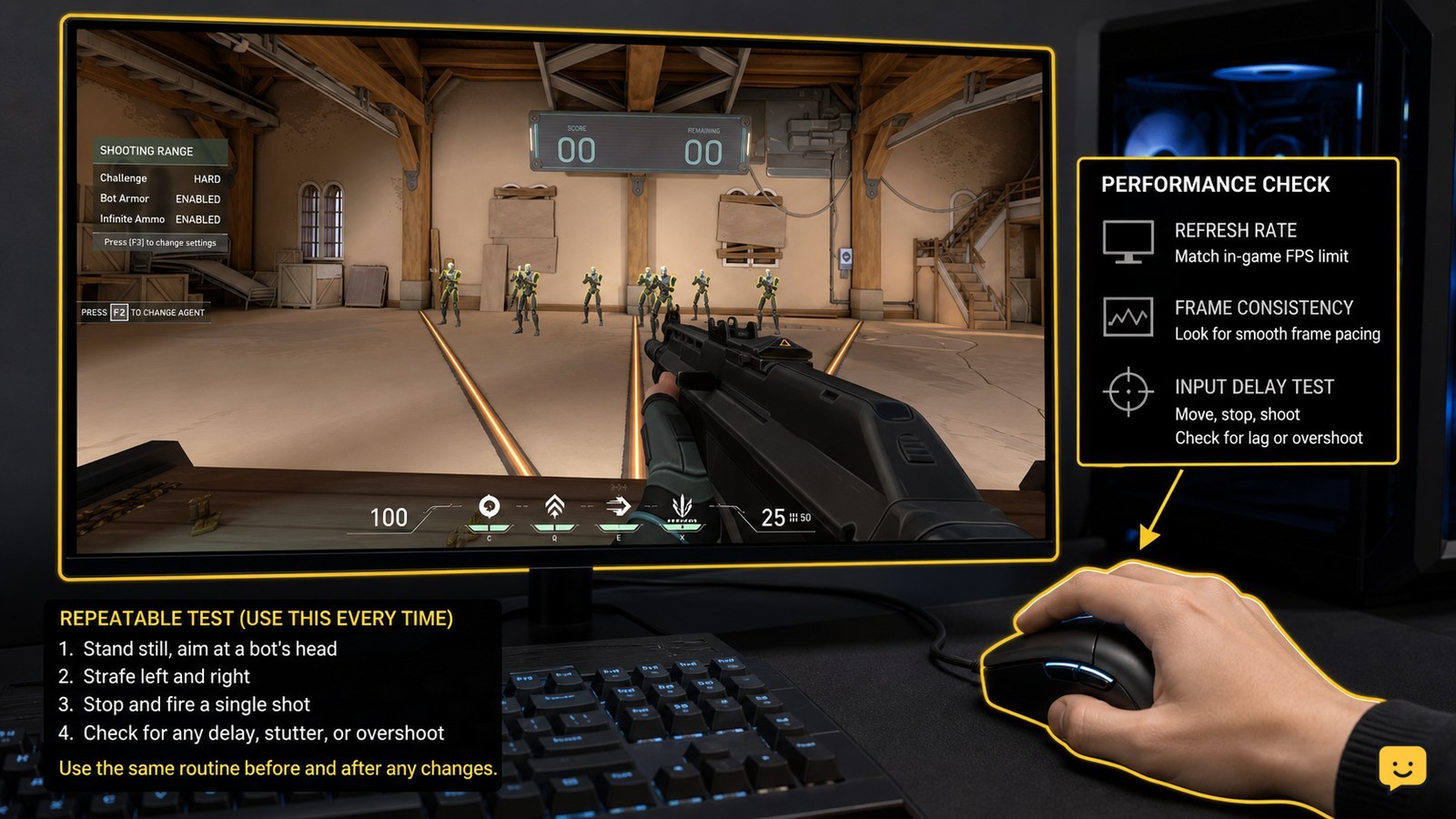
Move the cursor on the Windows desktop, then test a slow sweep and quick flick in VALORANT’s practice range. If the desktop pointer is also delayed, skips, or freezes, the problem is outside the game. Check the mouse cable or receiver, try another USB port, and test another mouse before changing VALORANT settings.
If the desktop feels normal but VALORANT responds late, compare the symptom with the frame-rate graph and visible stutter. A delayed shot during uneven frame delivery can feel like mouse lag even when the mouse is sending input normally.
Test the mouse polling rate for stable response
Open your mouse manufacturer’s configuration utility and locate the polling-rate control. Test a common stable setting such as 1000 Hz, then launch VALORANT and repeat the same practice-range movement. Some systems feel less consistent at an unusually high rate, so use the highest setting that does not produce cursor skipping, frame-time spikes, or intermittent freezes.
Apply only one polling-rate change at a time. If the new setting makes response worse, restore the previous value and close the mouse utility before testing again. A stable lower rate is preferable to a higher rate that causes inconsistent input.
Match refresh rate, VSync, and the frame-rate limit
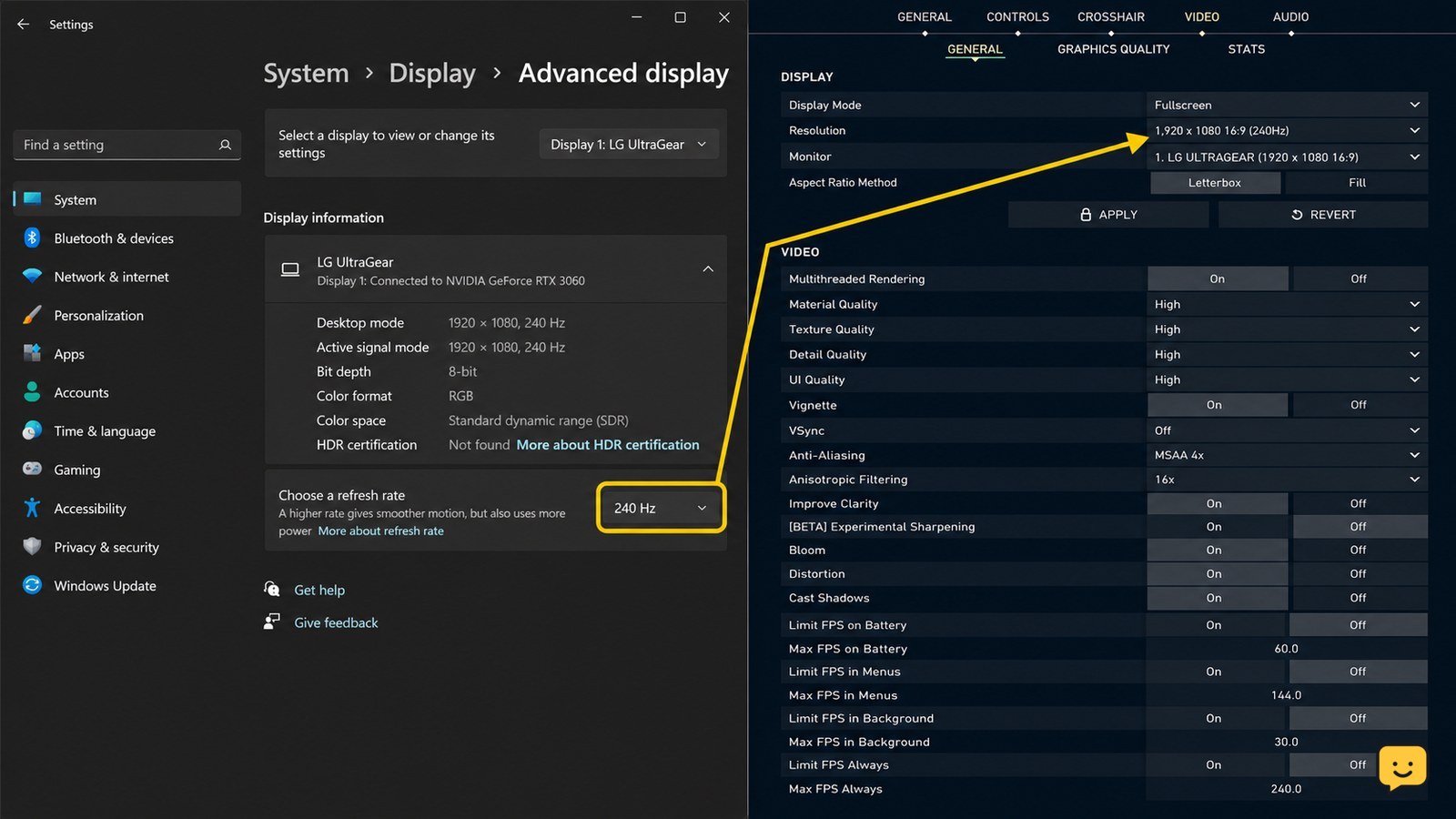
Confirm Windows is set to the monitor refresh rate you intend to use: open Settings > System > Display > Advanced display and check the selected refresh rate. Then check VALORANT’s video settings and make sure the game is not running at an unintended display mode or refresh-rate combination.
Test VSync and the FPS limit as a pair rather than changing both blindly. One documented community troubleshooting route is to enable VSync and cap FPS at the monitor’s refresh rate, while other systems feel more responsive with synchronization disabled. Keep the option that produces steadier frame delivery and less visible delay on your PC.
If you use NVIDIA graphics, check VALORANT’s program profile in NVIDIA Control Panel > Manage 3D settings > Program Settings. The preferred refresh-rate option should be left for the application to control unless a specific display configuration requires otherwise.
Close overlays and background software that can interrupt input
Before testing, close recording tools, hardware-monitoring utilities, browser windows playing video, RGB or peripheral dashboards, and overlays from chat or graphics software. Disable one overlay at a time if you need to find the conflict. Restart VALORANT after changing an overlay so the result is not confused with an already-running session.
Windows Game Mode has also been identified as a possible input-lag variable in PC troubleshooting guidance. Test it in Settings > Gaming > Game Mode, restart the game, and compare the practice range. If the setting makes no difference, restore your preferred value rather than stacking more system changes.
Verify drivers and keep the input path simple
Install pending Windows updates and check for current mouse, chipset, and graphics drivers from the device or component manufacturer. Reboot after driver changes. Avoid installing several driver utilities at once because they can add overlays or background services that make the result harder to identify.
For a wireless mouse, charge it fully, reconnect its receiver, and test with the receiver close to the mouse. For a wired mouse, connect it directly to the PC instead of through a hub. If only one USB port or one connection type fails, the mouse or connection is more likely responsible than VALORANT.
Verify VALORANT input settings and isolate the remaining fault
Open VALORANT’s settings and verify the mouse is assigned to the expected primary and secondary actions. Check sensitivity and scoped sensitivity so an accidental configuration change is not mistaken for delay. Do not copy another player’s sensitivity while diagnosing the problem; it changes how movement feels without correcting input timing.
After each change, restart the game and repeat the same controlled test: hold a steady sweep, perform several flicks, and fire at a fixed practice-range target. Success means the response is consistent across repeated movements, not merely that one flick feels faster.
If the delay remains only in VALORANT, repair or verify the game installation through the current Riot client options, then reboot and test again. If it remains in Windows and other games, stop the VALORANT troubleshooting path and isolate the mouse, USB connection, peripheral software, or driver instead.
Frequently asked questions
Can a high mouse polling rate cause VALORANT stutter?
Yes, it can on some systems. If a high polling rate makes the cursor skip, causes uneven frame delivery, or makes aim feel inconsistent, lower it to the last stable setting and retest. Do not assume the highest available rate is automatically the best choice.
Should VSync be on or off for VALORANT?
There is no single setting that fits every PC. Test VSync with a frame-rate limit, then compare it with synchronization disabled. Keep the combination that gives you steady frame delivery and consistent mouse response. Change only one related option at a time so you can identify the cause.
Why does my mouse feel delayed only in VALORANT?
The cause may be VALORANT’s display mode, refresh-rate selection, frame pacing, an overlay, or a game-specific driver profile. Test in the practice range after closing overlays and confirming the monitor refresh rate. If the mouse is delayed on the desktop too, investigate the hardware or driver instead.
Does a higher FPS limit always reduce mouse input delay?
No. A higher limit can make frame delivery unstable if the PC cannot maintain it. Compare a stable cap with an uncapped or higher-cap setting and watch for stutter or inconsistent flicks. The better result is the setting that keeps frame times steady while preserving responsive aim.
Browse more Valorant guides for help with this topic.