If teammates cannot hear you in Valorant, open Settings > Audio > Voice Chat and enable Team Voice Chat or Party Voice Chat as needed. Confirm the correct microphone is selected, unmute yourself and teammates, then test voice chat in a custom or practice session. If the microphone also fails elsewhere, fix Windows audio or permissions first.
Check whether the problem affects team chat, party chat, or both
First identify who cannot hear whom. If you can hear party members but not teammates, the problem may be limited to Team Voice Chat. If neither group can hear you, check the microphone and general voice settings. If you hear nobody, inspect output volume and mute states as well.
- Ask one party member whether they can hear you.
- Ask whether the voice indicator appears when you speak.
- Check whether the issue happens in every match or only one lobby.
This distinction prevents you from changing microphone settings when only one voice channel is disabled.
Enable Team Voice Chat and Party Voice Chat in Valorant
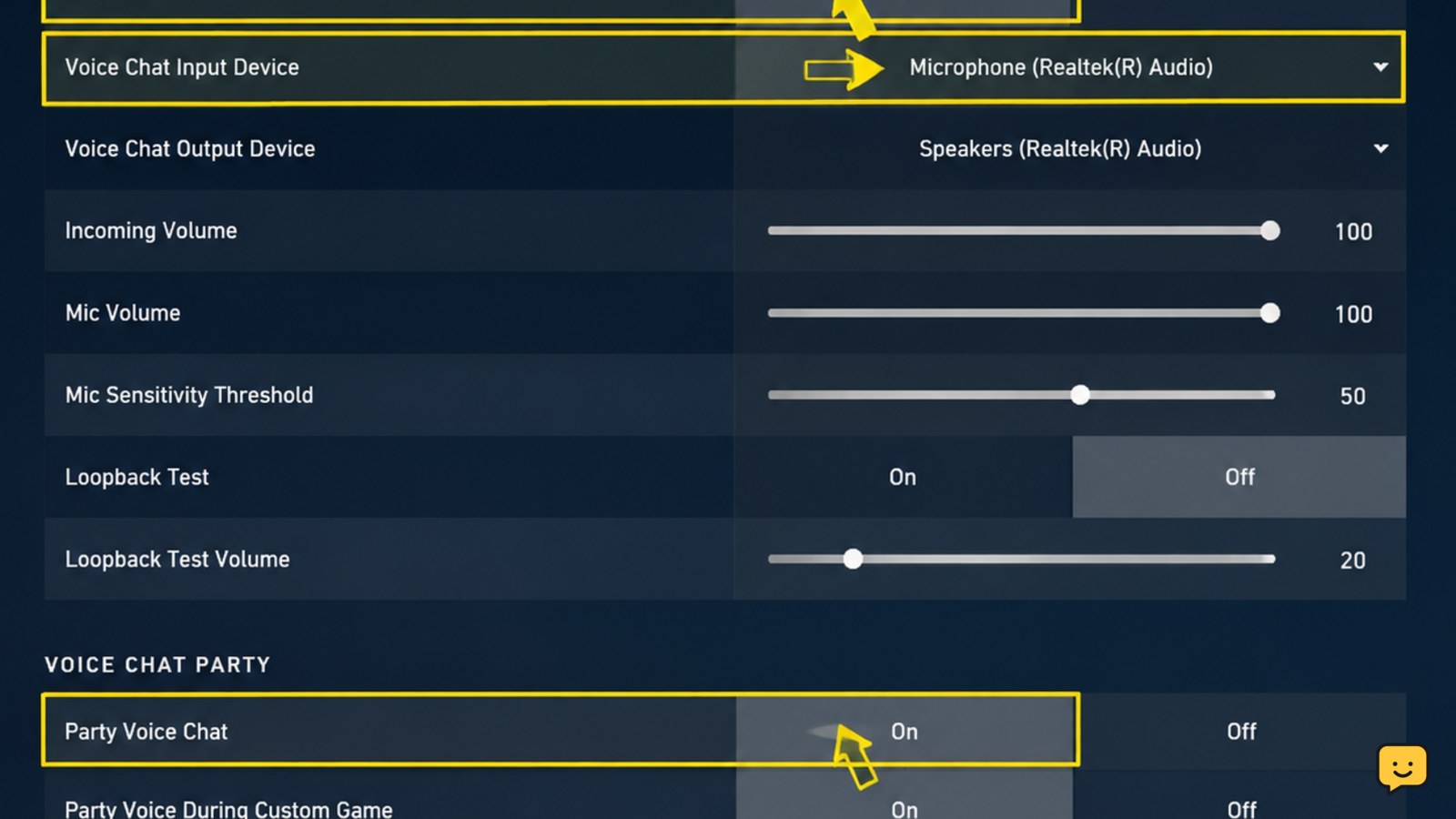
Open Valorant and select the gear icon, then choose Settings > Audio > Voice Chat. Check the controls for Team Voice Chat and Party Voice Chat.
- Turn on Team Voice Chat if teammates cannot hear you.
- Turn on Party Voice Chat if your premade group cannot hear you.
- Check the voice activation mode and confirm that your push-to-talk key is bound to a key you can press during a match.
- Raise incoming voice volume enough to hear a teammate clearly.
Use only the channel you need for the test. If team chat works but party chat does not, leave Team Voice Chat unchanged and focus on the party setting and its mute states.
Select the correct microphone and remove mute states
A working headset can still fail in Valorant if the game is using a different input device. In the same Voice Chat settings, choose the microphone you actually speak into rather than leaving an unused webcam, controller, or disconnected headset selected.
- Speak while watching for an input or voice-activity response, if shown.
- Confirm the headset’s physical mute switch is off.
- Check that the microphone is not muted in Windows.
- Ask teammates to check whether your player is muted in the match scoreboard or voice controls.
If the voice indicator never responds, the issue is probably input selection, permission, hardware, or Windows audio rather than the team channel itself. If the indicator responds but nobody hears you, continue with mute, volume, and connection checks.
Verify Windows microphone access, input volume, and output device
Riot’s voice-chat troubleshooting guidance recommends confirming that the headset and microphone are not muted, checking volume levels, and testing the device in another app. On Windows, open Settings > System > Sound and inspect both input and output.
- Under Input, select the same microphone chosen in Valorant.
- Speak and confirm that Windows detects input.
- Raise the input volume if your voice is barely detected.
- Under Output, select the headset or speakers you are using.
- Check the Windows volume mixer so Valorant is not muted or set unusually low.
Then test the microphone in Windows or another trusted app. If it fails there too, fix the device, cable, Bluetooth connection, driver, or Windows permission before returning to Valorant. If it works elsewhere, the remaining fault is more likely limited to Valorant settings, a mute state, or the current session.
Restart the voice session and verify communication safely
After changing voice settings, leave the current party or custom lobby and restart Valorant. This refreshes the game session without requiring an immediate reinstall.
- Exit Valorant completely.
- Reconnect a wired headset, or reconnect the wireless headset and confirm it is the active Windows device.
- Launch Valorant and recheck Team Voice Chat, Party Voice Chat, microphone input, and output volume.
- Join a custom game or another low-risk test with one teammate.
- Speak and have the teammate confirm both clarity and channel: team or party.
Success means the correct voice indicator appears, your teammate hears a clear test sentence, and you can hear their reply. Do not queue for ranked play until both directions work.
What to do if teammates still cannot hear you
Use the failed test to choose the next action instead of repeating every setting.
- No Windows input: troubleshoot the microphone, headset connection, device selection, or Windows permissions.
- Windows input works, but Valorant shows no voice activity: recheck the selected input device, voice activation mode, and push-to-talk key.
- Voice activity appears, but teammates hear nothing: check that they have not muted you and that Team Voice Chat is enabled.
- You cannot hear anyone: check the output device, Windows mixer, incoming voice volume, and individual mute states.
- Only one lobby fails: leave and recreate the party or custom session before making system-wide changes.
If the microphone works in another app, the required Valorant voice settings are enabled, and a fresh test still fails, stop changing unrelated Windows or security settings. Capture the affected channel, device names, and test result, then use Riot Support’s voice-chat troubleshooting path.
Frequently asked questions
Why can I hear my party but not my teammates in Valorant?
Team Voice Chat is likely disabled, muted, or affected by a separate channel setting. Open Settings > Audio > Voice Chat, enable Team Voice Chat, and check whether teammate voices are muted. Test with one teammate in a custom game before returning to ranked play.
Why does Valorant show voice activity but nobody hears me?
The selected microphone may be detecting sound while the channel is muted or the teammate has muted you. Confirm Team Voice Chat or Party Voice Chat is enabled, check the headset’s physical mute switch, and ask one teammate to inspect your mute state.
How do I know whether the microphone problem is caused by Windows?
Test the same microphone in Windows or another trusted app. If it is not detected there, the problem is outside Valorant and may involve the device, connection, permissions, or input selection. If it works elsewhere, return to Valorant’s Voice Chat settings and verify the selected device.
Should I reinstall Valorant when voice chat stops working?
No. Reinstalling should not be the first step. Check voice-channel toggles, microphone selection, mute states, Windows input, volume mixer, and a fresh test session first. Contact Riot Support if the microphone works elsewhere but Valorant still fails after those checks.
Browse more Valorant guides for help with this topic.