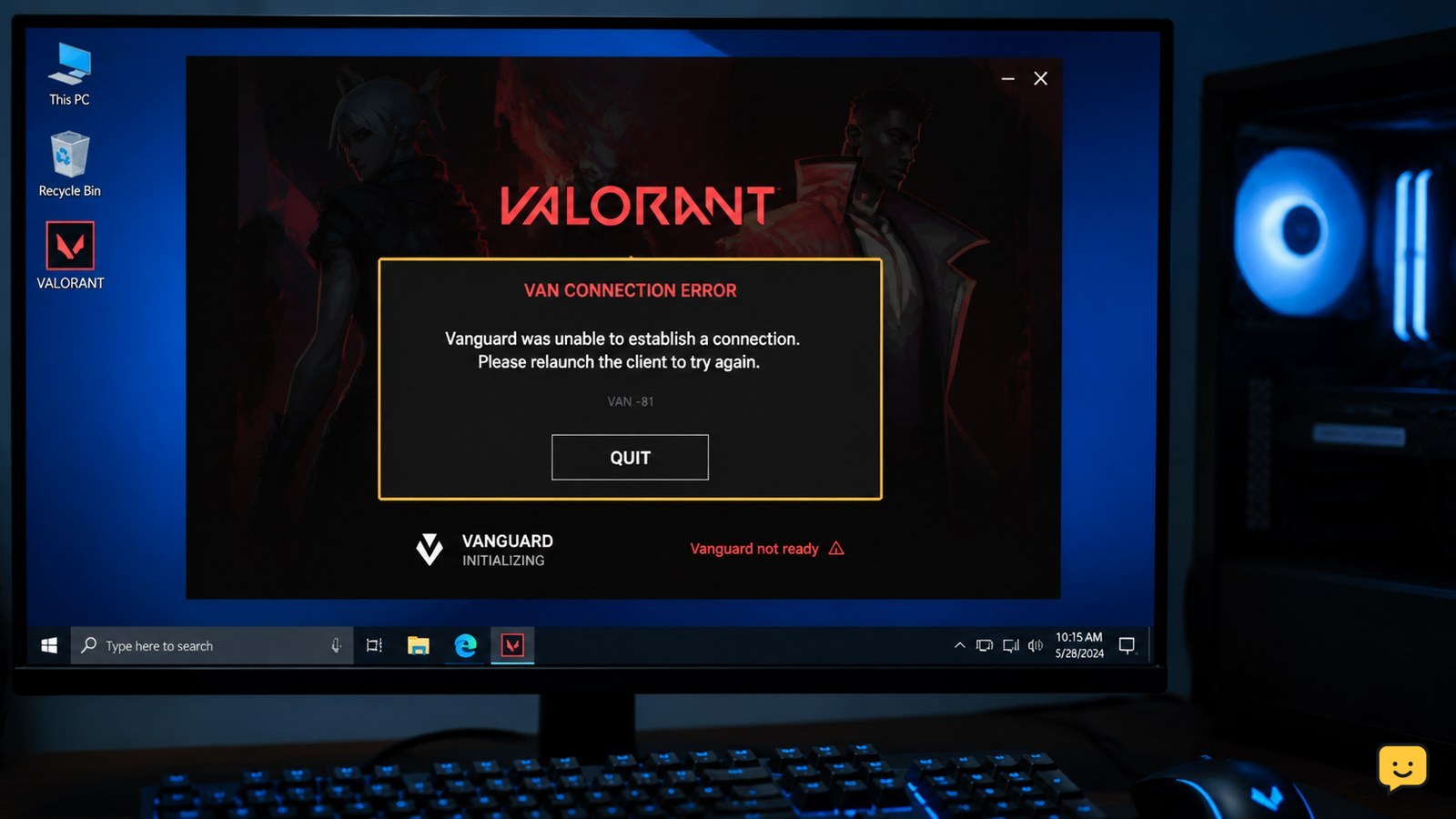
If Valorant says Vanguard is not initialized after restarting your PC, check whether the Riot Vanguard service is running before reinstalling anything. Open Windows Services, start the vgc service, and restart Windows again. If the service is missing or will not stay running, remove and reinstall Riot Vanguard. Only change TPM 2.0 or Secure Boot when Valorant shows a separate Windows 11 restriction message.
1. Confirm this is a Vanguard startup problem
Start with the exact wording. The initialization message usually means Valorant cannot confirm that Riot Vanguard is active. That is different from a Windows 11 restriction that explicitly asks for TPM 2.0 or Secure Boot.
- Close Valorant and the Riot Client completely.
- Open the system tray and close Riot Vanguard if its tray menu provides an exit option.
- Launch the Riot Client once more and try Valorant.
If the game opens, the failure was temporary. If the same message returns, continue with the service check instead of changing BIOS settings.
2. Check and start the Vanguard service
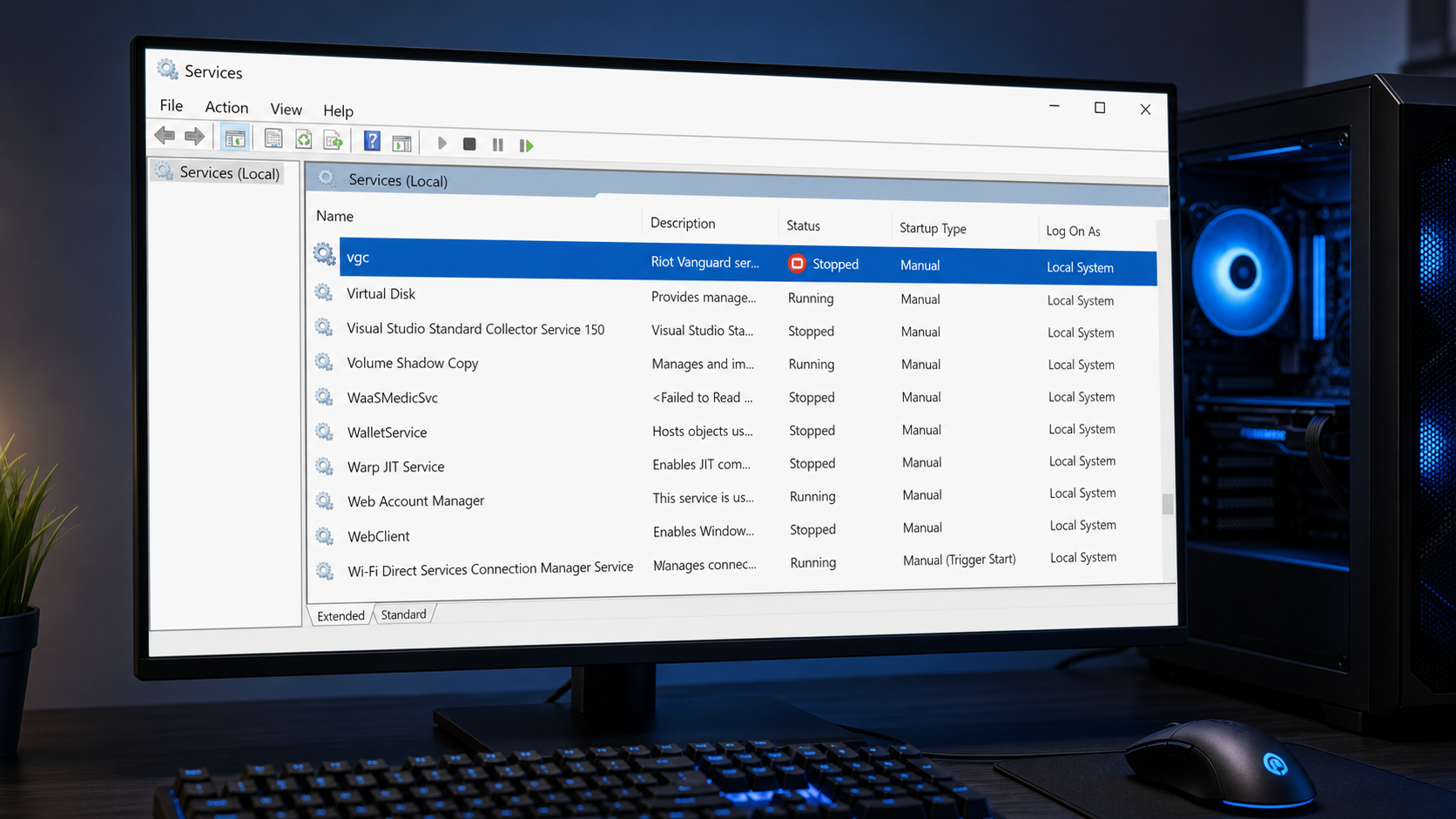
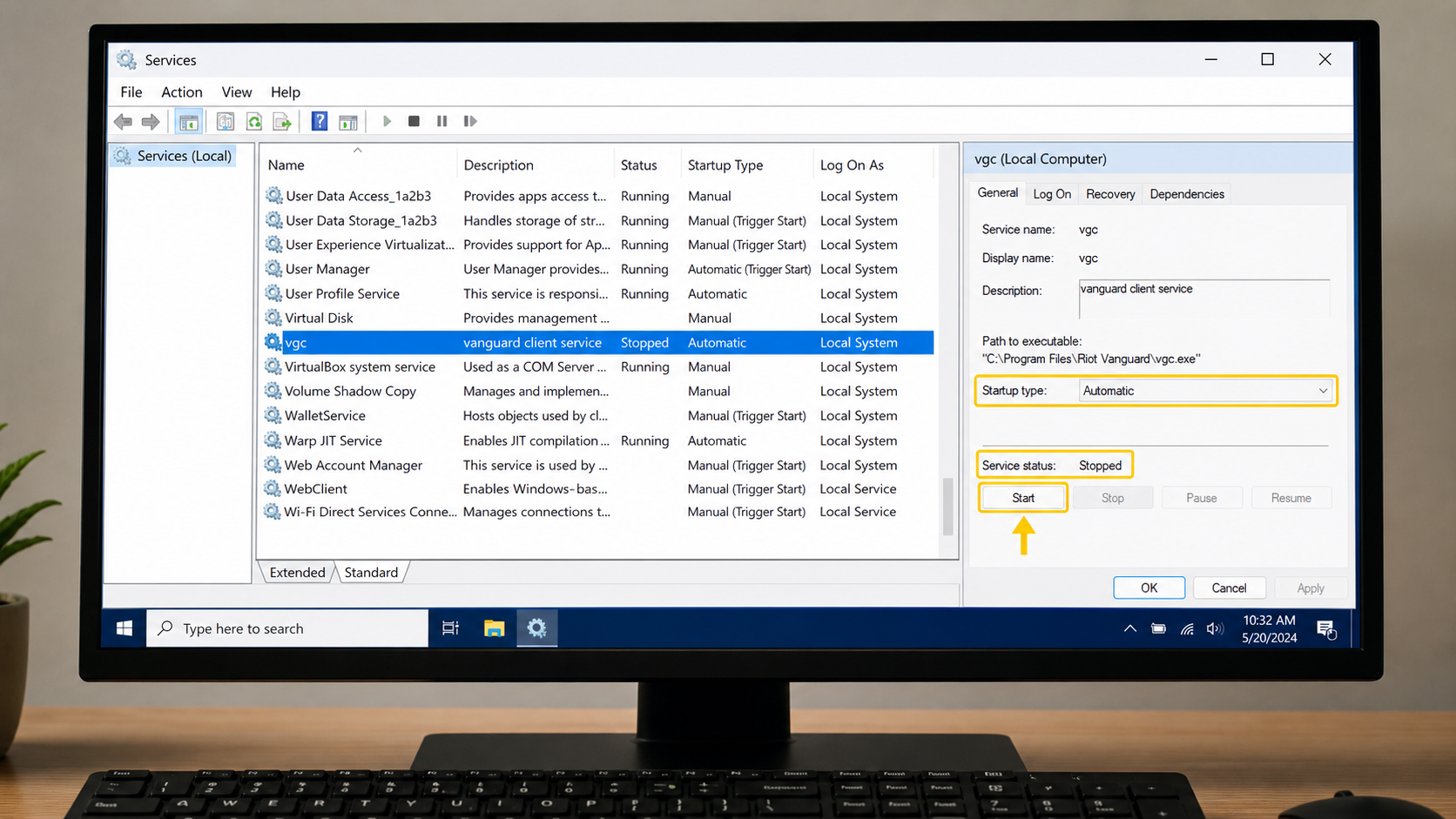
The Windows service is the fastest way to distinguish a startup failure from a damaged installation. Community troubleshooting reports commonly begin by opening the Services console and checking Vanguard.
- Press Windows key + R, type services.msc, and press Enter.
- Find vgc in the list. It may appear as the Vanguard service.
- Check the Status column. If it is stopped, right-click the service and choose Start.
- Open Properties, set Startup type to Automatic if that option is available, then select Apply.
- Restart Windows using Restart, not just closing the lid or signing out.
After Windows starts, open Valorant. Verification is successful when the game reaches its main menu without the Vanguard warning. If vgc is missing, refuses to start, or stops again immediately, skip repeated service attempts and use the reinstall path.
3. Reinstall Vanguard when the service is missing or damaged
Reinstall Riot Vanguard only after checking the service. This avoids replacing a working installation when Windows simply failed to start it.
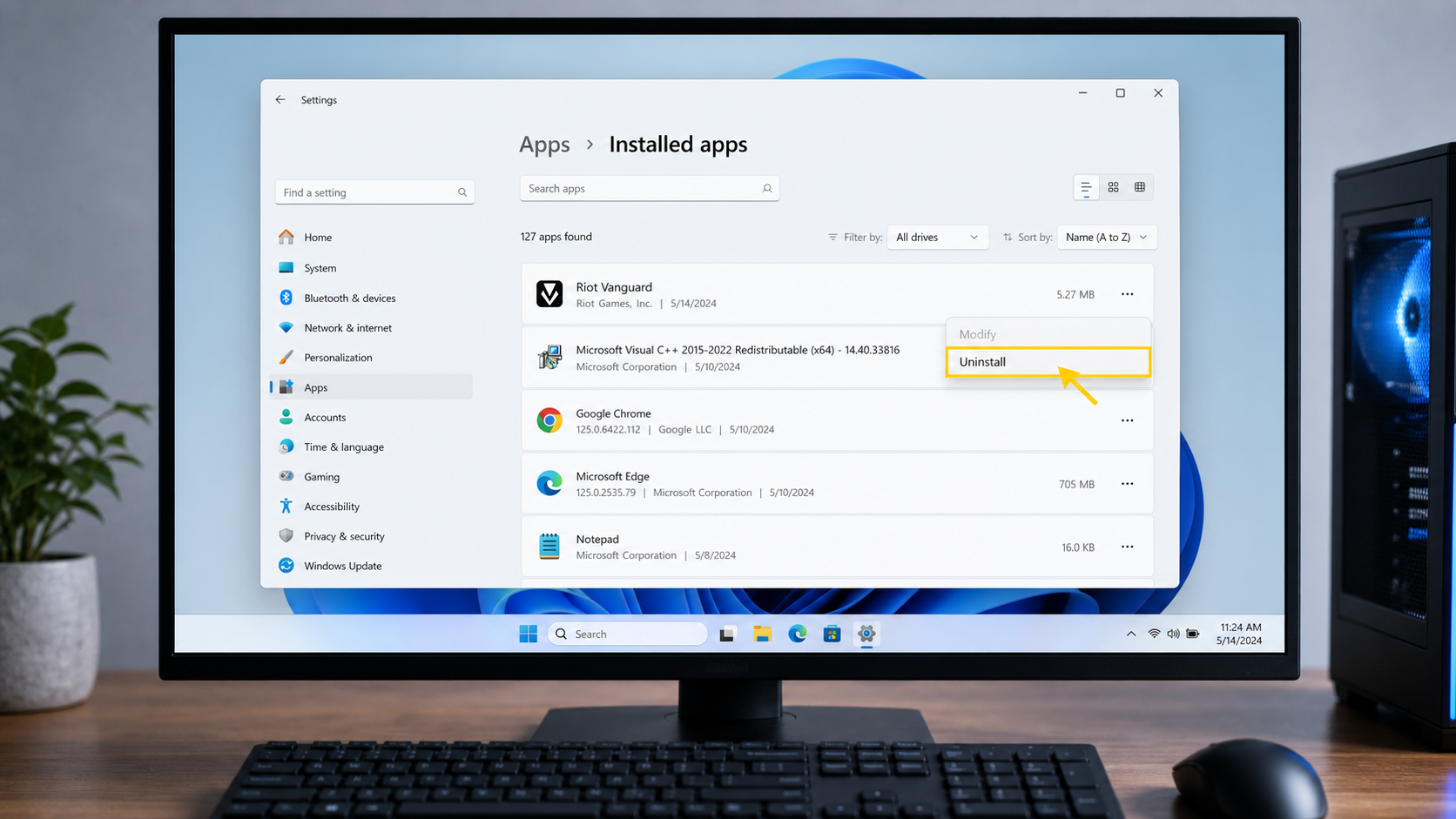
- Open Settings and go to Apps > Installed apps.
- Search for Riot Vanguard, open its menu, and choose Uninstall.
- Restart Windows after the removal finishes.
- Open the Riot Client and launch Valorant. The client should install Vanguard again when it is required.
- Restart Windows once more if the client requests it.
Try Valorant after the final restart. If Vanguard does not reinstall, the Riot Client cannot update, or the service is still absent, check that your security software is not blocking the installation and that Windows is fully updated. Restore normal protection immediately after testing. If installation still fails, stop and use Riot Support rather than downloading Vanguard files from unofficial sites.
4. Separate Windows configuration issues from service issues
Do not treat every Vanguard error as a TPM or Secure Boot problem. Those settings matter when Valorant displays a specific Windows 11 restriction message, not merely because the game failed to initialize after a restart.
- If the message names TPM 2.0 or Secure Boot, check Windows 11 compatibility and follow a current, device-specific UEFI guide.
- If the message does not mention either feature, return to the vgc service and Vanguard installation checks.
- If the service starts but the game still refuses to launch, install pending Windows updates and restart again.
- Review recent antivirus, firewall, driver, or Windows changes that occurred immediately before the problem.
Do not enable or disable firmware security features at random. A wrong UEFI change can prevent Windows from booting or create a separate configuration problem. If you cannot identify the correct motherboard instructions, stop before changing firmware settings.
5. Verify the fix and identify the remaining failure
Use one clean test after each major change so you know which repair worked.
- Restart Windows once.
- Wait for the desktop to finish loading.
- Open the Riot Client and launch Valorant.
- Confirm that the game reaches the main menu and does not show a Vanguard initialization warning.
If Valorant launches, stop troubleshooting. If it fails again, record whether vgc was running, whether Vanguard was reinstalled, and the exact error code. That information separates a service failure from a Windows security or compatibility issue when contacting Riot Support.
Frequently asked questions
Why is Valorant Vanguard not initialized after restarting my PC?
The most likely cause is that the vgc Vanguard service did not start correctly, stopped during startup, or is missing from the installation. Check the service in Windows Services first. If it is absent or will not remain running, reinstall Riot Vanguard and restart Windows when prompted.
How do I start Vanguard manually?
Open the Run dialog with Windows key + R, enter services.msc, and find the vgc service. Right-click it and choose Start. In Properties, set Startup type to Automatic when available, then restart Windows and test Valorant.
Should I enable Secure Boot to fix Vanguard not initialized?
No, not for the ordinary initialization message. Check Secure Boot and TPM 2.0 only when Valorant specifically reports a Windows 11 restriction involving those features. Changing UEFI settings without confirming the message can create boot or configuration problems.
What should I do if the Vanguard service is missing?
Remove Riot Vanguard from Settings under Apps and Installed apps, restart Windows, then open the Riot Client and launch Valorant so Vanguard can be installed again. Restart once more if requested. Do not download replacement files from unofficial websites.
What if Vanguard starts but Valorant still will not launch?
Install pending Windows updates, restart, and review recent antivirus, firewall, driver, or Windows changes. Make sure security software is not blocking the Riot Client or Vanguard, but do not leave protection disabled. If the error remains, provide Riot Support with the exact code and service status.
Browse more Valorant guides for help with this topic.