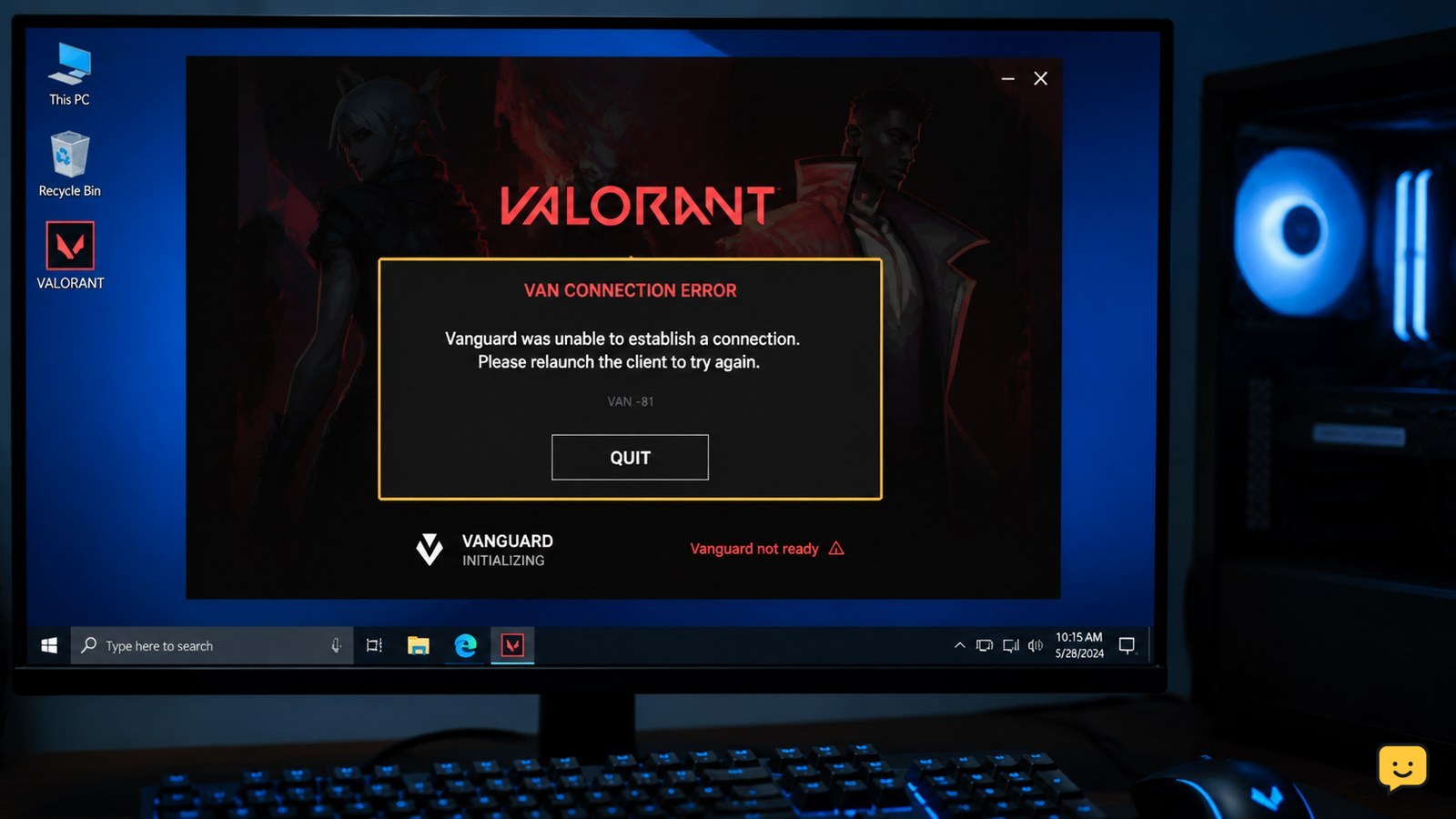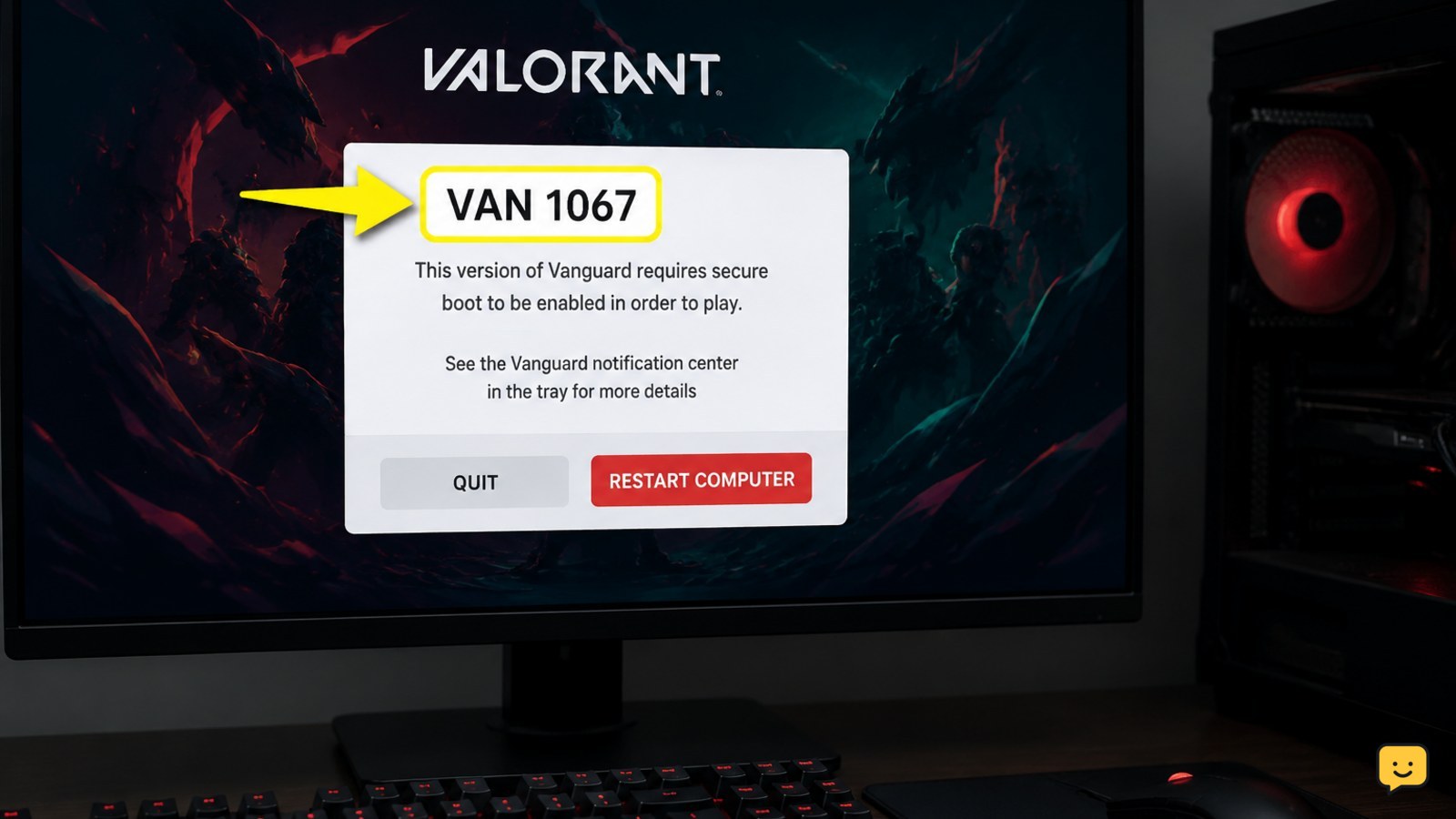
Valorant VAN 1067 usually means Riot Vanguard failed while starting or checking in with Windows. Fully restart the PC, install available Windows updates, and check that the vgc service is running and set to start automatically. If vgc stops again, review antivirus or Windows security blocks, then reinstall Riot Vanguard and restart before launching Valorant.
What VAN 1067 means
VAN 1067 is normally a Vanguard startup or communication failure. Riot describes the code as an unexpected issue while Vanguard starts or checks in with the system. The game may open briefly and then show the error, or the code may appear immediately after launch.
The most useful first check is whether the Windows service named vgc is running. A service that starts and then stops can also explain why the error returns after every launch.
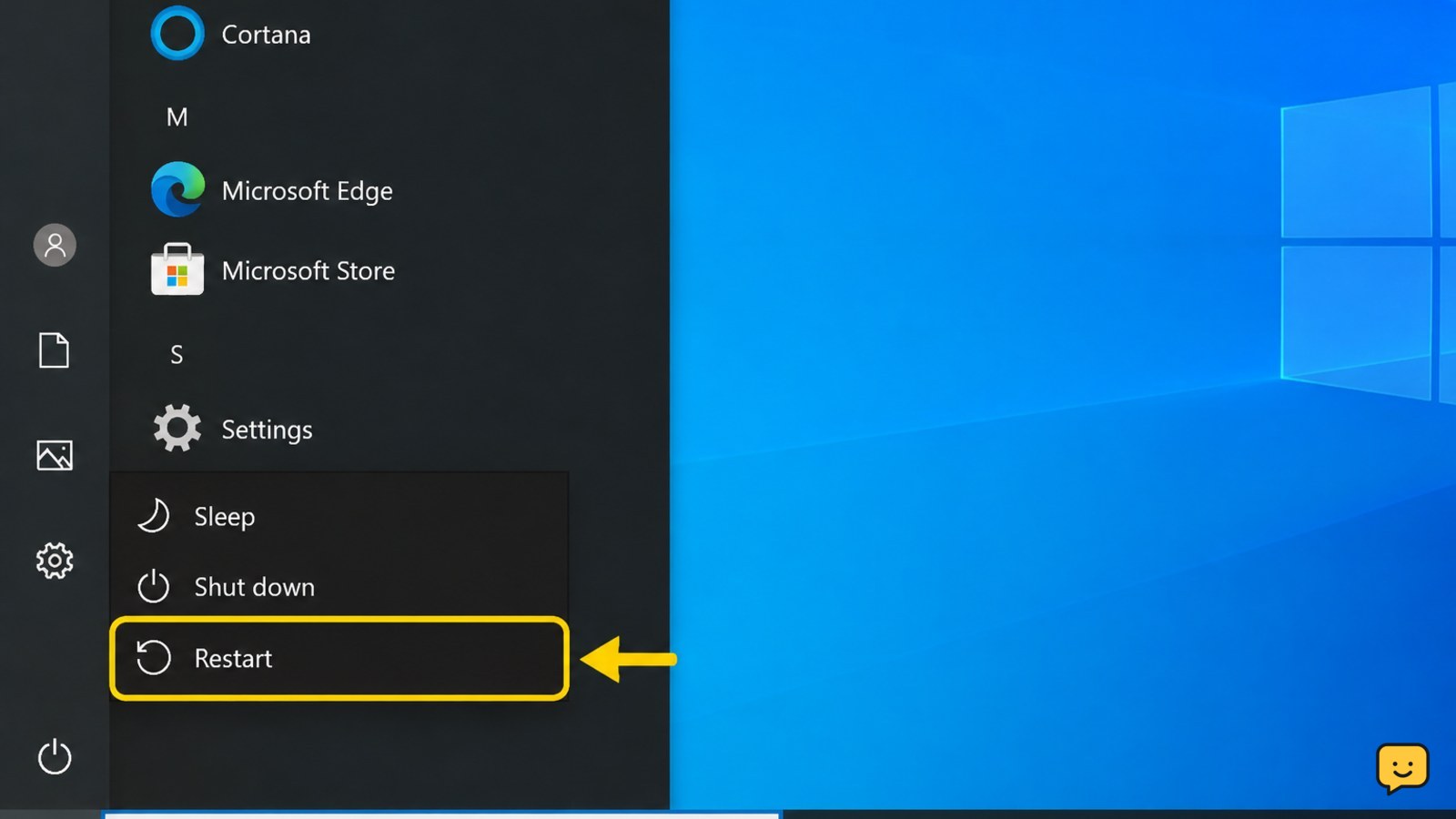
1. Restart Windows completely
A full restart reloads Vanguard and clears a service state left behind by the Riot Client. Closing the game window alone is not enough.
- Exit Valorant and the Riot Client.
- Open Start, select Power, and choose Restart.
- Wait until Windows has fully loaded, then leave the desktop idle for about one minute.
- Open the Riot Client and launch Valorant once.
Verify: The game reaches the main menu without VAN 1067. If the code returns, continue to the service check.
Stop condition: Do not continue changing settings if the error disappears. Relaunch the game later to confirm the fix before making additional changes.
2. Check and configure the vgc service
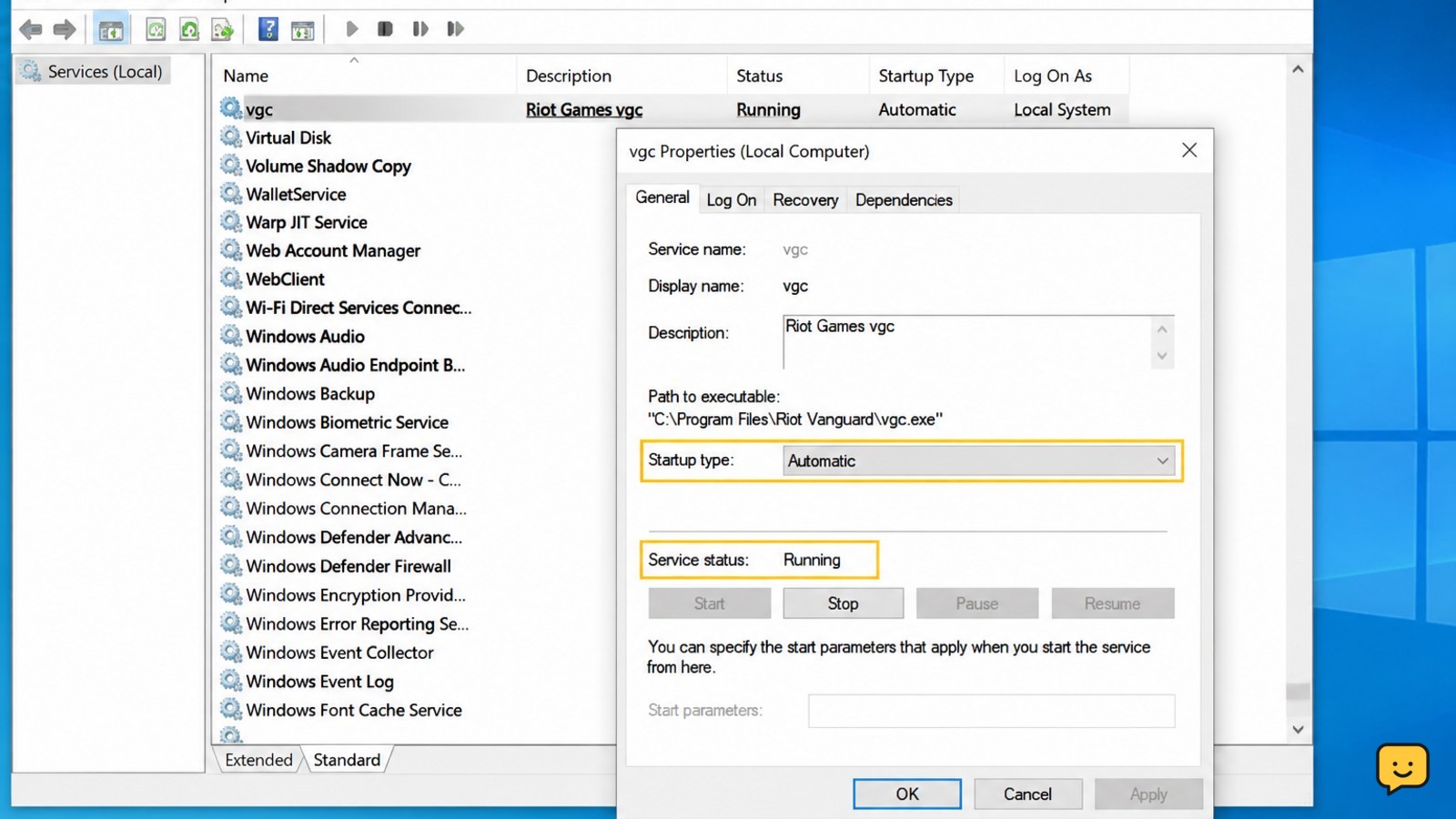
The vgc service is the key Windows service to inspect when VAN 1067 repeats. Set it to start automatically, start it manually, and watch whether it remains running.
- Press Windows key + R, type
services.msc, and press Enter. - Find vgc in the list. Double-click it to open its properties.
- Set Startup type to Automatic, select Apply, and then select Start.
- Select OK, close Services, restart Windows, and launch Valorant.
Verify: Return to Services after the restart. The vgc status should show Running, and its startup type should remain Automatic.
If it stops: Open the vgc properties again and note whether the service stops immediately or after Valorant starts. That timing is useful when reporting the problem to Riot.
Stop condition: If Windows shows an access-denied, dependency, or policy error, do not alter unrelated services. Continue with the security checks or contact the system administrator.
3. Install Windows updates and check security blocks
Riot’s VAN 1067 guidance recommends installing available Windows updates. Outdated system components or security software that prevents Vanguard from starting can cause the service check to fail.
- Open Settings with Windows key + I.
- Go to Windows Update, select Check for updates, and install all available updates.
- Restart Windows if requested, even if the update screen says the installation is complete.
- Open your antivirus or endpoint-security history and look for recent blocks involving Riot Vanguard or the Riot Client.
- If a trusted Vanguard file was quarantined, restore it only through the security product’s normal review process and add an official, narrowly scoped exception if your security administrator permits it.
Verify: Windows Update shows that no required updates remain, vgc stays running after the restart, and the security history shows no active Vanguard block.
Do not: Turn off real-time protection, create broad exclusions, or use unofficial “fix” downloads. If this is a managed school or work PC, ask the administrator to review the block instead.
4. Reinstall Riot Vanguard safely
If vgc will not stay running after a restart and the service is not being blocked, reinstalling Vanguard can replace a damaged or incomplete installation. Use Windows’ installed-app controls rather than deleting random files.
- Close Valorant and the Riot Client.
- Open Settings and go to Apps and then Installed apps.
- Find Riot Vanguard, open its menu, and choose Uninstall.
- Restart Windows after the removal finishes.
- Start the Riot Client and launch Valorant. The client should install Vanguard again when required.
- Restart Windows once more if prompted, then launch Valorant.
Verify: Riot Vanguard appears again under Installed apps, the vgc service is running, and Valorant reaches the main menu.
If reinstalling fails: Record the exact Windows message, restart once, and check whether the Riot Client itself is being blocked. Do not use third-party Vanguard installers or scripts.
Stop condition: If Vanguard cannot uninstall because of an administrator or organization policy, stop and use an administrator-approved removal method or contact Riot Support.
5. When to contact Riot Support
Contact Riot Games Support when VAN 1067 remains after the restart, update, service, security, and Vanguard reinstall checks. Riot identifies the error as an unexpected Vanguard startup or system check issue, so the exact system state matters.
- Write down the VAN code and when it appears.
- State whether vgc was running, stopped, or stopped again after Valorant launched.
- Include your Windows version and whether the PC is managed by an employer or school.
- List any antivirus or endpoint-security block shown in its history.
- Attach only the logs or diagnostic files requested through Riot’s official support process.
Verify: Before submitting, confirm that the error is still reproducible after a fresh restart. This prevents sending a report for a one-time service failure.
Frequently asked questions
Why does Valorant VAN 1067 appear after the game launches?
VAN 1067 usually appears because Riot Vanguard failed while starting or checking in with Windows. The vgc service may be stopped, may fail to start automatically, or may be interrupted by an update, permission issue, or security-product block.
How do I check whether vgc is running?
Open the Run dialog with Windows key + R, enter services.msc, and find vgc. Its status should be Running and its Startup type should be Automatic. If it is stopped, open its properties, select Start, apply the change, restart Windows, and check again.
Do I need to enable TPM 2.0 or Secure Boot for VAN 1067?
Not automatically. TPM 2.0 and Secure Boot are associated with separate Windows 11 Vanguard restriction messages. Do not change UEFI settings for VAN 1067 unless the exact message specifically instructs you to do so.
What should I do if vgc stops again?
Check Windows Update and your antivirus or endpoint-security history for a Vanguard block. If no block is present, reinstall Riot Vanguard through Windows Installed apps, restart when prompted, and check whether vgc remains running before launching Valorant.
Browse more Valorant guides for help with this topic.