Why does Valorant keep crashing?
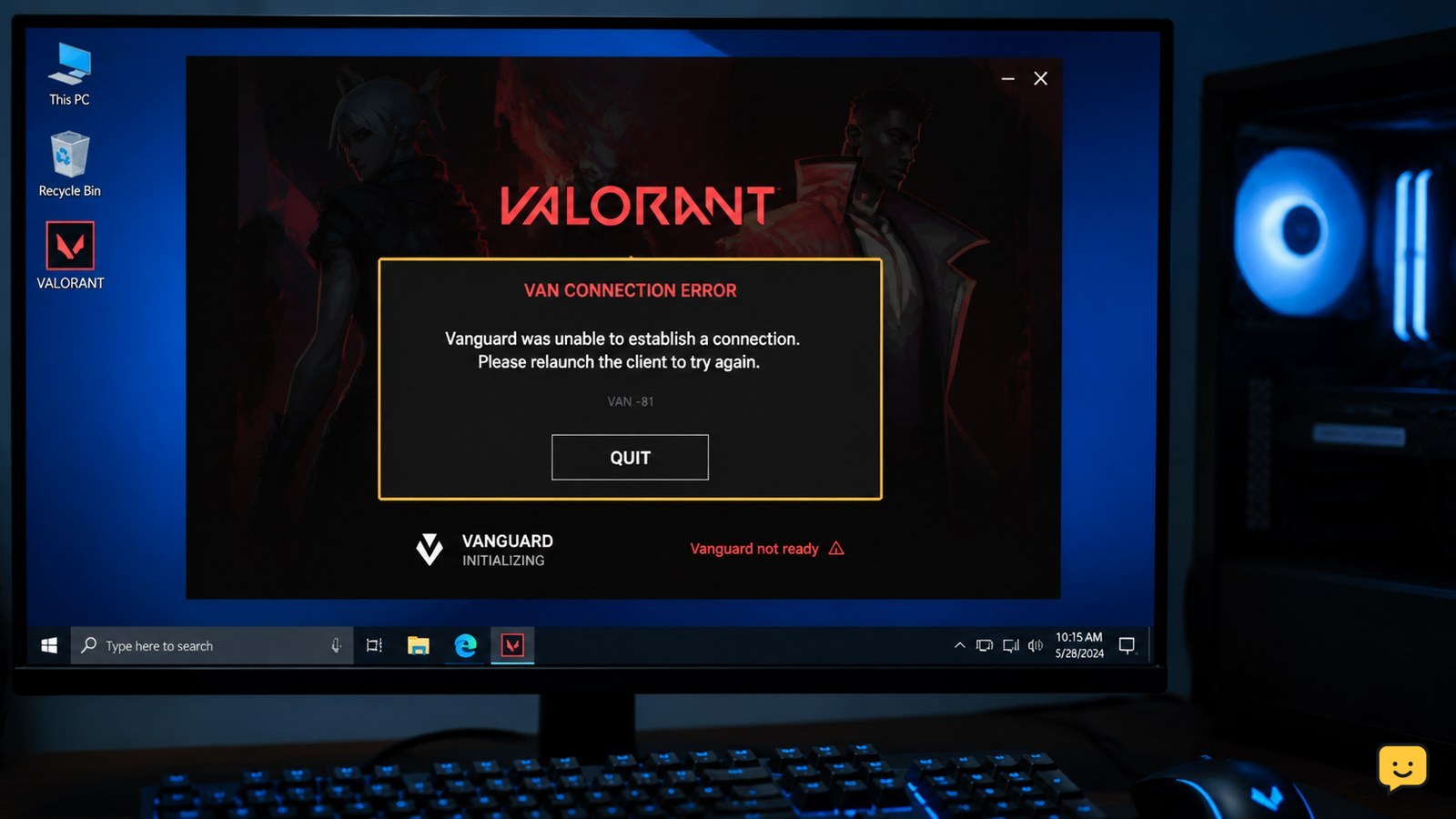
Valorant can keep crashing because Vanguard is not starting correctly, graphics drivers or overlays conflict with the game, system files are damaged, or the PC becomes unstable under load. Start by noting whether the crash happens before the menu or only during a match, then disable overlays, update the graphics driver, repair Vanguard and check temperatures in that order.
The crash point matters: an immediate exit usually points to Vanguard, permissions or security software, while a crash during a match more often points to drivers, overlays, heat, memory or power stability. See more targeted fixes in the Valorant guides.
Start by identifying whether only Valorant closes or Windows also freezes, restarts, or shows a blue screen. If the whole PC fails, stop repeated matches and check cooling, ventilation, power, and hardware stability. For a game-only crash, cool the PC, close nonessential overlays and background tools, repair DirectX and Visual C++ components, then test in the Practice Range or a custom game before queueing again.
Check whether Valorant or Windows is failing
First classify the failure. If Valorant disappears and Windows remains usable, treat it as a game, runtime, driver, overlay, or resource problem. If the display freezes, Windows restarts, the system powers off, or a blue screen appears, the problem is broader than the game.
For a system-level failure, stop repeating matches. Note the exact time, any error text, unusual fan noise, display artifacts, and whether the failure happens in other demanding games. A crash that affects the whole computer needs hardware, power, temperature, or Windows diagnostics rather than repeated game reinstalls.
Verify: after restarting Windows, use the PC normally for several minutes before opening Valorant. If Windows is unstable outside the game, stop here and resolve that instability first.
Improve cooling and remove airflow obstructions
Riot’s official crash guidance recommends placing the PC in a cooler area and ensuring that ventilation is not blocked. Move a desktop away from enclosed spaces, keep vents clear, and make sure a laptop is not resting on fabric that covers its intake.
Before another match, check that the fans start normally and that the vents are free of visible dust. If you already use a hardware monitor, watch CPU and GPU temperatures during a short test. Do not rely on a single temperature number when the manufacturer or monitoring tool does not identify a safe limit.
Verify: run the Practice Range or a custom game for at least one complete test session. If the crash returns only after the system heats up, stop competitive play and address cooling or hardware stability instead of lowering settings indefinitely.
Isolate overlays and background conflicts one change at a time
Close nonessential recording tools, performance overlays, RGB utilities, browser windows, and other programs that hook into games. Do not change several unrelated settings at once; the goal is to identify whether one background component is involved.
Restart Windows after closing or disabling a tool, then test the same Valorant activity. If the crash stops, restore programs individually until the failure returns. Leave the identified conflict disabled while playing, or check that program’s current update and support guidance.
If Valorant still closes with background tools closed, restore the settings you changed and continue to the runtime check. This prevents a temporary improvement from being mistaken for a confirmed fix.
Repair DirectX and Visual C++ runtime components
A community troubleshooting report describes reinstalling DirectX and the Visual C++ redistributable as a successful fix for a computer-wide Valorant crash. Treat this as a repair option, not a guaranteed diagnosis: the report is user-submitted and does not establish that every mid-match crash has the same cause.
Use installers from Microsoft or another official software source, choose the package that matches your Windows installation when the installer provides that choice, and restart Windows afterward. Avoid downloading runtime files from unofficial mirrors.
Failure path: if the installers report that the components are already present, do not repeatedly reinstall them. Continue with cooling, conflict isolation, and Riot’s current crash-support steps. If the game begins showing a specific Vanguard or launch error instead of closing during play, switch to the error-specific Riot guidance.
Lower the load only as a diagnostic test
If the game becomes unstable after long sessions or when frame rate fluctuates sharply, temporarily reduce demanding graphics settings and cap the frame rate to a stable value your PC can maintain. The purpose is diagnosis: determine whether sustained load or unstable frame pacing is connected to the crash.
Change one group of settings, restart Valorant, and repeat the same controlled test. If stability improves, keep the lower-load configuration while you investigate temperatures, drivers, or background software. If the crash occurs even in a short, low-load test, graphics settings are unlikely to be the complete cause.
For related performance symptoms, the ShowU guide on low Valorant FPS on a gaming PC covers frame pacing, background load, overheating, and driver checks.
Verify stability before returning to Competitive
Do not use a single successful launch as proof that the problem is fixed. Test first in the Practice Range, then in a custom game or another low-consequence session. Repeat the activity that previously caused the crash, including a similar session length if heat or sustained load appeared relevant.
If Valorant closes again, write down what changed immediately before the failure: map or mode, time in match, temperature trend, overlay status, and any Windows message. Revert the last change and test one variable at a time.
If the crash remains after cooling, conflict isolation, runtime repair, and controlled testing, use Riot Support’s current Troubleshooting Game Crashes in VALORANT instructions and include the recorded symptoms. Stop queueing ranked games until the cause is addressed.
Frequently asked questions
Why does Valorant close to desktop but Windows keeps running?
That pattern usually points to a game-only failure involving software, runtimes, drivers, overlays, heat, or unstable settings. Close nonessential background tools, check ventilation, repair DirectX and Visual C++ components from official sources, and test outside Competitive. If Windows also freezes or restarts, use system-level diagnostics instead.
What should I do if my whole PC restarts while playing Valorant?
Stop launching matches and treat the issue as a system stability problem. Check whether vents are blocked, move the PC to a cooler location, and note fan behavior, display artifacts, and whether other demanding games cause the same failure. Repeated restarts can indicate heat, power, hardware, or Windows faults.
Can overheating make Valorant crash during a match?
Yes, sustained heat can be relevant when the crash appears only after longer play or when fans become unusually loud. Riot recommends better ventilation and a cooler PC location. Clear obstructions, monitor temperatures with an existing trusted tool, and stop testing if the system becomes abnormally hot or unstable.
How can I tell whether an overlay is causing the crash?
Close or disable nonessential overlays, recording tools, RGB utilities, and similar background programs, then restart Windows and repeat the same controlled test. If Valorant becomes stable, restore those programs one at a time. The first program that brings the crash back is the strongest suspect.