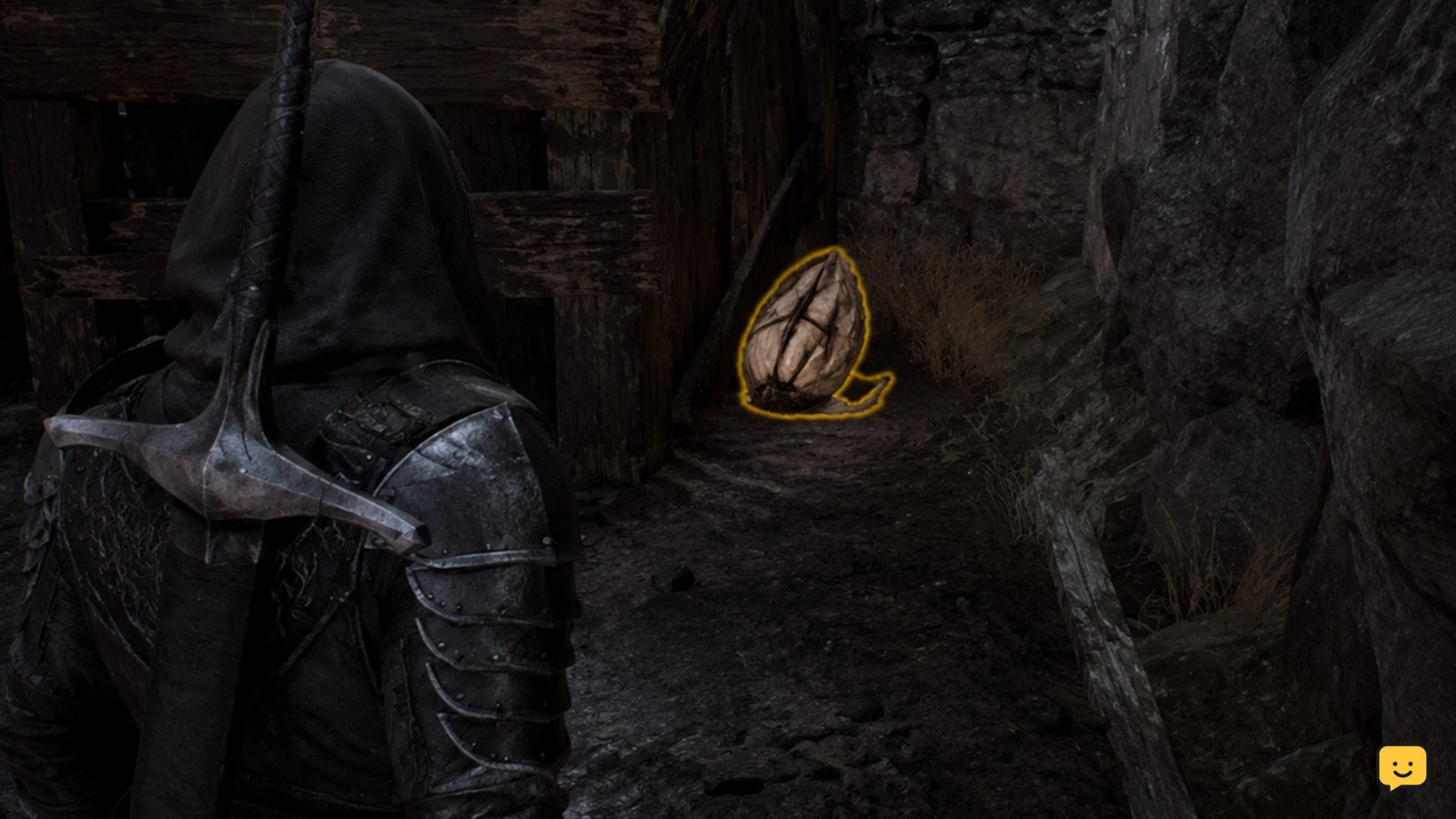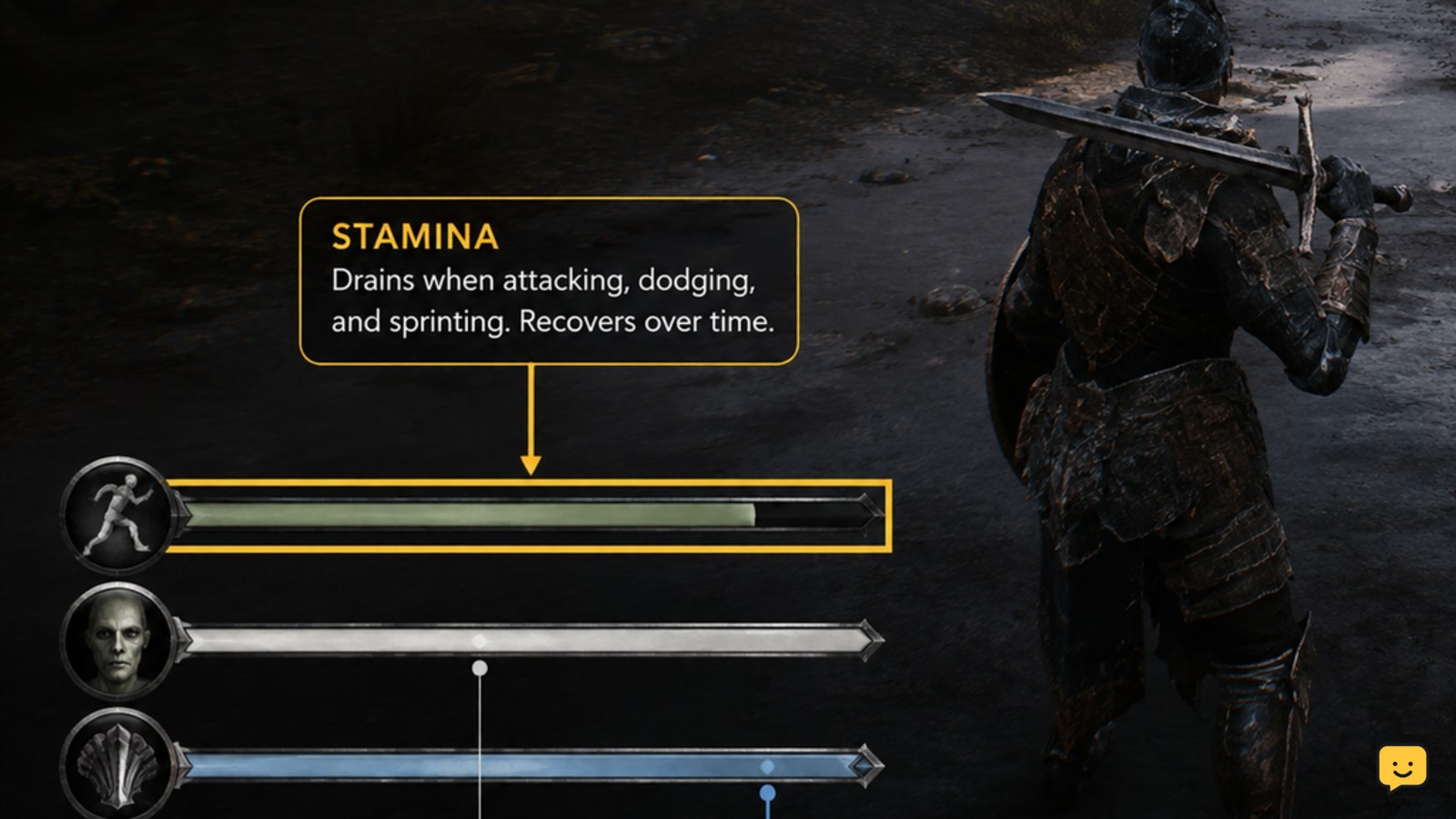
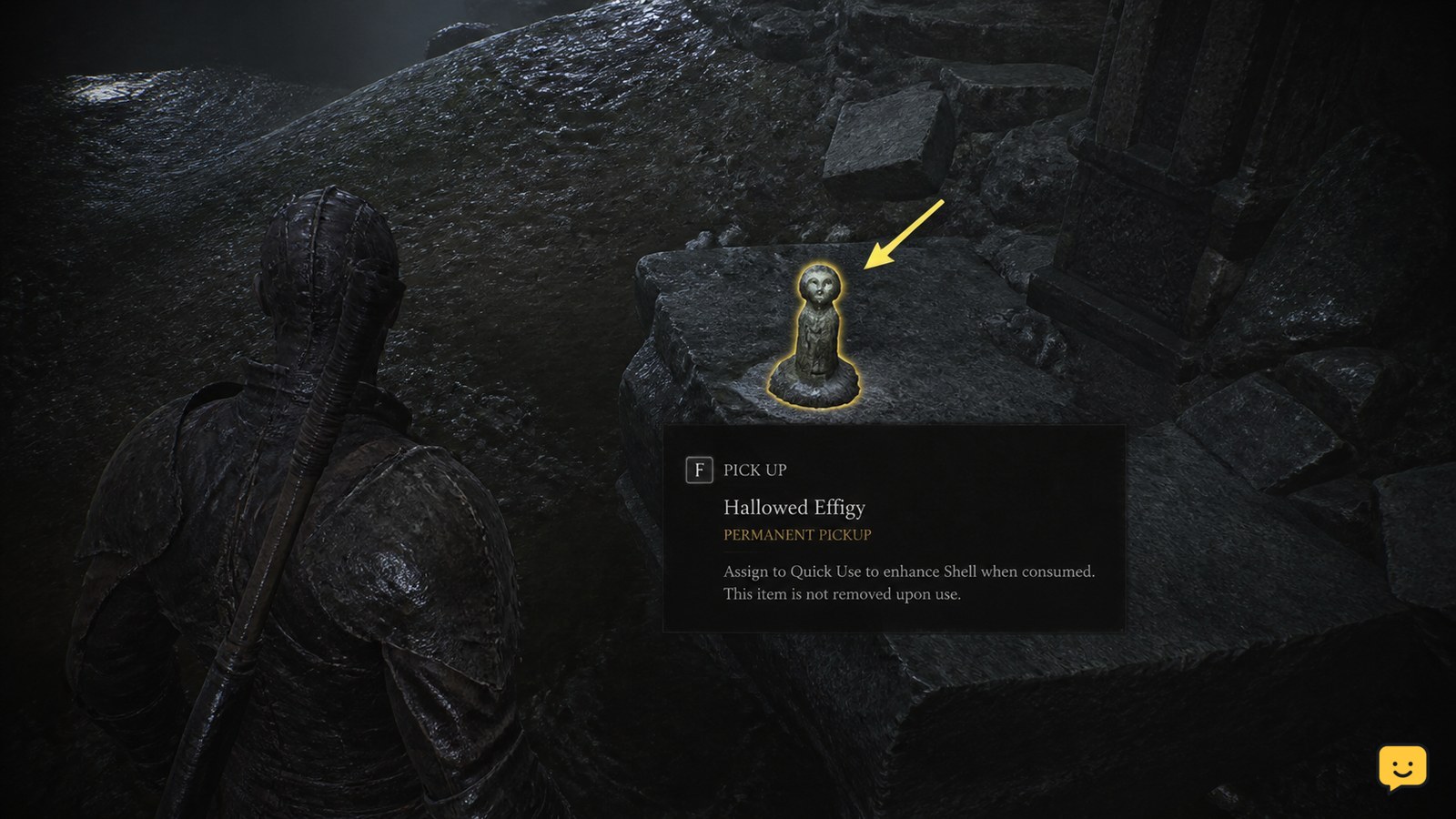
Mortal Shell II treats consumables as Permanent Pickup items rather than ordinary inventory stacks. Collect the item, then use the quick-use control currently shown by your HUD or control settings. Activate it from a safe position, watch for its visible effect or availability change, and do not assume a pickup is a one-time item until its on-screen description confirms that.
Browse more Mortal Shell II guides
Check whether the pickup is a Permanent Pickup item
Start by reading the item prompt when you find it. Launch-state reference material for Mortal Shell II describes its item system as using Permanent Pickup items instead of the usual collect-and-deplete consumable stacks. That distinction matters: finding an item does not necessarily mean it will disappear permanently after one activation.
Collect the pickup, then check the item name, description, and any icon or availability marker that appears on screen. Use those details as the authority for that specific item. The label tells you more reliably than its appearance whether it has a condition, a limited availability state, or a repeatable function.
Success looks like this: the item is registered by the game and you can identify its current effect or use condition from the on-screen information.
Use the quick-use prompt assigned in your control layout
Use the item through the quick-use action displayed by your current HUD or control settings. Do not rely on a fixed keyboard key or controller button from another player’s layout: bindings can differ by platform, remapping, and accessibility settings.
- Open the controls or button-assignment screen if you cannot identify the quick-use input from the HUD.
- Find the action associated with using the currently selected item. Use the exact action name displayed in your version of the game.
- Return to gameplay and stand outside an enemy’s immediate attack range.
- Press the displayed binding once, then watch for an item animation, status change, resource change, or altered availability indicator.
Community Steam threads about both a second consumable and quick-use items show that this control can be easy to miss. If you have more than one item-related input or slot, follow the labels shown in your own interface rather than repeatedly pressing attack, dodge, or ability controls.
Choose a safe moment during exploration or combat
During exploration, use an item after you have read its effect and when you can immediately verify the result. Avoid activating an unfamiliar pickup while moving through a dangerous route; you may not be able to tell whether it worked, what it changed, or whether it has a condition you have not met.
During combat, create space first. Wait until an enemy finishes a committed attack, is recovering, or is far enough away that you can complete the use input without being hit. If the item is not needed for the current situation, keep it ready rather than activating it only because it is selected.
Do not treat a consumable as a substitute for defensive positioning. If an enemy is already in striking range, evade, create distance, or use your defensive tools first. Activate the item only when the screen state gives you enough time to confirm its effect.
Verify the item worked before depending on it
Immediately check for an observable result. Depending on the item, that may be a changed resource display, a temporary status indicator, a new item state, or a different availability marker. The expected result should agree with the item description you read before activating it.
If the item remains shown as available and there is no visible effect, do not keep pressing the button in a fight. First check whether the item requires a target, a particular state, a selected slot, or a short activation window. A missed input and an unavailable item can look similar when combat is busy.
Reliable checkpoint: you should be able to point to one clear change on the HUD, character, target, or item indicator that matches the description. If you cannot, test again later in a safe area rather than risking a crucial encounter.
Fix a consumable that will not activate
If a consumable appears to do nothing, work through the simplest causes before assuming the item is broken.
- Confirm you collected it. Re-read the item entry or HUD indicator. A world pickup that has not been registered cannot be quick-used.
- Confirm the selected item. If your interface supports multiple item positions, make sure the intended item is active before pressing use.
- Check the current binding. Open controls and use the binding shown there. A changed or overlapping assignment can prevent the expected action.
- Check the use condition. Read the description again for a target, resource, status, or timing requirement.
- Retest away from enemies. This separates an interrupted activation from an unavailable item.
If the correct item is selected, its stated condition is met, and there is still no response in a safe area, stop spending valuable attempts. Save any useful details such as the item name, platform, control layout, and the exact HUD state before checking current support information or reporting the issue.
Separate launch-state facts from durable item habits
The available launch-day reference, published on August 20, 2026, identifies the Permanent Pickup approach as the defining item-system fact. Treat that as the current baseline, but verify any exact slot behavior, button mapping, or item-specific restriction against the version currently installed on your platform.
The durable habit is simpler: read the item’s live description, use the active quick-use prompt, test unfamiliar effects safely, and verify a visible result. Those checks remain useful even if later updates change bindings, interface labels, or the behavior of a particular pickup.
Frequently asked questions
Are Mortal Shell II consumables single-use items?
Not in the usual inventory-stack sense at launch. Reference material describes Mortal Shell II as using a Permanent Pickup item system. Check the item’s current description and availability indicator, because an individual item can still have conditions or state changes that determine when it can be used.
What button uses consumables in Mortal Shell II?
Use the quick-use binding shown by your own HUD or controls screen. A single universal button should not be assumed because platform layouts, remapped controls, and future interface changes can alter the input. Test the shown binding once in a safe area.
Can I use a second consumable in Mortal Shell II?
Only use a second item if your current interface exposes another selected item position or a separate item action. The available evidence does not establish one universal second-slot input, so check the labels in your HUD and control layout instead of copying an unverified binding.
Why does my quick-use item not seem to work?
The usual causes are an unselected item, a changed binding, an unmet use condition, or an activation interrupted by combat. Move somewhere safe, confirm the item is registered and selected, read its description, then use the displayed quick-use control and look for a matching on-screen change.