Why is Valorant not updating?
If Valorant is not updating, first check Riot service status and confirm the drive has free space. Then fully close Riot Client processes, reopen the client as administrator, verify that security software is not blocking it, and restart the PC. A download stuck at 0% can also be caused by a damaged Riot Client cache, DNS trouble, or an incomplete Vanguard update.
Use the fixes below in order and test the download after each one. This avoids a full reinstall when the problem is only a temporary service, permission, storage, or network issue. For other game-specific help, browse the Valorant guides.
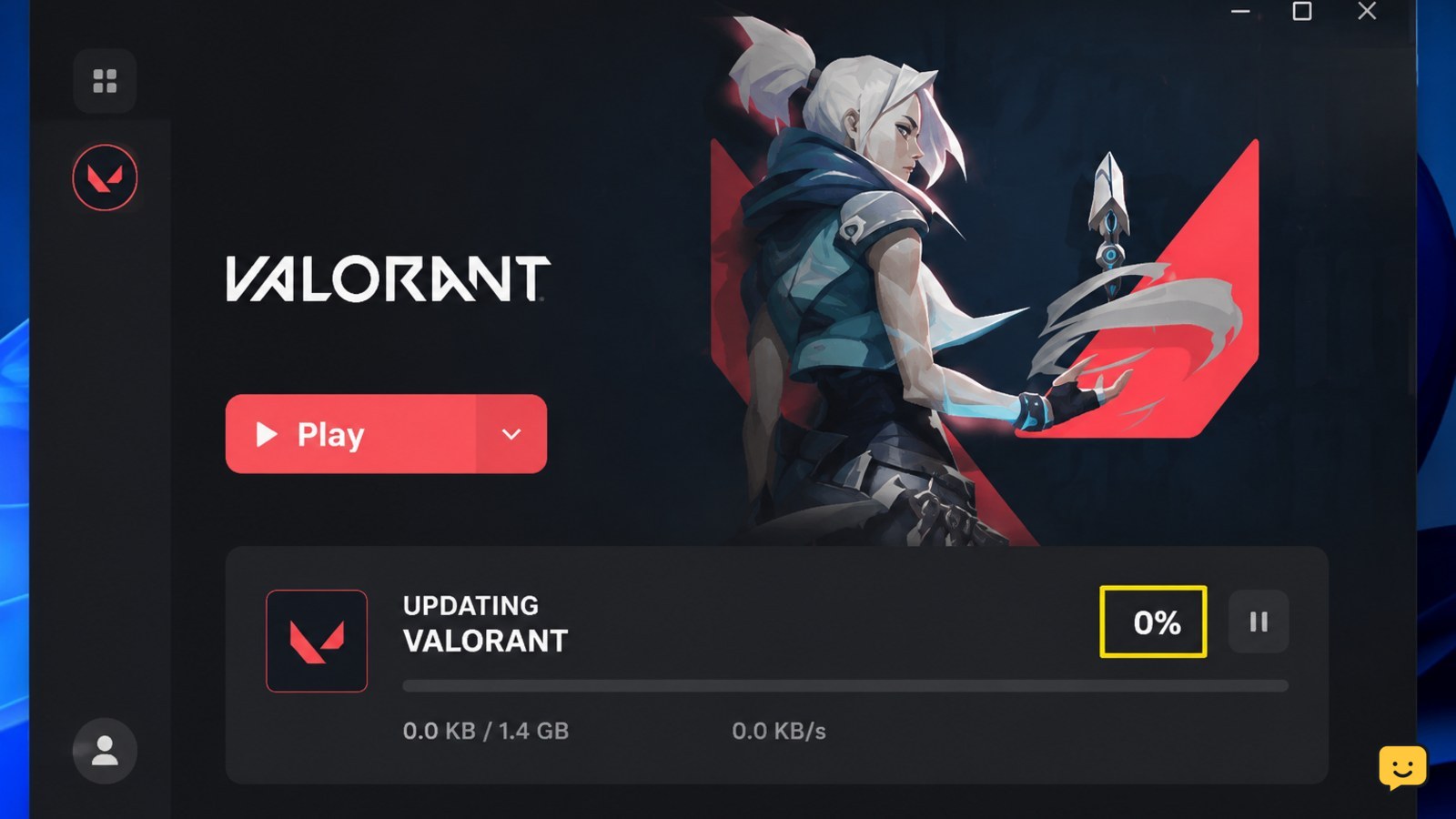
To fix Valorant stuck at 0 percent updating, fully close Riot Client, restart Windows, and reopen the client with permission to update. Check free disk space, temporarily remove VPN or proxy interference, refresh the network connection, and confirm Vanguard is running. If the update still does not move, use any repair option shown by Riot Client or reinstall from Riot’s official installer.
1. Check whether the update is actually frozen
A display of 0% does not always mean that nothing is happening. Riot Client may be preparing files, checking existing data, or waiting for disk access before the percentage changes.
- Wait about 10 minutes while watching the Riot Client status.
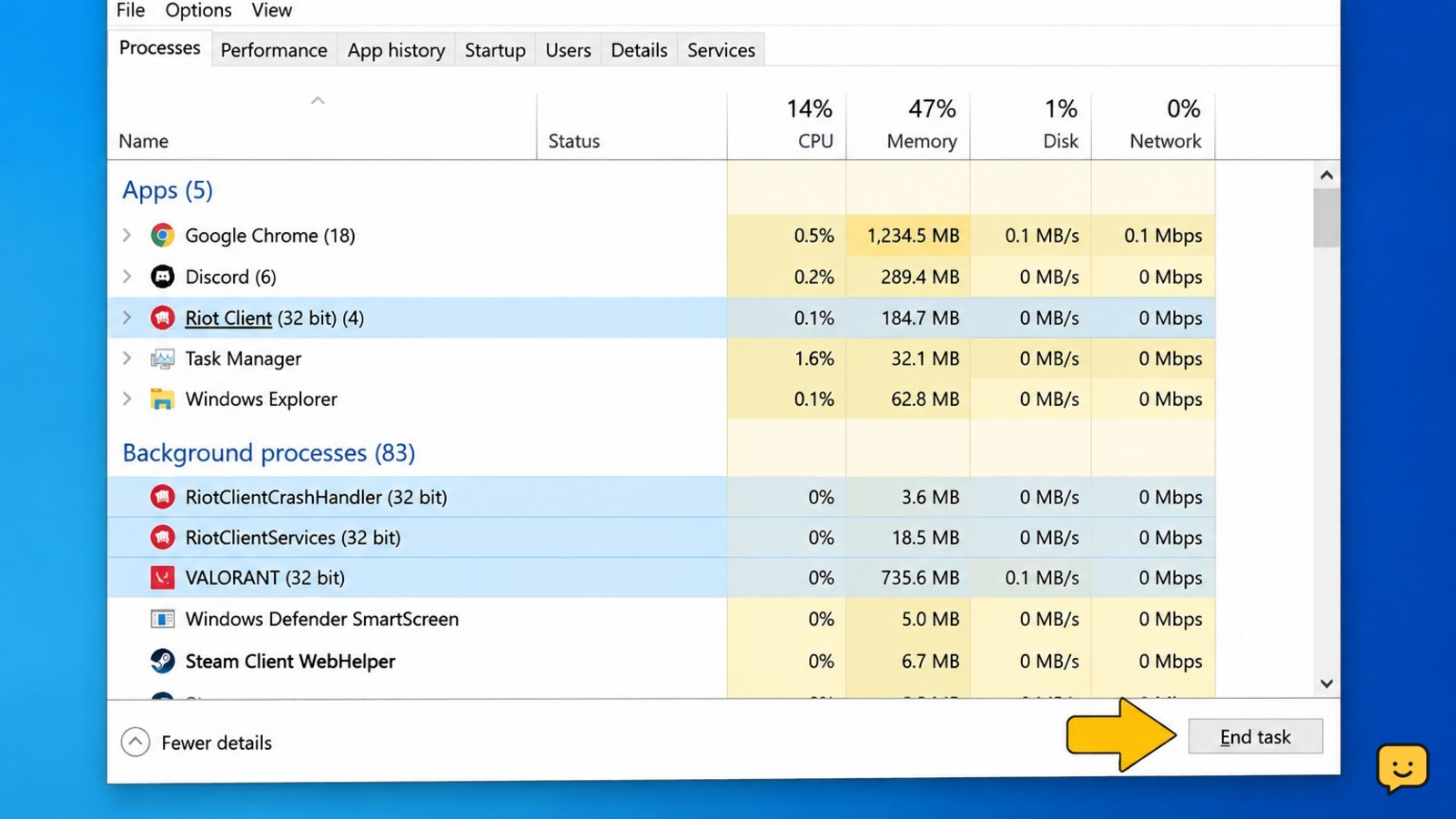
- Open Task Manager with Ctrl + Shift + Esc.
- Check whether Riot Client, Valorant, or related Riot processes show network or disk activity.
- If activity is continuing, leave the client open and check again after another 10 minutes.
Verification: The update is progressing if the percentage, downloaded size, remaining time, network use, or disk use changes.
Stop condition: Continue only when the status remains at 0% with no meaningful activity for about 20 minutes.
2. Fully restart Riot Client and Windows
A stuck client session is one of the simplest causes to remove. Community troubleshooting reports commonly recommend a full restart rather than reopening the Riot Client window alone.
- Right-click the Riot Client icon in the notification area and choose Exit, if available.
- Open Task Manager and end remaining Riot Client, RiotClientServices, and Valorant processes. Do not end unrelated Windows processes.
- Restart Windows.
- After signing in, close unnecessary launchers, overlays, download tools, and other bandwidth-heavy applications.
- Open Riot Client and start the Valorant update again.
Verification: The client should recreate its update session and either begin downloading or display a clear error.
Failure path: If the update returns immediately to 0%, continue with permissions and storage checks instead of repeatedly restarting the client.
3. Check Riot Client permissions, security blocks, and disk space
Valorant updates need to write and replace files in the game installation. A restricted folder, security block, or nearly full drive can leave the progress display at 0%.
- Find the Riot Client shortcut, right-click it, and choose Run as administrator for one test.
- Start the update and check whether the percentage changes.
- Open Settings > System > Storage and check the free space on the drive containing Valorant.
- Keep additional free space available beyond the size of the download because updates can need temporary extraction and replacement space.
- Review Windows Security or third-party antivirus quarantine and protection history for a blocked Riot or Valorant file.
- If a trusted Riot file was blocked, restore or allow it through the security product’s normal interface, then turn protection back on if you temporarily paused it.
Verification: The update should begin writing files, or the client should show a more specific permission or storage message.
Failure path: If administrator mode changes nothing and the drive has comfortable free space, remove VPN or proxy interference and refresh the network connection.
4. Refresh the network connection and cache
A failed connection to Riot’s update service can appear as a download that never leaves 0%. Use the least disruptive network checks first.
- Restart the modem or router, then wait until the connection is stable.
- Disconnect from a VPN or manually configured proxy while testing.
- If possible, compare the result on a wired connection or a different trusted network.
- Open Command Prompt as administrator and run
ipconfig /flushdns. - Restart Windows after the command completes.
- Open Riot Client again and retry the update once.
Verification: Network activity should appear in Task Manager, and the Riot Client download indicator should eventually change.
Failure path: If another network works, the original network, DNS service, firewall, or router is the likely cause. Contact the network administrator or internet provider rather than repeatedly reinstalling Valorant.
Stop condition: Do not change advanced firewall ports or router settings unless you understand the device and can restore the original configuration.
5. Check Vanguard and use repair or reinstall options
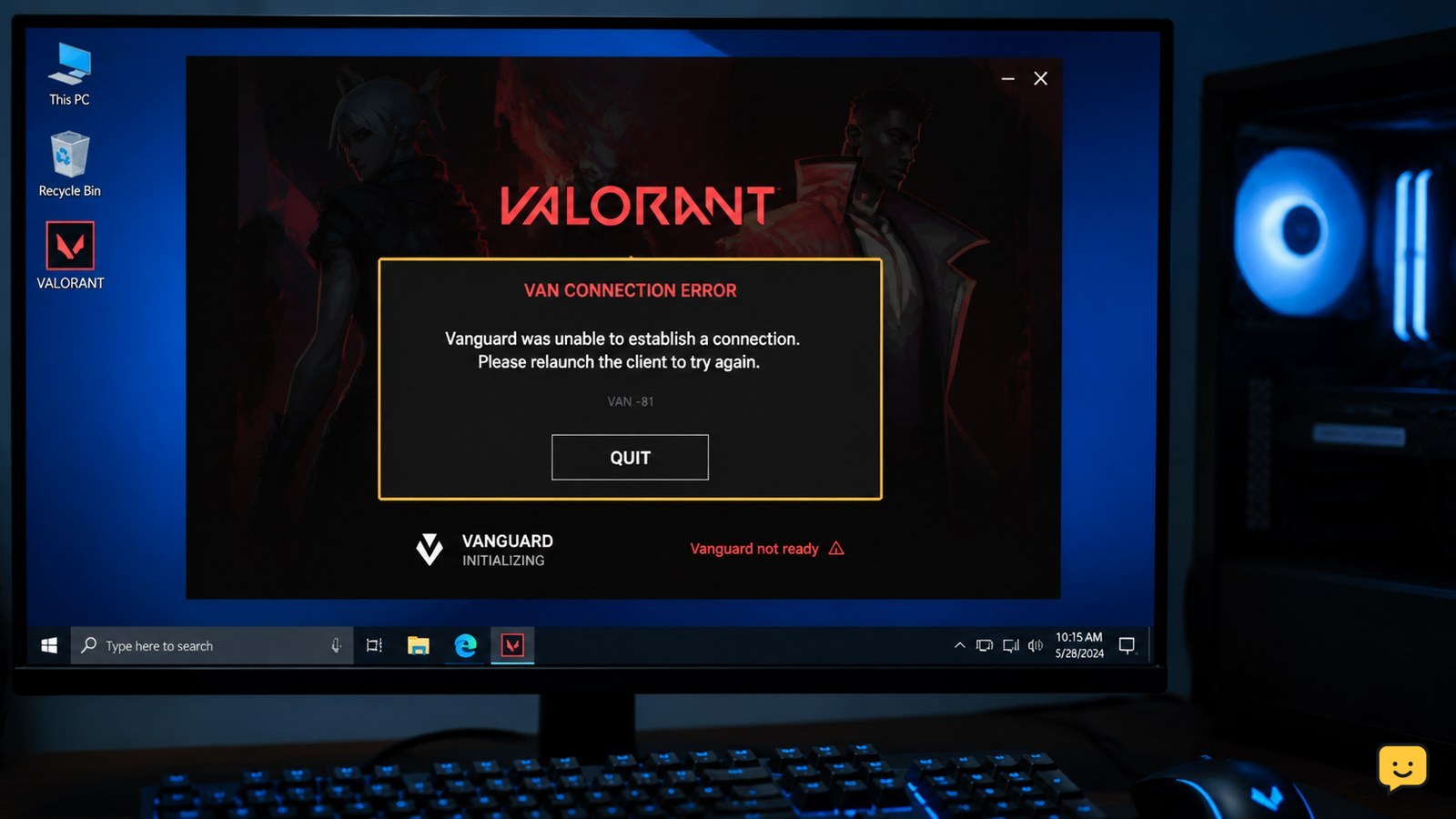
Vanguard is Valorant’s anti-cheat service. If it is not installed correctly, is stopped, or needs a restart, the client may fail while preparing the game.
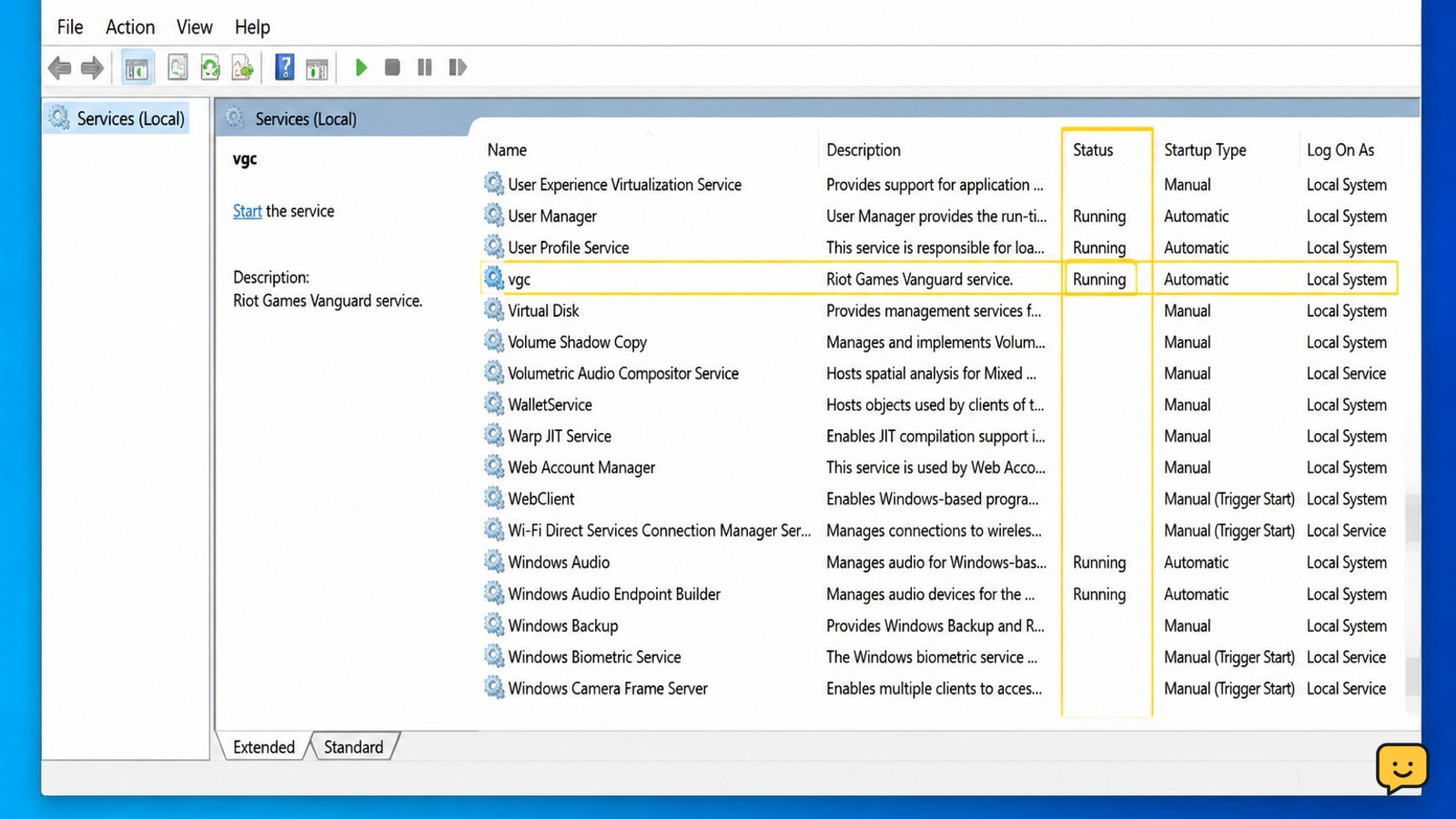
- Press Windows, search for Services, and open the Services app.
- Find the vgc service.
- Check its status. If it is stopped, start it and set its startup type to Automatic if that option is available.
- Restart Windows and test the update again.
- If Riot Client provides a repair, scan, or update-repair option, run it and wait for the process to finish.
- If Vanguard remains damaged, uninstall Vanguard through Installed apps, restart Windows, and launch Valorant so the official client can reinstall it.
- Restart Windows again when prompted, then retry the update.
Verification: Riot Client should detect Vanguard and either resume the update or identify a separate error.
Final failure path: Reinstall Valorant only after restarting, checking storage, testing the network, and addressing Vanguard. Download the installer from Riot’s official website, install to a drive with adequate space, and restart Windows after installation.
Stop condition: Stop and contact Riot Support if Vanguard repeatedly fails to install, a security product continues quarantining trusted files, or the client shows an error code that requires account or system-specific investigation.
Frequently asked questions
Why is Valorant stuck at 0 percent updating?
Valorant is usually stuck at 0% because Riot Client is not fully running, cannot write to the installation folder, lacks temporary disk space, is blocked by security software, or cannot reach Riot’s update service. Vanguard problems can also stop the client during preparation. Check Task Manager first so you do not interrupt an update that is still using disk or network resources.
Should I run Riot Client as administrator?
Yes, run Riot Client as administrator for one controlled test if the update cannot write files. Right-click the Riot Client shortcut and choose Run as administrator, then retry the update. If this fixes the problem, review folder permissions and security blocks rather than using administrator mode permanently for every launch.
Can low disk space make the Valorant update stay at 0%?
Yes. The update may need more space than the visible download size because files can be extracted, replaced, or temporarily stored during installation. Check the free space on the drive containing Valorant and remove unnecessary files before retrying. Do not delete Riot or Valorant folders manually unless Riot Support specifically instructs you.
Will flushing DNS fix a Valorant update stuck at 0%?
Flushing DNS can help when Windows is using a stale or failed DNS result, but it is not a universal fix. Run ipconfig /flushdns in an administrator Command Prompt, restart Windows, and test once. Also remove VPN or proxy interference and compare another trusted network if the update still cannot connect.
Should I reinstall Valorant when the update is stuck at 0%?
Reinstall Valorant last, not first. Restart Riot Client and Windows, check permissions and free space, test the network, and repair or reinstall Vanguard before removing the game. If reinstalling is necessary, use Riot’s official installer and confirm that the selected drive has sufficient free space.