
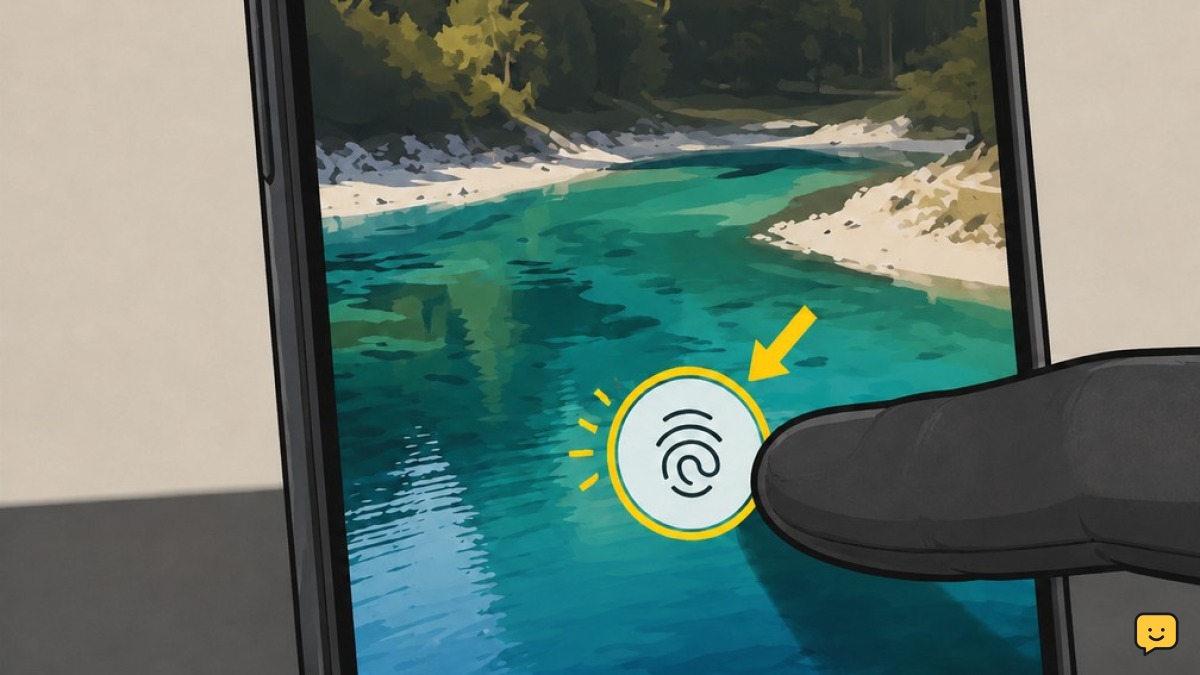
If your Google Pixel fingerprint sensor stopped working after an update, first remove moisture and test without a thick or damaged screen protector. Then power the phone fully off and back on, delete and re-add your fingerprints, and install any available update. If the Fingerprint option is missing or enrollment always fails, stop resetting and contact Google or a repair provider.
Check whether the sensor is actually unavailable
Start by locking the phone, then wake it and try the fingerprint area once with a clean, dry finger. On many Pixel models, the reader is under the display; on some models it is integrated with the rear button. If the phone accepts your PIN but never shows a fingerprint option, open Settings and search for Fingerprint.
If you can see Fingerprint Unlock, the feature is present and you can continue with the checks below. If the fingerprint menu is missing entirely after an update, make a note of the Android version and update date. Google Pixel Community reports include this specific missing-setting symptom after an Android update.
Verification: You can either find the Fingerprint setting or confirm that it is absent. Do not factory-reset solely because the menu is absent.
Clean the screen and rule out the protector
- Wash and dry your hands. Wipe the display or rear sensor with a clean, dry microfiber cloth.
- Remove any moisture, lotion, oil, dust, or residue from your finger and the sensor area.
- Inspect the screen protector over the fingerprint area. Replace it if it is thick, cracked, bubbling, badly scratched, or no longer sitting flat.
- If it can be removed without damaging the display, test the fingerprint reader briefly with the protector off.
A protector can change how reliably an under-display reader sees your finger. Do not use solvents, abrasive cleaners, or sharp tools on the display.
Verification: If recognition improves without the protector, fit a compatible replacement protector before enrolling fingerprints again. If it does not improve, reinstall or replace the protector as appropriate and move on.
Power the Pixel fully off, then start it again
A normal restart may not clear every post-update fault. Turn the phone fully off instead: press the power button, choose Power off, wait a few seconds, then turn it back on. Enter your PIN, pattern, or password after startup; fingerprint unlock is normally unavailable until the first secure unlock.
Test fingerprint unlock after the phone has fully started. Reports of a fingerprint feature disappearing after an update have described recovery after a full power-off cycle.
Verification: The fingerprint setting and reader work again after startup. If so, no further reset is needed. If the menu remains missing or scans still fail, continue.
Delete and re-enroll your fingerprints
- Open Settings, then search for Fingerprint. On many Pixel versions, this is under Security & privacy and Device unlock.
- Confirm your PIN, pattern, or password.
- Delete each saved fingerprint.
- Choose Add fingerprint and follow the on-screen placement guide.
- Use a clean, dry finger. Cover the center, edges, and tip gradually as requested; do not press hard or move quickly.
- Lock the phone and test the newly enrolled print several times.
Google Pixel Community guidance for a fingerprint sensor that stopped working after a security update specifically recommends deleting and re-enrolling fingerprints.
Failure path: If enrollment fails every time, try one different clean, dry finger once. If neither finger can enroll, do not keep retrying; proceed to the update check and then seek support if it persists.
Check for a follow-up Android or security update
- Connect to Wi-Fi and open Settings.
- Open System, then Software updates. Menu names can vary slightly by Pixel and Android version.
- Check for an Android update and any available security update.
- Install the update, keep the phone charged, and restart when prompted.
Updates sometimes arrive in stages, so a later patch may be available even if the problem began immediately after a previous update. After installation, unlock with your PIN once and test the fingerprint reader again.
Verification: The phone reports that it is up to date and fingerprint unlock works normally. If the problem began after a display repair or screen replacement, software updates and re-enrollment may not resolve a disconnected, damaged, or unpaired component.
Use safe next steps instead of a factory reset
Do not factory-reset a Pixel as the first response to a failed fingerprint reader. A reset removes local data and may not fix a missing setting or a hardware fault. If you are considering it, back up photos, messages, authentication methods, and other important data first, and make sure you know the Google Account credentials already signed in to the phone.
Contact Google Pixel support or a qualified repair provider when the Fingerprint menu is absent after a full shutdown and current updates, enrollment consistently fails with more than one finger, or the issue started after a drop, liquid exposure, display damage, or screen replacement. Describe the update version, the exact symptom, and the results of the protector, shutdown, and enrollment checks.
Stop here: Once the sensor works reliably with the phone locked and unlocked several times, leave the new enrollment in place. There is no need to reset the device.
Frequently asked questions
Why did my Pixel fingerprint option disappear after an update?
An update-related software fault can leave the Fingerprint option unavailable, as reported in Google Pixel Community discussions. Fully power the phone off and turn it on again first, then check Settings by searching for “Fingerprint.” If the setting is still missing after installing available updates, contact Google Pixel support rather than factory-resetting immediately.
Should I remove my screen protector if Pixel fingerprint unlock fails?
Yes, test briefly without a thick, damaged, bubbled, or poorly fitted protector if your Pixel uses an under-display fingerprint reader. Clean and dry both the screen and your finger first. If the reader works without the protector, use a compatible replacement and enroll your fingerprints again after fitting it.
Will deleting fingerprints erase anything else on my Pixel?
No. Deleting saved fingerprints removes only the biometric fingerprint records used for unlock and supported authentication. Your photos, apps, messages, and screen-lock PIN, pattern, or password remain. You will need that screen lock to access the Fingerprint settings and add fingerprints again.
What if my Pixel will not let me add a fingerprint?
If enrollment will not complete, clean and dry the sensor area and try one different finger once. Remove a questionable screen protector and install pending software updates. If no finger can enroll, or the issue followed physical damage or a screen replacement, stop repeated attempts and arrange support or repair assessment.
Do I need to factory-reset my Pixel to fix fingerprint unlock?
No. A factory reset is not the recommended first step for a fingerprint issue after an update, and it can erase local data without correcting a hardware problem. Try a full shutdown, fingerprint re-enrollment, and available updates first. Back up your data and seek support if the setting is missing or enrollment always fails.
Browse more Mobile Devices guides for help with this topic.


