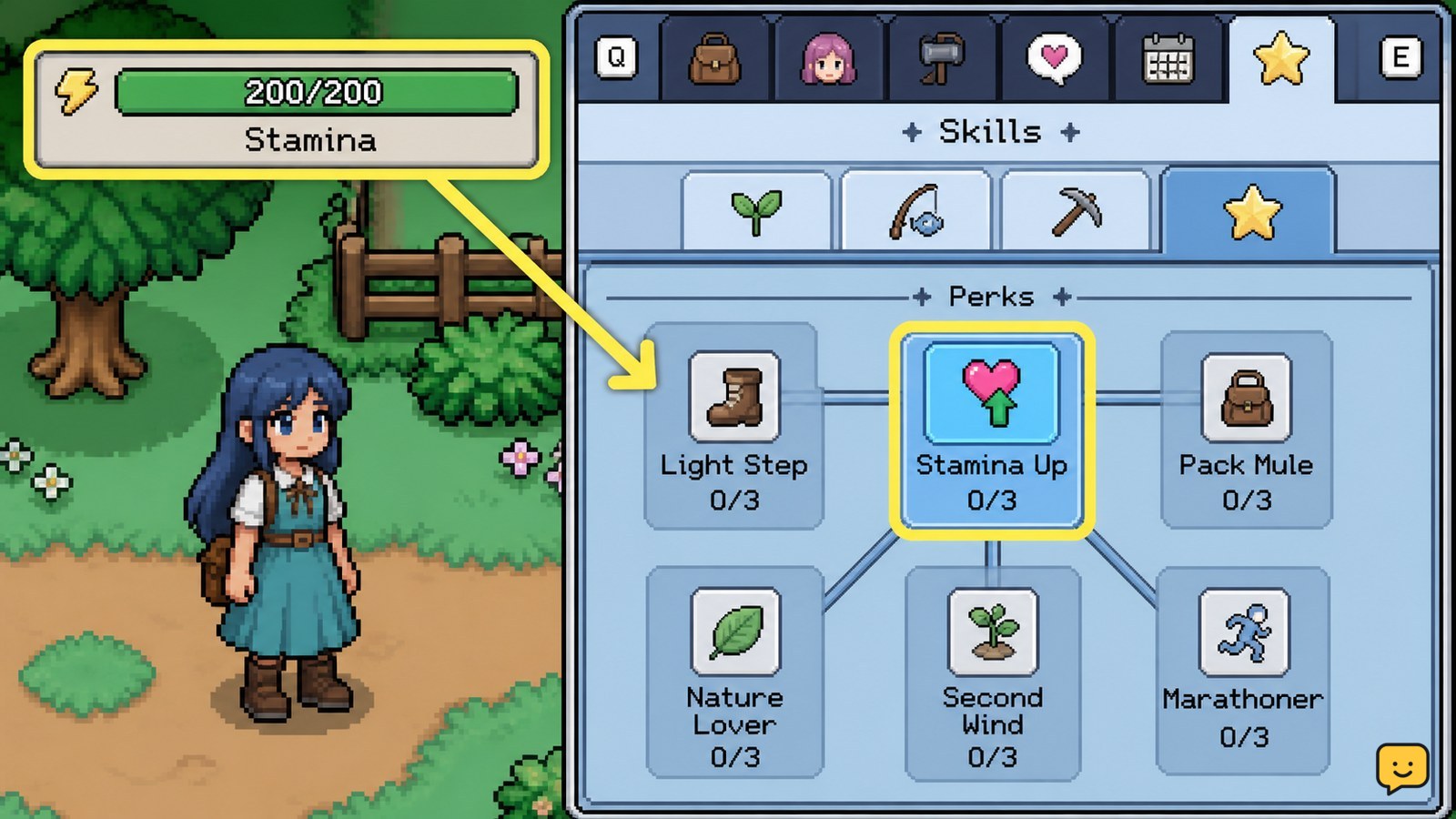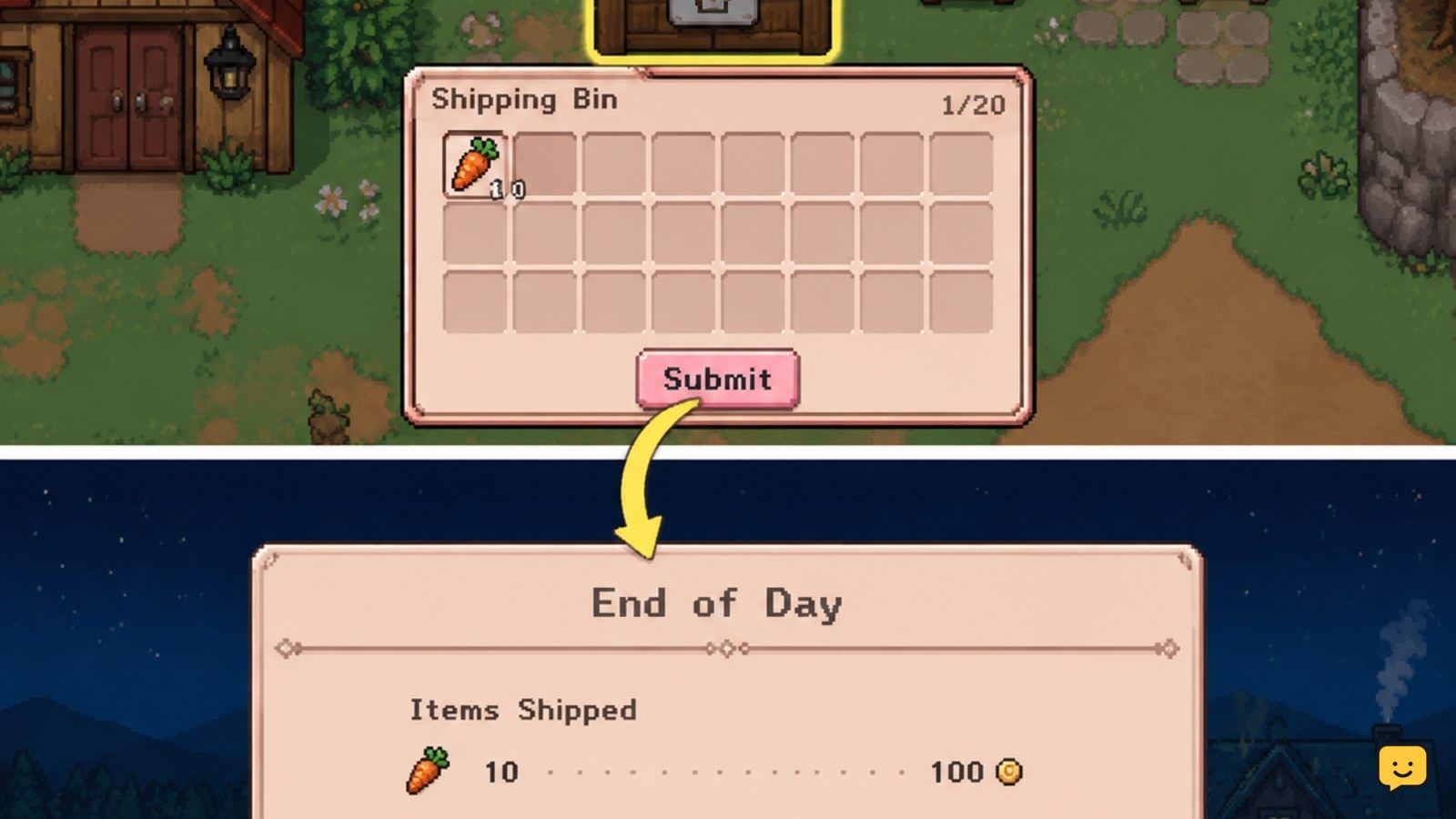
Place an eligible item in the shipping bin on your farm, then finish the day. The game processes the shipment and shows the resulting earnings in the end-of-day summary. Before submitting rare finds, check the museum marker or donation status. If the bin is full or an item remains in your inventory, stop and verify the shipment before sleeping.
Browse more Fields of Mistria guides
Check whether an item is safe to ship
Start in your inventory rather than at the bin. Decide whether the item has another use before selling it. Museum candidates, quest requirements, crafting materials, and useful gifts should stay in storage until you have confirmed that you no longer need them.
Rare bugs, fish, forageables, and other collection items deserve extra care. A museum or donation marker can indicate that an item belongs to a collection, but a marker alone may not tell you whether that specific item has already been donated. Check your museum progress before shipping the last copy.
Verification: after your check, you should be able to name the reason you are selling the item, such as surplus stock or a completed donation entry. If you cannot, keep it.
Place items in the shipping bin
Walk to the shipping bin on your farm and interact with it. Select or move the item from your inventory into the bin using the control shown by your current platform. Repeat the action for each item you want to sell.
Use the bin for surplus goods rather than emptying your entire inventory without checking it. Crops, fish, bugs, forage, and other eligible goods are common sale candidates, but the bin itself is the final authority on whether a particular item can be submitted.
Verification: the item should appear inside the bin or leave the corresponding inventory slot. If the item remains in your inventory, do not end the day yet; check whether the item is ineligible, the interaction failed, or the bin has no available space.
Finish the day to process the shipment
Shipping-bin sales are settled when the day resolves, not merely when you place an item inside the container. Finish the day through the normal sleep or end-of-day flow, then wait for the earnings summary.
The summary is the useful checkpoint because it shows that the game processed the shipment and added the sale value to your earnings. Record the total if you are saving for a purchase or comparing different sources of income.
Success state: the end-of-day screen appears with earnings, and the shipped items are no longer waiting in the bin. If the summary does not appear, continue to the recovery steps instead of assuming the sale completed.
Track earnings without losing the useful comparison
Use the end-of-day earnings screen as your first record of shipping income. It provides a clearer checkpoint than estimating value from the number of items placed in the bin, especially when you ship different item types together.
For a simple comparison, note the amount before and after a focused shipment. Ship one category at a time when you are testing which activity is paying well, but do not sacrifice museum items or materials just to make the comparison.
Keep in mind that community and guide reports can describe older builds. If an item’s displayed value, bin behavior, or earnings screen differs from older advice, follow the labels and result shown by your current game version.
What to do if the bin refuses an item or appears full
If an item will not enter the bin, remove it from your sale pile and inspect it in the inventory. It may be reserved for another purpose, unavailable for shipping, or blocked by a full container. The evidence available for this guide includes a community report that shipping bins may have a maximum capacity; treat the exact slot count as version-dependent rather than fixed.
If the bin is full, use available storage and try a different shipping bin only if your current game provides one. If you do not have another bin, leave the item safely stored and sell it on a later day.
If the item entered the bin but no earnings summary followed, do not repeat the shipment immediately. Check whether the day actually ended, reload only if your platform’s save system makes that safe, and verify the item and money totals before trying again.
Frequently asked questions
When does Fields of Mistria pay for shipping-bin items?
The sale is processed when the in-game day resolves. Check the end-of-day earnings summary rather than expecting money immediately when the item enters the bin.
Can you undo a shipping-bin sale?
Treat a shipment as final once the day has been processed. The available evidence does not document a buyback or undo screen, so keep rare, quest, museum, and crafting items out of the bin until you are certain.
How can you tell whether a bug or fish was already donated?
Check the item’s museum or donation indicator and confirm collection progress before shipping it. If the interface does not clearly show that the entry is complete, store the specimen instead of selling the only copy.
What should you do when an item stays in your inventory?
Do not end the day yet. Try interacting with the bin again, inspect whether the item is eligible for shipping, and check for a full bin. Store the item if the game still will not accept it.