
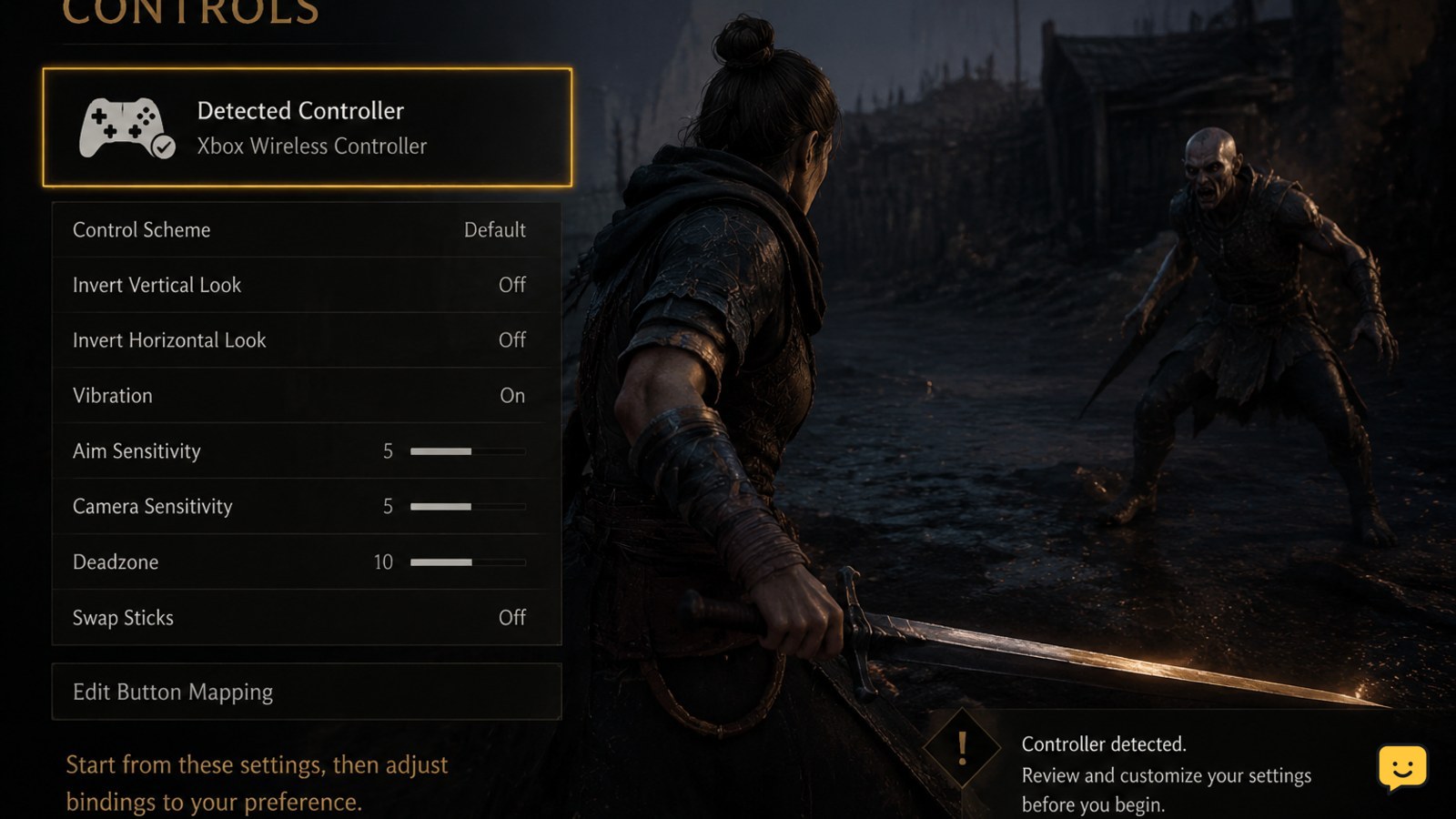
Open The Blood of Dawnwalker’s Settings menu, select the controller or controls page, and confirm that the game detects your gamepad before changing bindings. Start with the default layout, then remap only awkward actions, adjust any available aim, dodge, or directional-combat assistance, save the changes, and test movement, camera control, attacks, blocking, dodging, and menus.
Browse all the selected game guides
Open the controller settings
The safest starting point is the game’s own controls screen rather than a platform-wide remap. Available labels can vary by version, so look for a Settings, Controls, Input, or Controller page.
- Launch the game and open the main menu.
- Select Settings, then open the page that displays controller bindings or input options.
- Move both sticks and press a face button while the page is open.
- Confirm that the interface shows controller prompts or reacts to the correct button presses.
If the game still shows keyboard prompts, reconnect the controller before editing bindings. On PC, also check that the game is receiving only one active input source.
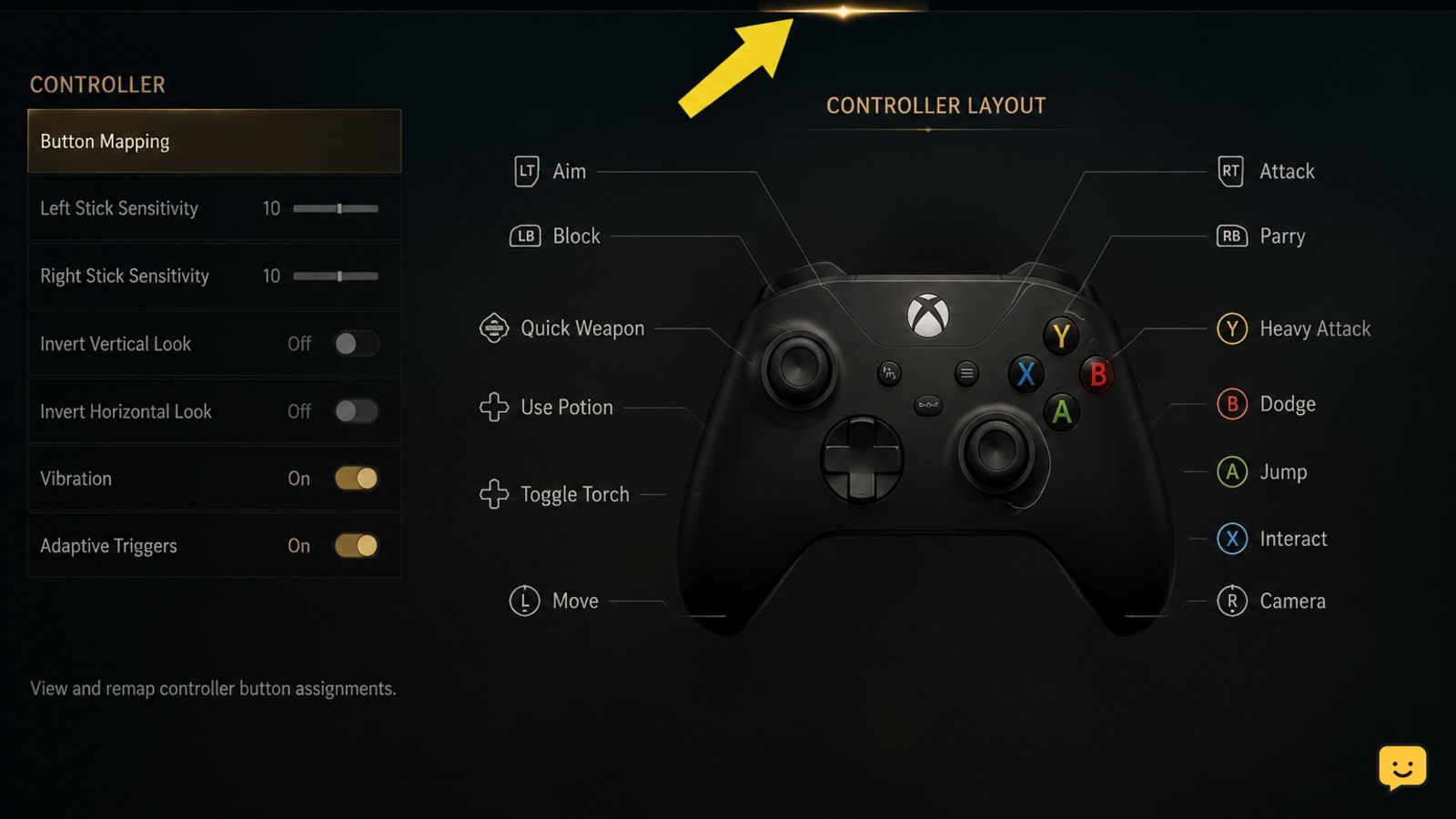
Start with the default layout
Use the default controller layout for your first test. The Blood of Dawnwalker uses directional combat, so changing several combat inputs at once can make the controls harder to learn and harder to diagnose.
- Write down or photograph the default bindings before making changes.
- Check the left stick for movement and the right stick for camera control.
- Identify the buttons used for light or heavy attacks, defense, dodge, interaction, jump or traversal, and any vampire-related action that is currently available.
- Play for a short time with the default layout and note only the inputs that feel physically difficult or easy to press by mistake.
Do not assume that a familiar action has the same button as in another action game. Follow the labels shown in your own controls menu.
Remap controls for comfort
Change one binding at a time. A good accessibility setup reduces awkward hand movement without placing two high-priority actions on the same button.
- Choose the action you want to change and select its current binding.
- Press the replacement button or trigger when the game asks for a new input.
- Accept the change only after checking whether the new button is already assigned elsewhere.
- Prefer an easy-to-reach input for dodge or defense if you need to react quickly.
- Keep directional combat inputs on controls you can use while maintaining camera control, unless that arrangement is uncomfortable for you.
- Save or apply the layout before leaving the page.
If the game refuses a binding, reports a conflict, or resets the action immediately, restore the default layout and retry with a different button. Avoid mapping essential actions to stick-clicks if accidental presses are a problem.
Adjust combat assistance when available
Community discussions and the official gameplay presentation describe directional combat as a core part of The Blood of Dawnwalker. Some versions may also expose optional assistance for aiming, dodging, or combat input. Treat these as version-dependent settings, not guaranteed menu items.
- Look for aim assistance, dodge assistance, directional-input assistance, or similarly named options on the controls, gameplay, or accessibility pages.
- Choose the lowest level that lets you read and perform combat comfortably.
- If directional inputs are difficult, enable an available assistance option and test it in a low-risk area.
- If the game feels too automatic, reduce or disable assistance and test again.
- Apply the change, then confirm that the on-screen prompts and combat response match the selected option.
There is no single best setting. Use assistance when it improves control, reduces strain, or makes the combat readable; do not keep an option enabled merely because another player recommends it.
Verify the full controller layout
Finish with a short control check before committing to the setup. This catches conflicts that are not obvious inside the binding menu.
- Walk in every direction and rotate the camera smoothly.
- Open and close the pause or inventory menu.
- Interact with a nearby object or character.
- Perform each available attack, then test defense and dodge separately.
- Use a traversal or vampire action if it has already been unlocked.
- Check that shoulder buttons, triggers, stick clicks, and the directional pad perform the actions shown in the menu.
Return to the settings page if an input does nothing, performs the wrong action, or produces both a game action and a menu command. Restore defaults when the conflict cannot be isolated, then rebuild the layout gradually.
Fix controller input that is not working
If the game does not respond correctly after saving the layout, identify whether the problem is the controller, the platform, or the game settings.
- Disconnect the controller, reconnect it, and confirm that the platform detects it outside the game.
- Restart the game with the controller already connected.
- On PC, test the game with only one controller support or remapping layer active.
- Check for a controller-layout option in the game platform and disable an unnecessary custom layout temporarily.
- Return to the game’s controls page and restore defaults.
- Test the default layout before applying personal changes again.
If the controller works in other games but not in The Blood of Dawnwalker, check the game’s current support information and update notes. Stop after confirming a platform or game-version limitation; repeated remapping will not fix unsupported hardware.
Frequently asked questions
Does The Blood of Dawnwalker support controllers?
Yes, controller play is supported, and available community and developer-related discussions recommend using a controller for the game’s combat. The exact button prompts, layouts, and assistance options can vary by platform and version, so confirm the controls shown in your own settings menu.
What are the best controller settings for The Blood of Dawnwalker?
The best settings are the ones that let you move, control the camera, defend, dodge, and perform directional combat without strain. Start with the default layout, remap only uncomfortable actions, and adjust any available combat assistance gradually. Test every change in a safe area before continuing.
Can you remap controller buttons in The Blood of Dawnwalker?
The game has a controls and button-mapping reference, and its available customization can be checked from the in-game settings. Select an action, assign a replacement input, resolve any conflict, and save the layout. If a binding cannot be changed, restore defaults and choose another input.
Can directional combat be disabled?
Do not assume it can be fully disabled. Public discussion confirms that players have asked about disabling directional input combat, but the available answer may depend on the current version and platform. Check the game’s accessibility, gameplay, and control pages for an explicitly named option.
Why does The Blood of Dawnwalker show keyboard prompts with a controller connected?
The game may be receiving keyboard input, a second controller signal, or a platform remapping layer instead of the gamepad directly. Reconnect the controller, restart the game with it connected, and temporarily disable duplicate input layers. Restore the game’s default layout before testing custom bindings.
Browse more The Blood of Dawnwalker guides for help with this topic.