

Put both AirPods in their case, confirm that each one is charging, and wait at least 30 seconds. If one still has no sound, clean its case contacts and speaker mesh, center the device’s audio balance, reconnect the AirPods, and test again. Persistent charging or detection failure usually points to a battery, contact, or earbud hardware problem.
Identify whether the problem is charging or sound
Start by determining whether the silent AirPod is receiving power. This prevents an unnecessary reset when debris or poor contact is the actual cause.
- Place both AirPods firmly in the charging case.
- Connect the case to power and leave both earbuds inside for at least 30 seconds.
- Open the case near your connected phone or tablet and check the battery display, if available.
- Remove both AirPods and play audio.
If the silent side shows no battery level, remains at zero, or does not appear, continue with the charging-contact checks. If both sides have power but only one produces sound, skip to the speaker mesh and balance sections.
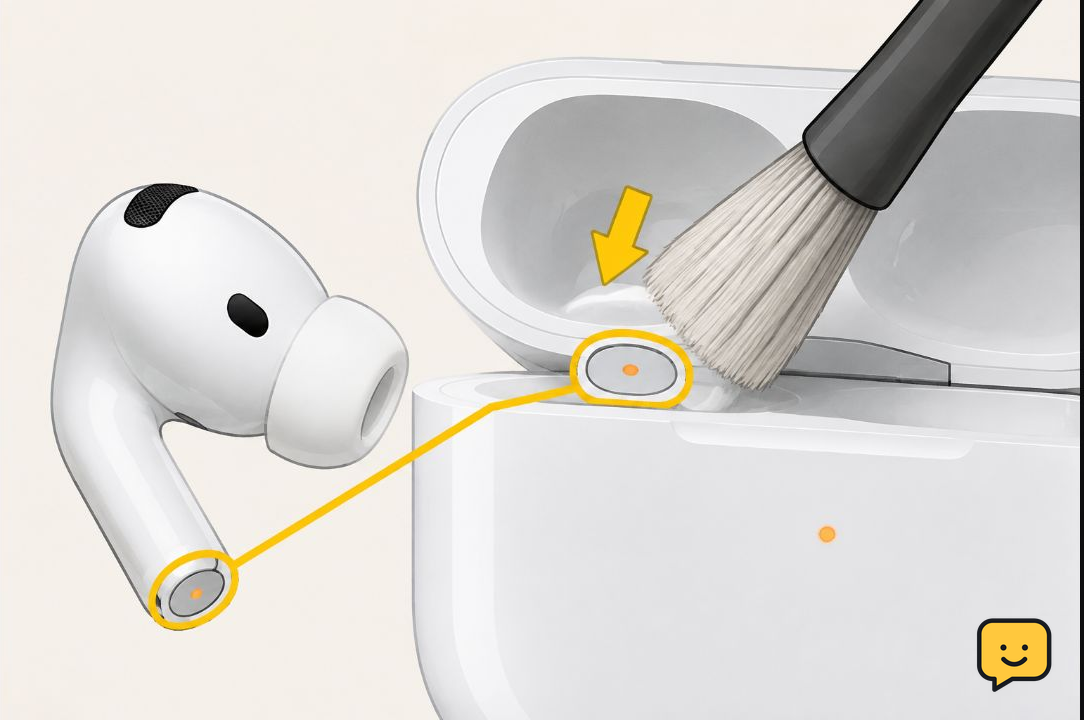
Clean the silent AirPod and its charging bay
Dust or earwax can prevent an AirPod from charging even when it appears to sit correctly in the case.
- Remove both AirPods and disconnect the case from power.
- Inspect the metal end of the silent AirPod and the matching bay inside the case under bright light.
- Use a clean, dry, soft-bristled brush to loosen visible debris.
- Wipe accessible surfaces with a dry lint-free cloth. Do not push liquid, sharp tools, or compressed debris into the case.
- Return the AirPod to the case and confirm that it settles into the bay normally.
Charge for several minutes, then check the battery display again. If the AirPod now appears and gains charge, poor contact was the likely cause. If it still does not register, try a known-good charging cable and power source before assuming the earbud has failed.
Check the speaker mesh for a sound blockage
An AirPod can connect and charge normally while accumulated debris makes it extremely quiet. Compare the speaker mesh on both earbuds under the same light.
- Use a dry, soft brush to gently remove loose material from the silent or quiet side.
- Keep the mesh facing downward where practical so loosened debris falls away rather than entering the opening.
- Do not puncture the mesh or force material through it.
- Play audio at a moderate level and compare both sides.
If sound returns but remains muffled, stop aggressive cleaning. Damage to the mesh or an internal speaker fault may require professional service.
Center the left-right audio balance
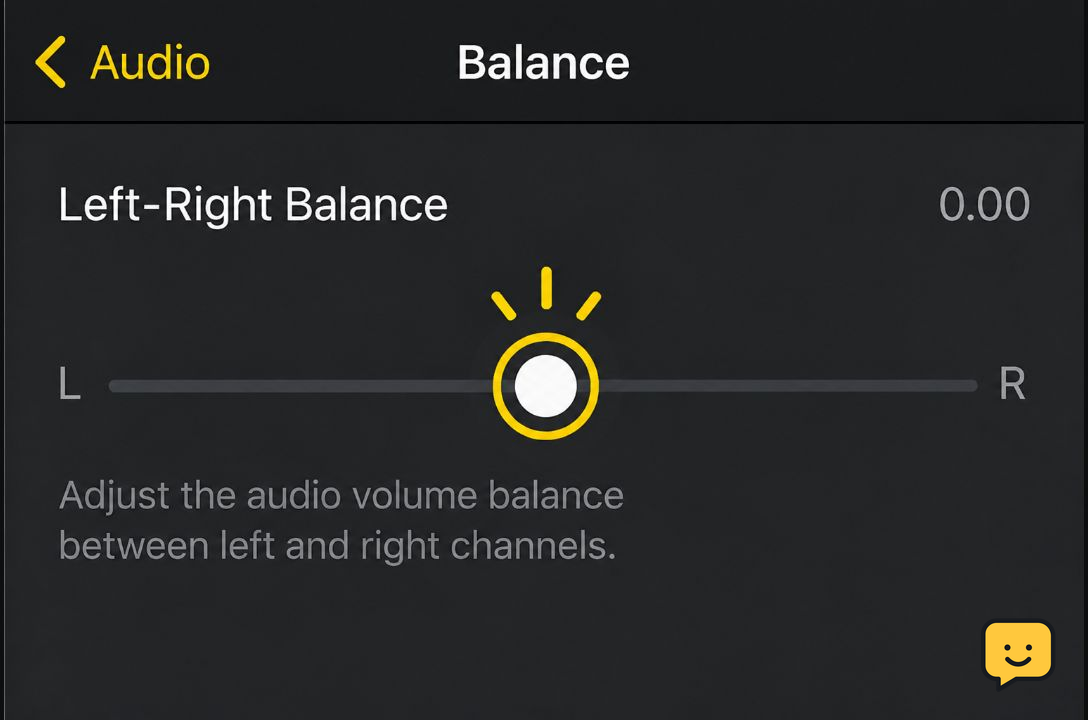
A balance setting shifted fully toward one side can make a working AirPod seem silent. This setting belongs to the connected phone, tablet, or computer rather than the AirPods themselves.
- Open the device’s accessibility or audio settings.
- Find the left-right stereo balance control.
- Move the slider to the exact center.
- Turn off any mono, channel-routing, or hearing settings that intentionally direct audio to one side, unless you need them.
- Replay the same test audio.
If centering the balance restores sound, no reset is required. Settings menus vary by operating system, so use the device’s settings search if the balance control is difficult to locate.
Reconnect the AirPods and test another device
If both AirPods charge and the balance is centered, the saved Bluetooth connection may be incomplete or corrupted.
- Return both AirPods to the case and close it briefly.
- Turn Bluetooth off and back on at the connected device.
- Open the case and reconnect the AirPods.
- If one side remains silent, remove or forget the AirPods from the device’s Bluetooth list and pair them again.
- When possible, test them with another compatible phone, tablet, or computer.
If both sides work on the second device, the original device’s Bluetooth or audio settings are responsible. If the same AirPod fails everywhere, continue to the reset and hardware checks.
If you are testing on a PC, use connect Bluetooth headphones to Windows 11 to confirm Windows has paired and selected the AirPods correctly.
Reset the AirPods only after the basic checks
Resetting can resolve a pairing fault, but it cannot repair blocked contacts, a depleted battery, or damaged hardware.
- Place both AirPods in the charged case and close the lid for about 30 seconds.
- Remove or forget the AirPods from the Bluetooth settings of the connected device.
- Open the case and follow the reset procedure for your exact AirPods and case model.
- Use the case’s pairing or reset control until the status light indicates that the reset is complete.
- Pair the AirPods again and test each side.
Case controls differ across AirPods generations, so do not force a button or assume every case uses the same gesture. Follow Apple’s model-specific instructions if the control or light behavior differs from what you expect.
Decide whether the AirPod needs service
One AirPod probably has a hardware or battery fault if it remains missing from the battery display, never begins charging in a clean powered case, or stays silent on multiple devices after a reset.
- Inspect the earbud and case for impact damage, corrosion, moisture, or a contact that no longer moves normally.
- Confirm that the other AirPod charges in its own bay, which shows that the case is receiving power.
- Record which side fails and whether it charges, connects, or produces faint sound.
- Contact Apple or an authorized service provider with those results.
Stop here rather than repeatedly resetting or scraping the contacts. The useful distinction for service is whether the failed side cannot charge, cannot connect, or connects but cannot produce sound.
Frequently asked questions
Why is only one AirPod working?
The most common causes are an uncharged AirPod, dirty charging contacts, a blocked speaker mesh, an off-center audio balance setting, or a faulty Bluetooth connection. First check whether the silent side appears in the battery display. That result separates a likely charging problem from an audio or settings problem.
How can I tell whether one AirPod is charging?
Place both AirPods in the powered case for at least 30 seconds, then open it near the connected device and check the battery display. If one side is absent, remains at zero, or does not gain charge, clean that AirPod’s metal contact and its matching case bay before testing again.
Can audio balance make one AirPod silent?
Yes. A left-right balance control moved fully toward one channel can mute the opposite AirPod even when both earbuds work. Open the connected device’s accessibility or audio settings, center the balance slider, and replay a known stereo track before resetting the AirPods.
Should I reset AirPods when one side stops working?
Reset them only after confirming that both AirPods charge, the speaker mesh is clear, and the audio balance is centered. A reset can repair pairing problems, but it will not fix dirty contacts, a worn battery, physical damage, or a failed speaker.
What if the same AirPod fails on every device?
The AirPod likely needs service if the same side remains silent or undetected on multiple devices after charging, cleaning, reconnecting, and resetting. Note whether it appears in the battery display and whether it produces faint sound; those details help distinguish battery, charging-contact, connection, and speaker failures.
Browse more Mobile Devices guides for help with this topic.


