
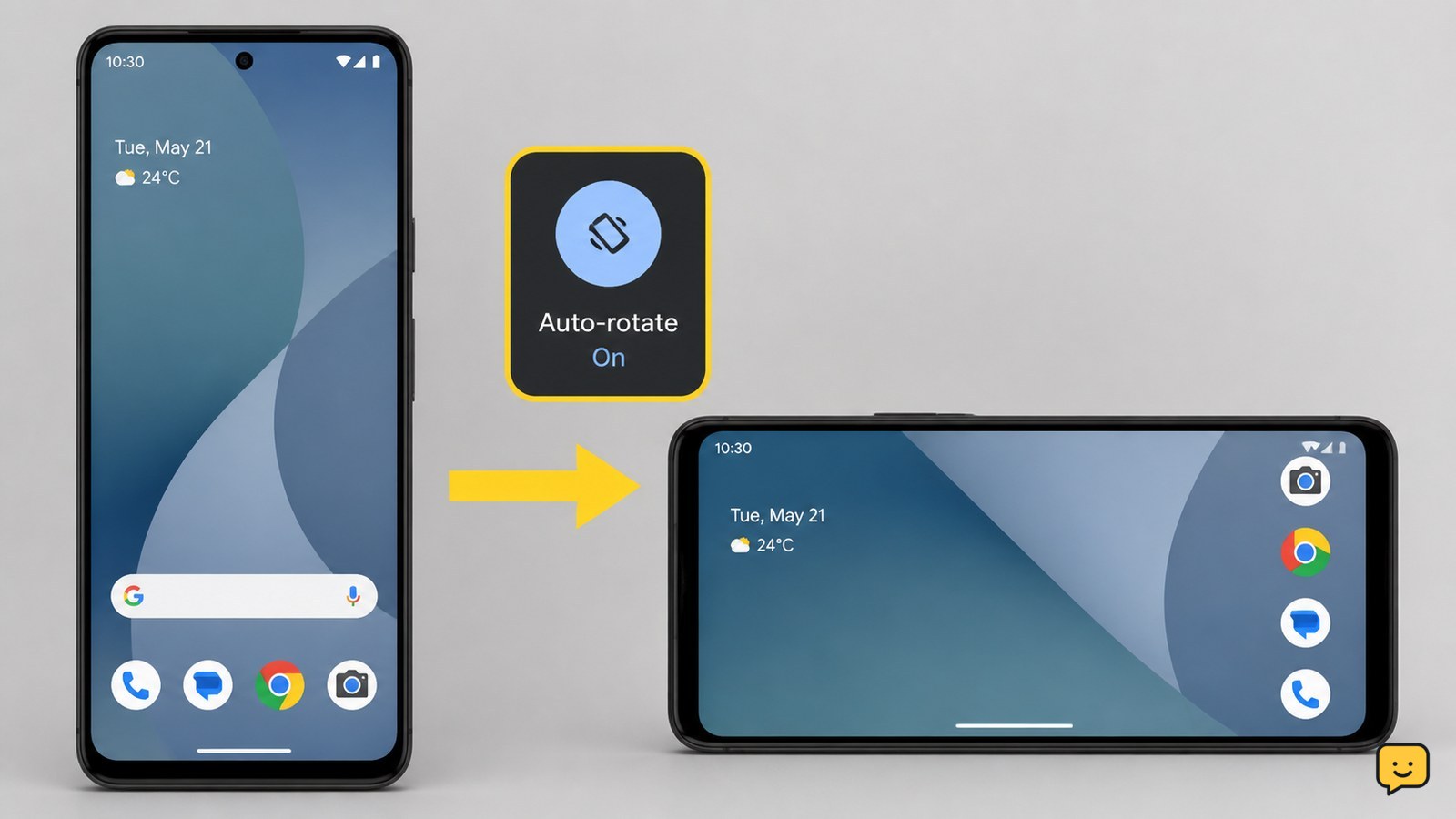
Turn off Rotation Lock on an iPhone or enable Auto-rotate on an Android phone, then test a browser or video app in both portrait and landscape. If rotation works in other apps, the original app may restrict it. If no supported app rotates after a restart and update check, the motion sensor may need professional service.
Check whether Rotation Lock or Auto-rotate is enabled
The most common cause is a rotation control that has been switched off. Check the shortcut first, then confirm the full setting if the shortcut is missing.
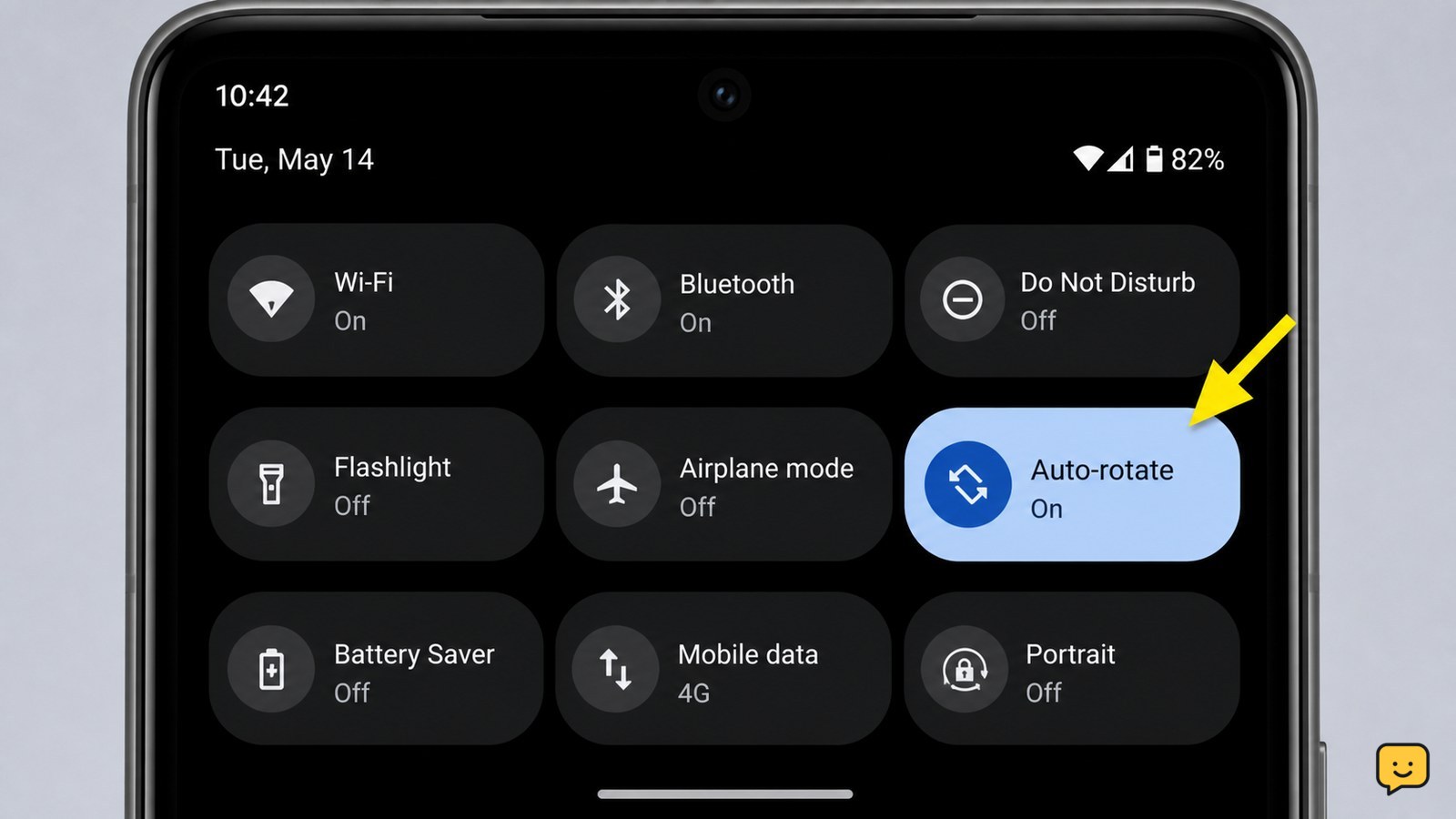
- Android: Swipe down twice to open Quick Settings. Tap Auto-rotate if it is available. If the shortcut says Portrait or Rotation lock, tap it to enable automatic rotation.
- If the Android shortcut is not visible, open Settings, select Display & touch, and turn on Auto-rotate screen. Manufacturer menus can use slightly different names.
- iPhone: Open Control Center and tap Portrait Orientation Lock so it is off. On an iPhone with a Home button, swipe up from the bottom; on newer models, swipe down from the upper-right corner.
Turn the phone sideways while viewing a page or photo. The screen should change orientation within a moment. If the control is already enabled, continue to the app test.
Test rotation in a second app before changing anything else
Rotation is not guaranteed in every app or screen. Some apps keep a portrait-only layout, and some views rotate only when the phone is turned in a particular direction.
- Open a browser, a photo, or a video app that normally supports landscape mode.
- Hold the phone upright, then slowly turn it sideways. Repeat the test in the opposite direction.
- Try a second supported app.
If one app rotates while another remains upright, the phone-wide setting is probably working. Check the affected app for a full-screen, orientation, or display setting, then update or reinstall that app if the problem is limited to it. If no supported app rotates, continue with the phone-level checks.
Restart the phone and repeat the sensor test
A restart can clear a temporary system or sensor-service problem without deleting your photos, apps, or messages. Save any open work first.
- Power the phone off using its normal power menu.
- Wait until the screen is completely off.
- Turn the phone back on and wait for the home screen to finish loading.
- Open the same two test apps and rotate the phone slowly from portrait to landscape.
Google describes automatic rotation as a response to how the phone is held, so test with the phone freely in your hand rather than flat on a surface or locked into a mount. If rotation returns after the restart, monitor it through several app changes. If it fails again, proceed to software checks.
Install pending phone and app updates
If the rotation switch is enabled but the display still stays fixed everywhere, install available updates before treating the issue as hardware.
- Open the phone’s Settings and search for System update, Software update, or General > Software Update, depending on the phone.
- Install an available phone update while connected to power or with sufficient battery.
- Open the app store and update the apps used for testing.
- Restart the phone once more and test a browser or photos app.
Do not factory-reset the phone just to restore rotation. A reset erases personal data and is not an appropriate next step when the fault has not been isolated.
Decide whether the motion sensor needs service
After the rotation control is enabled, multiple supported apps have failed, and the phone has been restarted and updated, a sensor or system fault becomes more likely.
- Confirm that the phone responds to normal touch input and that the screen is not frozen.
- Check whether rotation stopped immediately after a drop, liquid exposure, display repair, or frame damage.
- Install no unofficial sensor-calibration or repair utility unless it comes from the phone manufacturer and is specifically recommended for that model.
If the phone has physical damage or never rotates in any supported app, contact the manufacturer or an authorized repair provider. Tell them that Auto-rotate or Portrait Orientation Lock was checked, multiple apps were tested, and a restart and update check did not restore the function. If rotation works in some apps but not others, stop at the app-specific fix instead of seeking hardware repair.
Frequently asked questions
Why does my phone rotate in one app but not another?
The second app may use a portrait-only layout or apply its own orientation rule. Test the same phone movement in a browser, photo viewer, and video app. If those rotate normally, check the affected app’s display settings and install its latest update. The phone’s rotation sensor is less likely to be the cause when other supported apps respond.
What should I do if the Auto-rotate button is missing?
Open Settings and search for "Auto-rotate" or "Rotation." On Android, Google places the control under Display & touch on supported devices, while manufacturers may also let you edit the Quick Settings panel and add the shortcut. On iPhone, look for Portrait Orientation Lock in Control Center rather than an Auto-rotate button.
Can restarting my phone erase anything?
A normal restart does not erase your personal data. It closes active apps and reloads the operating system, which can clear a temporary display or sensor-service error. Avoid choosing an erase, reset, or factory-reset option unless you have separately backed up your data and have a different reason for wiping the phone.
How do I know if the rotation sensor is broken?
A hardware problem is more likely when Auto-rotate is enabled, several normally supported apps stay in one orientation, and the issue remains after a restart and software update. A recent drop, liquid exposure, or repair strengthens that possibility. Do not open the phone; use manufacturer or authorized repair service instead.
Browse more Mobile Devices guides for help with this topic.


