
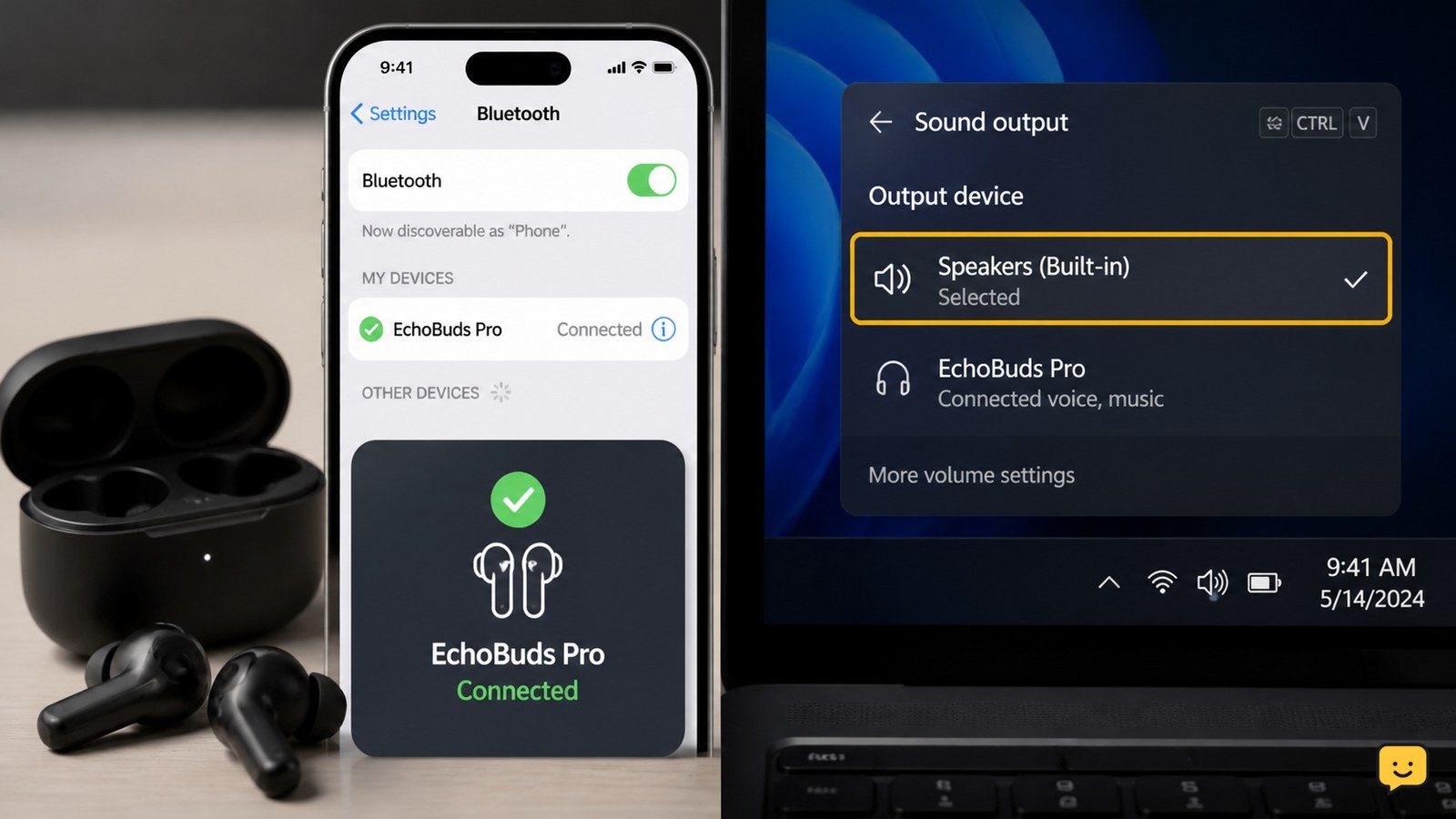
When Bluetooth earbuds show connected but produce no sound, first select them as the active audio output. Raise the device and earbud volume, check that the app is not muted or sending audio elsewhere, then disconnect and reconnect the earbuds. If they remain silent, test them with another device to separate a source-setting problem from an earbud fault.
Confirm the earbuds are ready to play audio
Place both earbuds in the case, close the lid briefly, then remove them again. Check the case or companion app for charge indicators. A low or uneven charge can leave the earbuds listed as connected while one or both speakers remain inactive.
Start playback and watch for a pause, play, or connection response from the earbuds. If the source device shows no active playback, the problem may be in the app rather than Bluetooth. If the earbuds respond but remain silent, continue to the output check.
Choose the earbuds as the active audio output
A Bluetooth connection does not always mean the device is sending media audio to the earbuds. Open the source device’s sound or media-output control and select the earbuds by name, not the built-in speaker, a monitor, a car system, or another saved device.
- On Windows, select the speaker icon on the taskbar, open the output-device list, and choose the earbuds. You can also open Settings > System > Sound and select them under Output.
- On a phone or tablet, open the volume panel or media-output picker and select the earbuds. Menu names vary by Android version, iPhone model, and installed apps.
- On a TV or other home device, open its sound-output settings and confirm that Bluetooth audio is the selected destination.
Verify: The selected output should change to the earbuds, and the playback volume indicator should respond when you press the source device’s volume buttons. If the earbuds disappear from the output list, reconnect them before testing again.
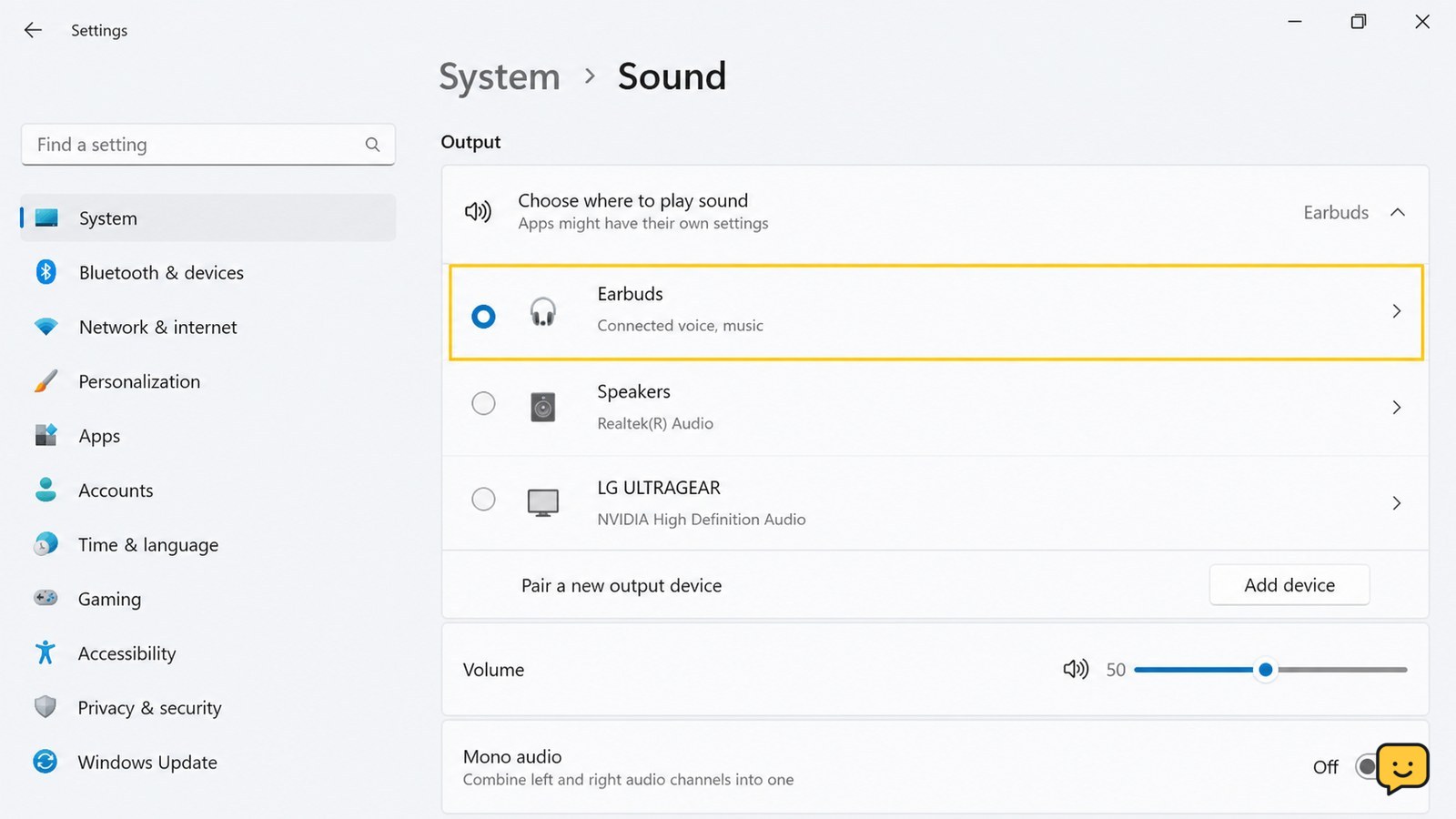
Raise both volume controls and remove mute settings
Increase the source device’s media volume while audio is playing. Then check the earbuds’ own touch, button, or companion-app volume control if the model has one. Some devices keep separate media, call, alarm, and app volumes.
Check the player for mute, pause, or an inactive playback session. If sound works in one app but not another, inspect that app’s output selector, mute control, and per-app volume. Close and reopen the affected app after selecting the earbuds.
For one-sided audio, check the left-right balance control in the source device’s accessibility or audio settings. Keep the balance centered. Also confirm that the silent earbud is charged and seated correctly in the case so its charging contacts connect.
Check device-specific Bluetooth audio settings
Open the saved Bluetooth-device details for the earbuds. If the screen offers separate controls for media audio and calls, make sure media or audio playback is enabled. The wording and available controls differ by operating system and earbud model.
On Windows, if the earbuds are selected under Output but remain silent, open the device’s sound properties and try the available audio-format option. Microsoft also recommends using the built-in Bluetooth or audio troubleshooting tools for this symptom. Recheck the output device after the tool finishes because Windows can change routing during troubleshooting.
If only calls are silent, inspect the calling app’s speaker selection and microphone permissions separately. Do not assume a working media connection proves that the call-audio profile is working.
Reconnect the earbuds after stopping competing connections
Pause playback on other nearby devices, then disconnect the earbuds from the current source without deleting them. Put the earbuds in their case, close it, wait a few seconds, and remove them. Select them again from the source device’s Bluetooth list and then from its audio-output list.
If that fails, turn Bluetooth off and back on at the source device. As a next step, use Forget, Remove device, or the equivalent control, then pair the earbuds again using the manufacturer’s normal pairing procedure.
Success looks like: the earbuds appear as connected, remain selected as the media output, and produce sound from a known-working app. If pairing succeeds but the output list still excludes them, the source device’s Bluetooth or audio subsystem may need an update or service check.
Test another source before treating the earbuds as faulty
Pair the earbuds with a different compatible phone or computer and play the same type of media. Sound on the second device points to an output, app, profile, or driver setting on the original source. No sound on either device, especially after charging and re-pairing, points to the earbuds, case, or their firmware.
Do not reset the earbuds until you have tried output selection, volume checks, and a clean re-pair. A reset can remove saved pairings and model-specific preferences. If the earbuds remain silent on multiple sources, use the manufacturer’s reset instructions or arrange service rather than opening the hardware.
What to do if the earbuds connect but still stay silent
For a computer, install pending system and Bluetooth updates from its normal settings or support channel, then restart it. If other Bluetooth audio devices also fail, investigate the computer’s Bluetooth adapter or audio system rather than repeatedly resetting the earbuds.
For a phone, tablet, TV, or other source, restart the device and retry the output-selection step. If only one app fails, contact that app’s support after confirming that system audio works elsewhere.
Stop troubleshooting and seek manufacturer support when the earbuds fail on more than one source, cannot hold a connection after re-pairing, show physical damage, or become hot. Those signs are not safely resolved by changing volume or repeatedly pairing.
Frequently asked questions
Why do my Bluetooth earbuds say connected but play sound through the phone?
The phone is likely connected for Bluetooth control but has not selected the earbuds for media output. Open the media-output picker or sound panel during playback and choose the earbuds. If they are selected but sound still comes from the phone, disconnect and pair them again, then check the affected app’s output setting.
Why is there no sound from Bluetooth earbuds in only one app?
The app may be muted, paused, using a separate output, or affected by its own audio settings. Test another app first. If other apps work, select the earbuds inside the affected app if that option exists, check its volume, then close and reopen it.
Can Bluetooth earbuds connect to two devices and produce no sound?
Yes. Multipoint earbuds can remain connected to two devices while the wrong device owns media playback. Pause audio on nearby devices, select the intended source as the output, or temporarily disconnect the second device before testing.
Should I reset Bluetooth earbuds that are connected but silent?
Reset them only after checking output selection, volume, device-specific audio controls, charging, and a clean re-pair. A reset removes saved pairings and preferences. Use the manufacturer’s instructions, and seek support instead if the earbuds are damaged, hot, or silent on multiple devices.
Browse more Computers & Internet guides for help with this topic.


