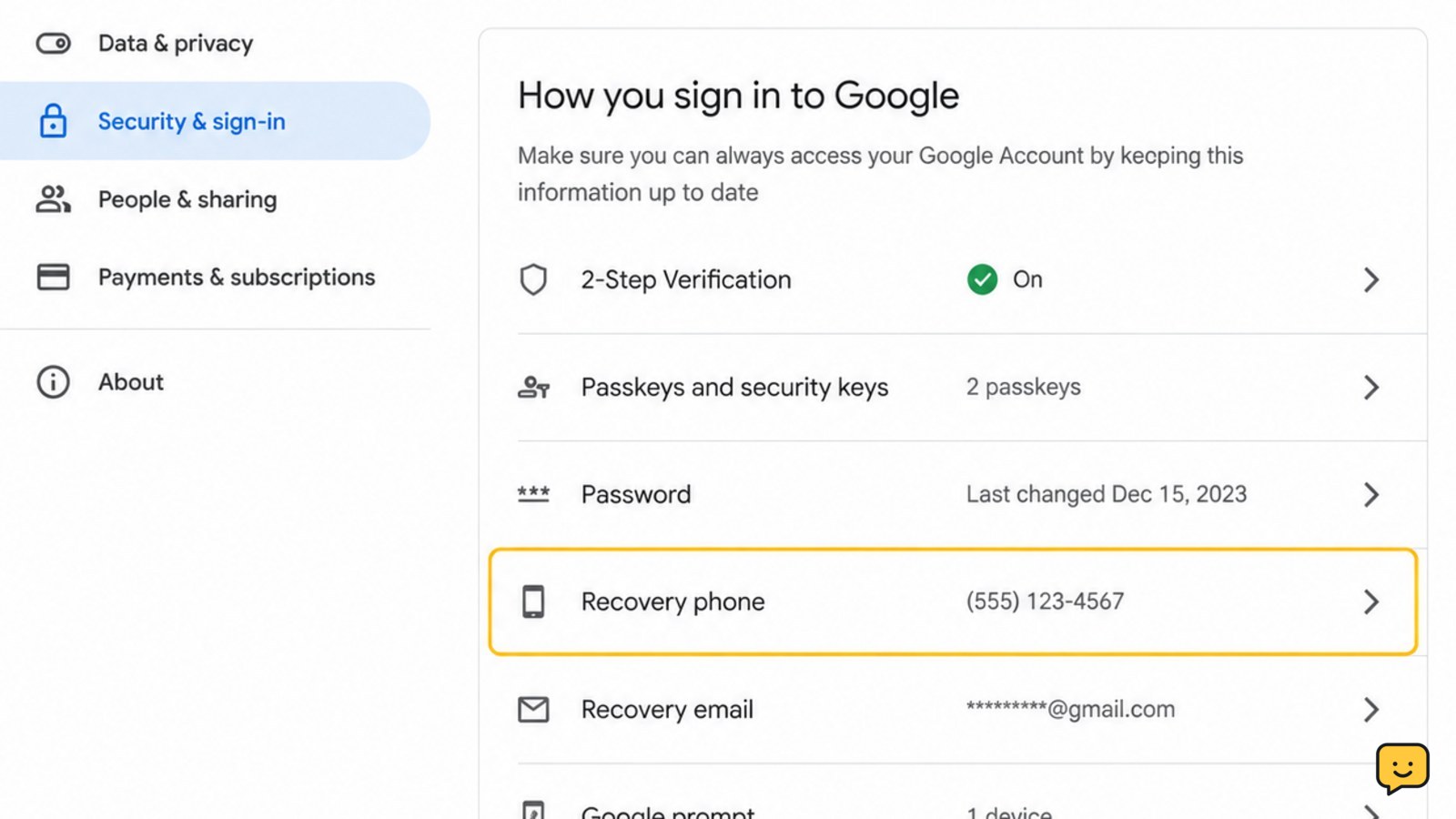
Open myaccount.google.com while signed in, then go to Security & sign-in > How you sign in to Google > Recovery phone. Select the current number, choose the edit or remove control, and complete Google’s identity check. Add the new number, confirm it, then return to Security & sign-in to verify the change and inspect recent security activity.
Open the Google Account recovery settings
The recovery phone is managed from the Google Account security controls, not only from the general phone-number section. On a computer or mobile browser, open myaccount.google.com and confirm that the account name and profile picture are correct.
- Select Security & sign-in.
- Under How you sign in to Google, select Recovery phone.
Google may ask you to verify your identity before displaying or changing this setting. Complete that check only if you started the process from the official Google Account page.
Applicability: These labels can vary slightly by screen size or account configuration. If you see Personal info and then Phone, that section manages phone numbers and how they are used generally. For a recovery-number change, continue to the dedicated Recovery phone setting under security.
Replace the current recovery phone number
After opening Recovery phone, select the current number. Choose the available edit option to replace it, or remove it first if Google presents separate controls for removal and addition.
- Review the current recovery number before changing anything.
- Select the edit or remove control shown for that number.
- Enter the replacement phone number in the format requested by Google.
- Follow the on-screen confirmation instructions.
Do not share a verification code with another person. Google uses recovery information to help you regain access when you cannot sign in, so the replacement number should be one you control and can access when needed.
Expected result: The recovery-phone area displays the replacement number, usually with some digits obscured. If the old number still appears, refresh the page once and reopen Recovery phone before trying another change.
Verify the new number and review its account use
A phone number can be used for more than one Google Account function. After updating the recovery phone, return to Personal info > Phone and review how any listed number is used. This helps distinguish the recovery setting from other phone-number controls.
- Confirm that the intended number is listed under Recovery phone.
- Check whether the number is also associated with other account uses you do not want.
- Review your other recovery information, such as any recovery email shown in the account.
If Google does not let you remove the previous number immediately, do not assume the update failed. First verify whether the replacement number is now listed as the recovery phone. Some account changes can have a delay before every related control reflects the update.
Review recent security activity after the change
Changing recovery information should be followed by a security check. In Security & sign-in, review Recent security activity and look for an event that matches the recovery-phone update. Check the date, time, device, and location details that Google provides.
If every event matches an action you recognize, the change is complete. If you see an unfamiliar security event, do not keep changing recovery settings at random. Secure the account from a trusted device by changing the Google Account password, reviewing signed-in devices, and removing access you do not recognize.
For a detailed walkthrough of this review, see how to review recent security activity on a Google Account.
What to do if Google will not accept the change
If the recovery-phone control is missing, Google may not be allowing the change from the current sign-in state. Recheck the account identity, use the same trusted device or browser if possible, and reopen the settings directly from myaccount.google.com.
If Google asks for a password or identity check, use the account’s legitimate sign-in details and follow only the instructions shown on Google’s page. Do not use a third-party service that claims it can change the recovery number for you.
If you are locked out, this settings procedure does not apply because it requires access to the account. Use Google’s official recovery process instead. If you have lost every recovery option, stop trying random codes or repeated changes; repeated failed attempts can create additional verification barriers.
Stop immediately if the change was not yours or if the account shows unfamiliar activity. In that case, prioritize password protection, device and session review, and removal of unknown access before attempting another recovery-number update.
Frequently asked questions
Can I change my Google recovery phone from an Android phone?
Yes. Open the Google Account settings in a browser or through the Google section of Android Settings, then find Personal info or Security & sign-in and open the phone or Recovery phone control. Use the dedicated Recovery phone setting when your goal is to change the number used for account recovery.
What if I no longer have access to the old recovery number?
You may still be able to change it if you are signed in on a trusted device and Google accepts another identity check. If you cannot sign in, use Google’s official account recovery process. Do not rely on anyone offering to bypass Google’s verification.
Is my Google Account phone number the same as my recovery phone?
Not necessarily. Google says phone numbers can serve different purposes. The number under Personal info may be used for general account functions, while the number under Security & sign-in and Recovery phone is the setting specifically tied to account recovery.
How can I tell whether the recovery-phone change worked?
Reopen Security & sign-in, select Recovery phone, and check that the intended number is displayed, usually in partially obscured form. Then review Recent security activity for a matching account-change event. If the old number is still the only recovery number shown, the update was not completed.
Browse more Access & Recovery guides for help with this topic.


