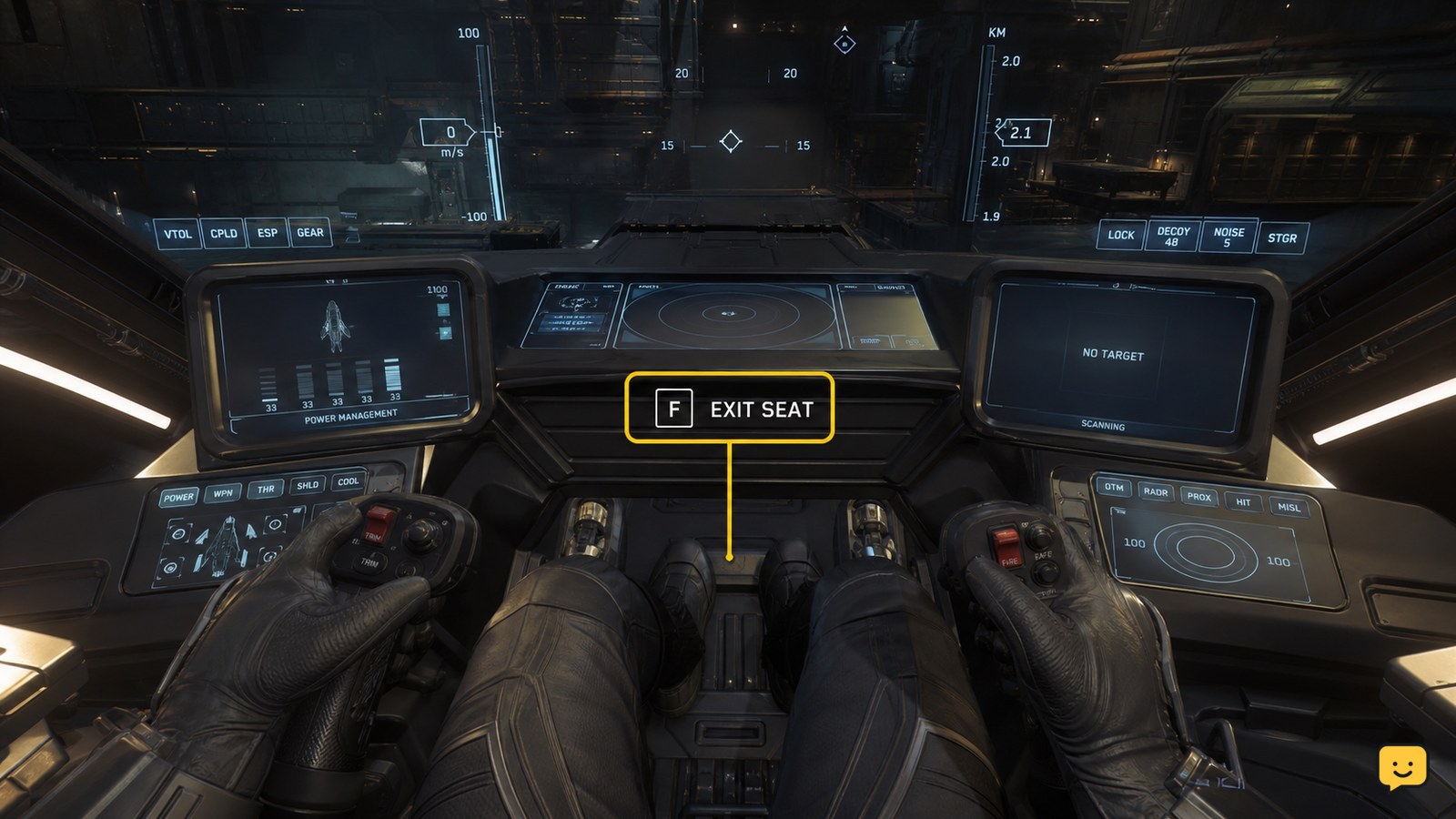
To dock or undock a compatible ship in Star Citizen, sit in the pilot seat, bring the ship into the docking position, and use the on-screen interaction prompt. For large-ship collars, adjust pitch until the center alignment indicator turns green, then roll until the outer indicator also turns green. Stop if the prompt never appears or alignment remains unstable.
Browse more Star Citizen guides
Check whether your ship supports this docking method
This procedure applies to compatible ship-to-ship docking points, including large-ship docking collars and command-module arrangements shown in current community gameplay references. It does not replace landing at a station or requesting a landing bay.
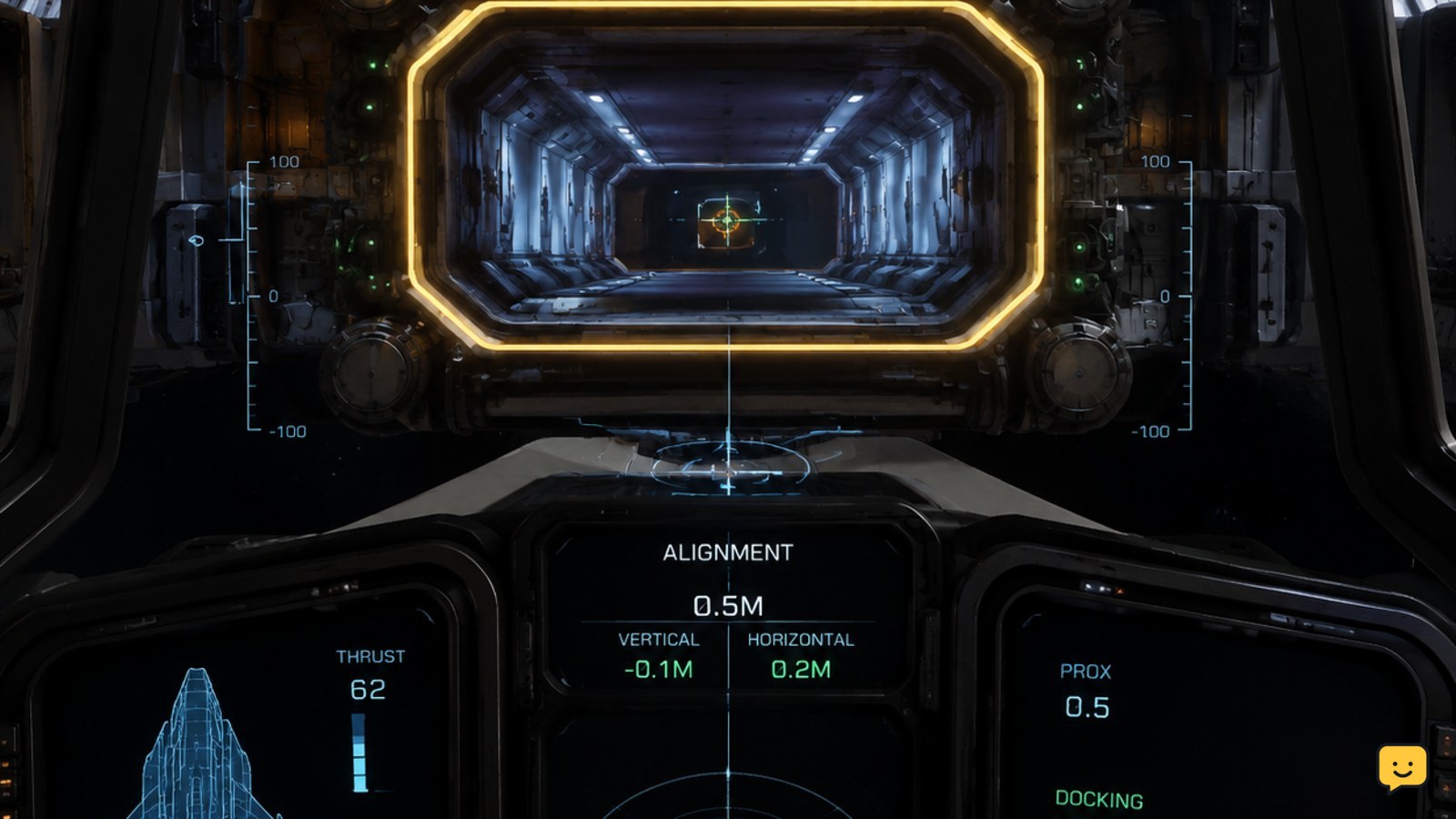
Approach the docking point slowly and look for the docking alignment display. The useful checkpoint is not simply being close to the target: the ship must be oriented correctly and positioned where the interaction prompt can appear. If you see no alignment feedback at all, stop before pressing random controls and confirm that the ship and docking point are compatible.
Align the ship until both docking indicators turn green
Use small pitch adjustments first. For the large-ship docking alignment shown in the available gameplay references, pitch the ship up or down until the center indicator turns green. Then use roll to move the outer indicator left or right until it also turns green.
Make one correction at a time and wait for the indicator to respond. Large inputs can move the ship out of alignment again. Keep the ship close enough for the docking system to recognize the collar, but do not force the nose or docking section into the target.
When the center and outer indicators remain green together, hold the ship steady and check for the on-screen docking interaction prompt. The exact keyboard or controller binding can vary, so use the displayed prompt or your active control binding rather than relying on a fixed key from an older guide.
Use the interaction prompt and verify the docked state
Activate the displayed docking interaction once the alignment is stable. A successful dock should produce a clear attachment or docking-state change rather than leaving the ship freely maneuverable beside the collar.
Verify the result before changing seats, powering systems down, or attempting another movement. If the prompt disappears when you move, realign the ship instead of repeatedly activating the control. The docking sequence has not succeeded until the game shows a completed docked state or the ships visibly remain connected.
Undock only after the release state is complete
To undock, use the available undocking interaction from the docked ship or command-module interface. Wait for the release sequence to finish, then apply only a small movement input to create separation.
Check that the ship is no longer held by the collar before accelerating, rotating, or engaging faster travel. If the ship does not move after the undocking interaction, wait briefly and look for a changed prompt or release state. If it remains attached, do not add thrust; stop and retry the undocking interaction only when the interface is available again.
Fix a missing prompt or unstable docking alignment
No prompt appears: Confirm both alignment indicators are green, hold the ship steady, and check that you are using a compatible docking point. Being visually close is not enough.
One indicator stays red: Correct only the related axis. Use pitch for the center cue and roll for the outer cue, then pause before making another adjustment.
The indicators keep changing: Move away slowly, regain a stable approach, and retry with smaller inputs. Do not continue if the ship is drifting into the collar.
Docking works but undocking does not: Wait for the docked state to finish loading, use the current on-screen release interaction, and stop if the ship remains attached after the release sequence. A persistent failure may be a temporary interaction or server-state problem rather than an alignment mistake.
Frequently asked questions
Can every ship dock with another ship in Star Citizen?
No. Ship-to-ship docking requires compatible docking hardware and a matching docking point. If the alignment display or interaction prompt never appears, do not assume the approach is wrong; the ship or collar may not support that connection.
Why does the docking prompt disappear when I move?
The prompt can disappear when the docking alignment is lost. Return to a stable position, adjust pitch and roll in small increments, and wait for both alignment indicators to remain green before checking the prompt again.
Is docking the same as landing at a spaceport?
No. Docking connects a compatible ship or module to a docking point. Spaceport landing normally depends on controlled-spaceport procedures, landing services, and an assigned bay, so use the landing interface for that task.
What should I do if the ship stays attached after undocking?
Stop applying thrust and wait for the release interaction or animation to finish. If the ship is still attached, retry the displayed undocking interaction once it becomes available. Do not force separation by accelerating or rotating into the collar.