Open mobiGlas and launch Vehicle Loadout Manager, then select the stored ship you want to modify. Choose a compatible component slot, install an available component, and save the loadout. Retrieve the ship and verify the component is shown in the vehicle loadout or cockpit displays. If the slot stays empty, the part may be incompatible, unavailable, or blocked by a stored-state issue.
Browse more Star Citizen guides
Open Vehicle Loadout Manager for a stored ship
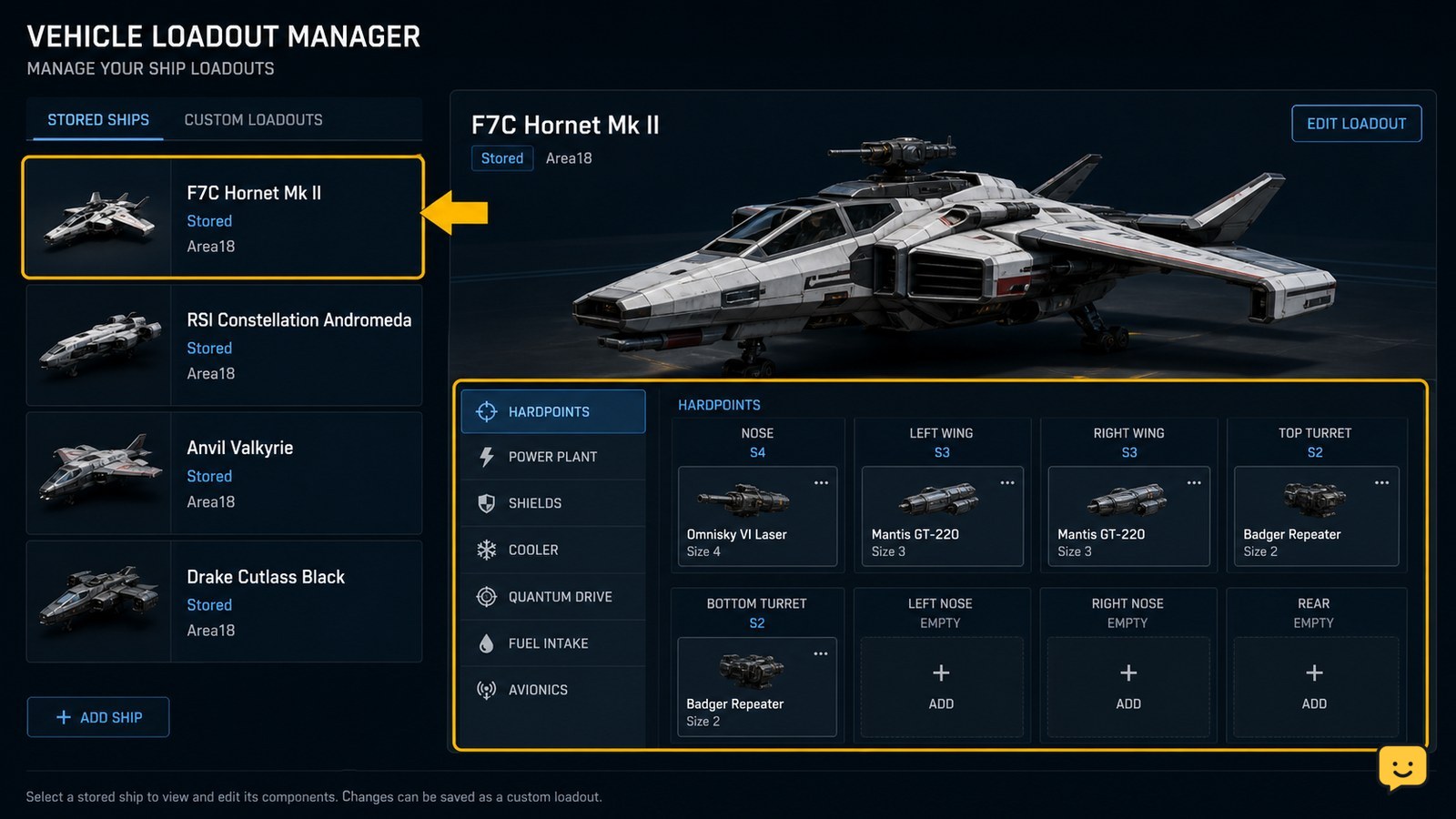
Open mobiGlas and select Vehicle Loadout Manager. Choose the stored ship you want to change. The manager should display the vehicle’s current equipment and the component locations that can accept replacements.
If the ship is not listed, return to an ASOP terminal and store or claim the vehicle first. Do not continue until the correct ship appears in the loadout manager; editing another hull will not change the ship you intend to fly.
Choose the hardpoint for the replacement component
Select the component category or empty slot you want to change. Depending on the ship, this can include items such as a shield generator, power plant, cooler, quantum drive, or other installed equipment. The slot determines which component types and sizes can be used.
Use the compatibility information shown for that slot as the decision point. A component that is available in your inventory is not automatically suitable for every ship. If the part does not appear as an option, check its type, size, and whether the selected ship can use that hardpoint.
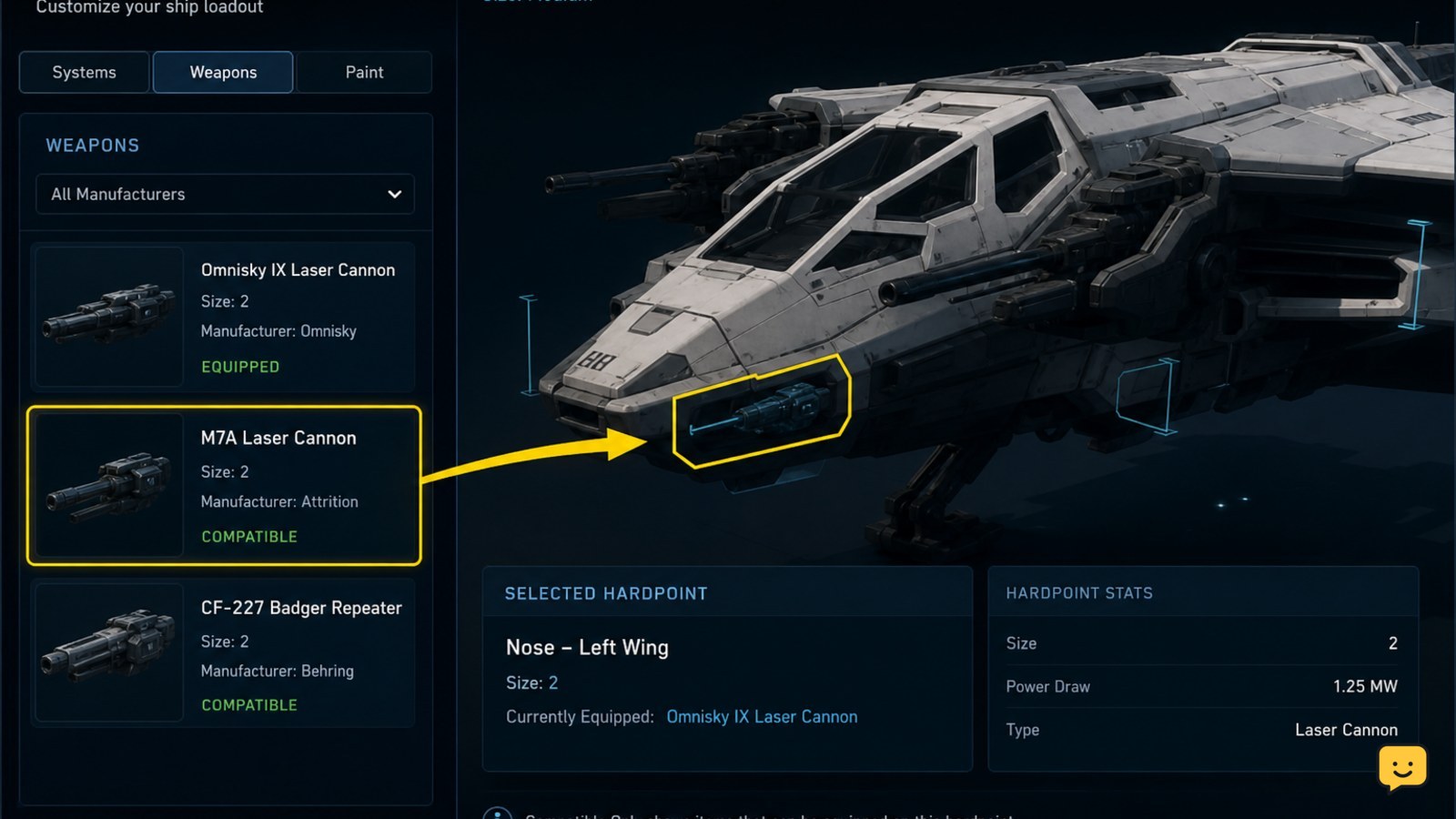
Install an available compatible component
Select the replacement from the available component list and assign it to the chosen hardpoint. The interface should show the new part in that slot before you save the loadout. If the slot was occupied, the old component should be replaced in the preview rather than left installed alongside it.
Repeat the process only for the components you intend to change. Keep the configuration simple while testing: changing one or two parts makes it easier to identify an incompatible item or a loadout that fails to save.
Save the loadout and wait for confirmation
Use the loadout manager’s save or apply control and wait for the configuration to finish processing. A successful save should leave the selected component assigned to the hardpoint instead of returning to the previous part immediately.
If the screen returns to the old configuration, check that the ship is stored, the item is still available, and no compatibility warning remains. Do not assume the installation worked until the saved configuration remains visible after leaving and reopening the ship’s loadout.
Retrieve the ship and verify the installed part
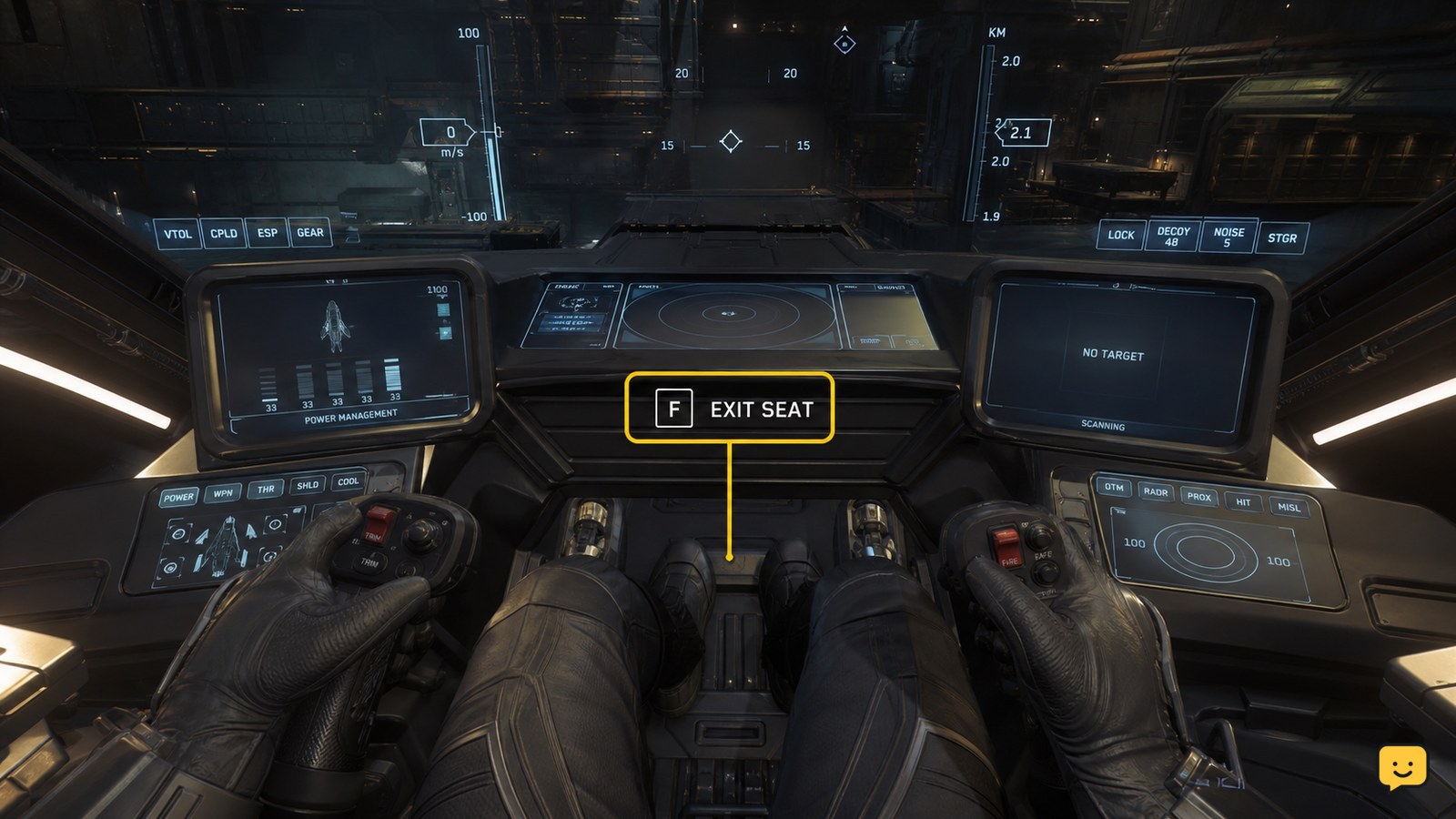
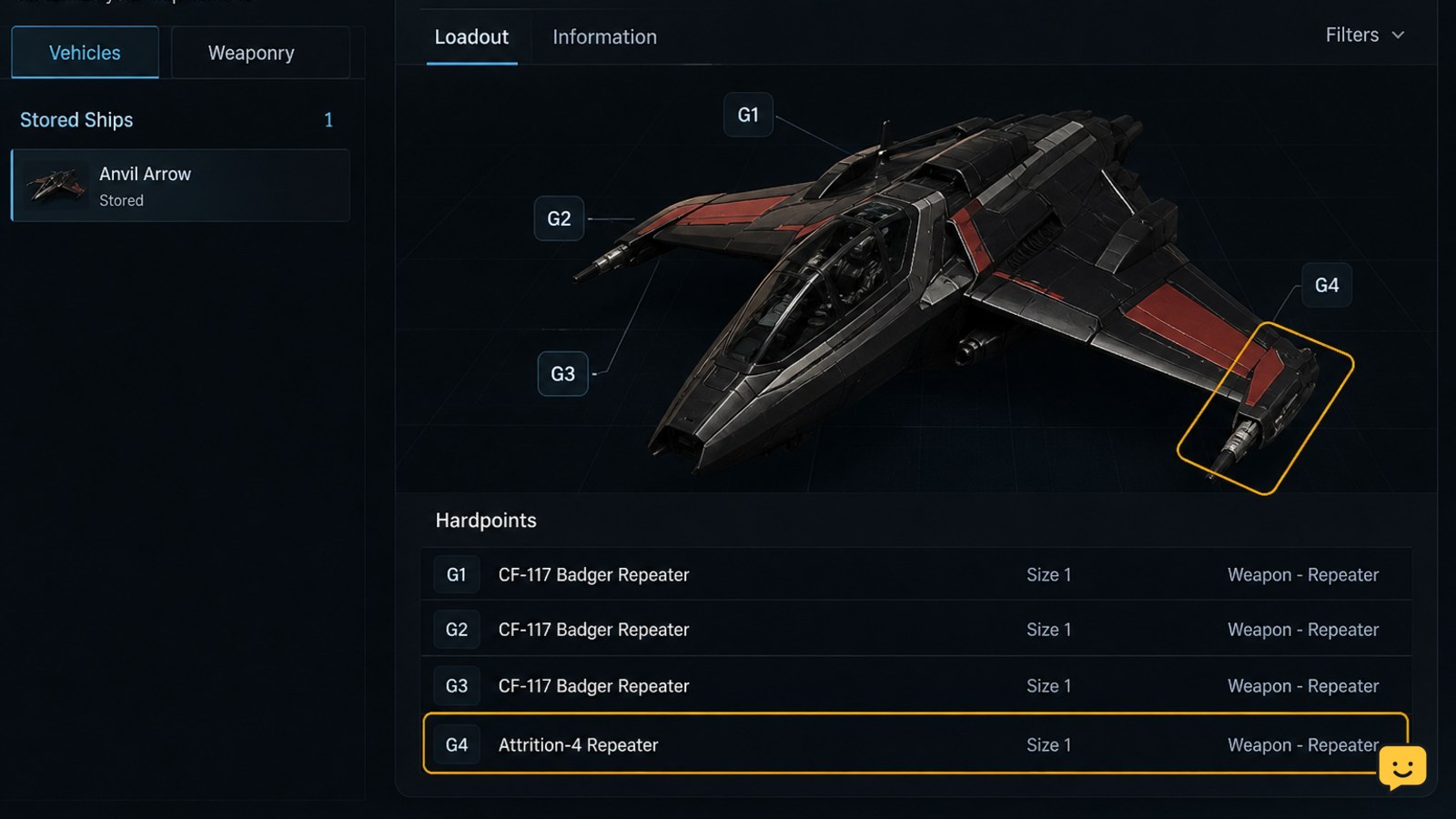
Retrieve the modified ship from an ASOP terminal and inspect it again through Vehicle Loadout Manager. The replacement should still be assigned to the same hardpoint. You can also check relevant cockpit displays after entering the ship, such as the power or systems information, to confirm that the vehicle recognizes its installed equipment.
For a final check, compare the component name in the loadout screen with the part you selected. If the name has reverted, the change was not committed even if the first save appeared successful.
Fix a missing, rejected, or reverted component
Component is not listed: confirm that it is in an accessible inventory, belongs to the correct component category, and matches the hardpoint’s size and type. Move it to the ship’s usable inventory or the location expected by the loadout screen, then reopen the manager.
The slot rejects the part: select the hardpoint first and use only the components the interface marks as compatible. A larger or different-category item cannot be installed simply because the ship has an open slot.
The change disappears: store the ship, close and reopen Vehicle Loadout Manager, and save again. If it still reverts after retrieval, treat the configuration as unsaved and avoid relying on the replacement for a mission. Reclaim or relog only after recording which component and slot failed.
Frequently asked questions
Can I equip any ship component I own in Star Citizen?
No. The component must be available to the loadout manager and compatible with the selected ship’s hardpoint. Check the slot’s component category, size, and accepted items before saving.
Why is my ship missing from Vehicle Loadout Manager?
The ship is usually not stored, is not the vehicle selected at the terminal, or has not finished processing after being claimed. Store or claim the intended ship, wait for the terminal to update, and reopen mobiGlas.
Do I need to remove the old component first?
Usually not. Select the occupied hardpoint and assign the compatible replacement there. The loadout preview should show the new component in that slot before you apply the change.
How can I tell whether the component actually equipped?
Reopen the ship in Vehicle Loadout Manager after saving and retrieving it. The selected component must still appear in the same hardpoint. If it has reverted, the installation did not persist.