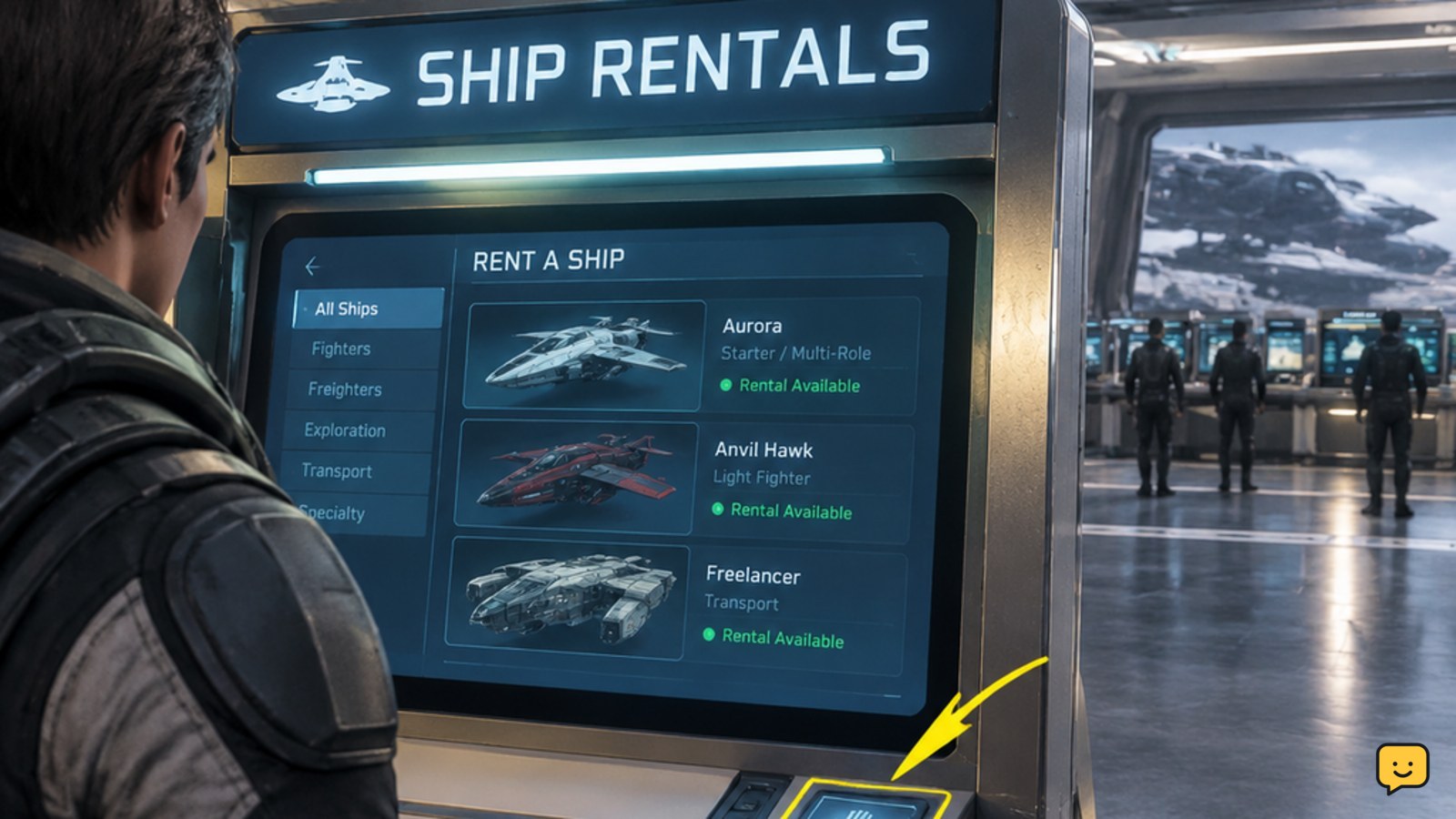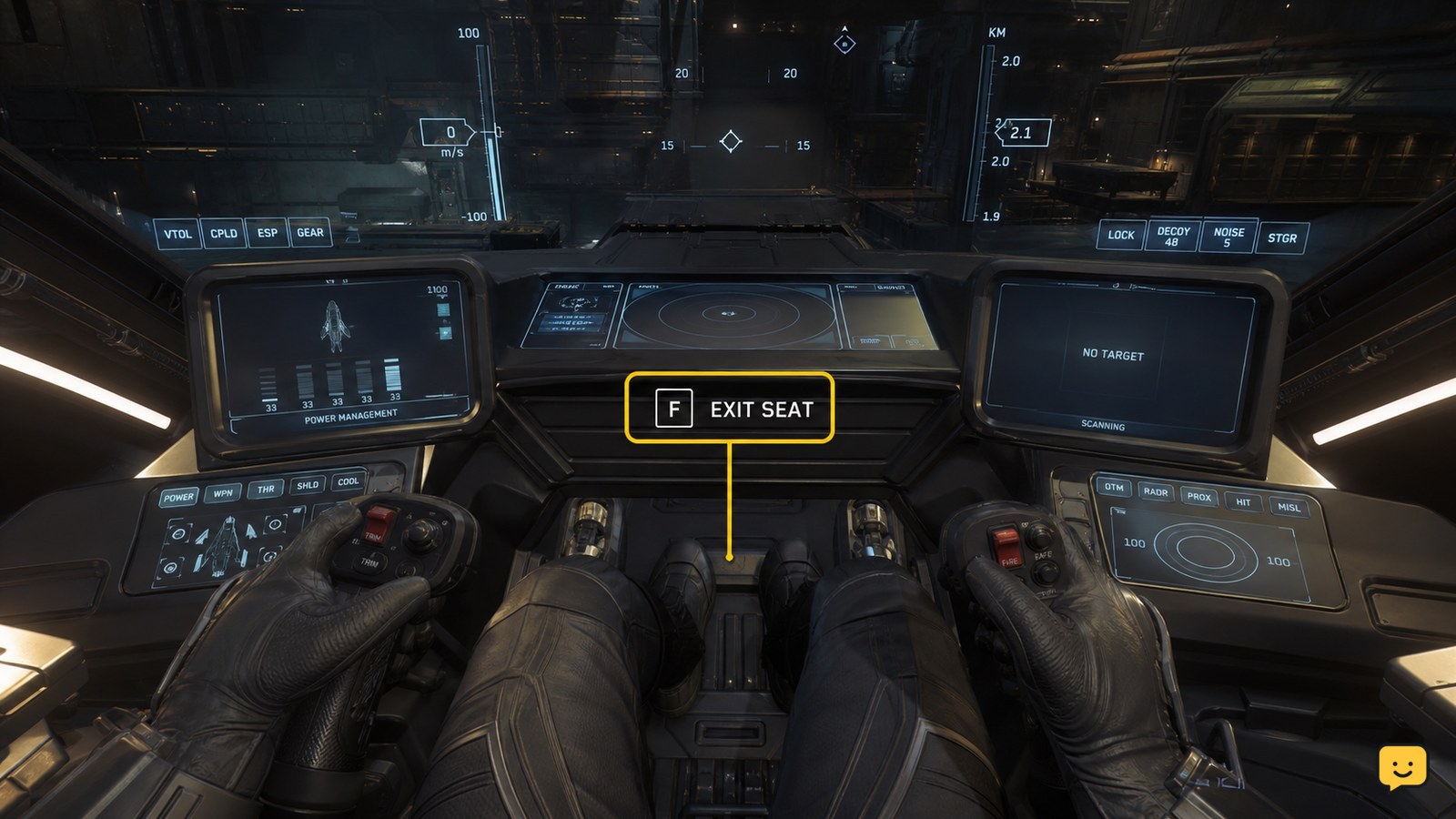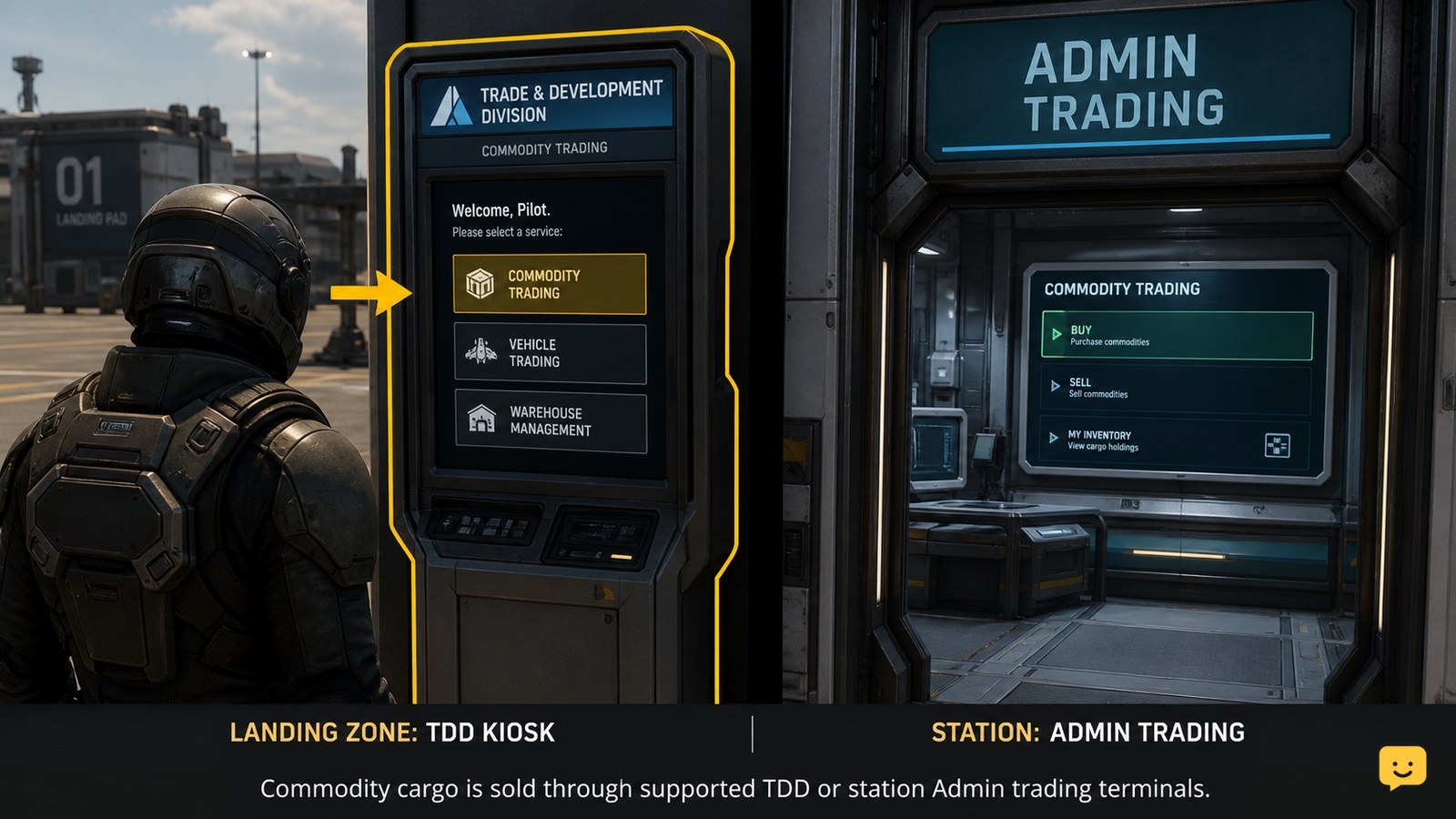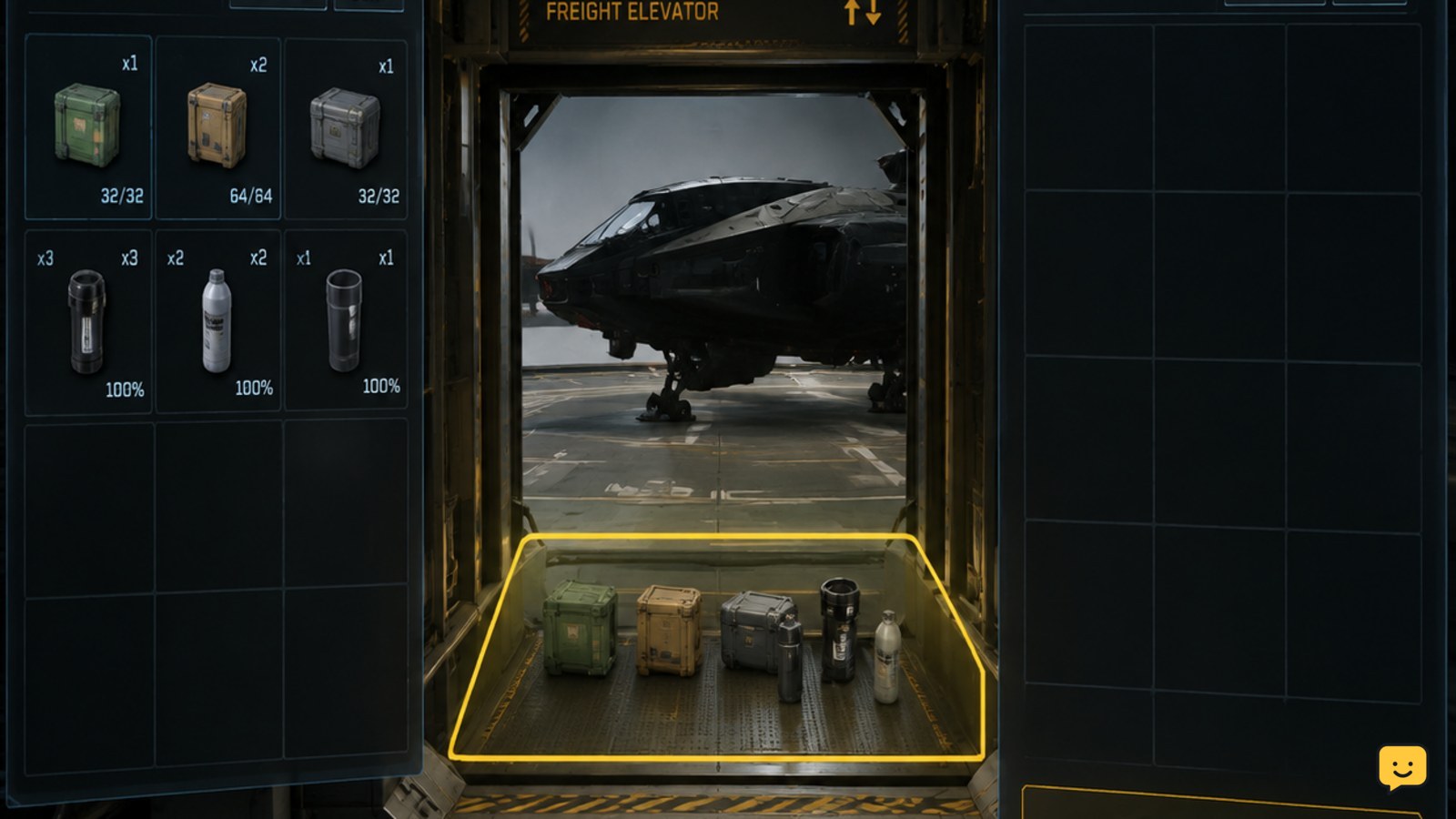
To move items from local storage into a ship, retrieve and spawn the ship at the same location, open the local inventory, and place the selected items into the freight elevator. Choose the ship as the destination, lower or send the elevator, then check the ship’s cargo or inventory after the transfer completes. The exact labels can vary by location and LIVE-build interface.
Browse more Star Citizen guides
Check which inventory location holds the item
First identify whether the item is in local storage, your character’s carried inventory, or an existing ship cargo grid. These are different locations. A weapon, suit, clothing item, component, or box stored at Area18, a station, or another facility is not automatically available inside a ship at a different location.
Open the inventory screen at the location where the item is stored and confirm the item name and quantity. If it is equipped or being carried, place it into the accessible local inventory before using the freight elevator. If the item is already in ship cargo, do not repeat the local-storage workflow.
Checkpoint: record a small test item and confirm that it is visible in the local inventory list before proceeding.
Retrieve the ship at the same location
Use the location’s ship retrieval terminal and request the ship that should receive the items. Wait for the terminal to confirm the ship has been delivered, then travel to the ship’s loading area or the freight-elevator access point.
This same-location requirement matters because local inventory is tied to a specific location. Retrieving a ship elsewhere does not create a remote link to the storage location you opened. If the ship is not listed, is still being delivered, or is stored at another facility, stop here and resolve that status first.
Verify: the ship is physically present and the loading interface identifies the intended ship before you place valuable items into the elevator.
Place local items into the freight elevator
At the freight elevator, open the loading interface and select the items from local storage. Move only the items you want to load into the elevator’s transfer area. For a first attempt, use one low-value item rather than moving an entire collection at once.
Community references describe freight elevators and Stor*All containers as the practical way to load and unload bulk items. The available controls and wording can differ between locations, so follow the action shown by the current interface instead of relying on a video’s old keybind or menu label.
Before confirming, compare the item name and quantity in the elevator list with the local-inventory list. If the item is greyed out, missing, or cannot be placed, do not force the transfer; check capacity, ownership, item restrictions, and the ship destination.
Choose the ship destination and complete the transfer
Set the freight elevator destination to the retrieved ship, then confirm the loading action shown on screen. Lower or send the elevator only after the correct ship and item list are visible. Wait for the elevator cycle and loading state to finish instead of leaving while the transfer is still processing.
The transfer is not verified merely because the elevator moved. Open the ship’s cargo or inventory view and search for the item. The item should appear in the ship-side location, with the expected quantity, while the local-storage count should decrease by the same amount.
For multiple boxes or heavy equipment, repeat the process in smaller groups. Smaller batches make it easier to identify a capacity problem or an individual item that the current interface will not accept.
Fix a missing ship, item, or destination
If the ship does not appear as a destination, return to the retrieval terminal and confirm that the correct ship is delivered at the current location. A ship that is stored, destroyed, still spawning, or assigned to another location may not be available to the elevator.
If the item does not appear in local storage, check the location filter and confirm that you are viewing the same facility where it was stored. If it appears in the elevator but not in ship cargo afterward, wait for the loading state to finish, reopen the ship inventory, and check both the cargo grid and any separate ship-storage view.
If the item is absent from both locations, stop moving additional items. Leave the elevator state unchanged if possible, reconnect only after noting the item and location, and check the current LIVE service status or official support channels before attempting another transfer. Do not assume that a repeated drag or second load will recover a missing item.
Move items back from ship to local storage
Reverse the process when unloading: open the ship’s cargo or inventory at the loading area, place the selected item into the freight elevator, choose the current facility as the destination, and complete the elevator cycle. Then reopen local inventory and confirm the item appears there.
This is a physical transfer between locations, not a remote inventory shortcut. If the ship is somewhere else, travel to it or retrieve it at the target facility before attempting to unload. Stop if the destination points to a different location than the one you intend to use.
Frequently asked questions
Can Star Citizen move local inventory directly to a ship anywhere?
No. Local inventory belongs to a particular location, and the ship must be available at a compatible loading point for the physical transfer. Retrieve or bring the ship to the same facility, then use the freight-elevator workflow. If the ship is elsewhere, the local inventory screen should not be treated as a remote ship-loading tool.
Why is my ship missing from the freight-elevator destination list?
The ship may not be delivered at that location, may still be spawning, or may be stored or unavailable. Check the retrieval terminal first. Do not load valuable items until the destination list shows the correct ship and the interface confirms the intended loading location.
Does ship cargo count as ship inventory in Star Citizen?
Ship cargo and other ship-side storage should be treated as separate inventory locations unless the current interface combines them. After loading, check the cargo grid and any separate ship-inventory view. The important verification is that the item appears on the ship side and is removed from local storage.
What should I do if an item disappears after transfer?
Stop transferring more items. Wait for the loading state to finish, reopen both the local and ship inventory views, and confirm the location filters. If the item remains missing from both sides, record the item, quantity, and location before reconnecting or checking official service-status and support channels.