If The Isle Evrima rejects a dedicated-server password, re-enter it exactly as provided, including capitalization, and remove accidental spaces. Ask the server owner to confirm the configured value, restart the server after changing it, and test a simple temporary password. If that fails, match the Evrima branch and build, verify Steam files, then check whether the server is reachable and accepting connections.
1. Confirm this is an Evrima server
The Isle has separate Evrima and Legacy branches. Their server lists, maps, mechanics, and compatibility requirements are not interchangeable. A Legacy client cannot reliably join an Evrima dedicated server, even when the server name and password look correct.
- Open The Isle’s Steam properties and check the installed branch.
- Use the Evrima branch required by the server owner.
- In the server browser, search for the exact server name and confirm its displayed version or branch information.
- Leave filters broad enough that the server can appear, then refresh the list.
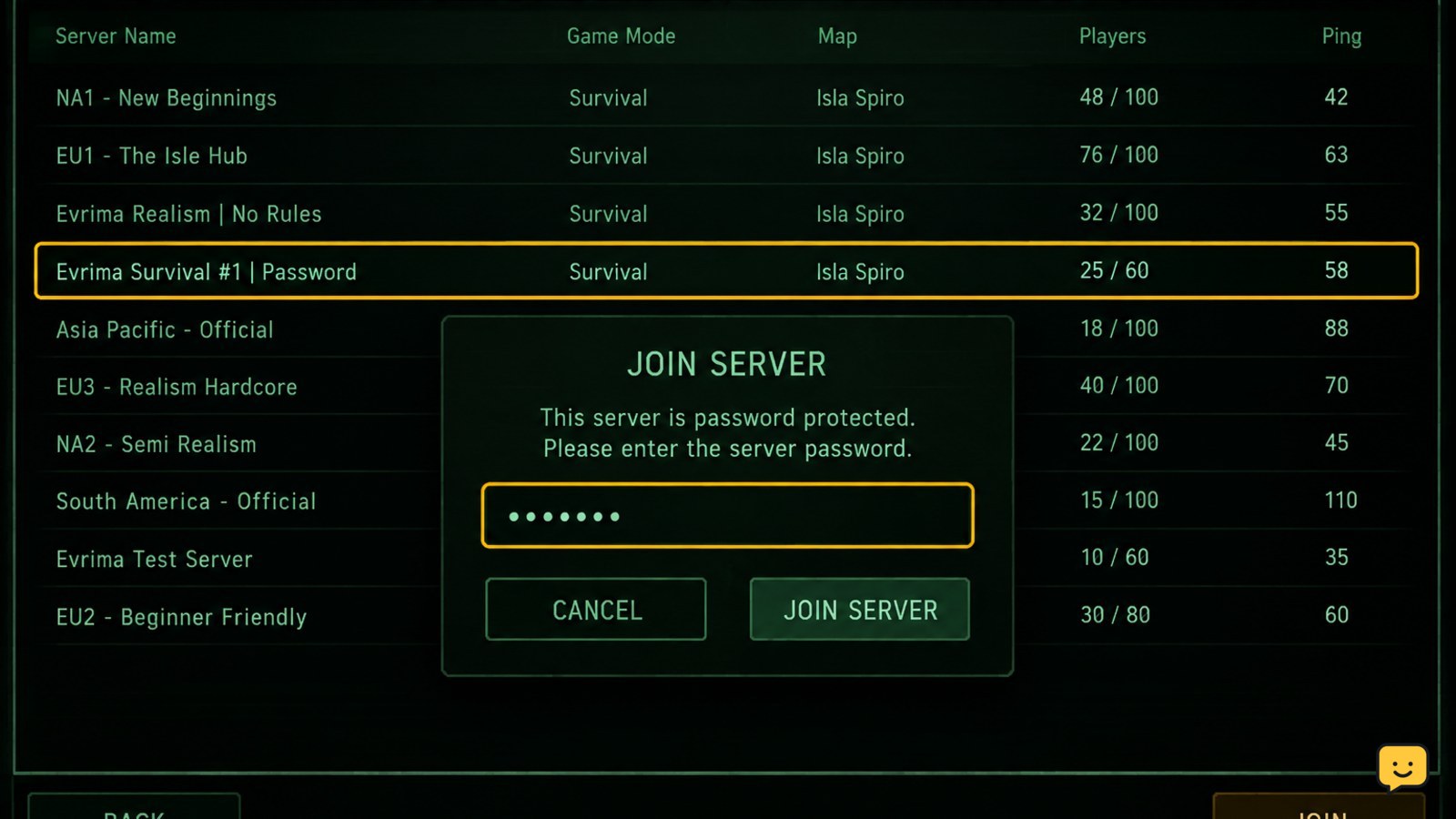
Verify: the server appears in the Evrima browser and you can reach its password prompt. If it does not appear, solve visibility or branch compatibility first; the password is not yet the confirmed cause.
2. Re-enter the password exactly
The server password is case-sensitive, so uppercase and lowercase letters must match. Copying a password from chat can also add a leading or trailing space, while manually typing it can change similar characters such as O and 0.
- Ask the administrator to send the password again in a private, plain-text message.
- Clear the password field completely.
- Type or paste the value once, then check both ends for spaces.
- Compare capitalization, numbers, punctuation, and repeated characters with the administrator’s copy.
Verify: submit the password only once after comparing it. Repeated attempts with an uncertain value make it harder to tell a bad password from a server-side configuration problem.
3. Test the server configuration with a simple password
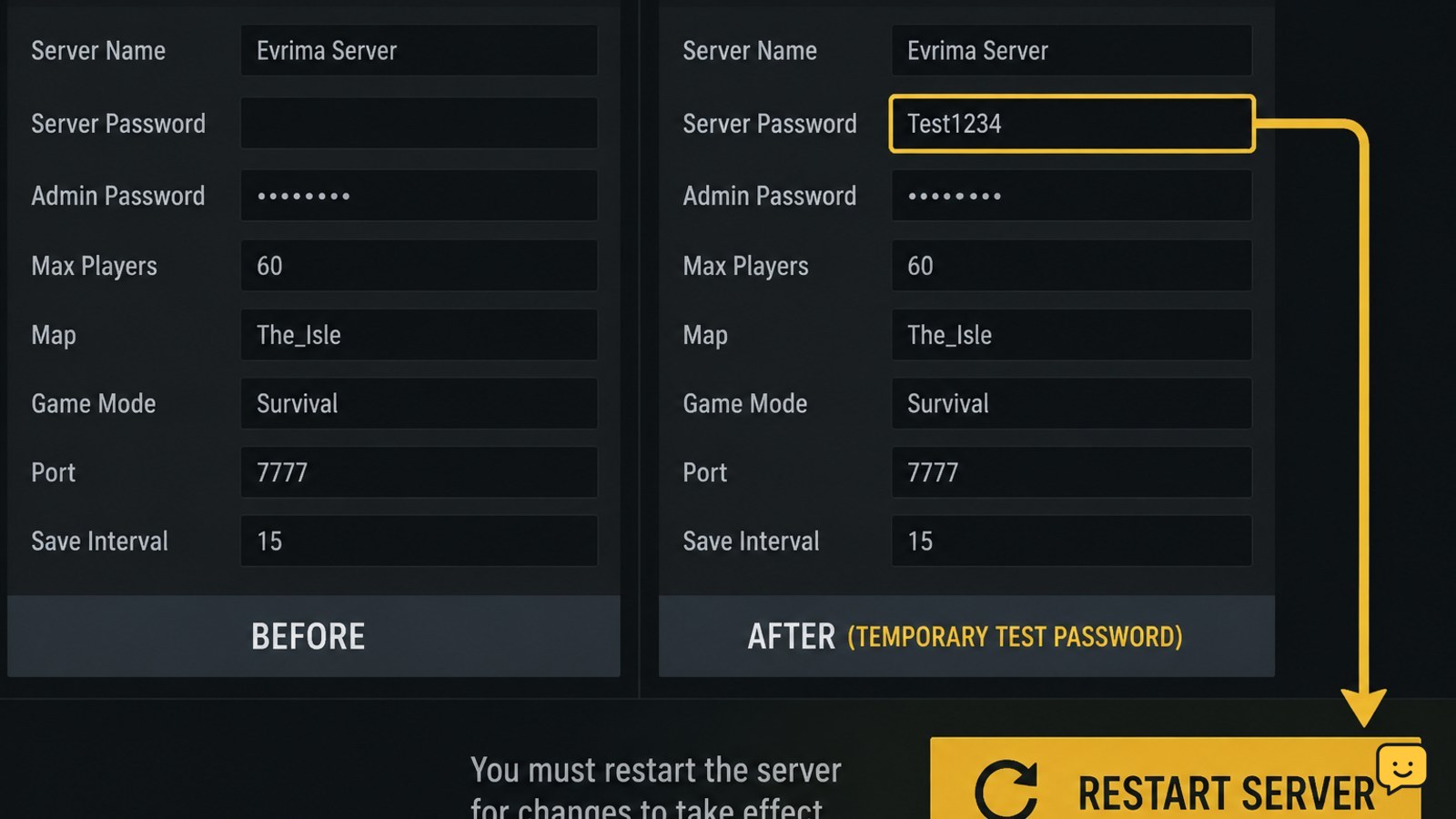
If you administer the server, temporarily test a short password made from ordinary letters and numbers. This is a diagnostic step, not a recommendation for the final password. Some hosting panels, configuration parsers, launch arguments, or copy-and-paste paths can mishandle spaces or punctuation.
- Stop the dedicated server cleanly.
- Change the password in the server’s supported configuration field or hosting panel.
- Save the configuration and check that the value was not truncated or surrounded by quotation marks unexpectedly.
- Start the server again and wait until it is fully online.
- Give the temporary value to one trusted tester through a private channel.
Verify: the tester can join with the simple value. If it works, the original password format or configuration parsing was likely involved. Set a new strong password using characters the server accepts, restart the server again, and retest.
Failure path: if the simple password also fails, restore the intended password and continue. Do not assume that adding quotation marks, command-line switches, or extra configuration options will fix it unless the server host’s documentation specifically requires them.
4. Restart after every password change
A changed configuration may not affect a running server until the server process reloads it. A hosting panel can also show a new value while the active process still uses the previous one.
- Stop the server from its control panel or normal shutdown command.
- Wait until the process is fully stopped.
- Start it again and wait for the server to finish loading.
- Refresh the Evrima server browser before testing.
Verify: test from a fresh connection after the restart. If one player can join with the new password but another cannot, compare their branch, client version, typed password, and network path rather than changing the server password repeatedly.
5. Match the Evrima build and verify files
A patch can leave the client and dedicated server on different builds. Version or branch mismatches commonly cause servers to disappear or reject connections before authentication completes, which can look like a password failure.
- Check whether The Isle updated recently.
- Confirm that the server host has updated the Evrima server files.
- In Steam, update The Isle and wait for the download to finish.
- Open Properties, select Installed Files, and choose Verify integrity of game files.
- Restart Steam and The Isle after verification completes.
Verify: the client and server are on the same current Evrima build, and the server owner confirms the server completed its update. If the server disappeared after a patch, resolve branch and version alignment before treating the password prompt as conclusive evidence.
6. Rule out visibility and network failures
If the password is accepted but the connection hangs, times out, or returns you to the browser, the problem may be networking rather than authentication. The server may be full, offline, restarting, blocked by a firewall, or affected by a hosting outage.
- Ask another trusted player on a different network to test the same server.
- Check the server’s player count and ask the administrator whether maintenance or a restart is in progress.
- Refresh the browser and search for the exact server name again.
- Allow The Isle and its anti-cheat component through Windows Firewall when prompted.
- Temporarily disable only nonessential overlays or network-filtering software for a controlled test, then restore protection.
Verify: compare the result from two players. If everyone fails, the server or host network is the likely fault. If only one player fails, verify that player’s Steam files, branch, firewall permissions, and connection.
Escalate: send the administrator the exact error text, time of the attempt, client branch, and whether the simple-password test worked. Do not send the password in a public channel.
When to stop troubleshooting
The password is not the confirmed cause when the server is absent, offline, full, on another branch, or unreachable by every tester. At that point, wait for the administrator or host to correct the server state.
- Record the last working password and server restart time if you administer it.
- Use one controlled test after each change.
- Stop when the correct branch, current build, restarted configuration, and exact password have all been verified.
If a private server still rejects a confirmed password after these checks, the owner should inspect the host panel, active configuration, server logs, and current The Isle server documentation. A client-side password reset cannot repair a server-side value that was never loaded.
Frequently asked questions
Are The Isle Evrima and Legacy server passwords interchangeable?
The password text may be the same, but the branches are not interchangeable. Evrima and Legacy use separate game versions and server environments. Confirm that your client is on Evrima and that you selected the Evrima server before diagnosing the password.
Why does The Isle say my password is wrong when it is correct?
The server may still be using an older value, or the client and server may be on different Evrima builds. Re-enter the case-sensitive password without spaces, ask the owner to restart the server after changing it, and match the current branch and version.
Can special characters break an Evrima dedicated-server password?
They can be worth testing when a password is rejected, because a hosting panel or configuration parser may handle punctuation, spaces, or quotation marks differently. Test a temporary letters-and-numbers password. If it works, choose a strong final password using characters the host confirms are supported.
What should I do if the server does not appear in the Evrima browser?
Treat that as a visibility, branch, version, filter, or server-status problem rather than a password problem. Confirm Evrima is selected, broaden the browser filters, refresh after a short wait, and ask the administrator whether the server is online and fully updated.
How can I tell whether the problem is my network?
Ask one trusted player on another network to join with the same confirmed password. If they also fail, the server or host is more likely at fault. If they join successfully, check your firewall permissions, Steam files, client branch, and connection.