
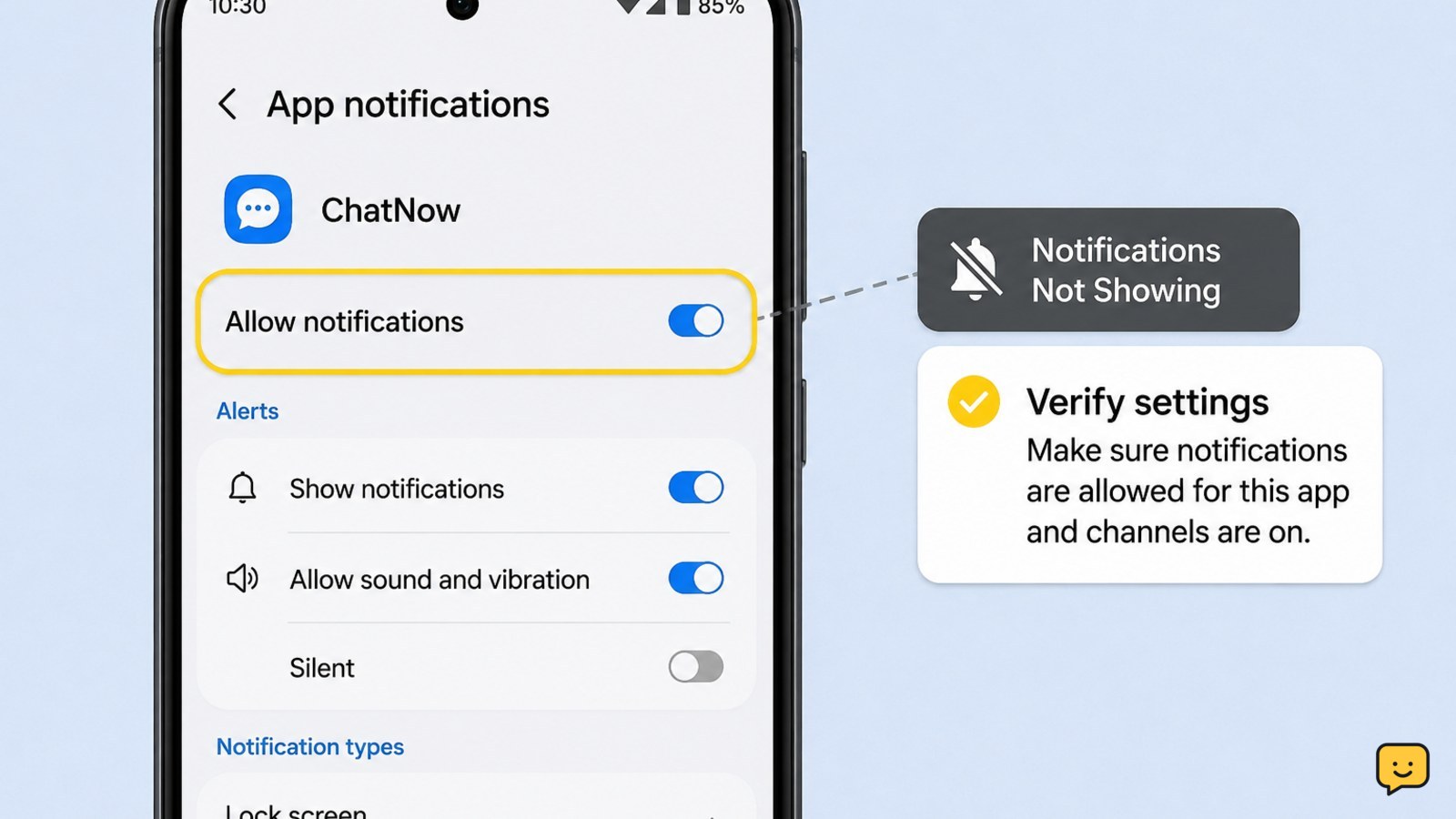
If notifications stopped appearing for only one Android app, open the app’s notification settings and turn on its main permission and every relevant notification channel. Then remove battery restrictions, check Do Not Disturb and app-specific settings, and restart the phone. Clear the app cache before clearing data, because clearing data may sign you out or remove unsynced local information.
Confirm the problem is limited to one app
First, test another app that normally sends alerts. Lock the phone, send yourself a message, or trigger a test alert if the app supports one. If other apps notify normally, focus on the affected app rather than changing global Android settings.
Also open the affected app and check its own notification preferences. Messaging, shopping, banking, and social apps often have separate switches for messages, calls, promotions, reminders, or account activity. A system permission can be enabled while the app’s internal alert type remains disabled.
Verify: Keep the phone locked and trigger one known notification after each major change. Do not rely only on an old notification; some apps delay alerts when there is no new activity.
Turn on the app permission and notification channels
Android can block an app’s notifications at the system level, and individual notification channels can be muted separately.
- Open Settings.
- Tap Notifications, then App notifications. On some phones, open Apps, select the affected app, and tap Notifications.
- Turn on Allow notifications or the equivalent switch.
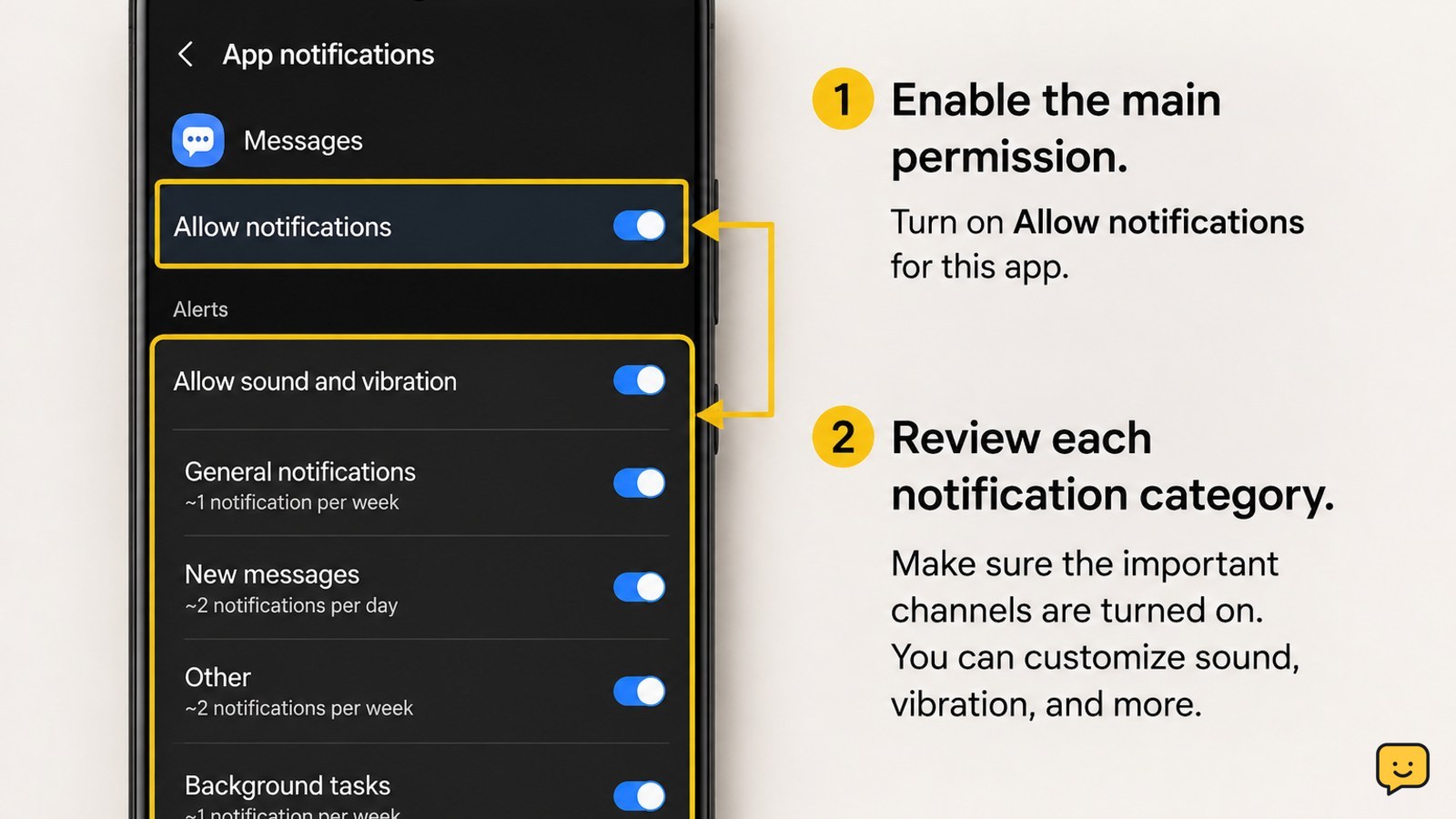
- Review the list of notification categories or channels. Turn on the categories you need, such as messages, calls, reminders, or account alerts.
- Open an important category and choose an alerting option rather than silent, if your phone offers that choice. Check that sound, vibration, lock-screen display, and pop-up behavior are not disabled.
On Android versions that ask for notification permission when an app is first opened, the permission may have been declined during setup. Re-enable it from the app’s system notification page.
Verify: Trigger a new test alert while the screen is locked. If the alert appears in the notification shade but makes no sound, the channel is likely set to silent or the phone is muted. If no alert appears at all, continue.
Remove battery restrictions and allow background activity
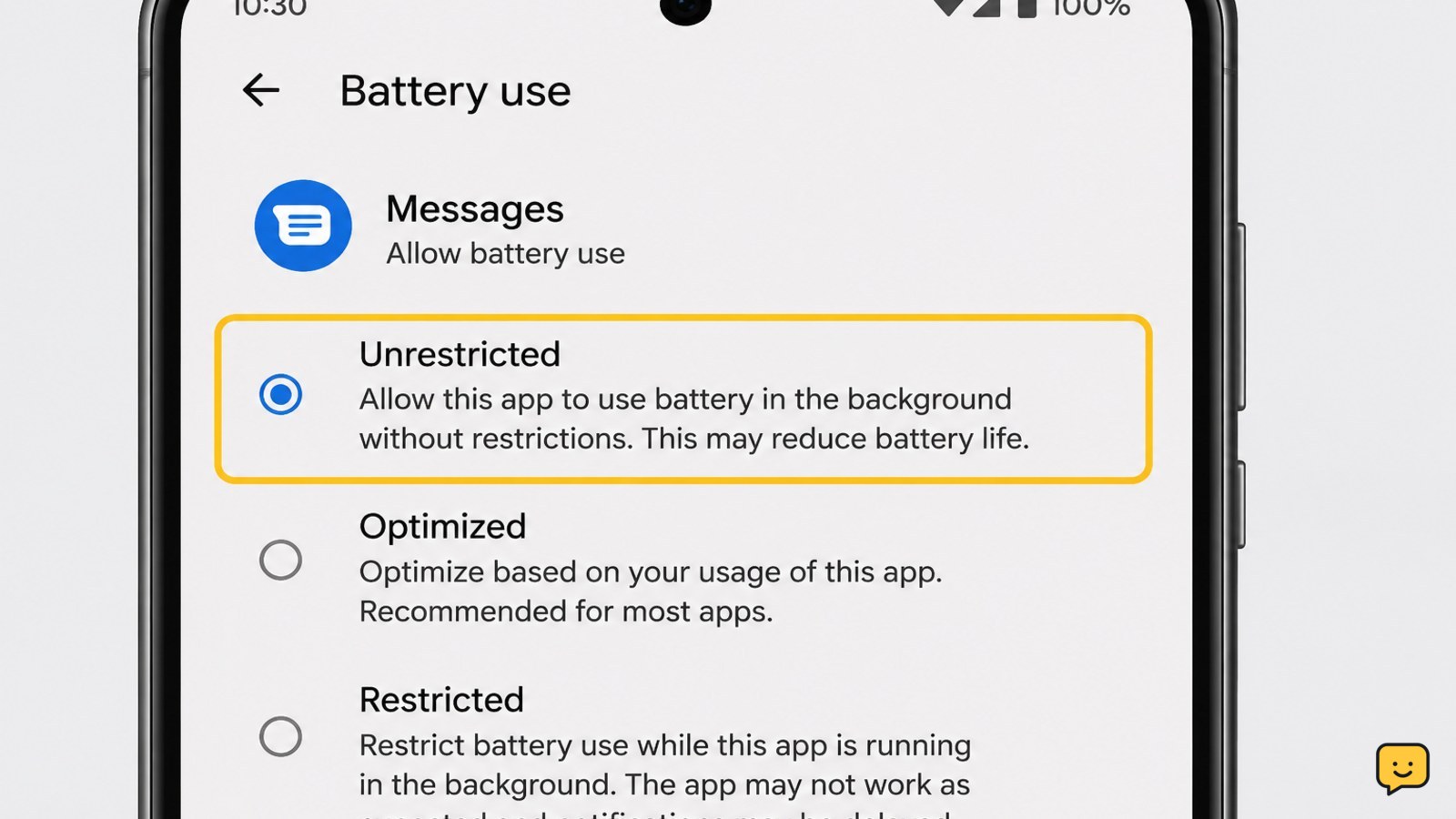
Battery-saving controls can limit an app’s background work. That can prevent a push message from being processed until you open the app. Manufacturers may use different labels, including Unrestricted, Allow background activity, Don’t optimize, or Never sleeping.
- Open Settings and go to Apps or App management.
- Select the affected app and tap Battery.
- Choose Unrestricted or enable background activity, if available.
- Check the phone’s global battery-saver mode. Temporarily turn it off for testing, especially if it was enabled when the problem began.
- On Samsung phones and some other devices, check sleeping or deep-sleeping app lists and remove the affected app if it is listed.
Do not disable battery protection for every app. Apply the change only to the app that needs timely alerts, because unrestricted background activity may increase battery or data use.
Verify: Close the app, lock the phone for several minutes, and trigger a fresh notification. If alerts return only after opening the app, its background activity or connection may still be restricted.
Check Do Not Disturb, modes, and phone-wide filters
Do Not Disturb may hide or silence one app even when its notification permission is enabled. Scheduled modes, Bedtime mode, Driving mode, and manufacturer-specific routines can apply their own notification filters.
- Open Settings and tap Notifications, Sound, or Modes and routines.
- Open Do Not Disturb or the active mode.
- Review the allowed apps and notification types. Add the affected app if you want it to break through the mode.
- Check schedules and automatic rules, then temporarily disable the active rule for testing.
- Look at the notification shade and confirm that the phone is not in silent mode or set to a very low notification volume.
If the notification is present but hidden from the lock screen, review Notifications on lock screen. Privacy settings can hide notification details without blocking the alert itself.
Verify: Turn off the active mode temporarily, lock the phone, and send a new alert. Re-enable the mode afterward and add only the app or alert types you actually need.
Refresh the app connection and clear temporary data
Before removing app data, refresh the app and its network connection. Open the app, check for an in-app notification switch, sign out only if the app’s support instructions recommend it, and install any available update from Google Play. Then restart the phone.
- Open Settings > Apps and select the affected app.
- Tap Force stop, confirm, and open the app again.
- Tap Storage or Storage & cache.
- Tap Clear cache. Do not tap Clear storage or Clear data yet.
- Restart the phone and test a new notification while the app is closed.
Clearing the cache removes temporary files. Clearing storage or data resets the app and may remove downloaded content, local settings, or an active sign-in. If you must try it, first confirm that the account, messages, files, or settings are synchronized with the app’s service and that you can sign back in.
Verify: If notifications return after clearing the cache, the issue was likely a temporary app state. If they still fail, reinstall the latest app version only after confirming your data and account access are safe.
If notifications still do not appear
Check the app’s official help page or service-status page for an outage, changed notification policy, or account-specific restriction. Some services send alerts only for selected conversations, devices, or account events.
Update Android and the affected app, then test again. If the app works normally when open but never receives background alerts, report that exact behavior to the app developer with the phone model, Android version, app version, and the settings you checked. Do not include passwords, verification codes, or private message content in a support request.
If every app has stopped notifying, return to global notification settings, Do Not Disturb, notification history, sound controls, and system updates. A single-app fix will not resolve a phone-wide notification failure.
Stop troubleshooting: If permissions, channels, battery settings, and Do Not Disturb are correct but the app still fails after an update and restart, the remaining cause may be the app’s service, account, or compatibility with the phone. Use the developer’s official support route.
Frequently asked questions
Why are notifications missing from only one Android app?
The app may be blocked in Android’s notification permission, or one of its notification channels may be muted. Its own settings, battery restrictions, Do Not Disturb rules, background data limits, or a temporary app error can also affect only that app. Check system and in-app settings before clearing data.
How do I turn notifications back on for an Android app?
Open Settings, go to Notifications, open App notifications, select the affected app, and turn on Allow notifications. Review each notification category or channel and enable the types of alerts you want. Menu names vary, so search Settings for the app name if you cannot find the page.
Can battery saver stop notifications from one app?
Yes. Battery optimization or sleeping-app controls can delay background activity until the app is opened. Open Settings, select Apps, choose the affected app, tap Battery, and select Unrestricted or the closest equivalent. Apply this to the affected app only and test again with the phone locked.
Will clearing app data fix missing Android notifications?
It can reset a damaged app state, but it should be a later step. Clearing data may sign you out, remove downloaded files, or erase information stored only on the phone. Confirm synchronization and account access first. Try Force stop, Clear cache, an update, and a restart before clearing data.
Why do I see the notification but hear no sound?
The app’s notification channel may be set to Silent, or the phone may be muted, in Do Not Disturb, or using a low notification volume. Open the app’s notification category, choose an alerting option if available, and check sound, vibration, volume, and active modes.
Browse more Mobile Devices guides for help with this topic.


