
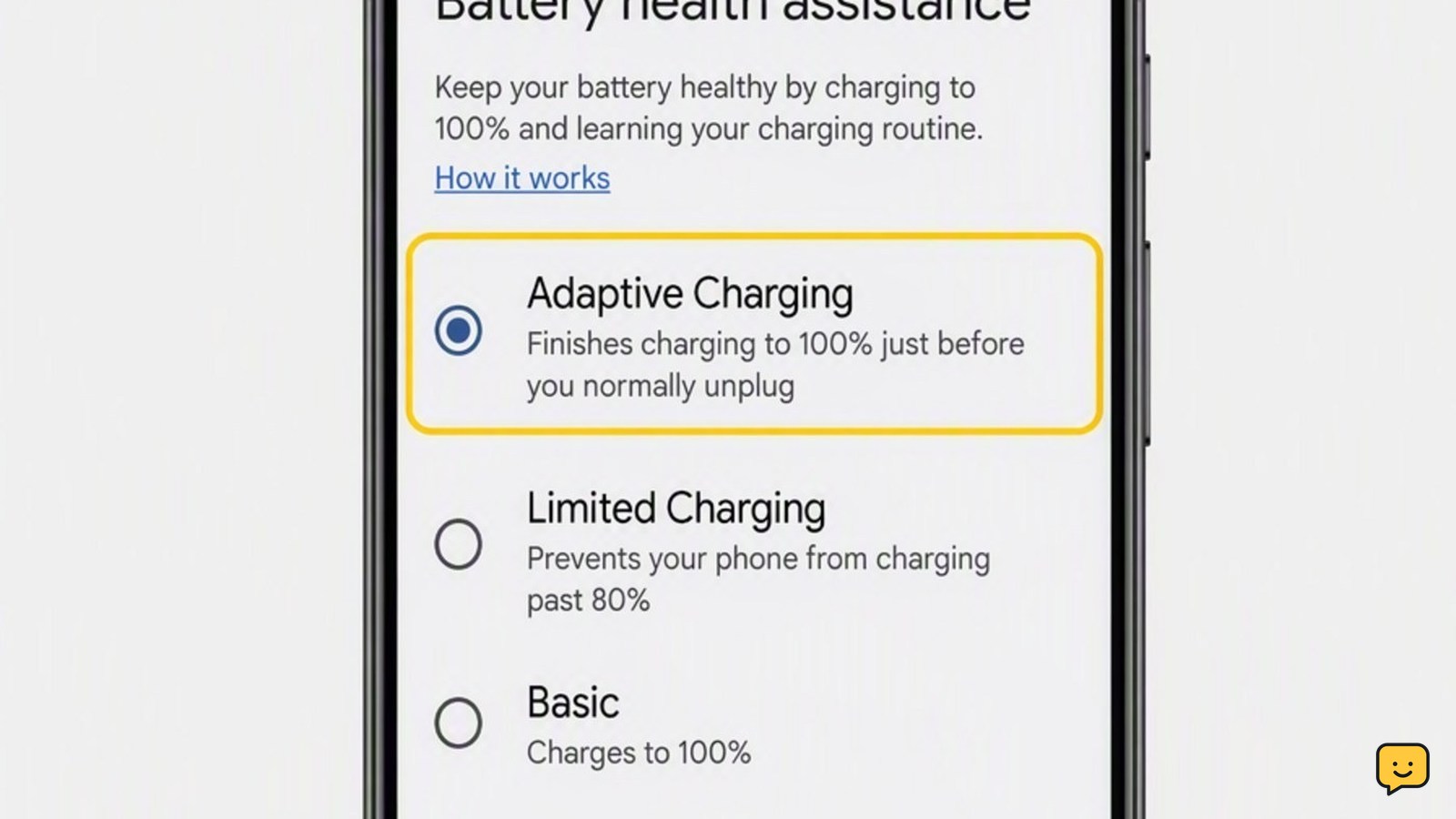
First, make sure Adaptive Charging is enabled and any 80% charge limit is not selected. Then leave the Pixel plugged in during a consistent overnight routine; the feature can need about 14 days to learn your habits. If it still never activates, check alarms, phone temperature, charger reliability, software updates, and battery condition in that order.
Confirm that Adaptive Charging is actually failing
Adaptive Charging is designed to delay part of an overnight charge and finish closer to when you normally unplug the phone. A brief pause near 80% can therefore mean the feature is working correctly.
- Connect the Pixel during your normal overnight charging period.
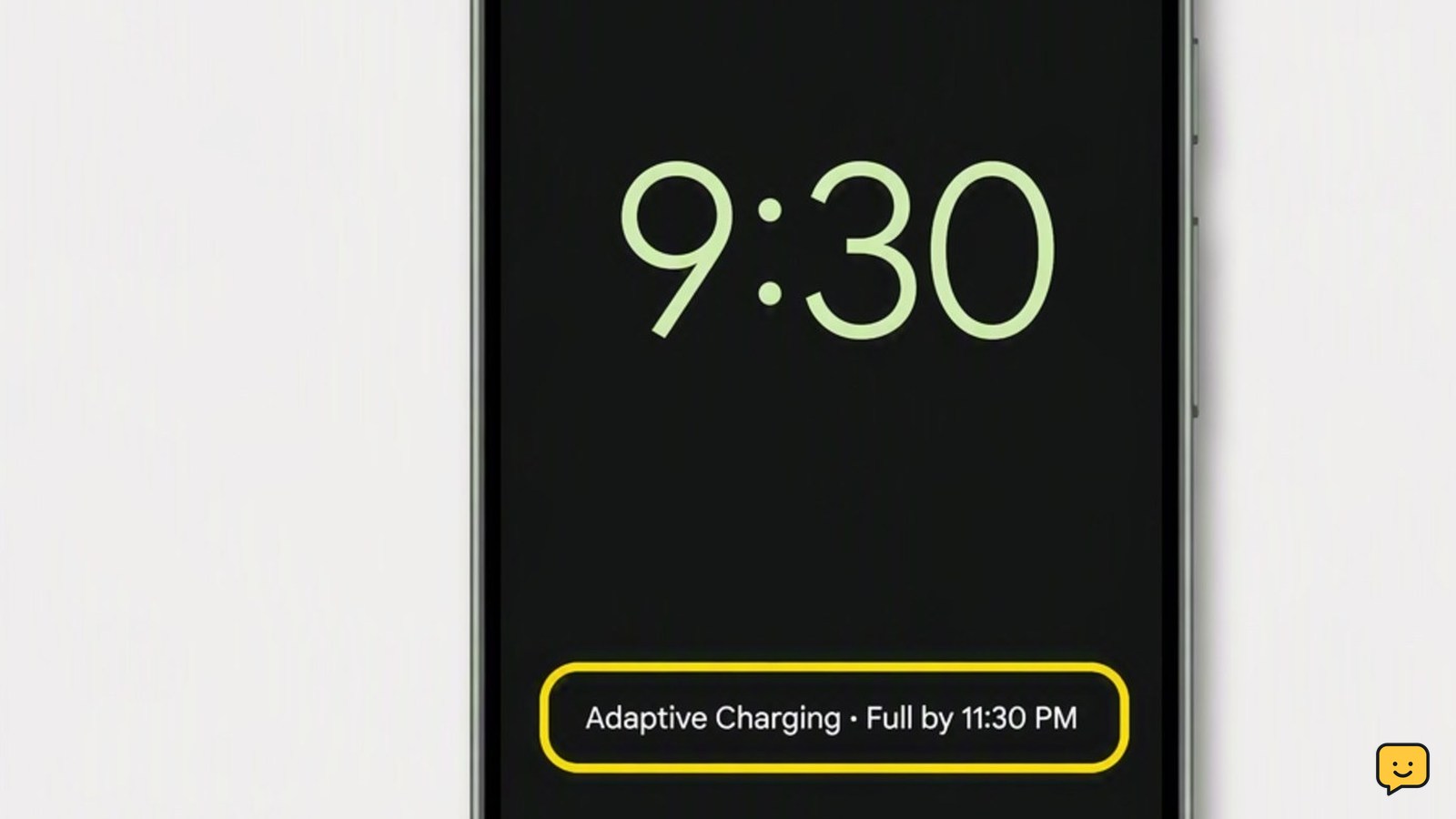
- Check the lock screen for an Adaptive Charging message or an estimated completion time.
- Check again shortly before your usual wake time. The battery should eventually continue toward a full charge.
If the phone gains no charge, disconnects repeatedly, or remains far below its target by morning, test normal charging first. That behavior may indicate a charger, cable, port, temperature, or battery problem rather than an Adaptive Charging problem.
Check the charging optimization setting
Pixel menu names vary by model and Android version. Use Settings search if the following options do not appear in the expected location.
- Open Settings and search for Adaptive Charging or Charging optimization.
- Open the matching result and turn on Adaptive Charging.
- If the screen offers both Adaptive Charging and an 80% limit, select Adaptive Charging. The fixed limit is a separate charging mode.
- If the switch was already on, turn it off, restart the phone, and turn it back on.
On some Pixel versions, the setting appears under Battery > Charging optimization. Older versions may place it under Battery > Adaptive preferences.
Give the Pixel time to learn your routine
Google says Adaptive Charging can need about 14 days to learn charging habits. It may not activate consistently after a new phone setup, a reset, travel, shift-work changes, or several nights with different charging times.
- Plug in at approximately the same time each night.
- Leave the phone connected until your normal wake time.
- Repeat this routine for up to two weeks before concluding that the learning feature is broken.
Do not repeatedly change the clock, time zone, alarms, or bedtime schedule just to force a test. Irregular test conditions can make the result harder to interpret.
Check your alarm and overnight schedule
Adaptive Charging behavior differs across Pixel models and software versions. Current versions can learn when you normally unplug, while some earlier implementations relied more heavily on overnight timing and a morning alarm.
- Set one alarm for your genuine wake-up time if you normally use an alarm.
- Make sure the alarm is enabled for the next morning and that the phone’s date, time, and time zone are correct.
- Connect the charger near your usual bedtime and leave it connected overnight.
An alarm is not a guaranteed fix on every Pixel, so do not treat the absence of an alarm requirement as proof of a fault. Routine consistency remains important.
Rule out heat and charging accessory problems
Battery protection can slow or pause charging when the phone becomes too warm. Wireless charging, a thick case, gaming, navigation, video calls, or a hot room can add heat and obscure your Adaptive Charging test.
- Let the phone cool naturally to room temperature. Never put it in a refrigerator or freezer.
- Remove a thick case temporarily if it traps noticeable heat.
- Close demanding apps and avoid using the phone while it charges.
- Test with a known-good USB-C cable, compatible wall adapter, and another wall outlet.
- If you normally charge wirelessly, run one overnight test with a reliable wired charger.
Turn Adaptive Charging off briefly and watch the battery for 15 to 30 minutes. If charging remains intermittent or does not begin, stop troubleshooting the adaptive feature and investigate the charger, cable, USB-C port, or battery instead.
Restart and install available updates
A restart clears temporary charging-service errors without deleting personal data. Updates may also correct battery-management problems.
- Disconnect the charger and restart the Pixel normally.
- Open Settings > System and install any available system update.
- Search Settings for Google Play system update and install an available update.
- Restart again if requested, reconnect the charger, and confirm that Adaptive Charging remains enabled.
Do not factory-reset the phone solely because Adaptive Charging did not appear. A reset erases data and still will not force the feature to activate when its schedule conditions are not met.
Run a controlled overnight test
Use one repeatable test to separate expected adaptive behavior from an actual failure.
- Start with the battery below approximately 80% so there is enough charging activity to observe.
- Enable Adaptive Charging and set your normal morning alarm if you use one.
- Connect a known-good wired wall charger near your regular bedtime.
- Leave the Pixel unused and connected overnight in a room-temperature location.
- Check the lock screen after charging begins and again near your wake time.
The expected result is a charging delay or pause followed by completion near the time the phone predicts you will unplug it. If the feature does not appear during one night, continue your normal routine; Google notes that learning can take about 14 days.
Check battery condition and know when to get help
If Adaptive Charging still never activates after consistent testing, check whether the battery or charging system has a broader problem.
- Search Settings for battery diagnostics or battery health; availability varies by Pixel model and Android version.
- Look for rapid battery loss, unexpected shutdowns, a battery percentage that jumps, or charging that stops when the cable moves.
- Inspect the USB-C port under good light. If it contains visible debris, power off the phone and have the port cleaned safely; do not insert metal tools or liquids.
- Contact Google support or an authorized repair provider if normal charging is unreliable or a battery warning appears.
If normal charging works but Adaptive Charging remains inconsistent, you can leave the feature off temporarily. This restores ordinary charging while you wait for the phone to relearn your schedule or receive a software update.
Frequently asked questions
Why does my Pixel stop charging at 80% overnight?
It may be working as intended. Adaptive Charging can pause or slow charging near 80% and resume later so the battery finishes closer to your normal unplug time. Check the lock screen for an Adaptive Charging message. If you selected a fixed 80% charging limit instead, the phone may remain at that level until you change the charging optimization mode.
Does Pixel Adaptive Charging need an alarm?
Not on every Pixel version. Newer implementations can learn your usual charging and unplugging routine, while some older versions relied more heavily on overnight timing and a morning alarm. Setting a genuine wake-up alarm can help with testing, but consistent charging habits are more important than repeatedly creating temporary alarms.
How long does Adaptive Charging take to learn?
It can take about 14 days. Google says the feature needs time to learn charging habits, and it may not activate when those habits vary. A new phone, recent reset, travel, shift change, or inconsistent bedtime can restart or disrupt that learning period.
Why did my Pixel charge straight to 100% instead of using Adaptive Charging?
The phone may not have recognized a predictable overnight routine. Adaptive Charging can also stay inactive after schedule changes, travel, a recent setup, or when the device has not had enough time to learn. Confirm the setting is enabled, then test with the same bedtime, charger, and wake time for several nights.
Should I reset my Pixel to fix Adaptive Charging?
No, not as an early troubleshooting step. A factory reset erases your data and does not guarantee that Adaptive Charging will activate. Check the charging mode, routine, alarm, temperature, accessories, and updates first. Consider service rather than a reset if the phone also has intermittent charging, shutdowns, swelling, or a battery warning.
Browse more Mobile Devices guides for help with this topic.


