To change keybinds in The Isle Evrima, open the in-game Settings menu, select the controls or keybinding list, choose an action, and press the new key or mouse button. Check for duplicate assignments before leaving the menu, then test movement and combat actions in a safe area. Use Restore Defaults if the layout becomes unreliable.
Confirm you are changing Evrima controls
This guide applies to The Isle Evrima on PC. Do not assume a Legacy guide matches Evrima: Legacy and Evrima are separate game versions, and their available mechanics and control screens may differ.
From the title screen or while in game, open the pause or main menu and look for Settings. Find the page labelled Controls, Keybindings, Input, or a similarly named control list. Labels can change between updates, so follow the function rather than relying on one exact label.
Verify you are in the right place by checking that the screen lists playable actions with their current keyboard or mouse assignments. If you only see graphics, audio, or gameplay options, return to the Settings categories and select the controls-related page.
Rebind a key in Evrima
-
Select the action you want to change. Start with one frequently used action instead of replacing your entire layout at once.
-
Activate its current binding field. The game should enter a waiting state for input, usually by highlighting the field or displaying a prompt.
-
Press the keyboard key or mouse button you want to use. Avoid pressing keys you use for typing in chat unless that trade-off is intentional.
-
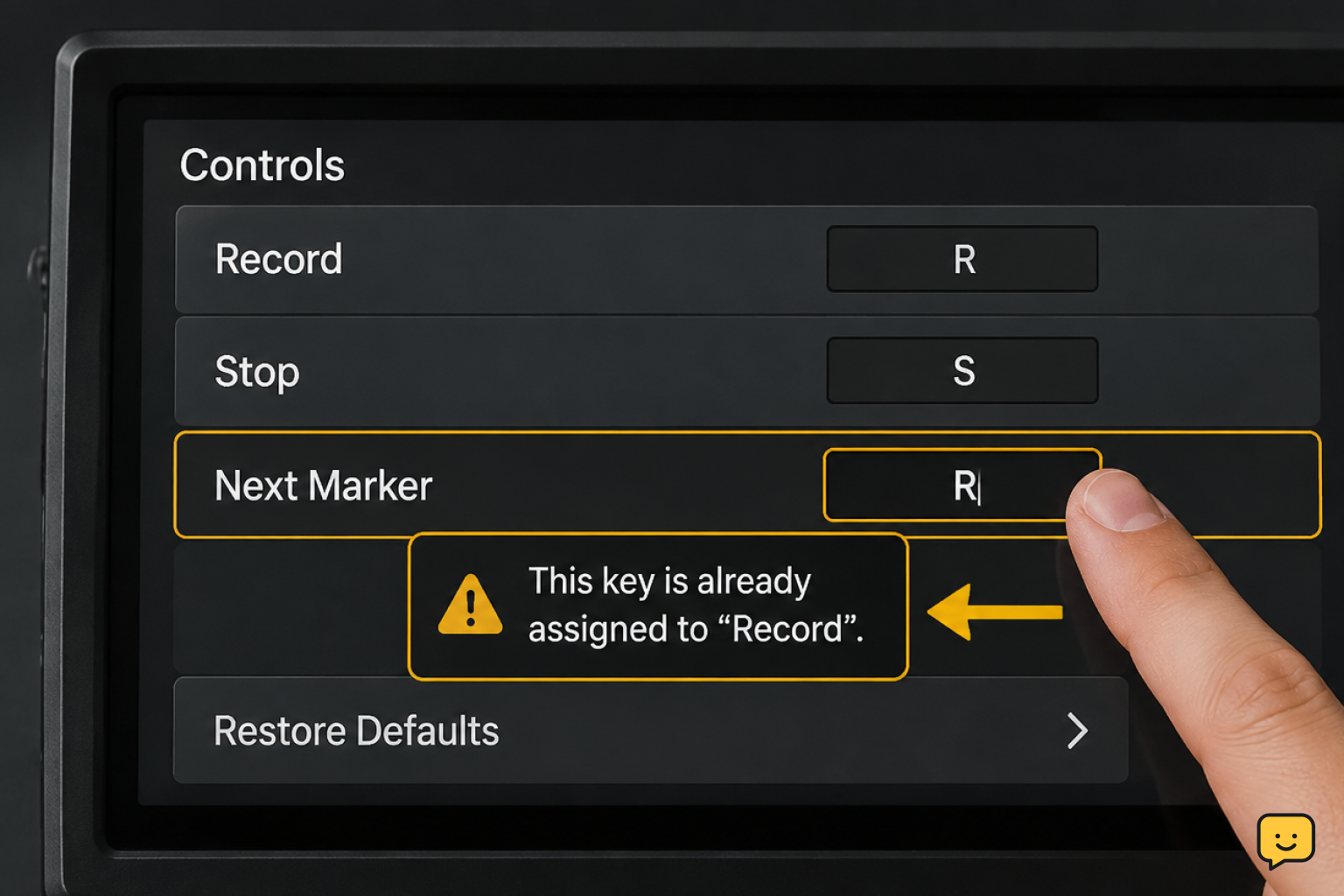
Read any duplicate-binding warning. If the selected input is assigned elsewhere, either cancel and choose another input or move the other action to a new key.
-
Repeat for the next action, then leave the menu normally so the game can retain the changes.
Make changes in small groups. For example, rebind movement-related actions first, test them, and only then adjust combat or communication controls. This makes it much easier to identify the last change if something stops working.
Build a comfortable movement and combat layout
Keep actions that must be used together within comfortable reach. Movement is commonly performed with W, A, S, and D, while the mouse controls camera direction; the community controls reference describes that basic arrangement. Changing one part of that setup can affect how natural sprinting, turning, and looking around feel.
Put high-priority survival actions on keys you can reach without moving far from movement keys. Give less urgent actions keys farther away. Mouse side buttons can be useful if your mouse supports them, but test them carefully because some buttons may also be captured by overlays or device software.
Do not create a layout that requires one finger to perform two simultaneous actions during a chase or fight. A binding that seems convenient in the menu may be uncomfortable when you must move, look, and activate an ability at the same time.
Verification: after each group of changes, enter a low-risk area and confirm you can move forward, strafe, turn the camera, sprint, and use each newly assigned action without releasing an essential movement key.
Check and resolve control conflicts
A conflict occurs when two actions share an input and the game cannot use both as expected. Some games allow shared keys in separate contexts, but you should not rely on that behavior for important Evrima actions unless you have tested it yourself.
If a warning appears, write down the action currently using the key. Choose one of these safe fixes:
-
Assign a different unused key to the new action.
-
Move the old action to another key, then assign the preferred key to the new action.
-
Cancel the change and keep the working default.
Community reports have described cases where control selection or input behavior did not work as expected. If the binding field fails to capture your key, back out of the menu, reopen it, and try one simple keyboard key. Disconnecting unnecessary controllers can also help isolate whether a second input device is interfering.
Stop condition: if a key begins navigating menus instead of changing the selected binding, stop making further edits. Exit the screen, restart the game, and check whether the problem remains before changing other settings.
Restore default keybinds
Use the controls page’s Restore Defaults, Reset, or equivalent option when several bindings are wrong, an essential action no longer works, or you cannot identify the conflict. Confirm the reset only after you are ready to lose your custom control layout.
-
Open Settings and return to the controls or keybinding page.
-
Select Restore Defaults or the reset option for controls.
-
Accept the confirmation if one appears.
-
Leave the menu, then test basic movement and one interaction or combat action.
-
Reapply custom keys one at a time, testing after each small group.
A reset is preferable to copying file-editing advice from old posts or videos. Community discussions mention local settings folders as a troubleshooting route, but the exact files and effects can vary by build. Start with the supported in-game reset because it is easier to reverse and less likely to disturb unrelated settings.
If Evrima will not save or recognize your keybinds
First, restart The Isle after making a small test change. Reopen Settings and check whether that one binding persisted. If it did, add the rest gradually. If it did not, restore defaults and test again with no controller or extra input device connected.
If the controls page itself behaves incorrectly, avoid repeatedly assigning random keys. Record what happened, including the action selected, the input pressed, and whether the game showed a conflict prompt. Steam community troubleshooting posts and Reddit reports show that input-menu problems can occur, but they do not establish one universal fix for every Evrima build.
If the issue continues after a restart and default reset, use the game’s current support or bug-report channel and include your Evrima version, operating system, input devices, and the exact steps that reproduce the problem. Stop using the affected layout for combat until basic movement and camera controls work consistently.
Frequently asked questions
Can I change keybinds in The Isle Evrima while on a server?
Yes, you can generally open the in-game Settings menu and adjust controls while connected, but make changes in a safe location. Testing a new layout while threatened can cause missed movement or combat inputs. Confirm the new binding works before relying on it.
Why does Evrima say my new key is already assigned?
It means the key is already linked to another action. Choose a different key, or deliberately move the existing action first. Do not ignore the warning for important controls unless you have tested both actions in the situations where you need them.
How do I reset The Isle Evrima controls to default?
Open Settings, go to the controls or keybinding page, and use Restore Defaults or the available reset option. Confirm the reset, then test movement and other essential actions. Reapply custom bindings slowly so you can catch conflicts early.
Are The Isle Legacy keybind guides valid for Evrima?
No, not automatically. Evrima and Legacy are different versions of The Isle, and their control menus, mechanics, and available actions can differ. Use an Evrima-specific guide and confirm each action exists in your current controls list.
What should I do if Evrima does not detect the key I press?
First, leave and reopen the controls menu, then try assigning a simple keyboard key. Restart the game if the field still does not capture input, and disconnect unneeded controllers to test for interference. Restore defaults before considering any configuration-file troubleshooting.
Planning your next route? Use the The Isle Evrima map to find key locations before you move.