Open the Star Map with F2, search for or select the destination, then choose Set Route. Close the map, align with the route marker, and engage the quantum drive when the ship allows it. A plotted line and active destination confirm the route; if travel is unavailable, check alignment, obstacles, or whether the location supports direct quantum travel.
Browse more Star Citizen guides
Open the Star Map and find the destination
Press F2 to open the Star Map. You can also open mobiGlas with F1 and select the Star Map from its interface if that path is available in your current bindings.
Use the map search field to find a named station, moon, planet, city, or other point of interest. For a mission, compare the map result with the contract marker before selecting it. Selecting only a nearby planet or orbital marker can send you to the wrong part of the system.
If F2 does nothing, stop using the old shortcut as a diagnosis. Check the game’s keyboard bindings for the Star Map command, then reopen the map and confirm that the navigation screen appears.
Select the exact point and choose Set Route
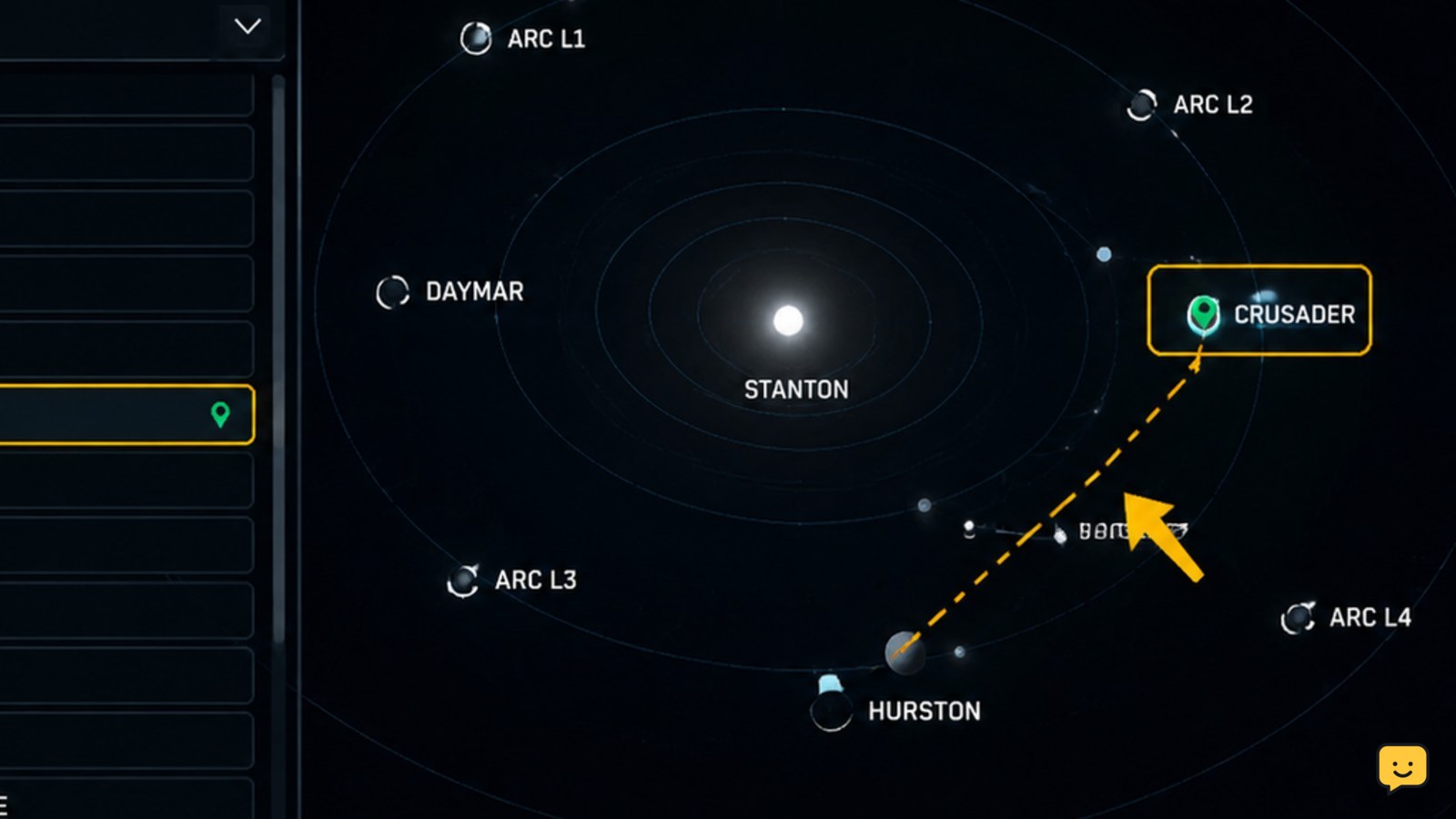
Click the intended destination so its information panel is highlighted. Choose Set Route to plot the trip. A visible route line should connect your current position with the selected destination; the destination should also remain highlighted in the map interface.
For a long trip, inspect the plotted path before closing the map. If the route ends at a planet when you need a station, city, or moon location, clear or replace the route and select the more specific point of interest.
Do not continue if there is no route line or if the selected object is not the one named by your mission. The route is not verified until both the correct destination and plotted path are visible.
Close the map and align the ship with the route
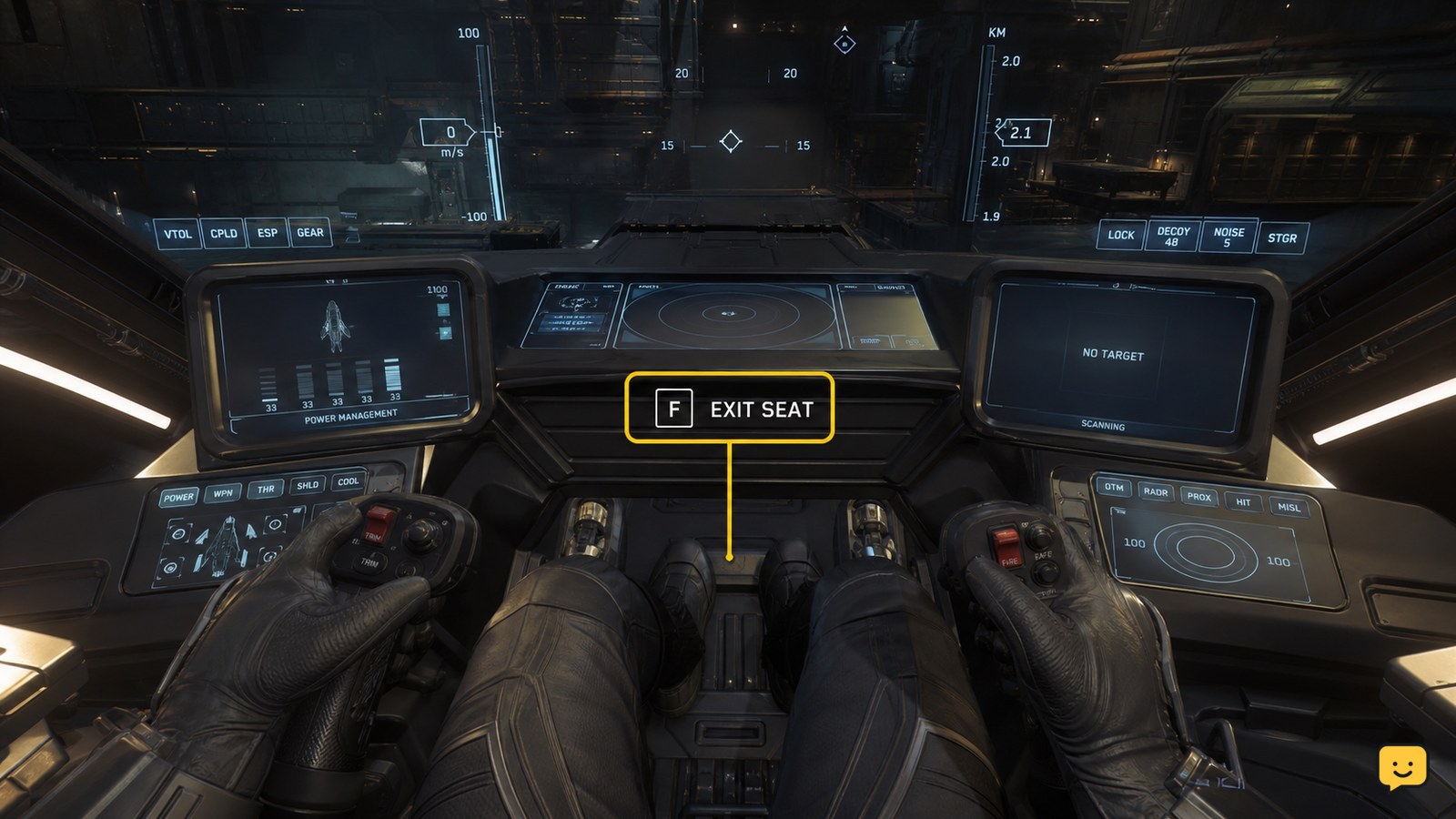
Close the Star Map and return to the cockpit. Point the ship toward the route marker or destination indicator. The quantum drive needs a usable path; nearby bodies, structures, or other obstructions can prevent the drive from engaging.
Keep the ship steady while the destination remains selected. If the marker is behind a planet or another obstruction, do not repeatedly attempt the jump. Turn or reposition until the route is clear, then check whether the quantum-travel prompt becomes available.
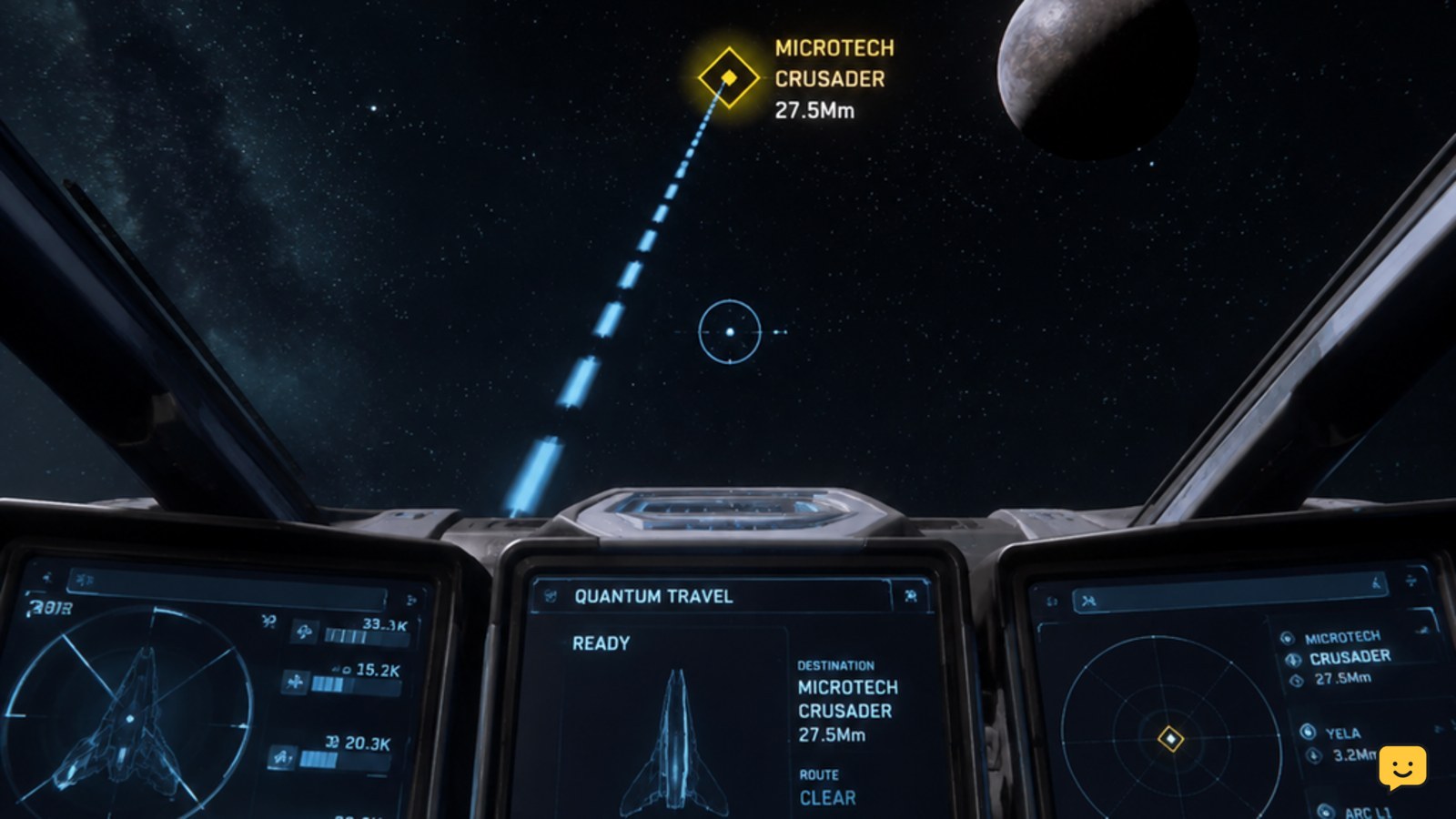
The route is ready when the selected destination remains active in the cockpit navigation display and the ship accepts the quantum-drive preparation or engagement input.
Prepare and engage quantum travel
Activate the ship’s quantum-drive preparation sequence using the current cockpit control shown by your bindings. When the drive has a clear path and the destination is valid, engage quantum travel.
Remain in the cockpit during the transition. Successful travel is shown by the ship entering the quantum-travel sequence and moving along the plotted route rather than simply turning toward the target under normal flight.
After the ship exits quantum travel, compare the new position with the selected destination. A completed jump may place you near a planet, moon, orbital marker, or other route point rather than directly at a landing pad or surface location.
Finish the approach and verify arrival
Use normal flight for the final approach. If the route ends at an orbital marker or planetary body, select the specific station, city, outpost, or landing location again when it becomes available.
Verify arrival by checking the destination name and the ship’s position in the Star Map or cockpit navigation display. For a mission, confirm that the contract marker has changed to the expected location before descending or beginning the next objective.
If the destination is a controlled spaceport, quantum travel only completes the trip; it does not replace the normal landing-clearance and landing procedure.
Fix a route that will not plot or quantum travel will not engage
No destination appears: search by the exact location name and select a result from the map list. If the mission target still cannot be found, reopen the contract and verify that the marker is active before plotting again.
Set Route is unavailable: select the object itself first rather than clicking empty map space. Some targets may also require an intermediate point or may not support a direct quantum jump from your current position.
The route plots but the drive will not engage: check that the ship is clear of nearby obstacles, aligned with the route, and not restricted by its current location. Reposition, wait for the ship to finish any active drive state, and try once more.
You arrive near the wrong place: the route likely used a broader body or orbital marker instead of the final point of interest. Reopen the Star Map, choose the exact station, city, moon, or mission location, and plot a new route.
Stop troubleshooting and replot from a different nearby navigation point when the destination remains hidden behind a body or the direct route stays unavailable after a clear repositioning attempt.
Frequently asked questions
What key opens the Star Map in Star Citizen?
F2 is the documented shortcut for opening the Star Map. You can also open mobiGlas with F1 and use its Star Map interface. If neither input works, check the current key bindings because custom controls or changed defaults can replace the shortcut.
Why can I set a route but not quantum travel to it?
A plotted route does not guarantee immediate quantum travel. The ship may be obstructed, misaligned, restricted by its current location, or unable to make a direct jump to that target. Move clear of nearby bodies or structures, align with the route marker, and try an intermediate navigation point if direct travel remains unavailable.
Does quantum travel take me directly to a landing pad?
No. Quantum travel can place you near a planet, moon, orbital marker, station, or other navigation point. Select the specific landing location afterward, then complete the normal approach and landing process. A plotted route is complete only when the ship reaches the intended navigation target.